How to Analyze Sales & Ecommerce Metrics in Google Analytics 4

Running a WooCommerce store is exciting, but it can also be confusing. You know some products sell well, while others don’t. But do you really know why? Or which parts of your site are losing sales?
This is where you require GA4 Ecommerce metrics. GA4 doesn’t just track numbers. It also helps you see how customers behave, what drives purchases, and where you might be losing revenue.
The big difference from the old Universal Analytics is that GA4 tracks everything as events. Every product view, add-to-cart click, and completed purchase is recorded in detail.
In this guide, we’ll explain the important GA4 eCommerce metrics for WooCommerce. You’ll learn how to analyze eCommerce data, spot opportunities, and make decisions that can actually grow your store.
GA4 Ecommerce Metrics (TOC):
Why GA4 Matters for WooCommerce Analytics
If you’re running a WooCommerce store, you already know that data is everything. But collecting data isn’t enough; you need accurate, actionable insights.
That’s precisely what GA4 provides, the eCommerce Analytics.
With GA4 WooCommerce Analytics, you can:
- See revenue clearly: Track exactly how much each product or category brings in.
- Understand customer behavior: Know which products people view, add to cart, and purchase.
- Measure conversions more accurately: GA4’s event-based tracking gives a clearer picture than the old pageview-based reports.
- Use predictive metrics: GA4 can estimate purchase probability, churn risk, and potential revenue.
These insights help you make smart decisions, like improving weak product pages, optimizing checkout, or targeting the right customers with ads.
For WooCommerce store owners, this is a big deal. You’re no longer guessing which steps matter most, you can track them directly.
Now that you understand the basics, let’s see how GA4 captures ecommerce data and which events are critical for tracking eCommerce revenue GA4.
How GA4 Captures Ecommerce Data (Event-Based Model Explained)
GA4 tracks ecommerce activity using events, which are basically individual actions users take on your site. For WooCommerce stores, the most important events include:
- view_item: When someone views a product page
- add_to_cart: When a product is added to the cart
- Begin_checkout: When the checkout process starts
- purchase: When an order is completed
Each of these events can carry extra information, like product name, ID, price, quantity, and category. That gives you a detailed view of which products are performing well and which aren’t.
GA4 also tracks users across devices and sessions, so you can see the full customer journey even if someone browses on their phone and buys later on a laptop.
The event-based model is more accurate than the old session-based tracking. It reduces gaps in data, captures micro-conversions, and helps you make smarter business decisions.
Now that you know how GA4 collects ecommerce data, let’s look at the metrics that really matter for your revenue.
Core GA4 Ecommerce Metrics You Must Track
GA4 provides a wide range of ecommerce metrics, but some are more important than others. Let’s break them down.
1. Revenue Metrics
- Total revenue: How much money your store made in a given period.
- Item revenue: Revenue from individual products.
- Average purchase revenue: Average amount customers spend per order.
- First-time purchaser revenue: How much new customers are spending.
2. Funnel Metrics
- Track the customer journey: product view → add-to-cart → checkout → purchase.
- Identify drop-off points where customers leave before completing a purchase.
- Optimize weak steps to improve conversions.
3. Product Performance
- Top-selling products: See which items drive most revenue.
- Add-to-cart rate: How often a product is added to the cart after viewing.
- Product refund rate: Track returns to spot issues.
4. Customer Behavior Metrics
- First-time vs returning customers: Helps tailor offers and marketing.
- Engagement time: How long users spend interacting with products.
- Checkout behavior: Which steps slow down the purchase process.
5. Predictive Metrics (Condensed)
- Purchase probability: Likelihood of a user making a purchase soon.
- Churn probability: Likelihood of losing a customer.
- Revenue prediction: Expected revenue from specific users or segments.
These metrics give you a complete picture of your store’s performance. You can see what’s working, what isn’t, and where to focus your efforts.
Next, we’ll see exactly where to find these reports inside GA4 so you can start using them.
How to Find and Analyze GA4 Ecommerce Reports (Step-by-Step)
GA4 organizes ecommerce data into clear reports, so you can quickly find the insights you need. Here’s where to look:
1. Monetization >> Overview
Go to your GA4 dashboard to see Monetization reports.
In the left-hand menu, click Monetization >>Overview.
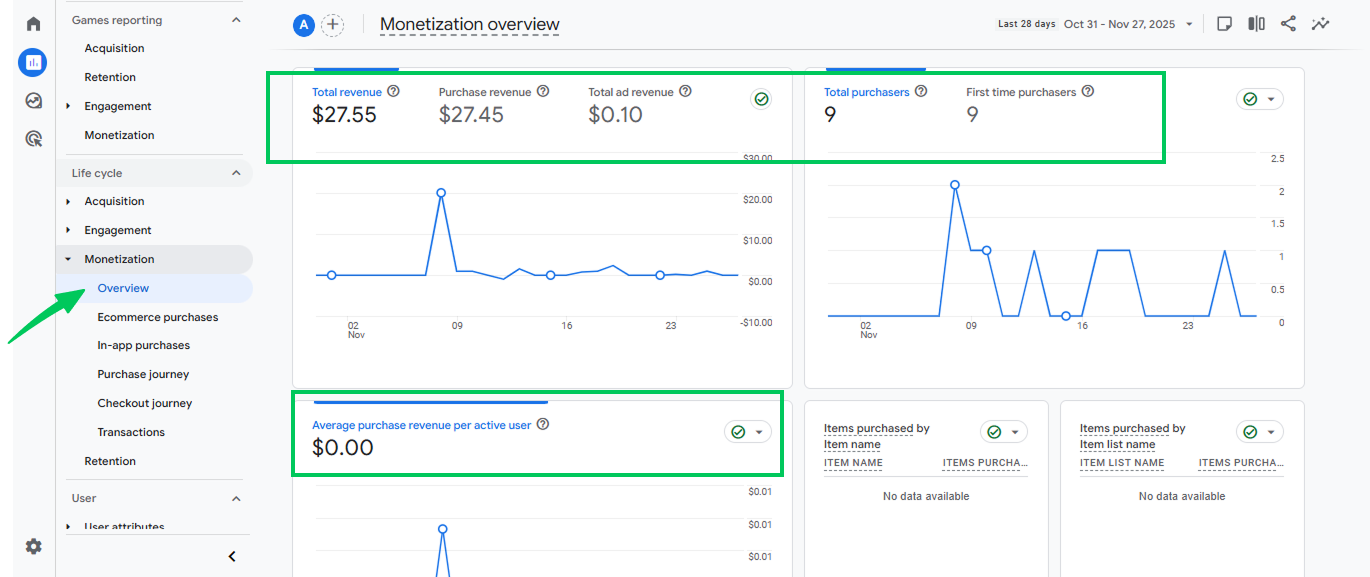
Here you’ll see:
- Total revenue: Overall money earned in your selected date range.
- Purchases: Number of transactions completed.
- Average purchase revenue: Average order value.
- Top-selling products: A table showing products that brought in the most revenue.
How to analyze:
- Compare revenue over time using the line graph at the top.
- Identify if certain products are consistently top sellers or seasonal spikes.
- Check average purchase revenue to see if your promotions or bundles are working.
2. Ecommerce Purchases
Navigate to Monetization >> Ecommerce Purchases.
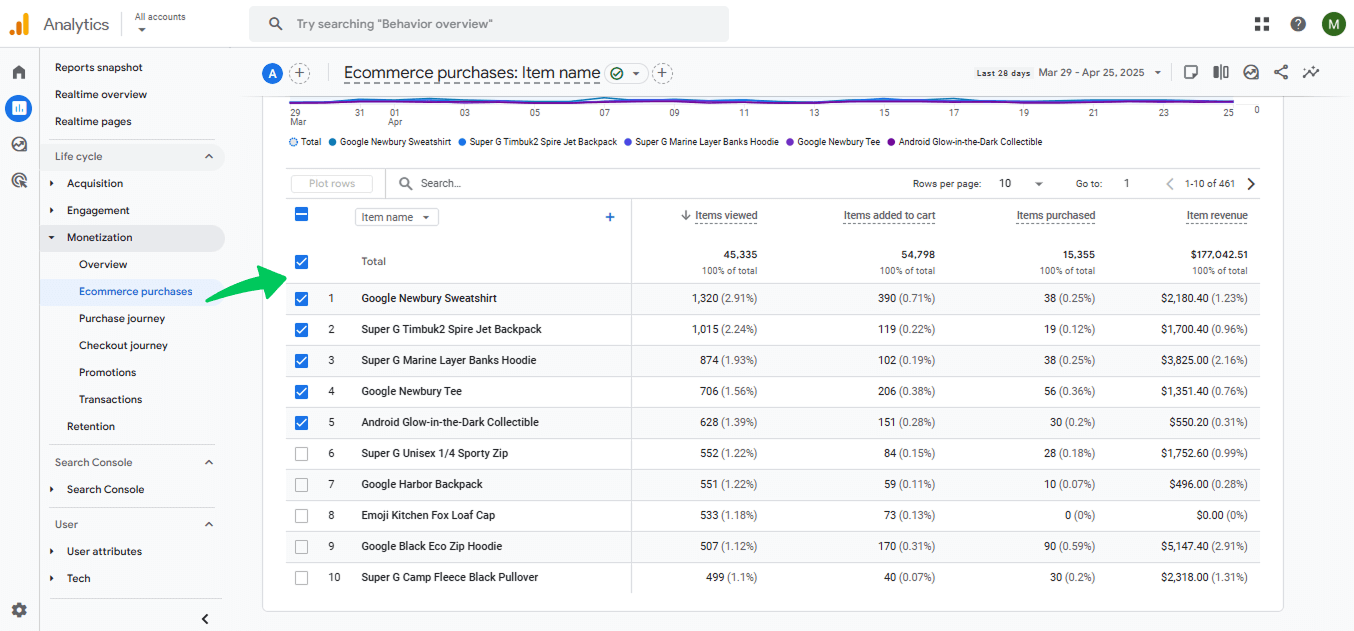
You’ll see a table listing:
- Product name
- Item revenue
- Quantity sold
- Add-to-cart rate
- Refunds (if tracked)
How to analyze:
- Spot high-revenue products with low add-to-cart rates. These might need better marketing.
- Identify products with high add-to-cart but low purchases → potential checkout issues.
- Compare sales by category to see which product types drive the most revenue.
3. User Purchase Journey
Go to Explore >> Path Exploration in GA4.
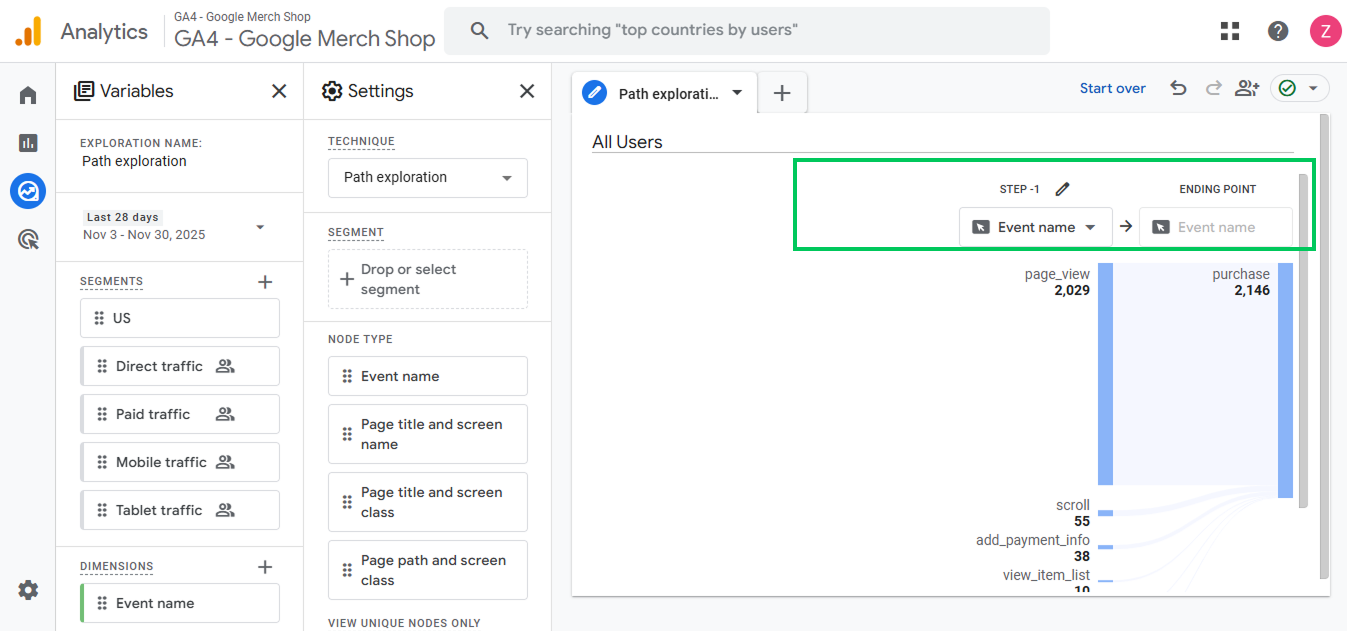
Select Start from a page or event.
Choose “purchase” as the end event.
How to analyze:
- Visualize the paths customers take before buying.
- Find common drop-off points, like abandoned carts or product pages with no add-to-cart actions.
- Optimize pages or funnels where users exit frequently.
4. Purchase Journey (Funnel) Report in GA4
The Purchase Journey report is one of the most helpful ecommerce reports in GA4. It works like a built-in funnel and shows how users move from viewing a product all the way to completing a purchase.
Where to Find It
Open GA4 Reports from the left sidebar.
Go to Monetization >> Purchase Journey.
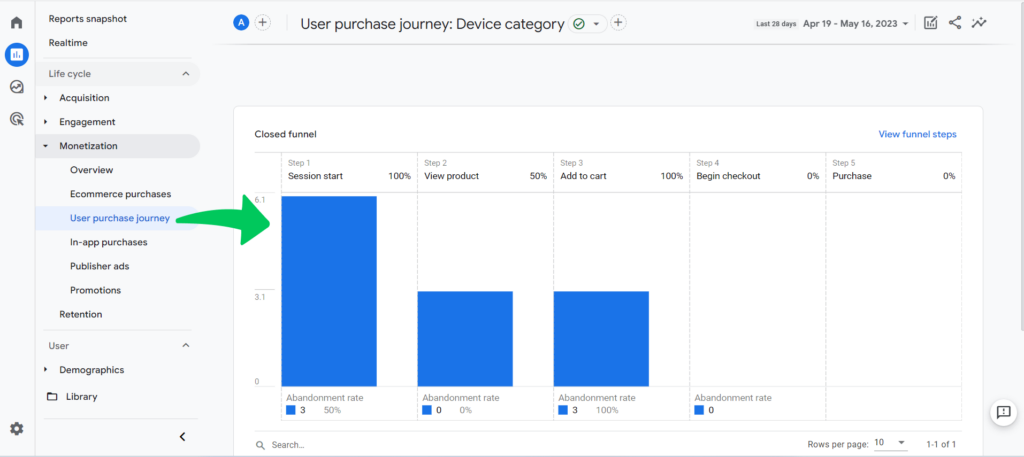
GA4 will load a complete conversion tracking GA4 funnel showing these key steps:
- View item
- Add to cart
- Begin checkout
- Add payment info
- Purchase
What You’ll See
GA4 displays each step as a bar funnel, so you can quickly spot where users drop off.
This report updates automatically as long as your ecommerce events are correctly implemented.
How to Analyze the Purchase Journey
The main goal is to understand where the conversion flow breaks.
1. High Views but Low Add-to-Cart
This means users like browsing your products but don’t feel convinced enough to add them to the cart.
Possible issues:
- Weak product descriptions
- Low-quality images
- Missing reviews
- Slow-loading product pages
Action: Improve product details, add trust elements, and optimize page speed.
2. High Add-to-Cart to Low Checkout Begins
This drop usually signals friction before checkout.
Possible issues:
- Unexpected shipping costs
- Complicated cart layout
- Limited payment options
Action: Show shipping estimates early, simplify the cart page, add more payment gateways.
3. High Checkout but Low Purchases
This is pure checkout friction.
Possible issues:
- Too many form fields
- Trust or security concerns
- Promo code confusion
- Payment failures
Action: Remove unnecessary steps, add reassurance badges, fix payment errors, and simplify the coupon box.
Use Comparisons for Deeper Insights
Click Add Comparison at the top of the report to break down funnel performance by:
- Device type
- Traffic source (utm_source)
- Campaign
- Country
- Item category
This helps you find specific problem segments for example, mobile visitors may drop off more than desktop users, or Facebook traffic may add items to cart but rarely purchase.
5. Attribution View
Navigate to Advertising.
Then navigate to Attribution >> Model Comparison.
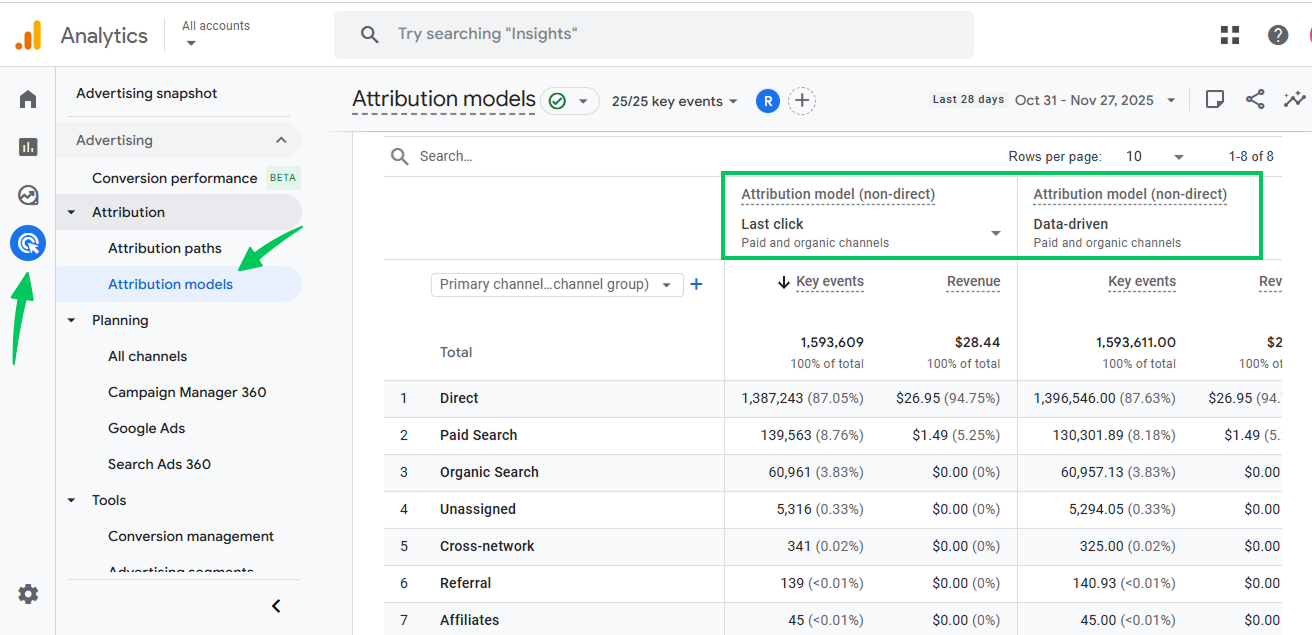
Select an attribution model:
- Data-Driven Attribution (DDA)
- Paid & Organic Last Click
- Ads-Preferred Last Click
How to analyze:
- See which channels or campaigns are driving real purchases.
- Understand the value of social ads, email campaigns, or organic traffic.
- Optimize your ad spend based on which channels truly contribute to revenue.
How to Interpret GA4 Ecommerce Insights (Real Scenarios)
Let’s look at some common scenarios and what they might mean for your WooCommerce store.
1. High Product Views, Low Add-to-Cart
- If lots of users are viewing products but few add them to the cart, it could mean:
- Product pages aren’t convincing
- Prices are too high
- Images or descriptions are unclear
- Product pages aren’t convincing
Action: Improve product content, add reviews, or test pricing.
2. High Add-to-Cart, Low Purchases
- Many people add products to the cart but abandon before purchase.
- Common reasons:
- Shipping costs too high
- Checkout process too long or confusing
- Payment options limited
- Shipping costs too high
Action: Simplify checkout, offer free shipping, or add more payment options.
3. Declining Repeat Customers
- If repeat purchases drop, your store may be losing loyal buyers.
Action: Use retention strategies like email campaigns, loyalty programs, or targeted discounts.
4. High Churn Probability
- GA4 can predict users who are likely to stop buying.
Action: Engage these customers with personalized offers, remarketing ads, or reactivation emails.
Key Tip: Always look at metrics together. For example, a product might have high add-to-cart rates but low purchases. That’s only meaningful if you also check revenue, refund rates, and checkout behavior.
Customer Lifetime Value (LTV) and Retention Metrics
Understanding how much a customer is worth over time is crucial for any WooCommerce store. That’s where Customer Lifetime Value (LTV) comes in.
Why LTV Matters
- Shows the total revenue a customer is likely to generate over their relationship with your store.
- Helps you decide how much to spend on acquiring new customers and which retention strategies to invest in.
How GA4 Estimates LTV
- GA4 uses historical purchase behavior to predict revenue from each user.
- It also factors in repeat purchase probability, giving a realistic estimate of long-term value.
- Segmentation is possible, so you can target high-value users with campaigns or special offers.
How to See LTV in GA4
Go to Explore >> Template Gallery >> User Lifetime.
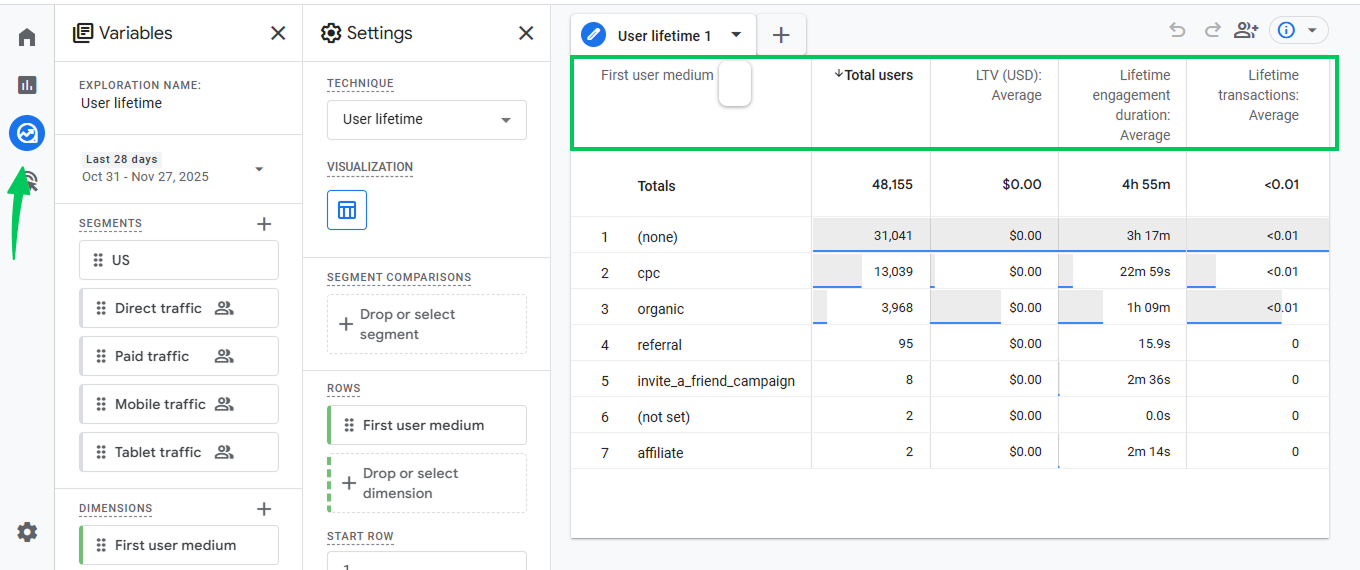
Choose a cohort start date (the date when users first visited or purchased).
Select your metric, such as:
- Revenue
- Total purchases
- Engagement time
- View the report:
- Line graphs show revenue over time per cohort.
Tables break down LTV by acquisition channels, helping you spot which traffic sources bring high-value customers.
Using LTV for Retention
- Reward loyal customers with loyalty programs, discounts, or exclusive offers.
- Re-engage users at risk of churning with personalized campaigns.
- Combine LTV insights with funnel and attribution data to understand which channels bring the most valuable users.
Pro Tip: Even if a product is selling well, focusing on high-LTV customers usually brings more long-term profit than chasing one-time buyers.
Connect GA4 Ecommerce Data With Google Ads
Your GA4 ecommerce data becomes far more powerful when you connect it with Google Ads. This allows you to send real purchase events, build high-intent audiences, and optimize your ad spend based on actual revenue not just clicks.
Why Connect GA4 With Google Ads?
- Google Ads gets real purchase conversions instead of basic pageviews.
- You can run campaigns that target users with high purchase probability.
- It helps Google’s algorithm optimize for ROAS (Return on Ad Spend).
- You get accurate reporting for which campaigns truly drive sales.
How to Connect GA4 With Google Ads
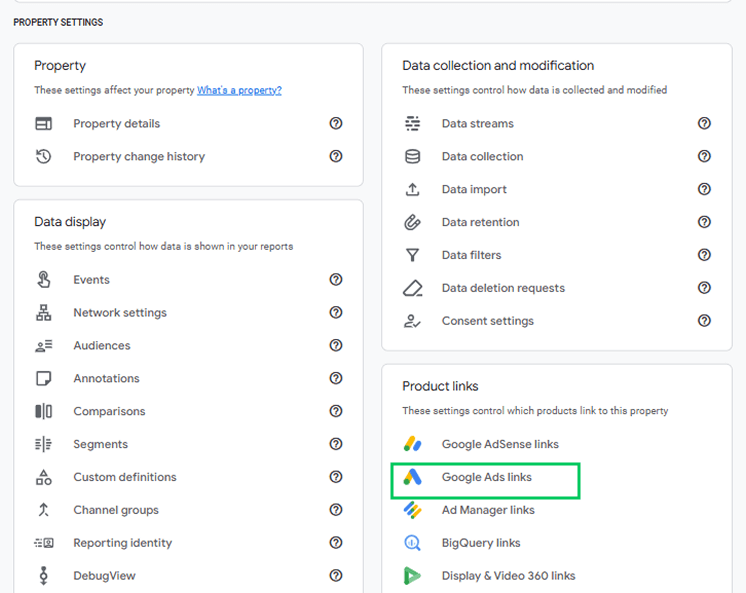
- In GA4, go to Admin >> Product Links >> Google Ads.
- Click Link and choose your Google Ads account.
- Enable Personalized Advertising and Auto-Tagging.
- Import key conversions like:
- purchase
- begin_checkout
- add_to_cart
- purchase
Bonus for WordPress Users: Analytify Handles This Easily
If you’re on WordPress, conversion tracking GA4 becomes even simpler.
Analytify automatically:
- Sends enhanced ecommerce events to GA4
- Ensures revenue, items, quantity, coupons, and transaction IDs are correctly tracked
- Keeps your GA4 and Google Ads data aligned so conversion imports work without manual troubleshooting
This means your Google Ads receives clean, complete ecommerce data, which improves bidding accuracy and campaign performance.
Use Predictive Audiences in Google Ads
Once GA4 is linked, you can create powerful audiences such as:
- Users with high purchase probability
- Users likely to churn
- Past purchasers with high predicted LTV
- Active shoppers who haven’t checked out
These audiences sync directly into Google Ads for smarter remarketing and targeting.
Optimize for ROAS
After importing conversions, Google Ads can:
- Bid more aggressively on high-value users
- Reduce spend on low-intent traffic
- Improve the overall profitability of your campaigns
Track Ecommerce Metrics Inside WordPress Using Analytify
Join 50,000+ beginners & professionals who use Analytify to simplify their Google Analytics!
If you use WooCommerce, tracking ecommerce data directly inside WordPress makes everything much easier. That’s exactly where Analytify helps. Instead of jumping between GA4 panels and trying to interpret complex reports, Analytify brings clean, simple ecommerce insights right into your WordPress dashboard.
What Analytify Tracks Automatically
Once you enable the WooCommerce addon, Analytify starts pulling your GA4 ecommerce events instantly. No coding needed.
You’ll see:
- Revenue (total sales, average order value, product revenue)
- Orders and transactions
- Top-selling products
- Add-to-cart and remove-from-cart activity
- Refunds
- Coupon usage
- Customer behavior flow
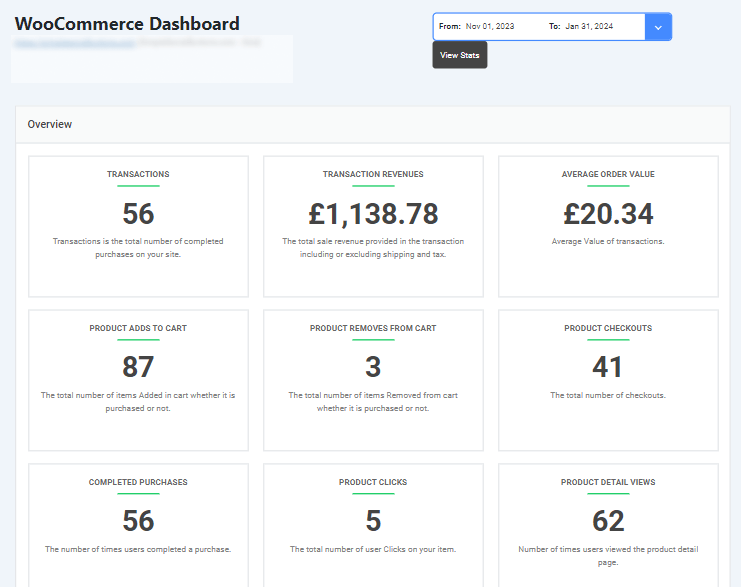
All the essential GA4 Ecommerce metrics such as Product Checkouts, Product Clicks, Products Added to Cart, Transactions, and Transaction Revenues, etc.
Why It’s Easier Than GA4
GA4 is powerful but complicated. Analytify simplifies everything by:
- Removing the need to navigate GA4’s difficult menus
- Showing ecommerce metrics in plain English
- Offering real-time sales updates inside WordPress
- Giving store owners actionable insights without technical setups
In short: Analytify turns GA4’s raw ecommerce data into easy WordPress dashboards anyone can understand.
FAQs: GA4 Ecommerce Metrics
1. Do I need enhanced ecommerce tracking to see sales in GA4?
Yes. GA4 requires ecommerce events like view_item, add_to_cart, begin_checkout, and purchase.
If you’re using WooCommerce + Analytify, these events are tracked automatically without coding.
2. Why is my GA4 revenue not matching WooCommerce revenue?
This usually happens because:
Some users declined tracking (Consent Mode).
Purchase events weren’t sent due to ad blockers.
Duplicate tags are firing.
Wrong currency settings in GA4.
Analytify helps reduce these mismatches by validating ecommerce events inside WordPress.
3. Can GA4 track coupon usage or discounts?
Yes, but only if your purchase event includes coupon parameters.
Analytify automatically pulls coupon data from WooCommerce into your GA4 reports.
4. Why are refunds not showing in GA4?
GA4 doesn’t show refunds unless you send a refund event.
This requires custom setup. Analytify currently tracks order refunds inside WordPress dashboards, so you don’t need GA4 for it.
5. Is Data-Driven Attribution worth using?
For 99% of WooCommerce stores, yes.
It gives credit to all touchpoints, not just the last click, and offers a more realistic view of what drives sales.
6. Can I use GA4 predictive metrics for small stores?
GA4 predictive metrics (purchase probability, churn probability) require:
At least 1,000 returning users
At least 1,000 purchasers
Small stores may not qualify yet, but you can still use Analytify’s behavioral insights.
7. How do I share GA4 ecommerce data with clients or team members?
You can:
Share GA4 property access
Export reports to Google Sheets
Or use Analytify dashboards, which are much easier for non-technical users
8. Do I need Google Tag Manager for GA4 ecommerce?
Not if you’re using WooCommerce + Analytify.
Analytify handles the GA4 ecommerce schema for you.
You only need GTM if you want advanced custom events.
GA4 eCommerce Metrics: Conclusion
GA4 can feel overwhelming at first, but once you understand how the event model works, it becomes a powerful tool for analyzing your WooCommerce store’s performance. From tracking revenue and product engagement to understanding customer behavior and LTV, GA4 gives you the insights you need to grow smarter, not harder.
And if you want all these ecommerce metrics right inside WordPress, Analytify makes it simple. No learning curve, no complicated dashboards. Just clear, ready-to-use data that helps you make better decisions every day.
Start by tracking the right metrics, interpreting your funnels, improving your checkout flow, and using data to guide every improvement. Over time, those small optimizations add up to a big increase in sales and customer retention.
You may also like to read:
- Custom Metrics in Google Analytics 4 (Explained)
- 7 Best Website User Engagement Metrics In Google
- 10+ Crucial Ecommerce Metrics to Track in GA4
Which GA4 metric will you start monitoring today to boost your WooCommerce sales?