How to Combine Analytify Script with Custom GTM Tracking Without Double Hits

Tracking user behavior accurately is becoming more complex with modern WordPress websites. Site owners and marketers want reliable Google Analytics tracking without heavy setup, but they also want the flexibility to track advanced interactions like CTA clicks, custom buttons, form submissions, and dynamic elements.
Traditionally, this meant choosing between a plugin-based analytics setup or a full Google Tag Manager implementation. Using both often resulted in double tracking, inflated sessions, and unreliable reports.
With Analytify, we have solved this problem by introducing a hybrid tracking approach that lets Analytify handle the core GA4 tracking while Google Tag Manager is used only for custom events. Our method, using the Analytify script with Custom GTM tracking, is the first of its kind in the market.
In this guide, we will walk you through this setup step by step, explain why it works, and show you how to avoid common mistakes. This approach is currently unique in the WordPress analytics space and ideal for site owners, marketers, and agencies who care about clean, accurate data.
Analytify with Custom GTM (TOC):
TL;DR: Hybrid Tracking Setup Summary
If you want the short version, here is exactly how this setup works:
• Use Analytify to handle GA4 setup and base tracking
• Install Google Tag Manager on your site
• Pause or disable the GA4 Configuration tag in GTM
• Create only GA4 Event tags in GTM for custom tracking
• Test in GA4 Realtime to confirm no duplicate pageviews
This ensures Analytify initializes GA4 once, while GTM is used only for advanced custom events like CTA clicks, forms, and conversions.
Why This Hybrid Tracking Approach Matters
Before jumping into the steps, it is important to understand why this approach is valuable.
Analytify is designed to simplify Google Analytics for WordPress. It takes care of authentication, GA4 configuration, script injection, and reliable baseline tracking. This means pageviews, sessions, and standard events start working immediately without manual setup.
Google Tag Manager excels at customization. It allows you to track very specific interactions without touching your site code. However, when GTM is used to initialize GA4 alongside a plugin, it often leads to duplicate tracking.
By clearly defining responsibilities, this hybrid setup gives you:
• Accurate baseline GA4 tracking handled by Analytify
• Full flexibility to add advanced custom events using GTM
• No duplicate pageviews or sessions
• Cleaner reports inside GA4 and Analytify
This separation of concerns is what makes the setup reliable and scalable.
Understanding the Double Tracking Problem
Double tracking happens when GA4 is initialized more than once on the same page. This commonly occurs when:
• Analytify injects the GA4 tracking script
• GTM also fires a GA4 Configuration tag using the same Measurement ID
When this happens, Google Analytics receives duplicate pageview and event hits, which leads to:
• Inflated session counts
• Duplicate events
• Skewed engagement metrics
• Unreliable conversion data
Many users try to fix this by disabling one tool entirely, but that removes useful functionality. The correct solution is to prevent GA4 from being initialized twice.
The Correct Tracking Strategy
The strategy behind this setup is simple and intentional.
• Analytify initializes GA4 and handles base tracking
• Google Tag Manager is used only for custom GA4 events
• The GA4 Configuration tag in GTM is paused or disabled
This ensures GA4 loads once, while GTM sends only the events you explicitly define.
Step 1: Install and Configure Analytify
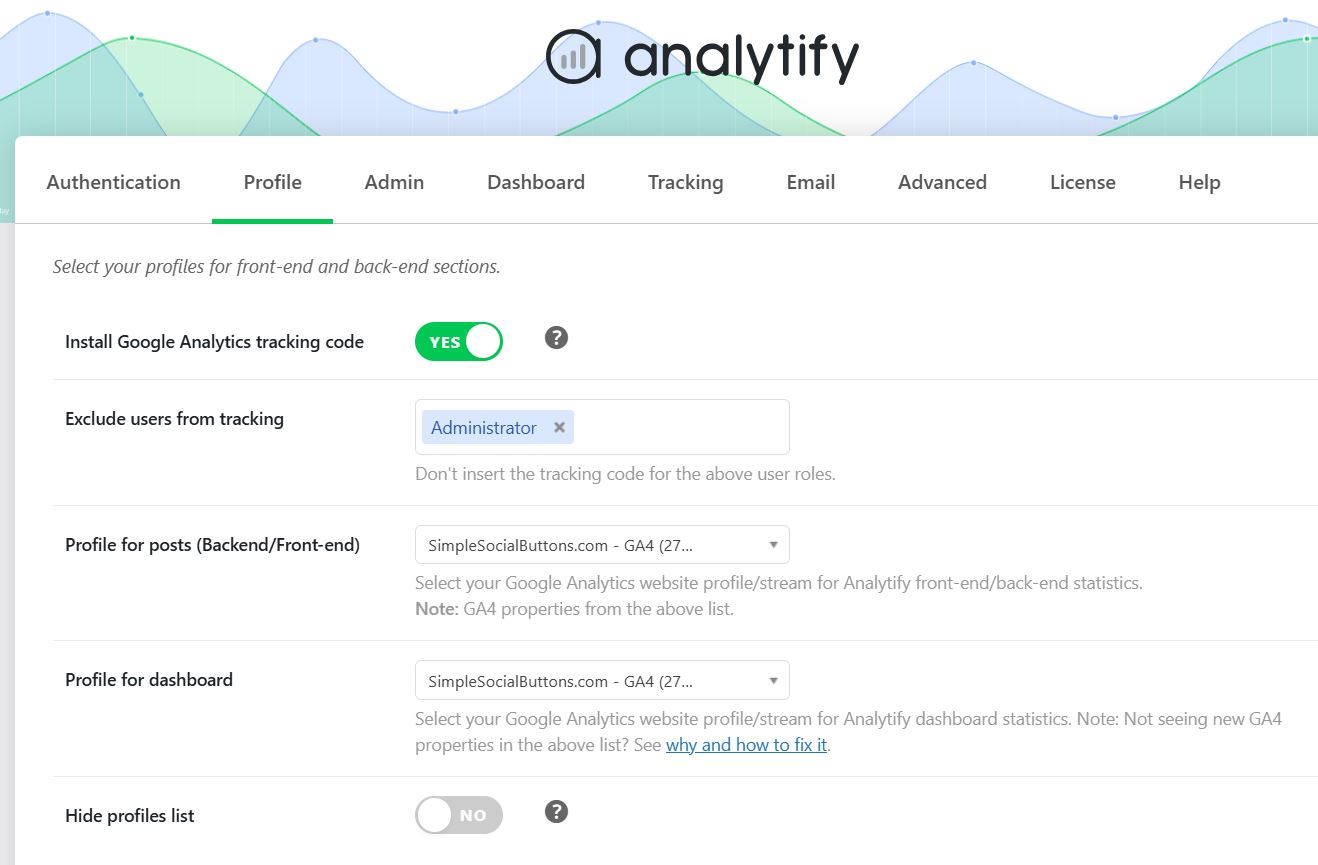
Start by installing the Analytify plugin on your WordPress website
Once installed, go to the profile tab:
• Connect your Google Analytics account
• Select the correct GA4 property
• Enable frontend tracking
• Save your settings
At this point, Analytify will automatically inject the GA4 tracking script across your site and begin collecting pageviews and standard engagement data.
This step ensures your analytics foundation is solid before adding any advanced tracking.
Step 2: Verify GA4 Is Tracking Correctly
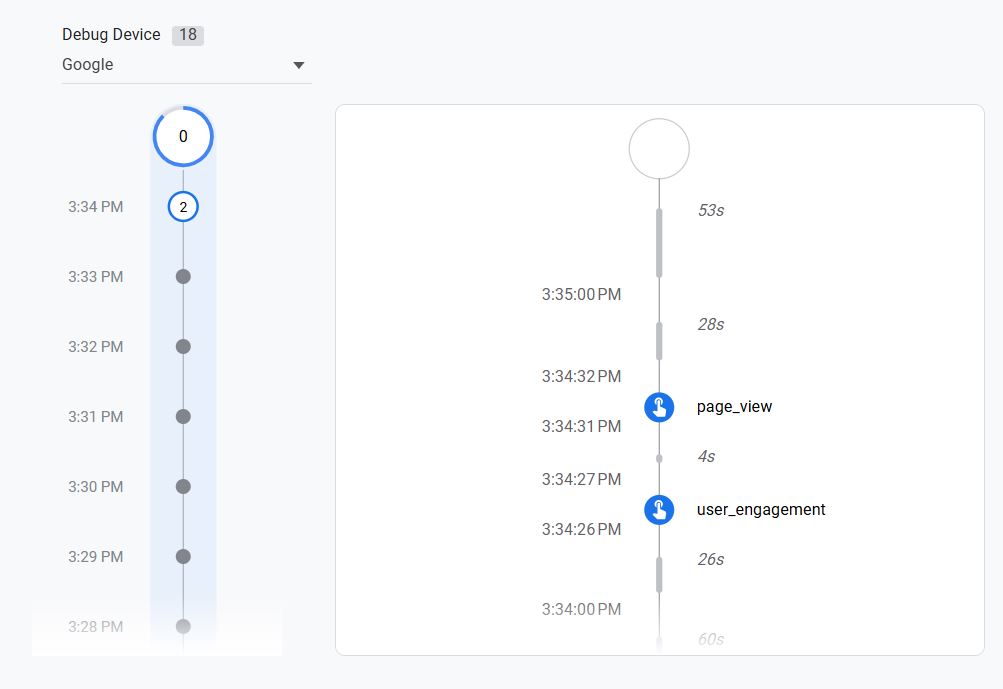
Before adding GTM, confirm that GA4 tracking is working as expected.
You can do this by:
• Visiting your site in an incognito window
• Opening the GA4 DebugView mode
• Checking for the page_view events
This verification step is important because it helps isolate issues later. If something breaks after adding GTM in the following steps, you will know exactly where the problem was introduced.
Step 3: Install Google Tag Manager
If Google Tag Manager is not already installed on your site, add your GTM container. Here’s a detailed guide to installing GTM on your website.
This can be done using:
• A WordPress plugin such as Insert Headers and Footers
• Theme header and footer files
• Custom code injection
Once installed, use GTM Preview mode or Google Tag Assistant to confirm that the container is loading correctly.
Step 4: Pause the GA4 Configuration Tag in GTM
This is the most critical step in the entire setup.
Inside your GTM container, locate the GA4 Configuration tag that uses your GA4 Measurement ID.
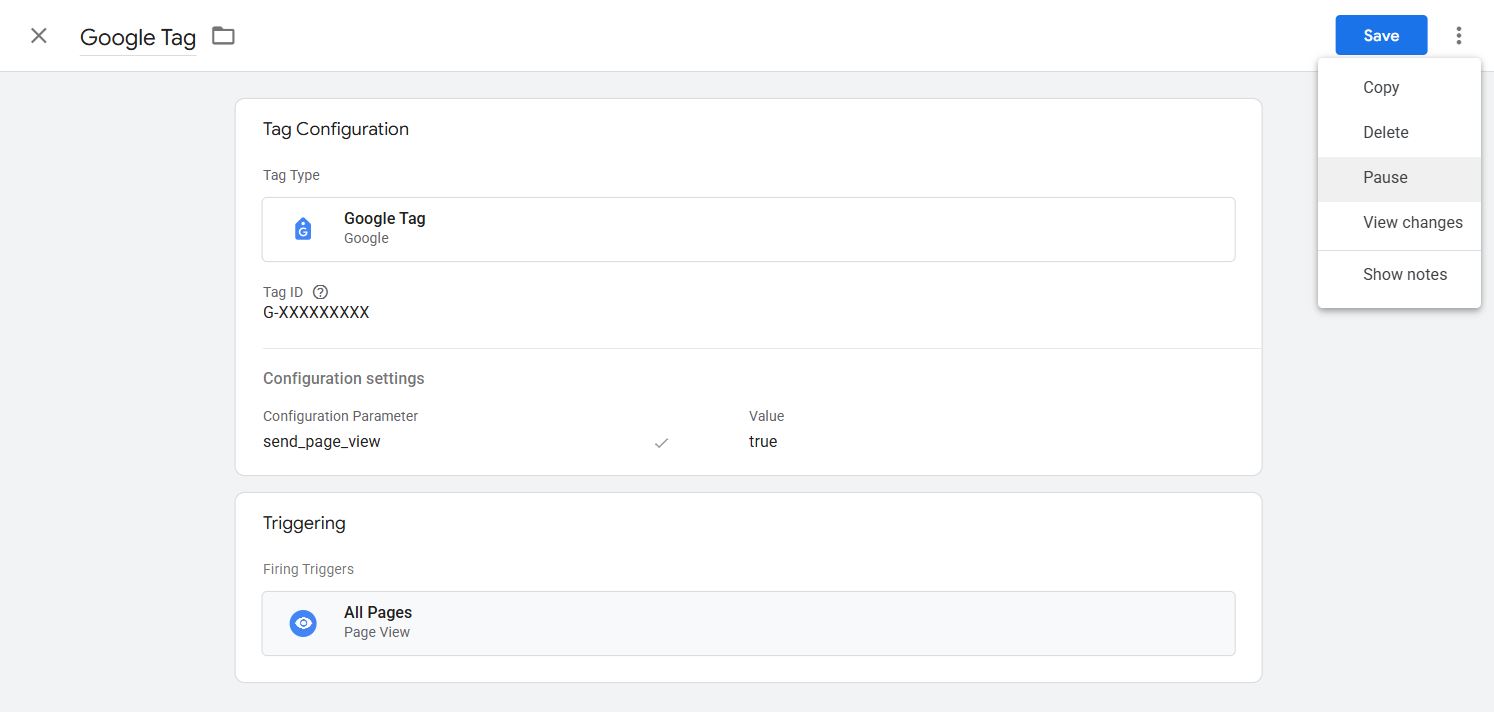
• Pause or disable this tag
• Do not publish it
• Keep it inactive at all times
For example, in the screenshot below, the selected Google Analytics configuration tag is paused in GTM by opening the relevant GA4 config tag and selecting the pause option:
After selecting the pause option, the tag will be shown as paused in the list of all your GTM tags.
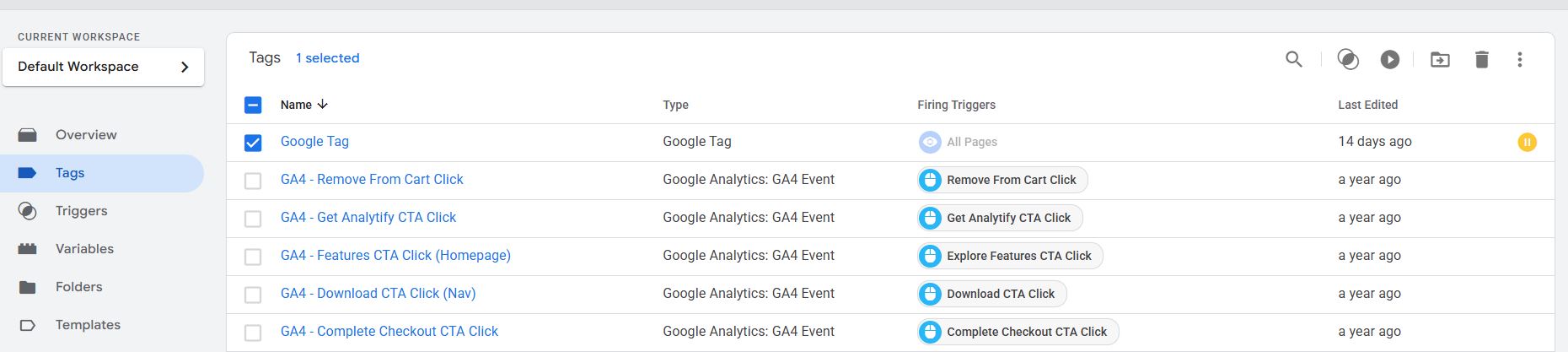
By doing this, you prevent GTM from initializing GA4 a second time.
Analytify will remain the only tool responsible for loading the GA4 tracking script.
Step 5: Create Custom GA4 Event Tags in GTM
Now that GA4 initialization is handled by Analytify, you can safely create custom GA4 Event tags in GTM for custom tracking according to your requirements.
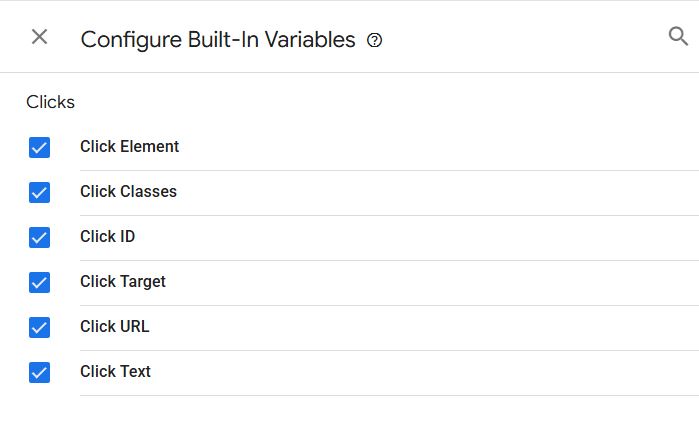
Note: Make sure to enable all relevant variables in your GTM container, navigating to the variables tab and using the ‘Configure’ button. For instance, if you’re looking to track custom clicks on your site, you need to configure all click variables as shown below:
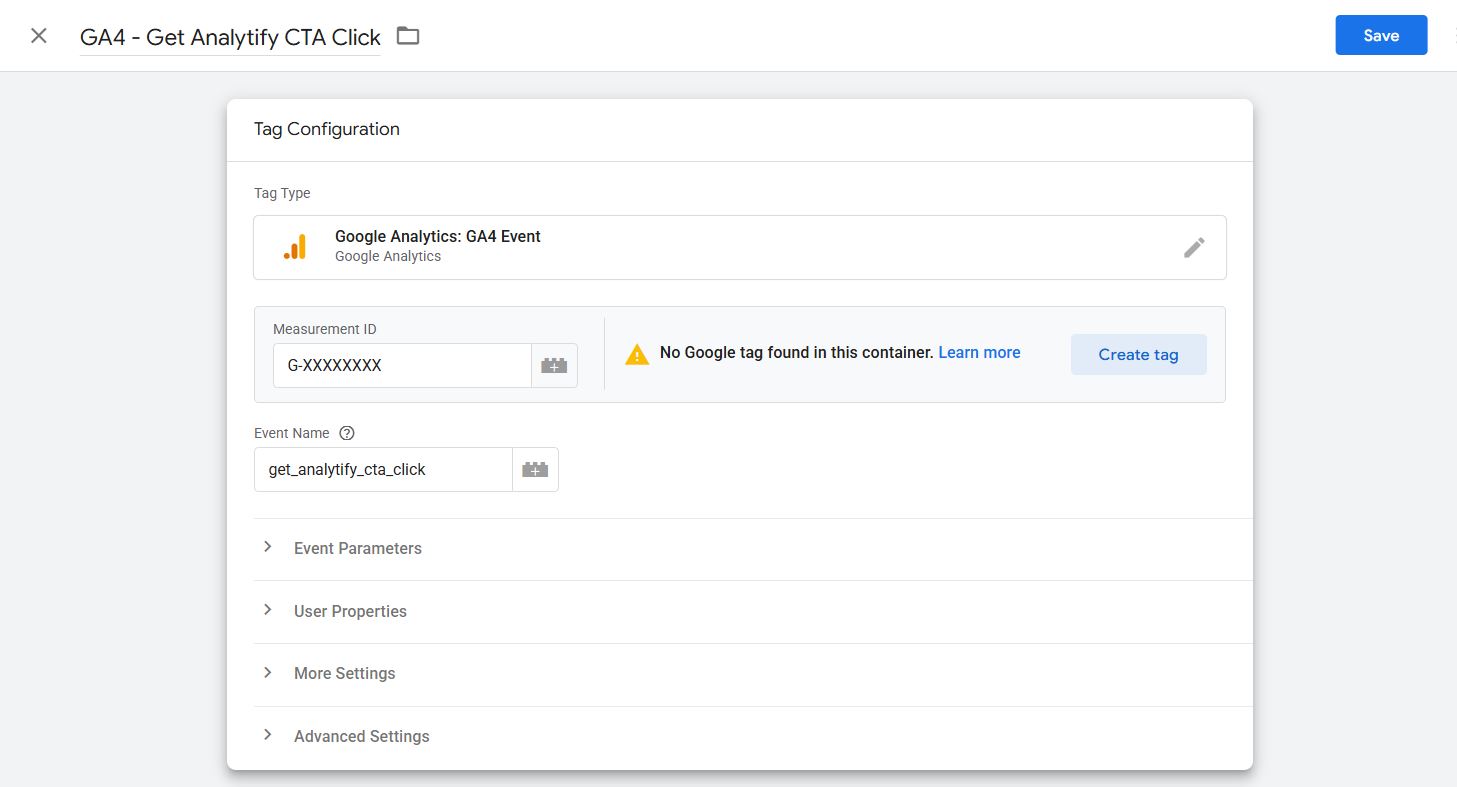
Let’s go through an example of setting up a custom tag for a button click.
Start by navigating to the tags section and clicking the ‘New’ button.
When creating a GA4 Event tag:
• Choose GA4 Event as the tag type
• Enter your GA4 Measurement ID manually
• Use clear and consistent event names
• Define relevant parameters where needed
Click on the ‘Save’ button after you’ve made all the changes, and your new custom tag will be created.
Examples of other events you can track include:
• Outbound link clicks
• File downloads
• Form submissions
• Scroll depth
• Video interactions
This allows you to extend tracking without interfering with base analytics.
Step 6: Set Up Triggers for Custom Events
Triggers define when your custom GA4 events fire. After creating a custom tag, a custom trigger also needs to be set for that relevant tag.
Some common trigger examples include:
• Click triggers for specific buttons or links
• URL based triggers for outbound links
• Form submission triggers
Since we already have a button-click example from the previous step, we will continue creating a custom trigger for the same tag.
Start by navigating to the tags section and clicking the ‘New’ button. Carefully define trigger conditions to avoid firing events unintentionally. Precision here keeps your data clean and meaningful.
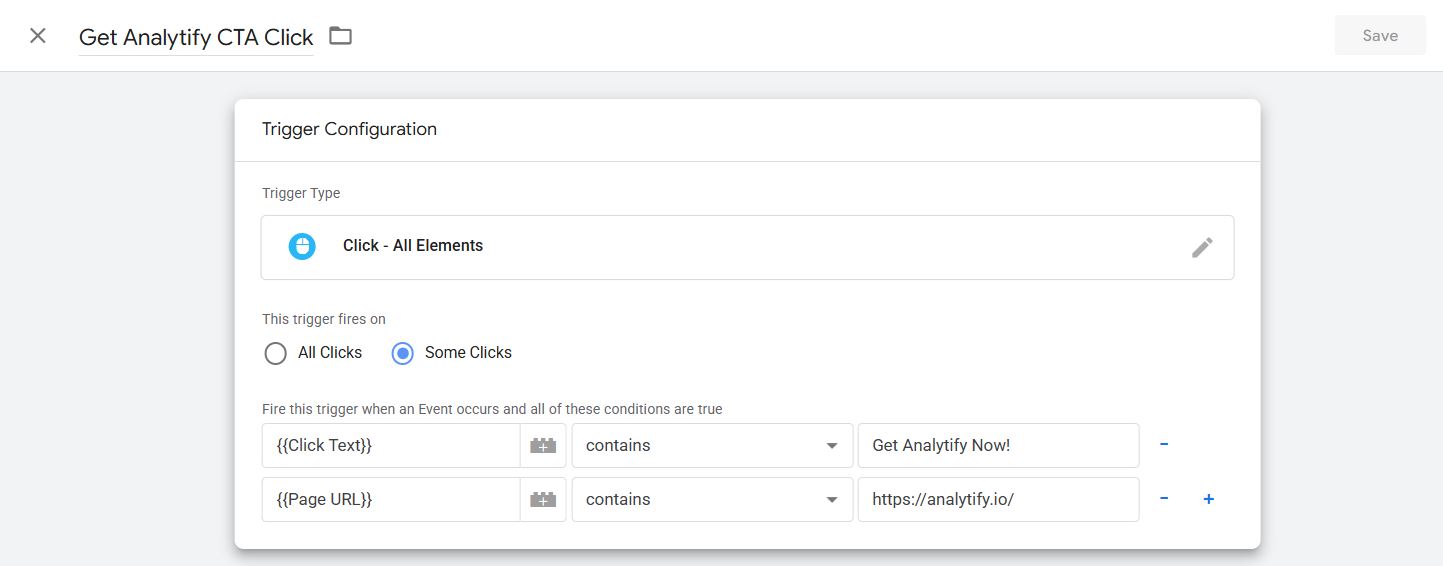
As you can see, we selected the trigger type as Click – All Elements and configured it to fire on specific clicks based on the conditions defined using Click Text and Page URL parameters. Please note that this is an example only; your custom click-tracking scenario may vary based on your requirements. If you need help setting up custom tags and triggers, explore our Google Tag Manager services.
After the conditions are defined, you can save your trigger. Next, just open the tag again where you want to add this trigger you created for your custom tag.
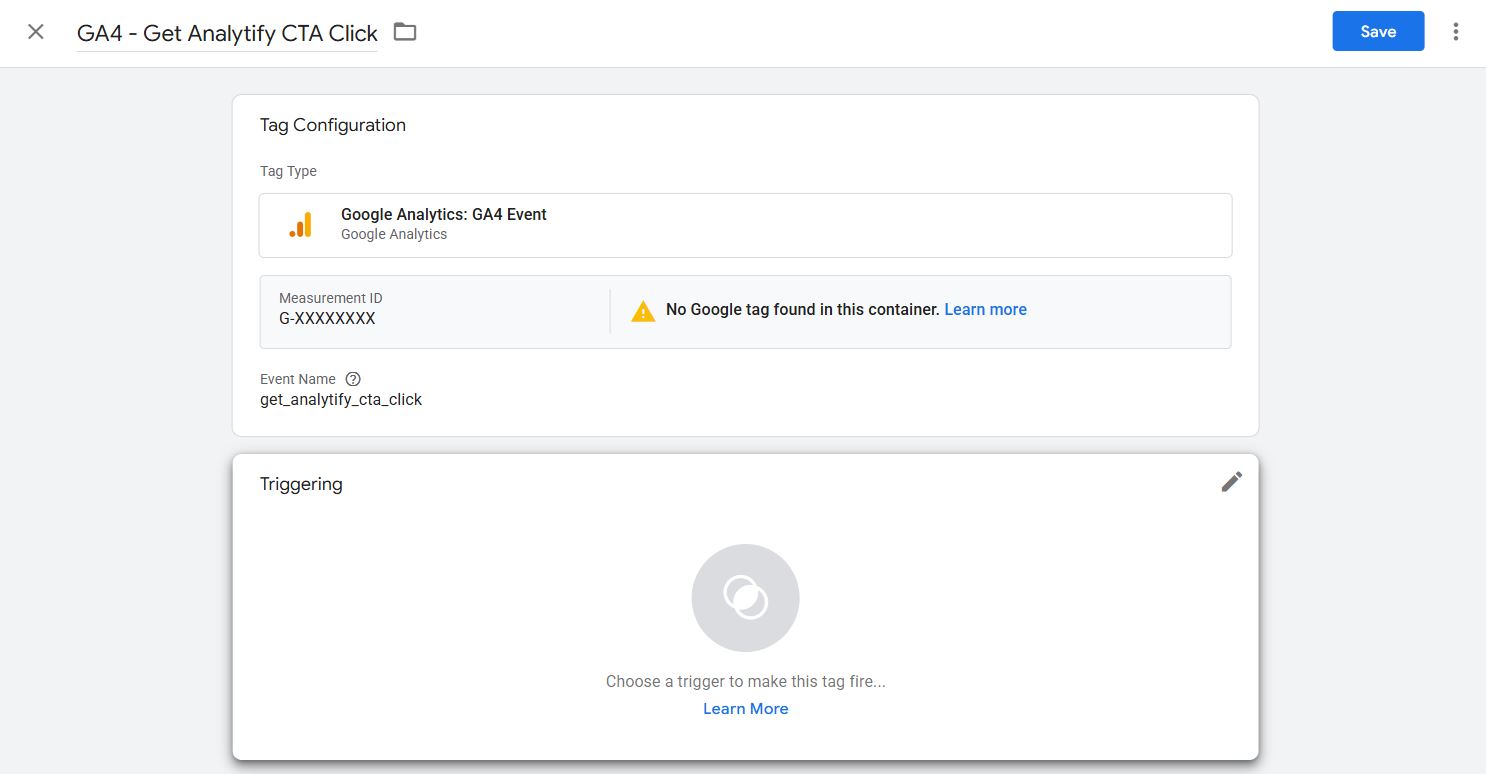
Choose the right trigger for your custom tag and click on the ‘Add’ button as shown below:
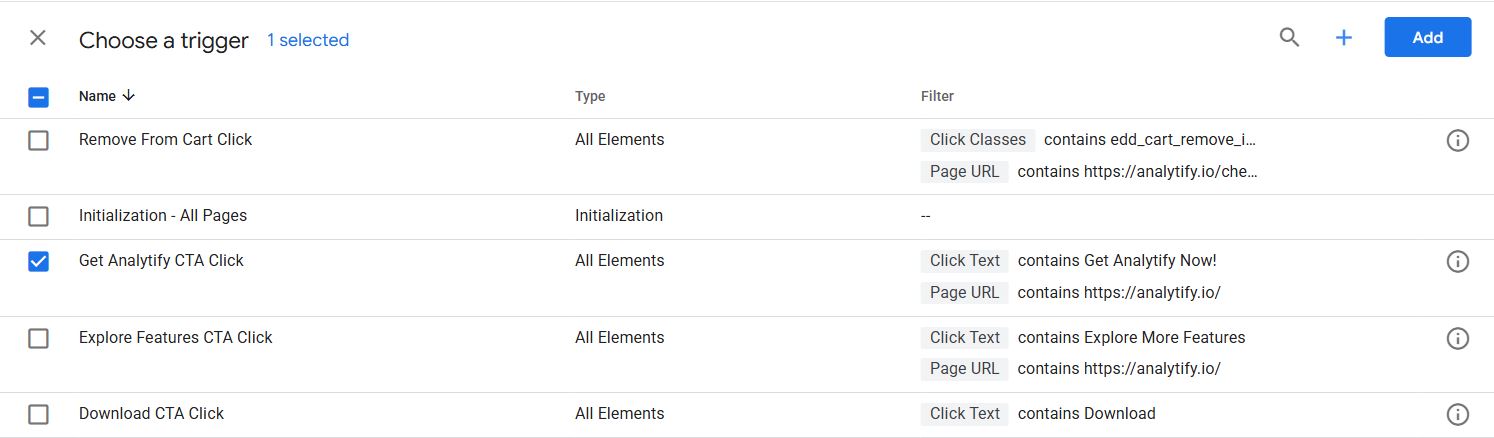
Your new custom tag is now connected to its trigger for custom event tracking in GTM.
Step 7: Test Everything Before Publishing
Testing is essential before pushing the changes live.
Use the following checklist:
• Enable GTM Preview mode
• Perform the tracked actions on your site
• Check GA4 DebugView and/or Realtime events
• Ensure pageviews are not duplicated
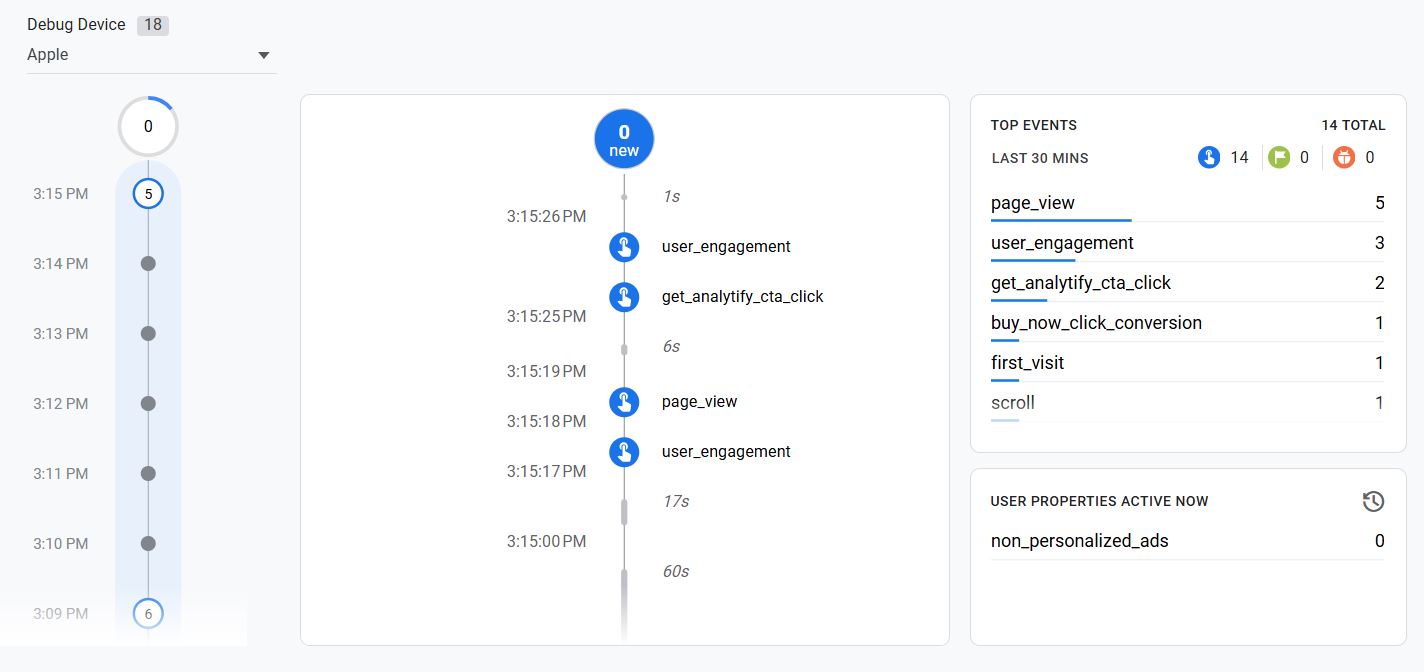
As you can see in the above DebugView screenshot, both the page_view event (from the Analytify script) and the custom GA4 event (from Google Tag Manager) are firing accurately.
Analytify will continue reporting core analytics, while your custom GTM events appear naturally alongside them in our reports.
How This Setup Benefits Analytify Users
This hybrid approach unlocks advanced tracking without complexity.
• Beginners get instant analytics without setup friction
• Advanced users gain full control over custom events
• Agencies can standardize tracking across projects
• Ecommerce and lead generation sites get cleaner conversion data
Most importantly, it keeps your analytics accurate and trustworthy.
Common Use Cases
This setup works especially well for:
• Marketing CTA tracking
• Funnel and conversion optimization
• Campaign performance measurement
• WooCommerce custom events
• SaaS and lead generation websites
You can track what truly matters without compromising data quality.
Best Practices to Follow
• Never enable a GA4 Configuration tag in GTM when using Analytify tracking
• Keep event naming consistent across GTM
• Document your custom events
• Test after every GTM publish
• Monitor reports regularly for anomalies
These practices ensure long-term reliability.
Common Mistakes to Avoid
Even with a clean setup, a few small mistakes can break your tracking or pollute your data. Avoid the following issues to keep your analytics accurate.
Enabling GA4 Configuration Tag in GTM
The most common mistake is enabling a GA4 Configuration tag in GTM alongside Analytify. This will immediately cause double pageviews and inflated sessions.
Always keep the GA4 Configuration tag paused when Analytify tracking is enabled.
Using Different Measurement IDs
Using different GA4 Measurement IDs between Analytify and GTM can split your data across properties or cause missing events.
Make sure all GTM GA4 Event tags use the same Measurement ID that Analytify is connected to.
Poor Event Naming
Inconsistent or unclear event names make reports difficult to understand and analyze later.
Use clear, descriptive, and consistent naming conventions for all custom events.
Not Testing After Publishing
Publishing GTM changes without testing often leads to broken or missing events.
Always verify changes using GTM Preview mode and GA4 Realtime reports before and after publishing.
Tracking Too Much Too Early
Adding too many custom events at once makes debugging difficult.
Start with high value actions like CTAs or form submissions, then expand gradually.
Frequently Asked Questions
1. Can I use Analytify and Google Tag Manager together safely?
Yes. Analytify and Google Tag Manager can be used together safely as long as Analytify handles the GA4 initialization and the GA4 Configuration tag in GTM is disabled. GTM should be used only for custom GA4 event tracking.
2. Will this setup cause double tracking in Google Analytics?
No. Double tracking only occurs when GA4 is initialized more than once. In this setup, Analytify initializes GA4 and GTM sends only custom events, which prevents duplicate pageviews and sessions.
3. Do I need Google Tag Manager if I am already using Analytify?
Google Tag Manager is not required for basic tracking. Analytify alone is sufficient for pageviews and standard analytics. GTM is useful if you want to track advanced interactions like CTA clicks, form submissions, or custom conversions.
4. Which GA4 Measurement ID should I use in GTM event tags?
You should always use the same GA4 Measurement ID that Analytify is connected to. Using a different ID can split data across properties or result in missing events.
5. Will custom GTM events appear inside Analytify reports?
Yes. Custom GA4 events sent through GTM will appear in Google Analytics and can also be viewed inside Analytify reports, where applicable, alongside your core analytics data.
Final Thoughts: Analytify Script with Custom GTM Tracking
Tracking with Analytify Script and custom GTM tracking gives you a powerful and flexible analytics setup that very few WordPress tools currently support.
Analytify simplifies GA4 setup and reporting, while Google Tag Manager extends your tracking capabilities without introducing data errors.
If you want accurate analytics with the freedom to track advanced interactions, this hybrid approach is built for you.