How to Check Backlinks in Google Analytics (GA4) in 2026

To check backlinks in Google Analytics 4 (GA4), open Reports > Acquisition > Traffic acquisition, change the primary dimension to Session source / medium, and search the table for “referral”. The table lists the sites that send visitors to you through links. I show you each step below.
Link building (the process of placing backlinks) aims to earn link equity and as many user clicks as possible. Checking backlinks in GA4 shows which links bring traffic and how that traffic behaves. Use that data to judge your backlink profile and, if needed, change your off-page SEO strategy. This guide is for site owners and SEO teams. GA4 shows only the backlinks that sent visitors. Links that nobody clicked do not appear.
I recommend the free Google Analytics 4 reports for this check. They are enough to see which backlinks send traffic.
Check Backlinks in Google Analytics (TOC):
Checking Backlinks in Google Analytics — An Illustrated 5-Step Guide
Google Analytics 4 (GA4) is Google’s current analytics platform, and its Traffic acquisition report shows backlink traffic. GA4 also tracks and analyzes user interactions and behavior on a website or a mobile app.
GA4 is free. GA360 is a paid version with more functions. Standard GA4 is enough to check backlinks and their traffic.
Here are the five steps to check backlinks in Google Analytics 4.
- Start creating a report by opening and logging into your Google Analytics account.
In GA4, the Traffic acquisition report shows which sources send sessions to your site. Open it from the left menu: select Reports, then Acquisition, then Traffic acquisition. You can break the table down by source to find traffic from backlinks.
While you are in the “Acquisition” menu, select the “Traffic acquisition” section:
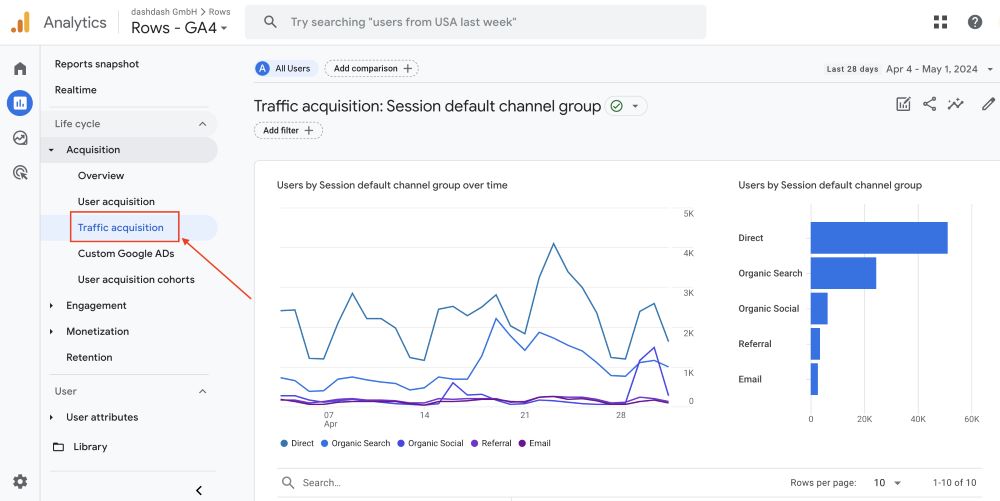
- To see traffic from external websites, stay in the Traffic acquisition report and read the table.
The summary of traffic sources can track and systematize data on sources and their channels. The resulting report is built from a graphical overview and a table:
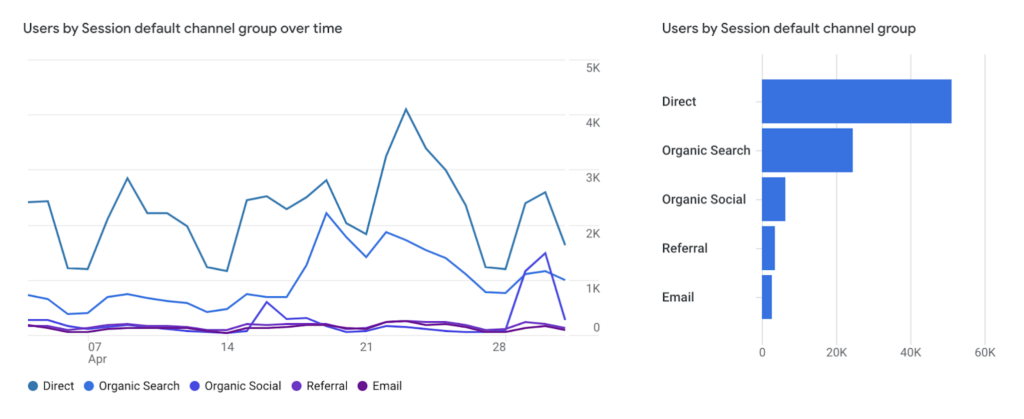
Pro tip: Explore advanced options around how to create reports and graphs with backlinks in Google Analytics. With proper data visualization tools, crafting a stunning report on your own will not be a problem.
Traffic sources are made up of each user’s transition to the site. Such sources can vary significantly and may include:
- Search engines
- Address of the original website
- Newsletters
- Direct access
- Others
- Use the search bar above the table to input ‘referral’ and narrow down your backlinks’ traffic sources.
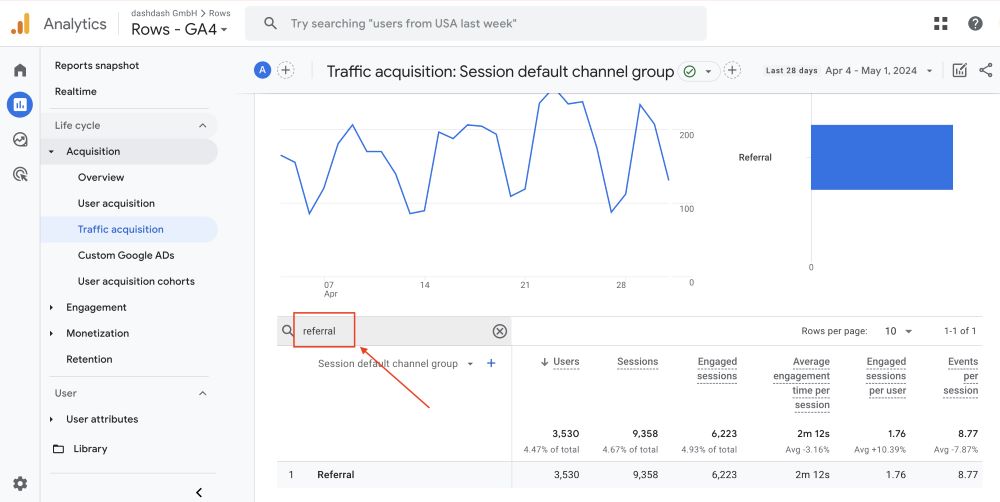
Note that your transition channels can also vary. These may include:
- Regular organic search (organic)
- Paid advertising (PPC)
- Transition or referral
- The name of the user channel created by you
- Direct traffic
- To view traffic sources by link, use the dimension dropdown in the table to change the primary dimension to Session source / medium. This dimension shows where the traffic came from, including UTM tagged sources.
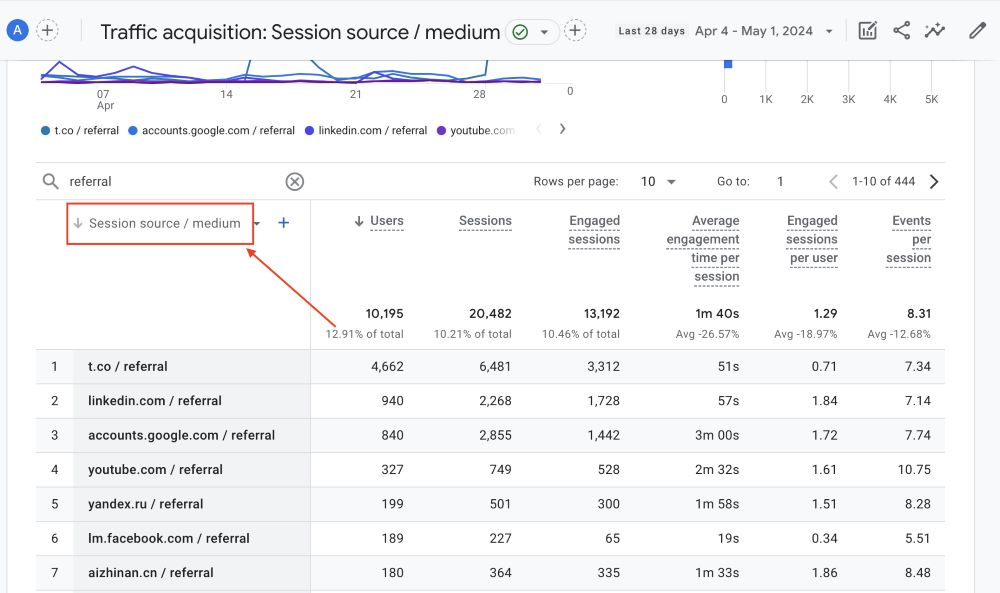
You can also set the period for which you analyze traffic. There are special buttons in the upper right corner of the graph for this. Select a concrete date or a range starting with the year.
- Analyze the resulting table.
High bounce rates for your backlink and the absence of further clicks should alert you.
Separately analyze backlinks that don’t yield further clicks and try to find out the reason for this behavior. It is possible that the donor website’s topic does not match yours, the wrong anchor text was used, or there is any other problem.
In GA4, bounce rate is the percentage of sessions that were not engaged. A session is engaged when it lasts longer than 10 seconds, has a key event, or has 2 or more page or screen views.
Editorial.Link, a link building provider, reports that 41.7% of the 518 SEO pros they surveyed prefer using partial-match anchor text.
In addition, pay attention to the following key aspects in your table with data:
- Whether there is traffic at all, and if there is, what is the quality of the available traffic?
- Mind the links from which visitors came and the results of clicking on them.
- The bounce rate, the number of visited pages, and the duration of the session indicate the quality of the traffic received.
- Backlinks that lead to key events (formerly called conversions) are the most valuable, so aim for backlinks that bring visitors who complete key events.
If you conducted internal control when publishing backlinks to the website, in which donors and placement pages were recorded, you must already know which resources have active links.
To analyze traffic for a specific link, use the search option:
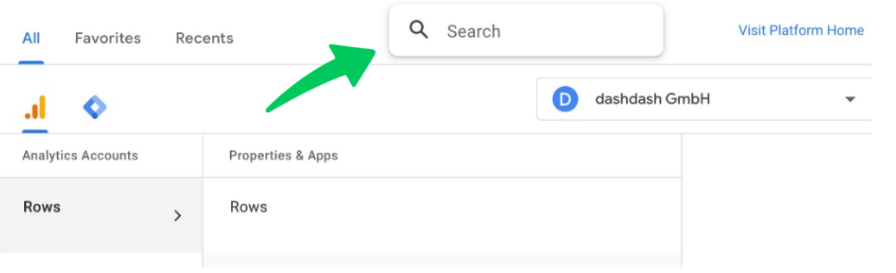
Based on your analysis, find out which links bring the best traffic. Follow them and establish the probable reason for such success.
Aim to understand why users move from the donor site to yours and why they choose to stay on it. Use that data to publish more backlinks like the effective ones.
Pro tip: If you find it difficult to evaluate the effectiveness and find opportunities to develop your backlink mass, consider analyzing your direct competitor’s backlinks first. Those can give you plenty of insights and ideas on how to move on with your backlinks.
Why Some Links Fail to Drive Quality Traffic (And How to Fix It)
Backlinks often fail to drive quality traffic because of a topic mismatch, poor placement in the text, or a broken or hard-to-find link.
Topic Synchronization
First and foremost, make sure that the donor website’s content matches yours and the backlink looks harmonious in the text. It doesn’t make much sense to place backlinks on a website about gardening and yard work when your website is focused on economics or healthcare.
Backlink Placement in the Text
Link placement affects clicks. The reader must see the backlink clearly to click it.
Therefore, it is advisable to place links in the first part of the page, especially when it comes to reviews.
The golden rule is to place backlinks in the first third/first half of the article but not in the introduction or the conclusion. If you need to place several backlinks inside a text, make sure you separate those in the text’s space, e.g., one link per paragraph or one link per section/chapter.
Analyzing Backlinks For Failures to Bring Traffic
Not all links lead to a transition to the site, so you also need to conduct an online analysis of external links that do not bring traffic. In doing so, follow these guidelines:
- First, you should go through such links and make sure that they still contain a functional hyperlink to your site.
- Find out the causes of malfunctioning backlinks. Some hyperlinks may be broken due to a variety of reasons (e.g., internal restructuring of the website’s architecture). It’s in your best interest to locate broken links and suggest perfectly functional links instead.
- Once you’ve established that your link is functional, analyze how convenient it is for the user to find it. Is the surrounding content suitable for the topic of the backlink/anchor text?
These actions do not guarantee you clicks (on your backlinks), but they surely increase such a probability.
Pro tip: Monitor competitors for broken backlinks and offer your functional links as replacements to capture lost traffic and boost your Domain Authority (DA).
Unfortunately, GA4 doesn’t have the functionality for autonomously detecting broken links. Instead, you should rely on specialized tools like SEMrush or Ahrefs.
Are All Backlinks That Bring Traffic Good?
No, not all backlinks that bring traffic are good. Some come from unrelated domains, and the traffic they bring is not the traffic you need.
Backlink analysis in Google Analytics can also reveal unwanted or harmful traffic to your website:
- Referral spam — sending irrelevant traffic to your website with the sole goal of creating backlinks, not bringing real users.
- Click fraud — this one is even more dangerous, as it is associated with malicious actors or bots clicking on your paid ads (if you run PPC campaigns) to deplete your advertising budget.
- Low-quality traffic — the sort of traffic that doesn’t bring visitors that convert, as they simply have no or little interest in your services or products.
- Bot traffic : bots visit your site but do not increase its authority in the eyes of search engines.
- Fake social media traffic — last but not least, fake social media traffic doesn’t bring much value, artificially boosting your traffic values for no real benefit.
Among rising data privacy concerns in SEO and link building, you should be vigilant about spammy directories, link farms, paid link schemes, hacked and scraper websites, and other pest domains. Those can generate harmful backlink “juice” to your website.
How can you get rid of such malicious and low-value traffic? By filtering out unwanted domains that generate such traffic in the first place.
Filtering Out Unwanted Domains
You stop GA4 from reporting unwanted domains as traffic sources by adding them to the “List unwanted referrals” setting of your web data stream. Upon finding backlinks in Google Analytics, you must rely on your experience and a keen eye when performing backlink checks for traffic quality.
Pro Tip: Sort referring domains by Engagement rate, Bounce rate, or Key events to find the ones to exclude. This will enable you to identify suspicious or low-quality traffic sources. In any case, you cannot avoid the manual process of exclusion.
Once you decide on the domains you want to exclude, do the following:
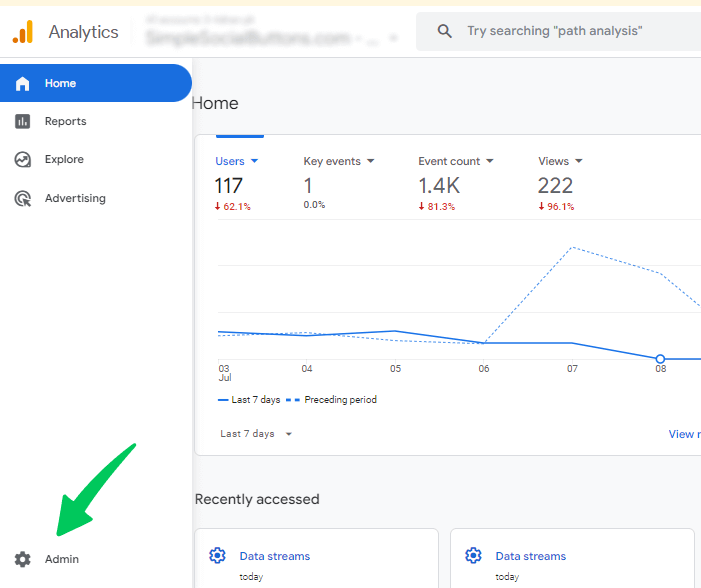
- Go to the Admin menu at the bottom left corner of the GA4 platform.
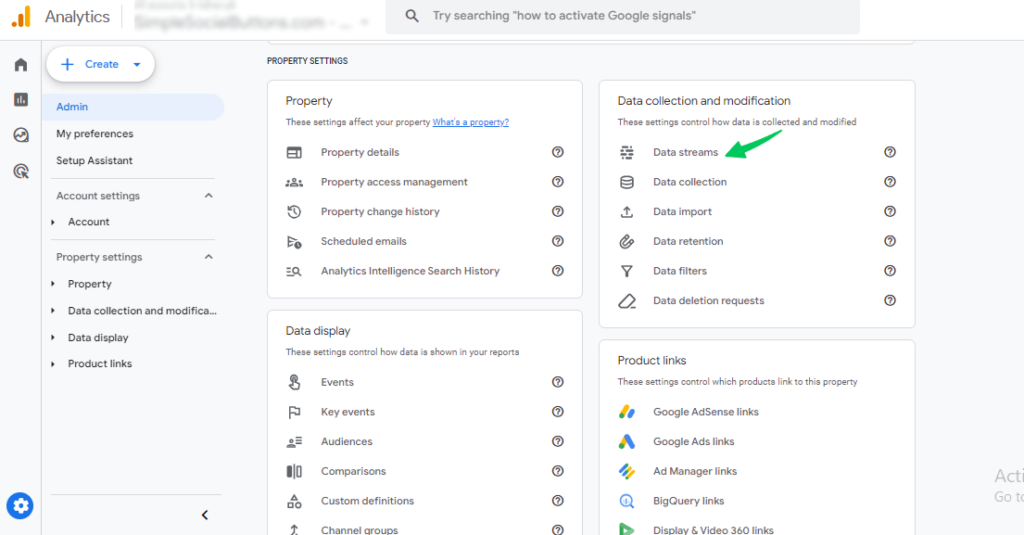
- Under Data collection and modification, click Data streams, then select your web data stream.
- Scroll down to the “Google tag” section.
- Select “Configure tag settings,” located under the “Google Tag section.”
- Finally, click “Show all” and then “List unwanted referrals.”
In this final step, you’ll need to add all the unwanted domains that generate low-quality or unwanted backlink traffic to your website. The process is manual and can take some time.
GA4 accepts a maximum of 50 unwanted referral conditions per data stream, and you need Editor access or above on the property.
Pro Tip: You can copy-paste the domain names from the list to avoid typing domain names and making accidental mistakes/typos.
Listing a domain as an unwanted referral tells GA4 not to show that domain as a traffic source in your reports. Visits from that domain still reach your site.
Backlinks in Google Analytics (FAQ)
1. Can GA4 tell me which backlinks drive conversions?
Yes, GA4 tracks referral traffic from backlinks. While it cannot give you a comprehensive overview of your backlink profile, it can still analyze individual backlinks very effectively. GA4 allows you to set up conversion tracking and determine which links contribute to revenue or other goals.
2. How do I filter out low-quality backlinks in GA4?
GA4 doesn’t offer a direct low-quality backlink filter, but you can exclude spammy referral domains using data filters in the Admin settings. For example, you can exclude external spammy domains and internal unwanted links/relative URLs.
3. What’s the difference between GA4 and Google Search Console for backlink analysis?
Both tools are used for backlink analysis. However, there are some minor but essential differences. For example, GA4 tracks visitors coming from backlinks and their interactions, while Google Search Console provides a database of backlinks influencing SEO. Remember, GA4 is best for traffic analysis, and Search Console is more powerful at link monitoring.
4. What’s the best way to compare backlink performance over time in GA4?
Use the “Traffic Acquisition” report in GA4, select “Session source/medium” as the primary dimension, and compare backlink performance using different date ranges. This method allows you to gauge whether various metrics (conversions, engagement, and traffic) improve or degrade over time.
Google Analytics for Backlinks Checks: Final Thoughts
In GA4, referral traffic from backlinks appears in Reports > Acquisition > Traffic acquisition.
Search the table for “referral” and set the primary dimension to Session source / medium. Then adjust the date range and filters for your report.
A thorough analysis of external backlinks and internal links will help to create a table that classifies your existing traffic into several segments or channels. Your task is to analyze the resulting table to find unwanted or suspicious domains.
When you check backlinks in Google Analytics, pay attention to:
- If there is traffic, find out what its root causes are (what drives this traffic) so that you can use it as an example for future effective link-building.
- If there is traffic, but the bounce rate and conversion quality (impressions, engagement, dwell time, etc.) are not justified, then again, try to find out why. Perhaps you can fix this by reaching out to the source domain and adjusting the backlink itself or the context.
- If you do not find the backlinks that should drive traffic (according to your expectations), then check whether these backlinks are published at all, where exactly they are published, and among what content.
The truth is, even without bringing traffic, backlinks pass link weight (equity or juice) from the donor domains. However, a link that receives clicks and brings real traffic is more valuable for search engine optimization.
Therefore, it is worth focusing your efforts on finding effective backlinks, analyzing what makes them effective, and multiplying your success into your link-building strategy.