We have been getting a lot of requests from users who are looking to enhance their websites with a comprehensive ‘front end analytics‘ solution.
These requests have been coming in through a variety of different channels. It is crucial to be aware of some potential safety problems, despite the fact that we understand the urge to make your stats analytics more easily accessible.
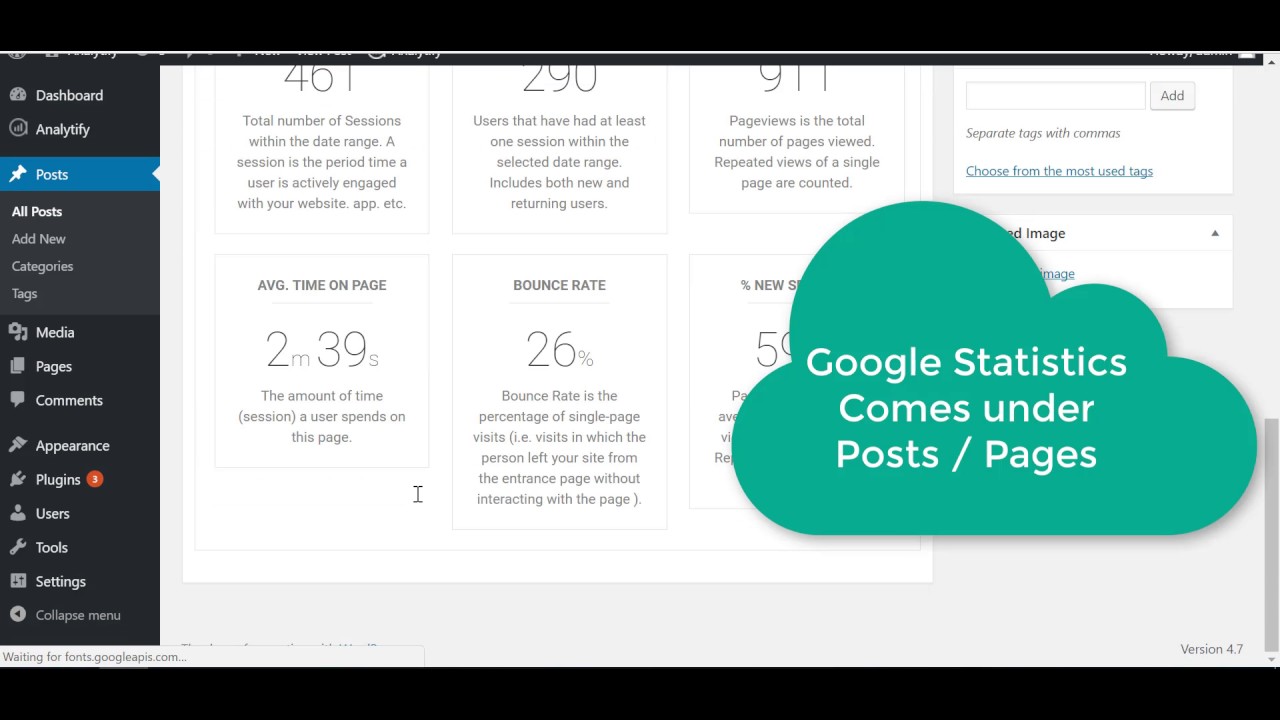
Google Analytics 4 is a powerful tool that helps you track and examine your website traffic data. With Analytify, you can easily add Google Analytics to your WordPress site and see specific google analytics stats for your posts and pages.
Analytify Pro is the premium version of Analytify, the best WordPress Google Analytics plugin that provides advanced Google Analytics integration for your WordPress websites.
Analytify is an excellent plugin to track your website’s performance and user behavior and gain insights into how visitors interact with your content. Analytify Pro’s features include real-time stats, enhanced e-commerce tracking, custom dimensions and metrics, campaign tracking, and more.
Google Analytics can show you the age, gender, and interests of your website visitors, but only after you enable a feature called Google Signals. This guide walks you through enabling Google Signals in GA4 and turning on Demographics reporting inside Analytify.
This feature requires Analytify Pro. Demographics stats are not available in the free version of Analytify. See Analytify pricing for plan details.
Are you looking for how to get Google Analytics Stats for Specific Page or Post ID Using Analytify Shortcodes? If yes, you’re at the right place.
Analytify is a powerful tool for WordPress theme developers and website administrators. It gives detailed data that helps you track your website. You can use Analytify shortcodes to see Google Analytics Stats for specific Page and Post. This guide will walk you through each step.
In today’s fast-paced digital world, it’s important for any great website to keep the user experience smooth. One important part of this is making sure that users don’t get “404 Page Not Found” problems, which means that they don’t find broken or missing pages.
If you’re an Analytify user, you may encounter technical issues, have questions, or require assistance with the plugin functionalities. To ensure a seamless experience and prompt resolution of concerns, we have established a dedicated support team always available to provide support and guidance.
Analytify offers a great feature of implementing an automatic redirect to the Analytify dashboard upon user login in WordPress. This feature is particularly useful for administrators who want instant access to Analytify’s powerful analytics immediately upon logging in.
In this article, we’ll show the process step-by-step, ensuring a smooth integration of the provided code into your theme’s functions.php file.
According to Google: This error Indicates that user has exceeded the daily quota (either per project or per view (profile).
You would see a “403 Daily Limit Exceeded” error response when Analytify tries to fetch the data from Google analytics and it hits the daily limit quota. Google analytics has limits on its data per day and per website profile. Remember, Analytify is using its own default API keys.
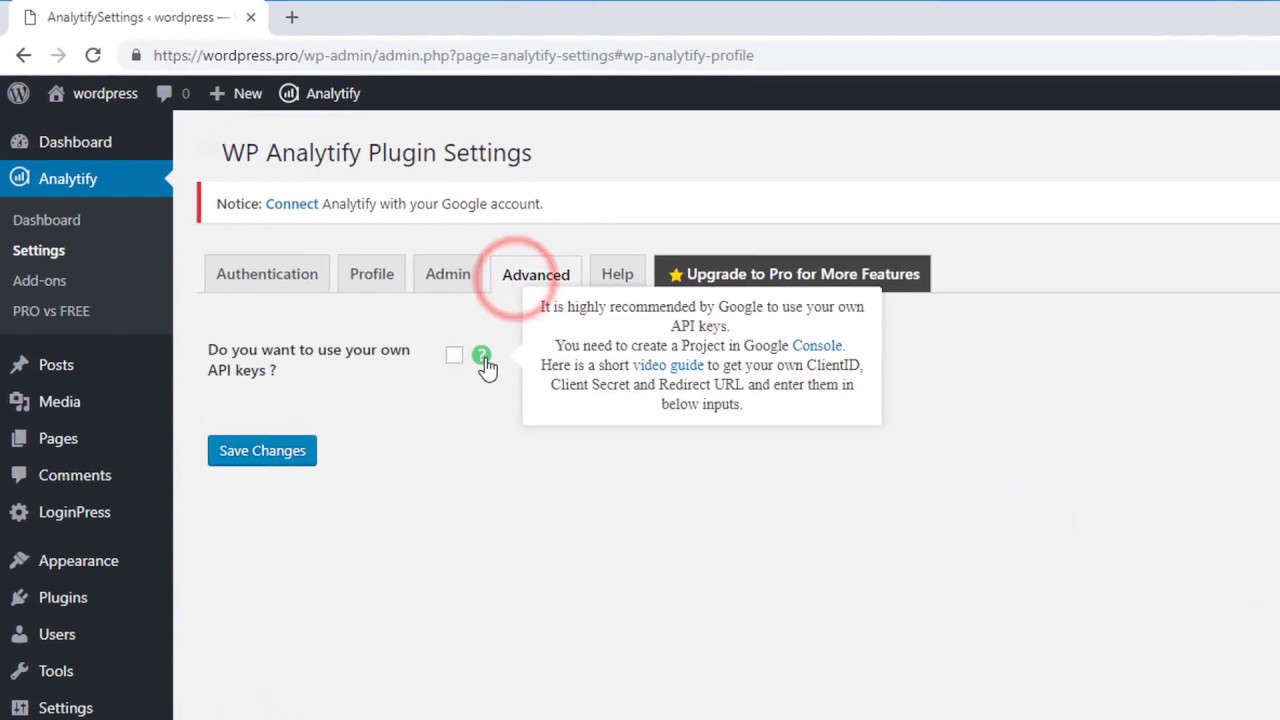
We highly recommend using your own API keys. So, you don’t run into these quota exceeded errors. We have a detailed guide written for creating the Google console project and generating API keys which you can use in the plugin Analytify->settings page at the advanced tab. Simply tick the checkbox and add your details.
If you are still unable to create API keys. We have a paid service to setup API keys for you.