Google Search Console Insights: 6 Important Reports to Analyze Content Performance

Google Search Console Insights combines Search Console and Google Analytics data. It shows how your content performs and how visitors find it.
Search console insights play an important role in optimizing your website’s SEO strategy, and understanding how your content performs. GSC brings together data from Google Search Console Insights and Google Analytics. Website owners get key performance metrics in one easy dashboard.
Use it to see which pages perform best, which queries bring visitors, and where content needs an update.
This article explains how to use Google Search Console Insights. It focuses on six essential reports that boost your SEO strategy.
You will also see how Analytify brings these metrics into your WordPress dashboard. That gives you more actionable insights to improve your content.
Let’s get started!
Search Console Insights (TOC):
What are Google Search Console Insights?
Google Search Console Insights is a dashboard that pulls together data from both Google Search Console and Google Analytics. It shows what queries your content ranks for, where your traffic comes from, and how users engage with your content.
You can also see the combined data in Analytify’s dashboard right from your WordPress site.
Here’s a quick comparison:
| Feature | Analytify | Google Analytics | Google Search Console Insights |
| Search queries | Yes | No | Yes |
| Traffic sources | Yes | Yes | Yes |
| Page performance | Yes | Yes | Yes |
| Engagement metrics | Yes | Yes | Yes |
Why Use Google Search Console Insights?
Google Search Console Insights saves you a lot of time. Instead of bouncing between multiple tools (Google Analytics, Search Console), you get everything in one place.
It is designed for people who are not SEO experts. They still need easy access to data that makes a real impact.
Think about it this way:
- Without GSC Insights: You check Google Analytics for traffic. Then you go to Google Search Console to analyze which search queries drive it.
- With GSC Insights: You get a combined view in seconds. It shows what works for your SEO and what needs attention.
Key Benefits of Using Search Console Insights:
| Benefit | Why It Matters |
| Time-saving | Combines multiple data sources, saving time on data gathering. |
| Content-focused metrics | Highlights important metrics like top-performing pages. |
| Actionable SEO insights | Gives you direct recommendations to improve your SEO strategy. |
| Easy to understand | Designed for non-technical users to get quick, clear insights. |
Moreover, Analytify plays an important role here. It extends these search insights by bringing Google Analytics data into your WordPress site. You get a real-time overview of performance right where you manage content.
How to Access Google Search Console Insights
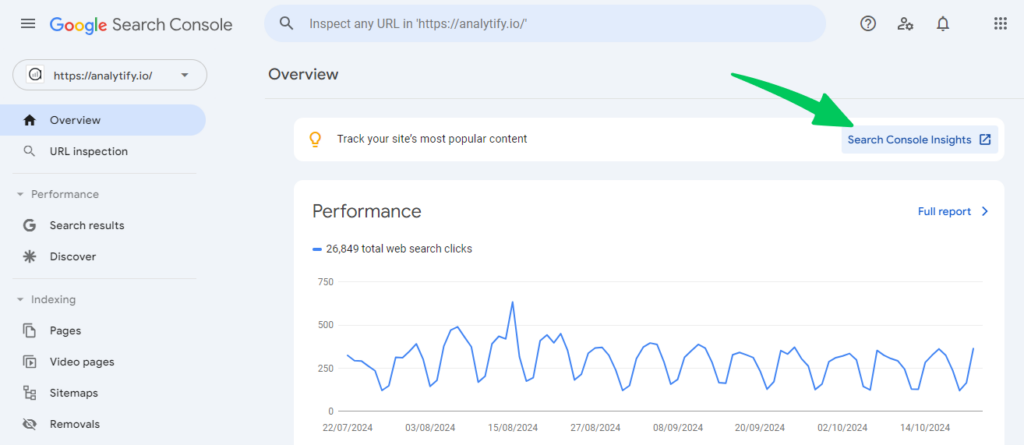
Accessing Google Search Console Insights is straightforward. Once it is set up, you can start optimizing your SEO strategy from the data. Here’s a step-by-step guide on how to use Google Search Console Insights.
Accessing from Desktop
- Go to the Search Console Insights URL:
- Visit Google Search Console.
- Sign in:
- Use the Google account associated with your Google Search Console and Google Analytics.
- Select your property:
- Choose the website property for which you want to view insights. If you manage multiple properties, ensure you’re selecting the right one.
- Start exploring:
- You’ll now see your Search Console Insights dashboard with various reports and cards providing detailed performance metrics.
How Analytify Makes It Even Simpler
Join 50,000+ beginners & professionals who use Analytify to simplify their Google Analytics!
While Google Search Console Insights is relatively easy to access, switching between multiple platforms can still be time-consuming. Analytify simplifies this process by pulling similar data directly into your WordPress dashboard. You don’t need to log in separately to Google Search Console or Google Analytics. Analytify syncs the data and shows it where you manage your content.
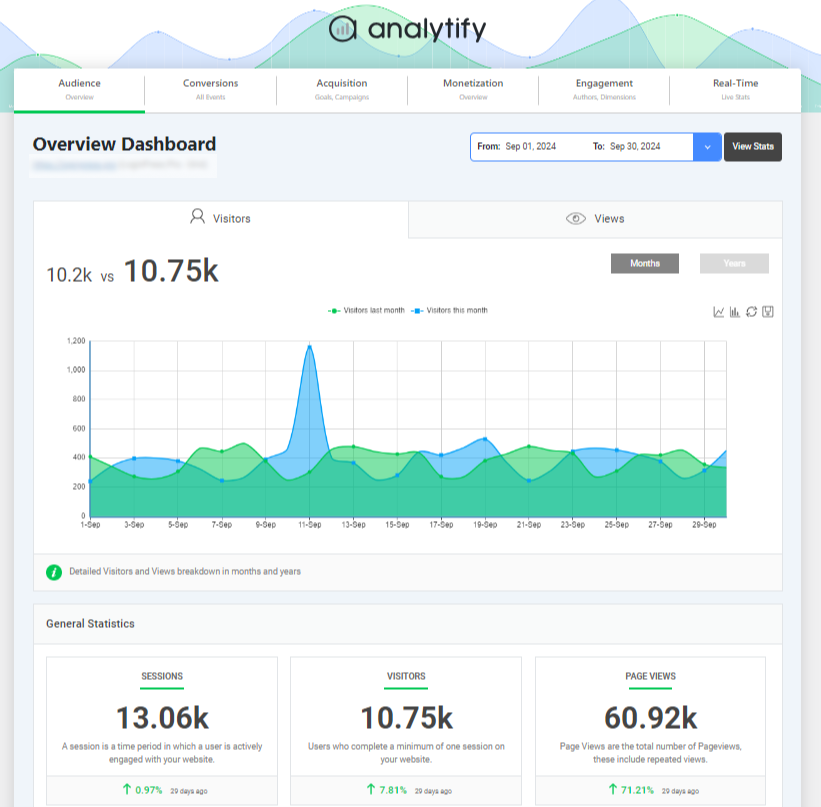
Here’s what Analytify does:
- Directly syncs with Google Analytics.
- Displays key metrics (traffic sources, content performance, search queries) within your WordPress dashboard.
- It provides automated reports and real-time data, helping you monitor your site’s performance without switching between tools.
This integration saves time. It also lets you act on the data quickly and improve your SEO workflow.
6 Important Google Search Console Insights Reports for SEO
Search Console Insights has six reports that are essential for understanding your content’s performance, traffic sources, and SEO opportunities.
We’ll explain each one in detail and show how Analytify can enhance these insights right from your WordPress dashboard.
1. New Content Performance Report
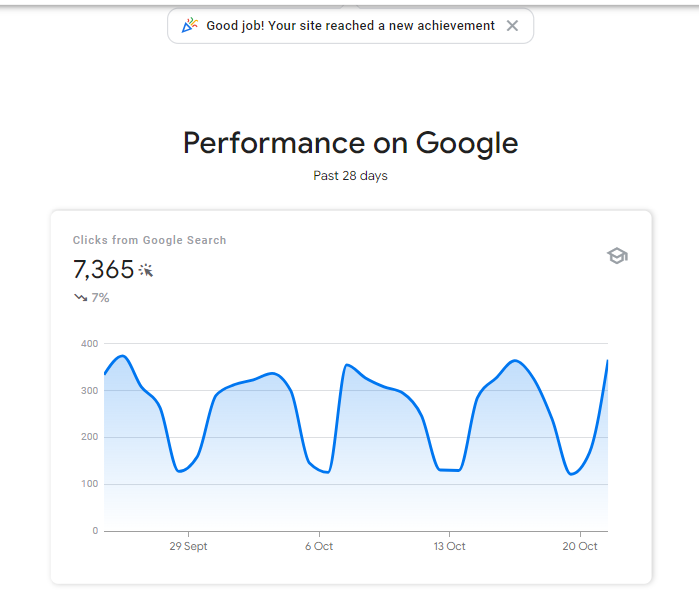
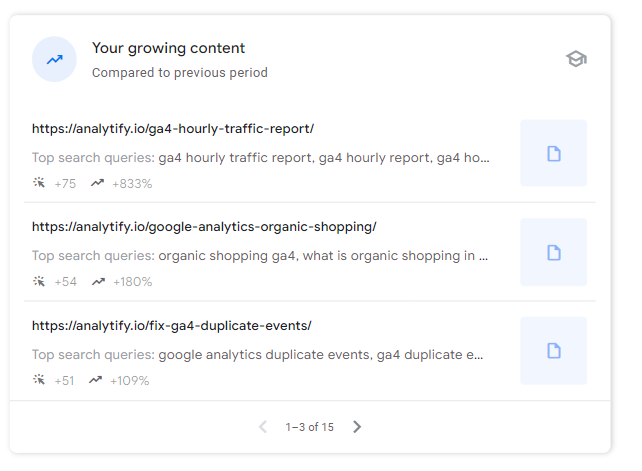
The New Content Performance Report shows how recently published content is performing. It highlights pages published in the last 28 days. It shows views, top search queries, and average engagement time.
Why It Matters:
It’s important to know how new content is performing right after it’s published. This report helps you quickly spot which pieces of content are gaining traction and which ones need more attention.
How to Use It for SEO:
- Analyze search queries: Check which queries are driving traffic to your new content. Are these the keywords you optimized for, or are new opportunities emerging?
- Optimize underperforming content: If a new piece isn’t gaining traction, add keywords or refine the meta description and title to match search intent.
- Create related content: If a new article performs well, expand the topic with more content around similar keywords.
Example:
Say you publish a blog post on “SEO for Beginners.” After a few weeks, the New Content Performance Report shows it ranks for “SEO tips for small businesses.” You did not target that keyword. This is an opportunity to create more content on SEO tips for small businesses. It helps you capture more traffic from that audience.
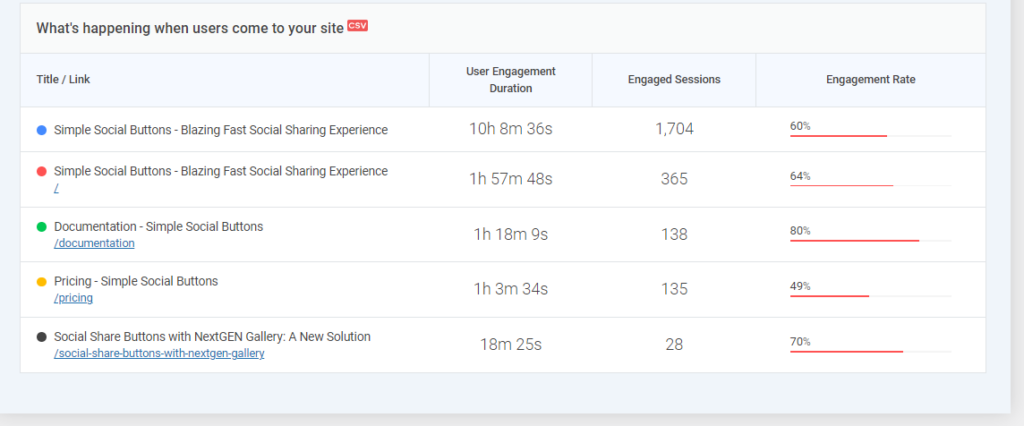
Analytify allows you to track your content’s performance right within WordPress. It gives real-time data on page views, referral sources, and engagement metrics. You can spot trends quickly and act on them.
2. Most Popular Content Report
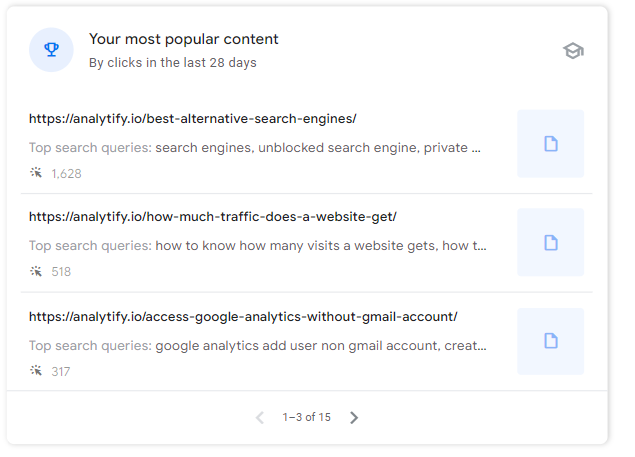
The Most Popular Content Report shows which of your pages are getting the most views. It ranks your top-performing content by page views, engagement time, and search queries.
Why It Matters:
Understanding your most popular content helps you identify what resonates with your audience. You can then use these insights to improve other areas of your website and SEO strategy.
How to Use It for SEO:
- Update popular pages: Keep your top-performing content fresh by regularly updating it with new information, keywords, or links. You can use content audit tools to assess your website’s content and identify areas for improvement.
- Build internal links: Link from popular pages to newer or underperforming content to boost visibility.
- Optimize for engagement: If a page has high views but low engagement time, look at ways to improve the content to keep visitors on the page longer.
Example:
If your “Ultimate SEO Guide” is your top page, update it with the latest trends, statistics, or related topics. That keeps it ranking high and drives continuous traffic.
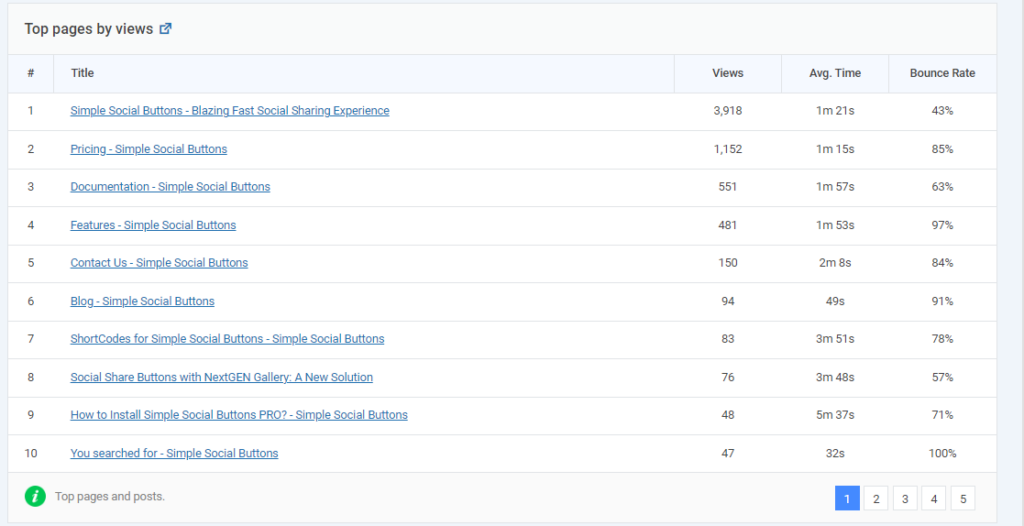
With Analytify, you can monitor your top-performing pages directly in your WordPress dashboard. It shows which content gets the most traffic. It also breaks down engagement metrics like time on page and bounce rate, so you know where to improve.
3. Top Traffic Channels Report
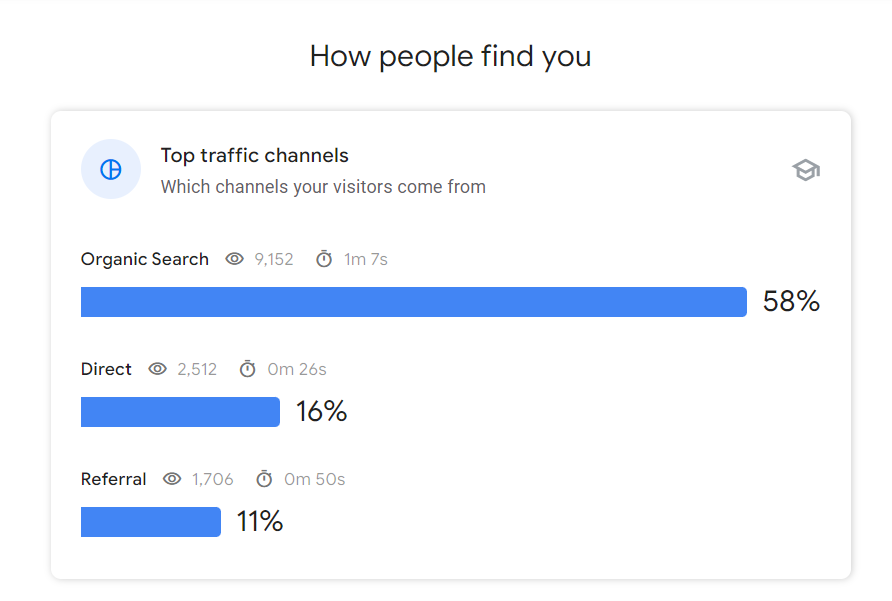
The Top Traffic Channels Report shows where your traffic comes from, such as organic search, direct traffic, or referrals from other websites.
Why It Matters:
Knowing where your traffic comes from shows which channels drive the most visitors. You can then double down on what’s working or adjust your strategy for weaker channels.
How to Use It for SEO:
- Focus on organic search: If most of your traffic is organic, prioritize SEO by optimizing for more high-traffic keywords.
- Use referral traffic: If referrals drive significant traffic, build relationships with those websites or find similar ones to link to your content.
- Improve underperforming channels: If a channel like social media brings little traffic, rethink your promotion strategy.
Example:
If most of your traffic comes from referral websites, explore partnerships with those sites. You can earn more links and boost your SEO further.
Analytify adds more granular insights into traffic channels. It shows where your traffic comes from and which posts or pages benefit from each channel. This allows you to tailor your content and marketing strategies more effectively.
4. Most Searched Queries Report
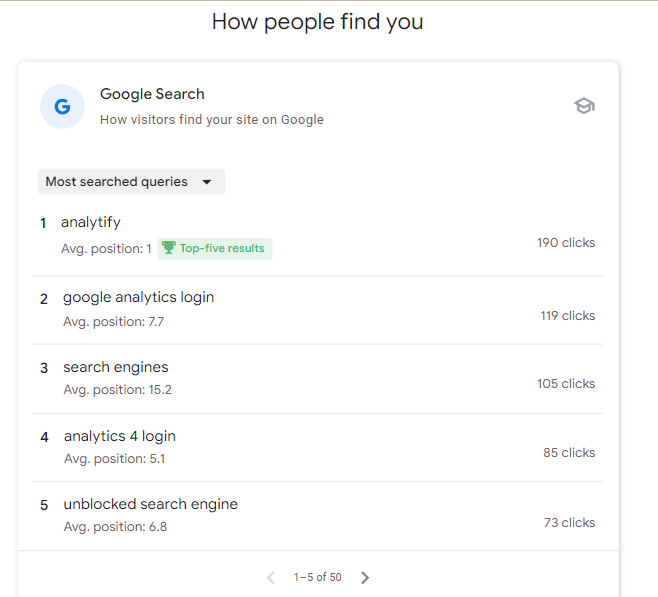
The Most Searched Queries Report displays the search queries that are driving the most clicks to your website. It shows the query, the number of clicks, and your site’s average position in search results for that keyword.
Why It Matters:
This report is gold for understanding what your audience is searching for when they find your site. Analyze these queries to focus your content strategy on keywords that already work. You can also find new opportunities to improve rankings.
How to Use It for SEO:
- Optimize for top queries: If a query has high clicks and a high ranking, optimize more content around that keyword to capture more traffic.
- Improve low-ranking queries: For keywords with high impressions but low average positions, update your content or create new pages that target them.
- Spot new content opportunities: Use this report to find related queries or new keyword ideas you haven’t fully optimized for.
Example:
Say your site ranks well for “SEO tips for bloggers” but sits on the second page for “SEO tips for beginners.” Tweak your content to rank better for the second query. You could create new blog posts or update existing ones to focus more on beginner-level SEO tips.
With Analytify, you can track the search queries driving traffic to each page directly from your WordPress dashboard. It simplifies keyword monitoring. It shows which search terms perform best, so you can improve your content’s relevance to them.
5. Most Trending Queries Report
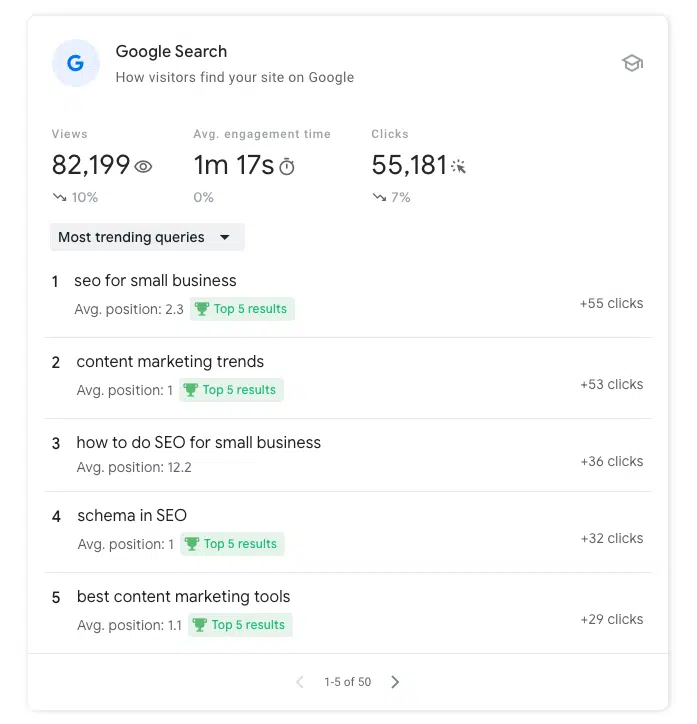
The Most Trending Queries Report highlights search queries that have seen a recent spike in clicks to your website. This report shows the query, the average position in search results, and the percentage increase in clicks over a specific period.
Why It Matters:
Trending queries are a valuable indicator of what’s currently popular or gaining traction. By identifying these rising search terms, you can quickly create or update content to capitalize on growing interest. That can lead to a surge in traffic.
How to Use It for SEO:
- Create timely content: If a trending query relates to your niche, write a blog post or other content around that keyword to capture traffic while it’s popular.
- Update existing content: If an old post starts trending for a new search query, update it with more relevant, timely information.
- Monitor seasonal trends: Use this report to spot recurring trends that may occur seasonally. Prepare content ahead of time for future seasonal spikes.
Example:
Imagine a query like “best SEO tools 2024” starts trending. You can quickly write a post on the best tools for the upcoming year. Optimize it for that trending query. Since the trend is rising, your post could gain traction quickly.
Analytify tracks your top-performing queries over time and alerts you to rising trends directly within your WordPress dashboard. This lets you act on trending keywords faster. It keeps your content strategy nimble and responsive to changes in search behavior.
6. Referring Links from Other Websites Report
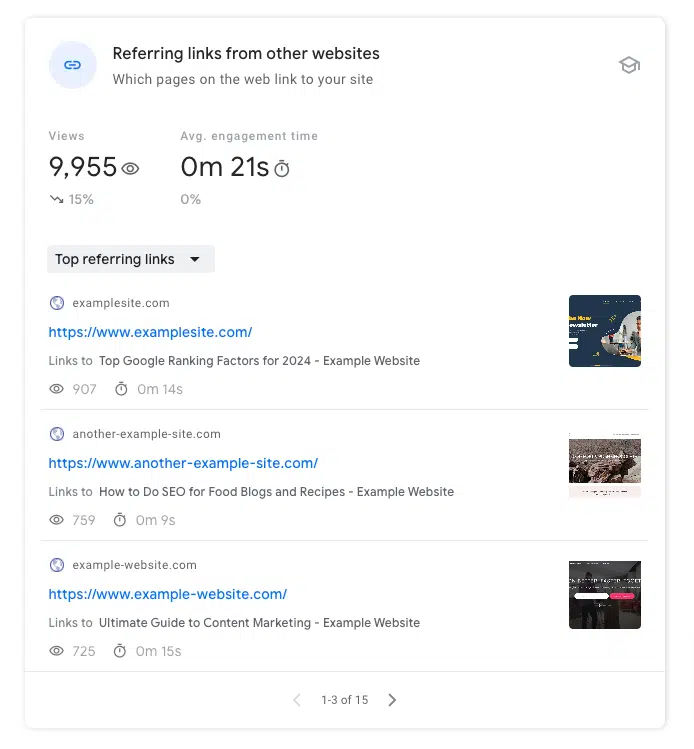
The Referring Links from Other Websites Report shows which external sites are linking to your content. It shows the number of clicks you get from these referring websites. It also shows engagement metrics for that referral traffic.
Why It Matters:
Backlinks are a crucial ranking factor for SEO. Knowing which websites link to you helps you understand your backlink profile. It also shows where to build relationships with sites that already refer traffic.
How to Use It for SEO:
- Identify high-value backlinks: Focus on nurturing relationships with sites that are sending you significant referral traffic. Consider reaching out to these sites for potential collaborations or guest posting opportunities.
- Analyze low-engagement referrals: If some referral links drive little engagement, check whether the referring website’s audience matches yours. You can then decide whether to pursue similar backlinks in the future.
- Build on success: Use successful referral links to guide your link-building strategy. If certain types of content are attracting backlinks, create more of that kind of content to encourage additional links.
Example:
If a popular industry blog links to your article on SEO best practices and sends a lot of traffic, reach out to collaborate. You could write a guest post or build a content partnership.
Analytify helps you track and monitor referral traffic from other websites in real-time. You can quickly see which backlinks drive the most traffic and engagement. Double down on successful link-building strategies and improve weak areas.
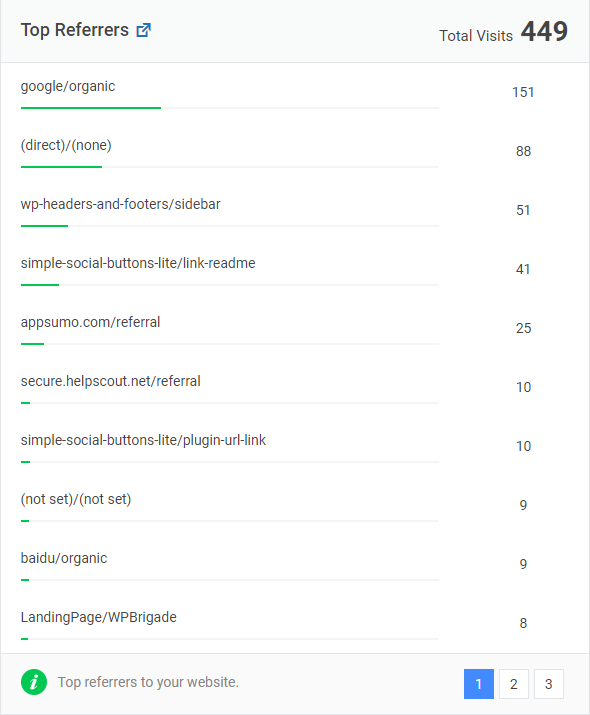
These six reports form the core of Google Search Console Insights. They give you a wealth of information to improve your SEO strategy. With Analytify, these insights are easily accessible within WordPress. That helps you optimize your content faster and more effectively.
Common Pitfalls and Limitations of Search Console Insights
Google Search Console Insights offers a powerful set of tools. It also has some limitations. Understanding these pitfalls can help you make more informed decisions when using the platform for your SEO strategy.
1. Limited Data Range
What it is:
The data shown in Search Console Insights is limited to the last 28 days. This short time frame limits long-term analysis. You cannot see how performance changed over months or years.
Why it Matters:
Focusing only on short-term data might give you an incomplete view of your site’s overall SEO performance. Some content, especially evergreen pieces, takes longer to gain traction, so a broader perspective is sometimes necessary.
How to Overcome it:
- Use Google Search Console directly to access data beyond the 28-day window.
- Pair Search Console Insights with Analytify for a more comprehensive view of historical performance.
2. Simplified Metrics
What it is:
Search Console Insights is great for high-level data quickly. It lacks the depth some SEO experts need. You won’t find detailed information on bounce rates, advanced segmentation, or multi-channel attribution in Search Console Insights.
Why it Matters:
For more complex SEO strategies, simplified metrics might not provide enough insight to make informed decisions. For instance, understanding the exact behavior of users across multiple touchpoints requires deeper analytics.
How to Overcome it:
- Use Google Analytics or Analytify for more advanced metrics like bounce rates, conversions, and multi-channel attribution. They give a fuller picture of your site’s performance.
3. Only Google Search Data
What it is:
Search Console Insights focuses only on data from Google Search. This means you won’t be able to see traffic coming from other search engines like Bing, Yahoo, or DuckDuckGo.
Why it Matters:
Google dominates search, but ignoring other traffic sources means missing opportunities on alternative search engines. For websites that have a significant non-Google user base, this can lead to incomplete insights.
How to Overcome it:
- Use Analytify to track traffic from other search engines. It pulls data from Google Analytics, which includes traffic from all search sources.
| Limitation | Why It Matters | How to Overcome It |
| Limited Data Range | Doesn’t show long-term trends. | Use full Google Search Console or Analytify for historical data. |
| Simplified Metrics | Lacks advanced metrics like bounce rates and conversions. | Use Google Analytics or Analytify for deeper insights. |
| Only Google Search Data | Doesn’t include other search engines. | Use Analytify to track all search engine traffic. |
How to Maximize Your SEO Strategy with Analytify and Search Console Insights
To maximize your website’s performance and SEO strategy, combine Google Search Console Insights with Analytify. Here’s how you can use both tools together to drive better results.
1. Use Analytify for Enhanced Analytics
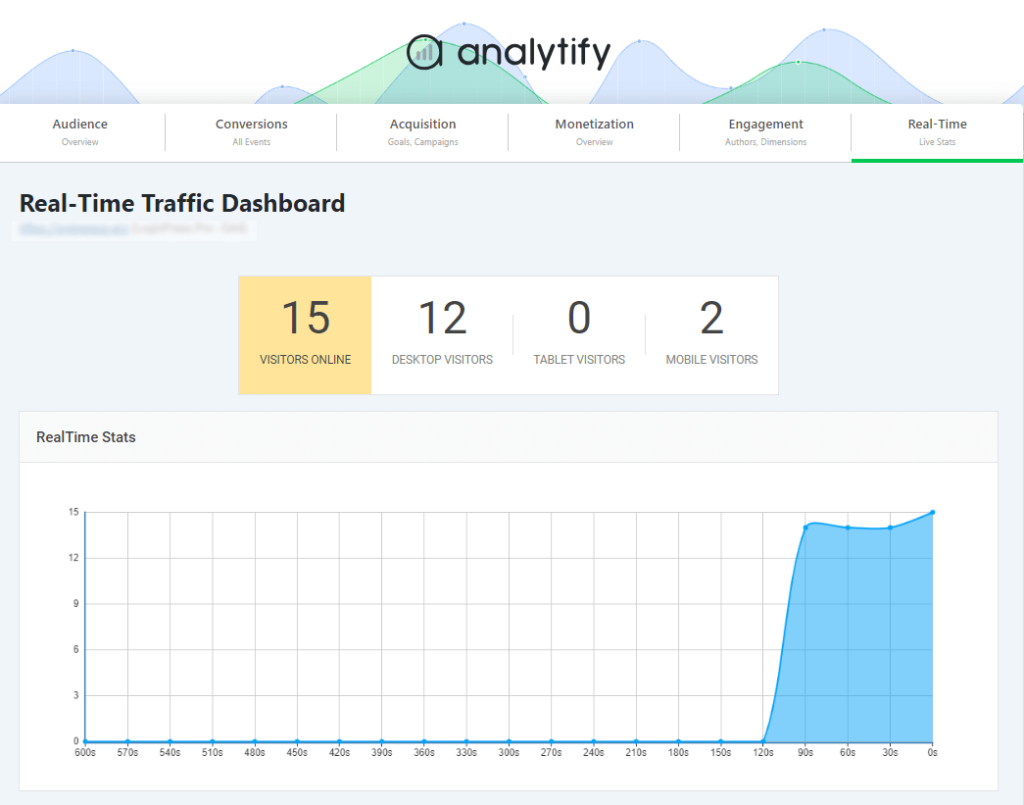
While Search Console Insights offers basic metrics, Analytify directly brings deeper, more detailed analytics into your WordPress dashboard. With Analytify, you can:
- Track detailed user behavior: Monitor how visitors interact with each page, including bounce rates, time on page, and conversion rates.
- Automate reporting: Set up custom reports and receive them in real time. You always have the latest data.
- Track eCommerce performance: If you run an online store, Analytify tracks product performance, transaction data, and conversion paths inside WordPress.
2. Automation and Simplification with Analytify
One of the most useful features of Analytify is automation. It handles many of the manual tasks of tracking website performance. Here’s how it simplifies your SEO workflow:
- Automated reports: Set up weekly or monthly reports on your top-performing content, traffic channels, and search queries.
- Real-time notifications: Receive instant alerts when your website’s traffic or content performance significantly changes, allowing you to respond quickly.
- User-friendly dashboard: All the data from Google Analytics and Search Console Insights appears in an easy-to-understand format in WordPress. Beginners and experienced marketers can both use it.
Combine the data from Search Console Insights with Analytify’s analytics and automation. You get a complete picture of your site’s performance and tools to make data-driven decisions faster.
Search Console Insights (FAQ)
What are Google Search Console Insights?
Google Search Console Insights is a tool that combines data from Google Search Console and Google Analytics to provide insights into how your content is performing, including key metrics like top-performing pages and search queries.
How do I Analyze Google Search Console?
You can analyze Google Search Console by reviewing reports on search queries, page performance, index coverage, and mobile usability to identify areas for SEO improvement.
What does the Google Search Console tell you?
Google Search Console provides information about your site’s visibility in Google Search, including search queries driving traffic, page rankings, click-through rates, and indexing issues.
What is Google Analytics Search Console?
Google Analytics Search Console is the integration of Google Search Console data into Google Analytics, allowing you to see how search traffic interacts with your site and measure post-click performance.
How to use Google Search Console Insights?
To use Google Search Console Insights, log in via the desktop or mobile Google app, choose your website, and explore reports on content performance, traffic sources, and trending queries to optimize your SEO strategy.
How can I use Search Insights?
To use Search Console Insights, sign in with your Google account that is connected to your Google Search Console and Google Analytics accounts. Then, explore key reports like new content performance, most popular pages, and trending search queries. Use the insights to optimize content and improve your SEO by focusing on high-performing queries and traffic sources.
What is the Google Search Console used for?
Google Search Console is a tool that helps you monitor and maintain your site’s presence in Google Search results. It provides data on search queries, indexing issues, page performance, and technical SEO problems like mobile usability and security issues, helping you optimize your website for better rankings.
Search Console Insights: Final Thoughts
In summary, Google Search Console Insights is an invaluable tool for anyone looking to improve their SEO performance. It gives essential insights into how your content performs, which search queries drive traffic, and where your visitors come from. However, when paired with Analytify, you can take these insights to the next level.
With Analytify’s real-time tracking, detailed analytics, and automated reporting, you streamline monitoring and improving your SEO strategy. All of it happens in your WordPress dashboard.
If you want to boost your SEO with Search Console Insights, integrate Analytify into your workflow. It puts the data where you work.
You may also like to read the 6 Most Important Google Analytics SEO Reports.
Now, we’d love to hear from you. Which Google Search Console insight you found more beneficial for your marketing strategy? Share your thoughts in the comment below.