
How to Export Google Analytics Data (2026 Step-by-Step Guide)

To export Google Analytics data, open a report in GA4, select Share this report in the top right, choose Download File, and pick Download PDF, Download CSV, or Export to Google Sheets.
CSV and Google Sheets exports include up to 100,000 rows of data. Exporting lets you analyze and share Google Analytics data outside the GA4 interface.
Analytify is a WordPress plugin that connects to GA4 and shows your Google Analytics data inside the WordPress dashboard, so you can read and export reports without opening GA4.
This guide is for site owners, marketers, and agencies who need GA4 data in a spreadsheet or a report. I show you the manual export steps in GA4 and then how Analytify handles reporting and exports in WordPress.
Export Google Analytics Data (TOC):
Why Export Google Analytics Data?
You export Google Analytics data to analyze it in other tools, share it with teams or clients, and build custom reports. The main reasons are:
- Deep Analysis Outside the GA4 Interface
GA4 offers powerful reporting, but exporting data allows you to perform deeper analysis using tools like Excel, Google Sheets, or custom reporting tools. Exporting is especially helpful when you need to manipulate or filter data in ways the GA4 interface does not support. - Sharing Insights with Teams or Clients
Raw Google Analytics data is hard to share with stakeholders who do not know the GA4 interface. Exporting the data to a more user-friendly format like Excel or Google Sheets can make it easier to collaborate. - Creating Custom Reports
With exported data, you can create custom reports tailored to your business needs, which can be useful for in-depth analysis or presentations to stakeholders. - Use Cases for Exporting
- Export traffic data to other tools for further analysis or presentation.
- Export raw data from Google Analytics for more in-depth analysis in custom tools like Excel or Google Sheets.
- Export traffic data to other tools for further analysis or presentation.
How to Export Google Analytics Data: Manual Steps in GA4
You export data from GA4 by opening a report, selecting Share this report, then Download File, and choosing a format. The steps are:
Step 1: Go to Google Analytics
- Log in to your Google Analytics account.
- Select the GA4 property that you want to export data from.
Step 2: Find the Report You Want to Export
- In the GA4 interface, navigate to the Reports section in the left sidebar.
- Open the report you want to export, such as Acquisition or Engagement, or any other report that shows the data you need.
Step 3: Export the Data
- In the report, select Share this report in the top-right corner.
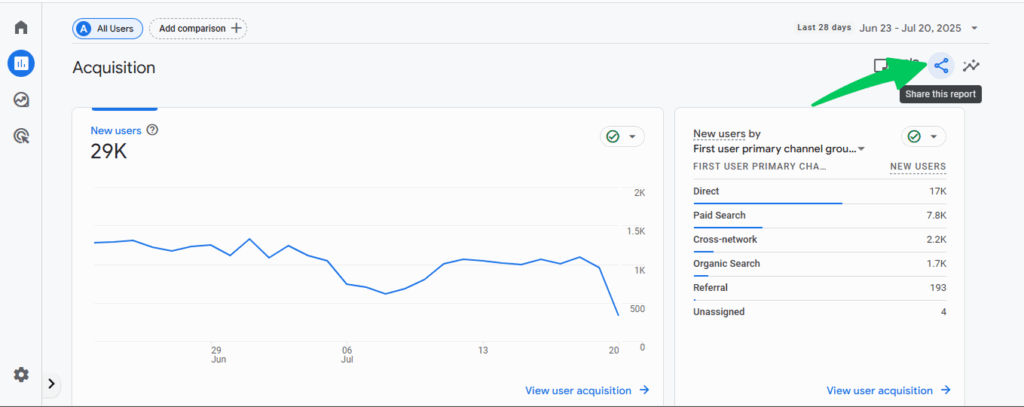
- Select Download File. GA4 then lists three options: Download PDF, Download CSV, and Export to Google Sheets.
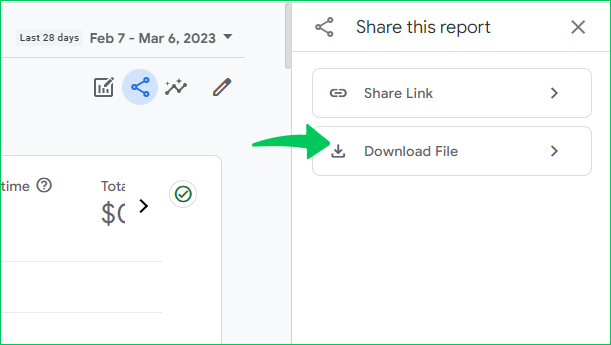
Step 4: Choose Your Export Format
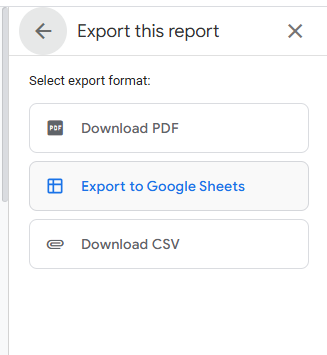
GA4 offers three export formats:
- CSV: To export Google Analytics data to excel, you will need to click on CSV. This is a simple format that can be opened in Excel or Google Sheets. It’s great for analyzing the data further or sharing it with others.
- PDF: Your Google Analytics Report PDF will be downloaded to your device.
- Google Sheets: Select Export to Google Sheets to send the report to Google Sheets. You can also use the Google Analytics Add-On for Sheets or export the CSV and upload it to Google Sheets manually.
Step 5: Download or Send the Data
- Once you select the export format, your data will either download automatically to your computer or be sent directly to Google Sheets if you used that option.
Step 6: Troubleshoot Common Issues
- Row Limit: CSV and Google Sheets exports include up to 100,000 rows of data. For larger datasets, split the export into smaller date ranges.
- Formatting: Sometimes, exported data may need formatting adjustments, such as date formats or column alignment, especially when working with large datasets.
Those are the manual steps to export data from GA4. To read and export reports inside WordPress, Analytify presents Google Analytics data in the WordPress dashboard and exports reports in CSV or PDF.
Use Analytify for Google Analytics Reporting
Join 50,000+ beginners & professionals who use Analytify to simplify their Website Analytics!
To view and report on Google Analytics data without the GA4 interface, use Analytify , which shows your GA4 data inside WordPress.
Analytify is a WordPress plugin that simplifies Google Analytics reporting for website owners. It pulls data directly from your GA4 account and shows it inside your WordPress dashboard. You can read reports there without exporting data manually.
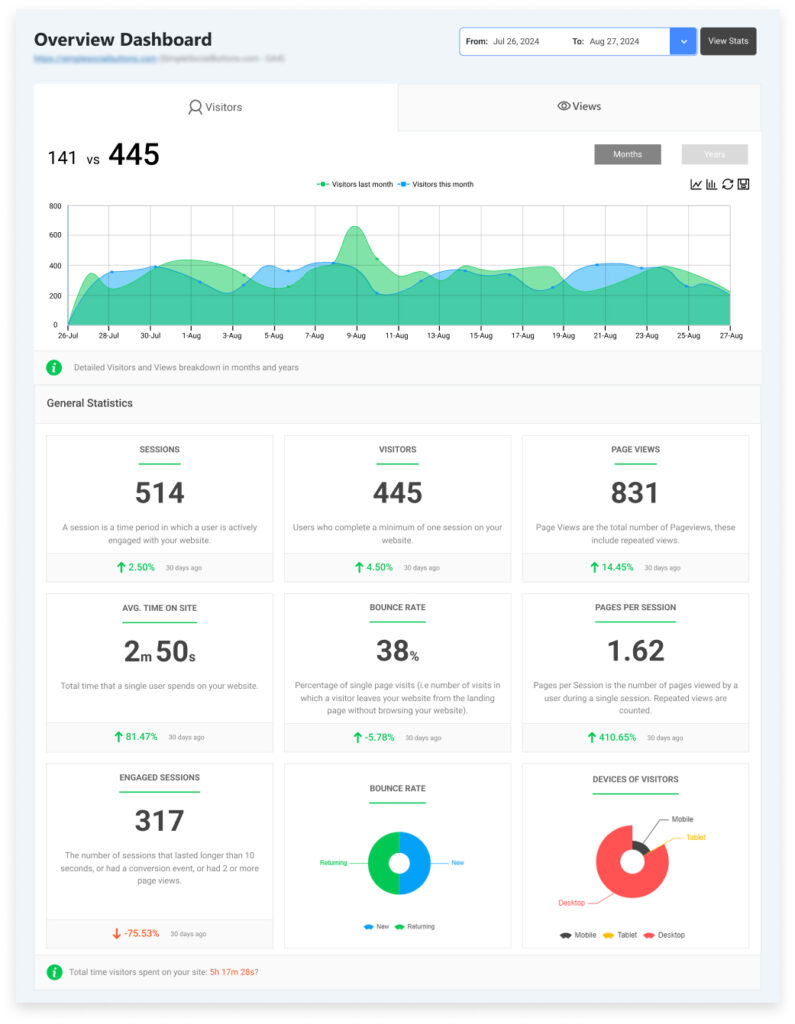
Key Features of Analytify
- Real-Time Tracking: Analytify provides real-time tracking of your website’s visitors, showing detailed information on page views, sessions, bounce rates, and more. This allows you to monitor your website’s performance as it happens.
- User-Friendly Interface: The plugin displays your Google Analytics data in an easy-to-understand format, breaking down complex metrics into digestible insights. Even non-technical users can easily interpret the data and make informed decisions.
- Detailed Reports: Analytify offers detailed reports on various aspects of your website, including traffic sources, user engagement, and demographics. You can get an overview of your website’s performance without having to dig through Google Analytics itself.
Exporting Reports from Analytify
Analytify exports reports in CSV or PDF format in a few clicks:
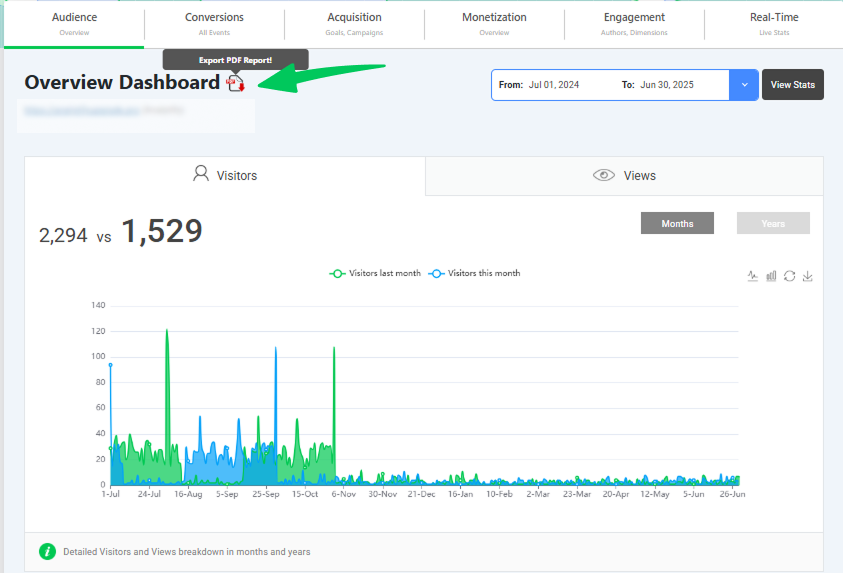
- Export Options: You can export your reports in CSV or PDF formats, which is perfect for sharing with your team, clients, or stakeholders.
- Automated Reports: Analytify also allows you to set up automated email reports, ensuring you receive key data without the need to manually export it each time.
- Customizable Reports: You can filter and customize reports by date range, specific metrics, or audience segments, making it easy to focus on the data that matters most to you.
Analytify helps website owners and marketers read Google Analytics data without exporting raw data. It covers traffic, conversions, and user behavior inside the WordPress dashboard.
Best Practices for Exporting Data from Google Analytics
Four practices keep Google Analytics exports useful and manageable:
- Export Only Relevant Data: Don’t export everything. Instead, focus on the data that matters most to your analysis or reporting needs.
- Use Google Sheets for Collaboration: If you need to share data with team members, Google Sheets makes it easy to collaborate in real time.
- Regular Backups: Export critical data regularly in CSV format to maintain backups, especially for ongoing projects.
- Use Analytify’s Visual Reports: Instead of exporting raw data frequently, use Analytify’s visual reports to quickly grasp key metrics without the hassle of data exports.
FAQs: Exporting Google Analytics Data
1. How do I export Google Analytics data to a CSV file?
To export data from Google Analytics 4 (GA4) to a CSV file:
Navigate to the desired report in GA4.
Click the “Share” icon in the top-right corner.
Select “Download File” and choose CSV.
Open the downloaded file in Excel or Google Sheets for further analysis.
Note: GA4 has a limit of 5,000 rows per export. For larger datasets, consider segmenting your data by date range or using the Google Analytics API for more extensive exports.
2. What are the limitations when exporting data from GA4?
When exporting data from GA4:
File Size Limitations: Exports are limited to 5,000 rows per file.
Format Restrictions: Direct exports to Google Sheets are not available; data must first be exported as a CSV file.
Date Range Constraints: You must specify a date range for each export; there is no option to export all data at once.
For more extensive data analysis, consider using the Google Analytics API or integrating with tools like BigQuery.
3. How can Analytify help with exporting Google Analytics data?
Analytify simplifies the process of viewing and exporting Google Analytics data within WordPress:
Built-in Reports: Access detailed reports on traffic, user behavior, and conversions directly from your WordPress dashboard.
Export Options: Easily export reports in CSV or PDF formats for sharing or further analysis.
Automated Email Reports: Schedule regular email reports to keep stakeholders informed without manual intervention.
User-Friendly Interface: No technical expertise required; Analytify presents data in an intuitive format suitable for all users.
By integrating Analytify, you can streamline your reporting process and make data-driven decisions more efficiently.
4. Is there a way to export historical Google Analytics data?
Exporting historical data from GA4 can be challenging due to the platform’s limitations:
Manual Exports: You can export data manually by selecting specific date ranges, but this process can be time-consuming for large datasets.
Google Analytics API: For more extensive exports, consider using the Google Analytics Data API, which allows for programmatic access to your data.
BigQuery Integration: Linking GA4 to BigQuery enables the export of raw event data, providing greater flexibility for historical analysis.
It’s advisable to set up these integrations early to ensure you have access to historical data before any potential limitations are enforced.
Export Google Analytics Data: Conclusion
Exporting data from Google Analytics is essential for in-depth analysis and reporting. GA4 exports data in CSV, PDF, or Google Sheets format. These manual exports can be slow for large datasets or frequent reporting.
Analytify provides an easier solution by presenting your Google Analytics data directly in WordPress, making it accessible to everyone, from marketing teams to business owners. It simplifies the process, allowing you to monitor key metrics and export reports with just a few clicks, freeing you from constantly dealing with raw data.
You may also like to read:
- How to Share Google Analytics 4 Reports (5 Easy Ways)
- How to Create Custom Reports in Google Analytics (2026)
If you have any queries, feel free to ask in the comments.