How To Track Phone Calls In Google Analytics (3 Best Methods)

GA4 doesn’t track phone calls natively. Three methods fix that: Analytify, Google Tag Manager, or GA4’s native Ads import. Phone calls convert 10 to 15 times better than web leads. Tracking them closes a real reporting gap.
See our full guide: How to Set Up Google Analytics 4 and Connect it to Your WordPress Site?
GA4 doesn’t track phone calls by default. It only records web interactions like page views, clicks, and form submissions. Without call tracking, phone leads never appear in your conversion reports. Even real revenue-driving calls get missed.
Not every call-tracking method offers the same level of detail. Analytify shows call data right inside your WordPress dashboard. Google Tag Manager requires more setup but works on any site. Native GA4 tracking depends on Google Ads. It only captures calls from paid search extensions.
This guide covers all three phone call tracking methods for GA4. WordPress users get step-by-step setup with Analytify. Other platforms get Google Tag Manager and native GA4 options.
Phone Call Tracking in GA4 (TOC):
What is Phone Call Tracking In Google Analytics 4?
Phone call tracking in Google Analytics 4 monitors phone interactions on your website. It reveals user engagement and campaign effectiveness for those calls.
Phone call tracking needs tags set up inside GA4. You then analyze that data to gauge campaign effectiveness and find improvements.
Tracking phone call leads shows your top-performing marketing channels. Use that data to allocate resources and boost campaign results.
Not tracking phone calls in Google Analytics yet? Here are your options.
Benefits of Phone Call Tracking in Google Analytics 4
- Accurate Call Tracking: With phone call tracking in Google Analytics 4, you can accurately track calls and gather data on calls made from your website, helping you better understand how your website performs.
- Improved Marketing ROI: By tracking calls from your website, you can better understand which marketing channels drive the most phone call conversions. It can help you optimize your marketing strategy and improve your marketing ROI.
- Understanding Customer Behavior: Call tracking in Google Analytics 4 can provide valuable insights into customer behavior, including which pages on your website drive the most calls and which result in the highest conversions.
- Personalized Customer Experiences: By analyzing phone call data, you can better understand your customers’ needs and preferences, personalize their experience, and improve customer satisfaction.
- Better Sales Training: Call tracking data can help you identify areas where your sales team may need additional training, such as call handling or objection handling.
- Improved Call Routing: By tracking calls from your website, you can better understand where your calls are coming from and route them to the appropriate department or agent, improving your overall call routing process.
- Enhanced Customer Service: Tracking phone calls from your website can provide actionable insights into customer needs and expectations, helping you deliver better customer service and improve satisfaction.
- Optimized Ad Campaigns: Call tracking data can help you optimize your ad campaigns by providing insights into which ads drive the most phone call conversions.
- Better Budget Allocation: By tracking phone calls and gathering data on calls made from your website, you can better understand which marketing channels are driving the most conversions and allocate your budget accordingly.
- Improved Conversion Rates: By analyzing phone call data, you can identify areas where you may be losing potential customers and enhance your website and sales process to improve conversion rates.
Here’s how to set up phone call tracking in Google Analytics.
How To Track Phone Calls in Google Analytics? (3 Best Methods)
Tracking phone calls reveals customer behavior and campaign effectiveness. There are 3 ways to track phone calls in Google Analytics:
- Track Phone Calls in Google Analytics 4 using Analytify (The Easiest Way)
- Track Phone Calls in Google Analytics 4 using Google Tag Manager
- Track Phone Calls in Google Analytics 4 without GTM
| Method | Best For | Setup Difficulty | Where You View Reports |
|---|---|---|---|
| Analytify (WordPress plugin) | WordPress and WooCommerce sites | Easy | Inside your WordPress dashboard |
| Google Tag Manager | Any website, more manual control | Moderate | GA4 interface |
| GA4 native call conversion | Google Ads call extensions | Easy | GA4 and Google Ads |
I. Track Phone Calls Using Analytify (For WordPress Users)
Phone call tracking shows how WordPress visitors use your contact info.
Using Analytify connects directly to Google Analytics 4 (GA4). It also tracks CTA links, including phone call links.
Join 50,000+ beginners and professionals using Analytify for Google Analytics!
Here’s the detailed version, with screenshots, using Analytify Pro‘s Events Tracking add-on:
Step 1: Download and Activate Analytify Pro
Begin by downloading Analytify Pro. Once downloaded, install it on your WordPress site and activate your license. Read How to Install And Activate Analytify Pro Plugin.
This step unlocks Analytify’s premium features. You need them for detailed event tracking, including phone calls.
Step 2: Add the Events Tracking Add-On
With Analytify Pro activated, add the Events Tracking add-on next. This add-on tracks specific site interactions, including phone call link clicks.
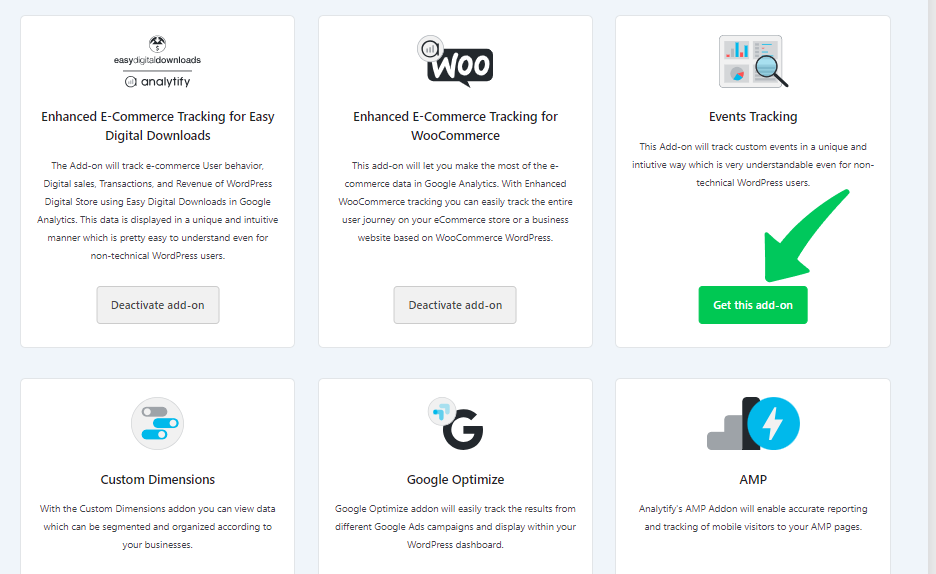
Make sure your Analytify Pro and Events Tracking licenses are activated. This unlocks the add-on’s full functionality for detailed event tracking.
Read How To Get Started With The Events Tracking Addon.
Step 3: Configure Event Tracking Settings
Go to Analytify >> Settings >> Tracking and find the Events Tracking section. Configure your event settings here, including tel link clicks.
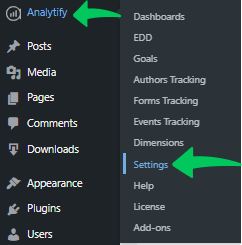
Scroll down the Settings page. Then, turn on Anchor Tracking and enable enhanced link attribution. After this, Save Changes.
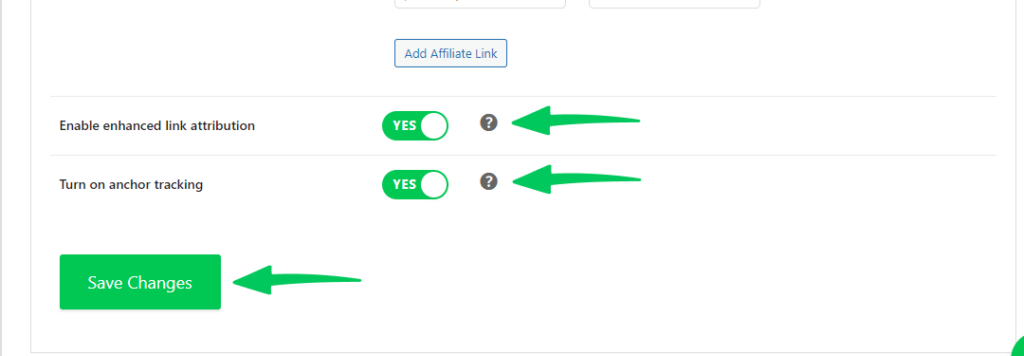
- Anchor tracking allows you to monitor specific anchor tags clicked by your visitors, which is useful for tracking clicks on Tel Links.
- Enhanced link attribution improves the accuracy of link click tracking, making it easier to distinguish between clicks on different links leading to the same destination.
Once configured, your WordPress site tracks phone calls as GA4 events.
This setup shows how well your contact info performs. You’ll see how visitors engage with your on-site phone numbers.
See your phone call tracking results under Analytify >> Events Tracking Dashboard.
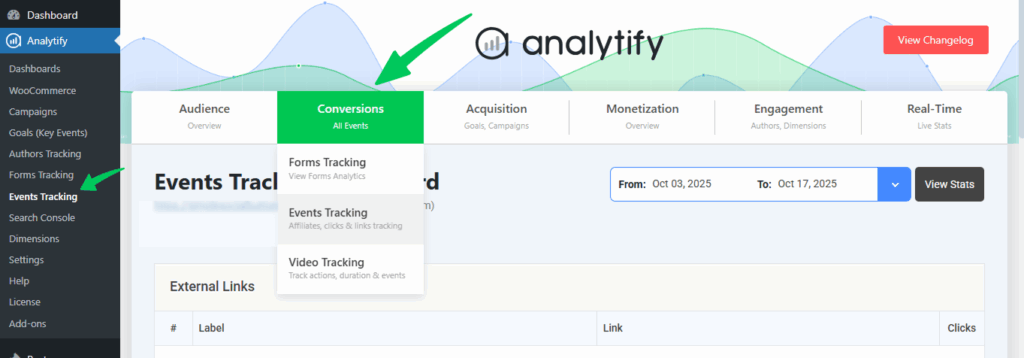
The events tracking report covers your forms, affiliate links, and calls.
In the events tracking report, scroll down to the Tel Links tab.
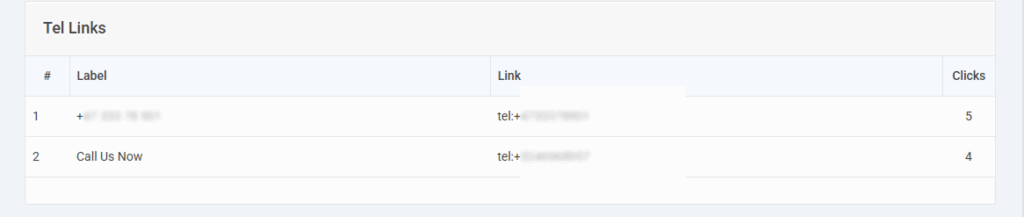
That tab shows how many people click your phone links.
This is the simplest method, but it’s WordPress-only.
Not on WordPress? Explore the next two methods.
II. Track Phone Calls Using Google Tag Manager
GA4 and Google Tag Manager (GTM) make phone call tracking manageable.
Read How to Setup GTM.
Here’s a step-by-step guide to configure call tracking with GTM. It captures call events and sends them to GA4.
Step 1: Configure GTM Variables
- Go to the Variables section in GTM.
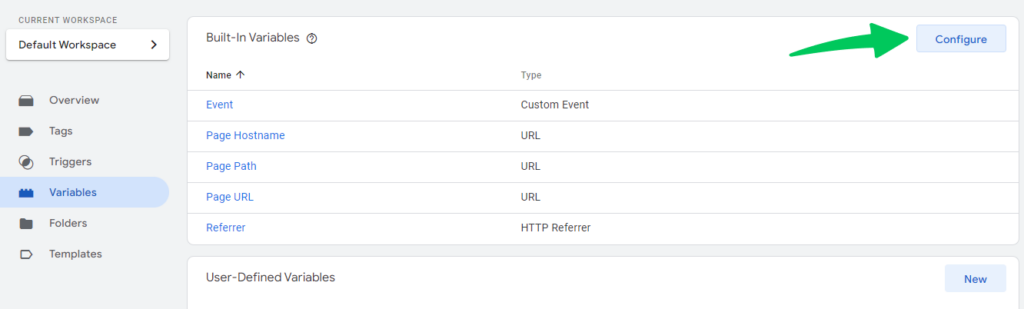
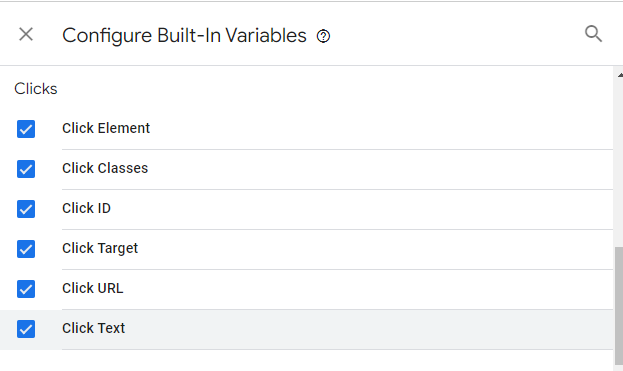
- Click Configure and scroll down to find click variables.
- Ensure click variables are enabled using the checkboxes.
Step 2: Creating Triggers
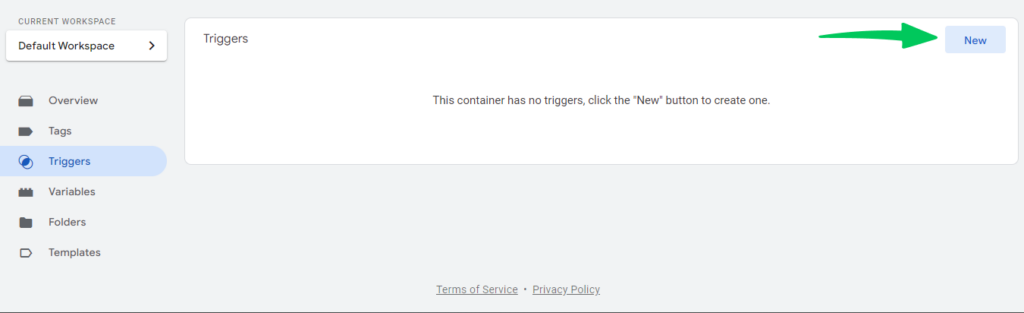
- Now, move to the Triggers section and choose to Create a new trigger.
- Select Click, specifically Just Links.
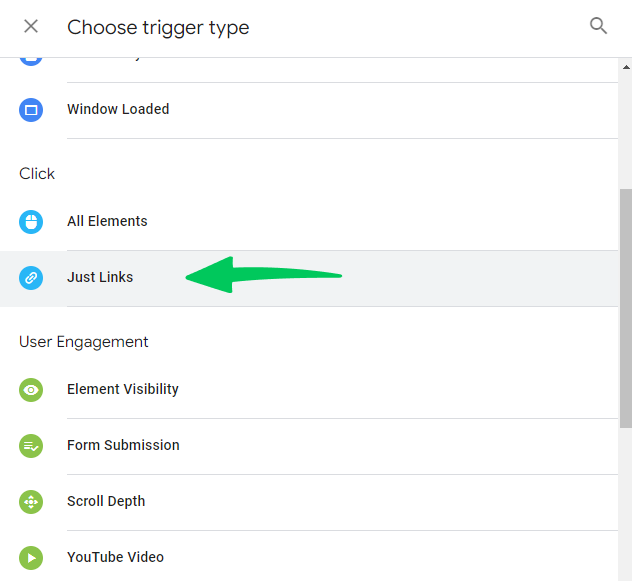
This trigger type works best for tracking clicks that lead to calls.
- You’ll be given a choice to track all link clicks or just specific ones. To monitor all, select the All Link Clicks option. However, for phone call tracking, you’ll choose the Some Link Clicks option.
- Set up a condition that identifies tel: links to track only telephone links. This is done by choosing Click URL in the first field, containing in the second, and entering tel: in the value field. It ensures that only clicks on telephone links trigger the event.
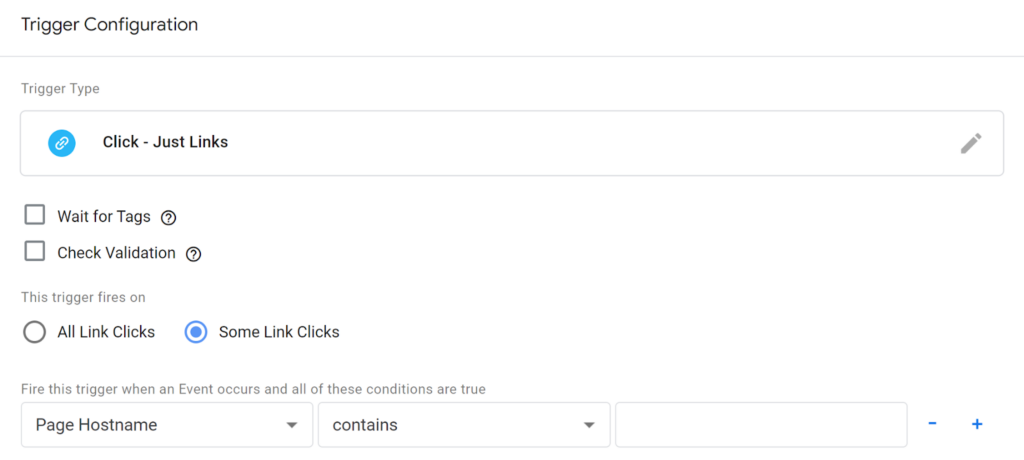
Write your condition as shown below:

Step 3: Configuring the GA4 Event Tag
Now go to Tags and configure your GA4 event tag. For triggering, select the trigger you created:
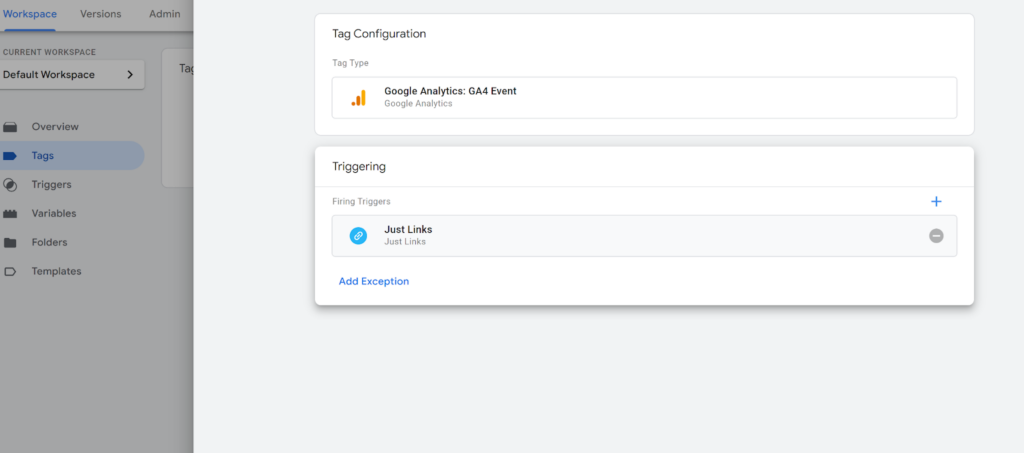
Now, you have configured your event tag in GTM!
Step 4: Testing and Debugging
- Before going live, test your setup.
- Open GA4 and navigate to the DebugView section to verify that your event appears with the correct parameters.
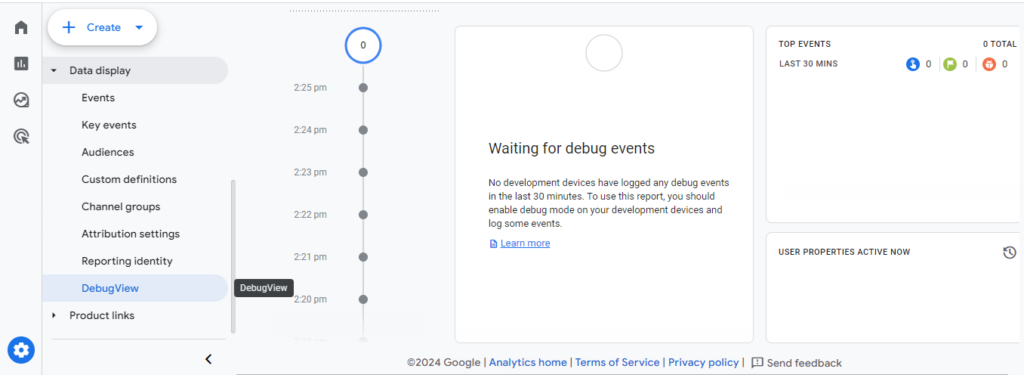
- After confirming successful tracking in DebugView, you can be confident that within 24 hours, the data will populate in your GA4 reports, offering insights into telephone interactions stemming from your website.
III. Track Phone Calls in Google Analytics 4 without GTM
GTM helps manage multiple tracking codes, but it’s not always necessary. For simple call tracking, use GA4 directly. Here’s when skipping GTM makes sense:
- Simplicity Reigns Supreme: If your sole focus is tracking phone calls and you’re not managing a complex web of tracking codes, directly implementing GA4 is a breeze.
- Direct Access Advantage: If you have direct access to your website’s code and feel comfortable making edits, implementing the tracking code directly in GA4 saves time.
Here are the steps to set up call tracking with GA4:
- Log in to Google Analytics:
- Go to Google Analytics and log in with the Google account associated with your GA4 property.
- Select Your GA4 Property:
- Once logged in, choose the specific GA4 property where you want to enable call tracking.
- Navigate to Admin:
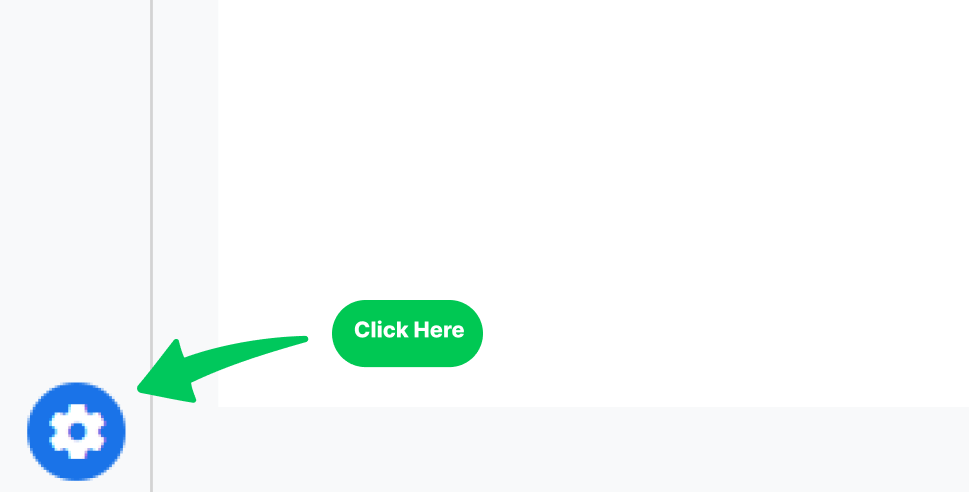
- Click on the gear icon in the lower-left corner to access the “Admin” settings.
- View Property Settings:
- Under the “Data Collection” column, click “Data Streams”.
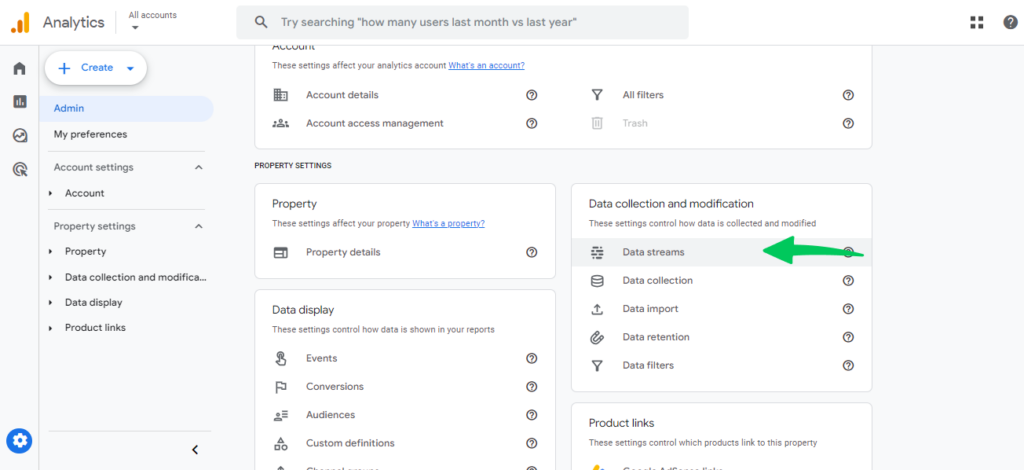
Then, select the data stream linked to your website.
- Access Tracking Code:
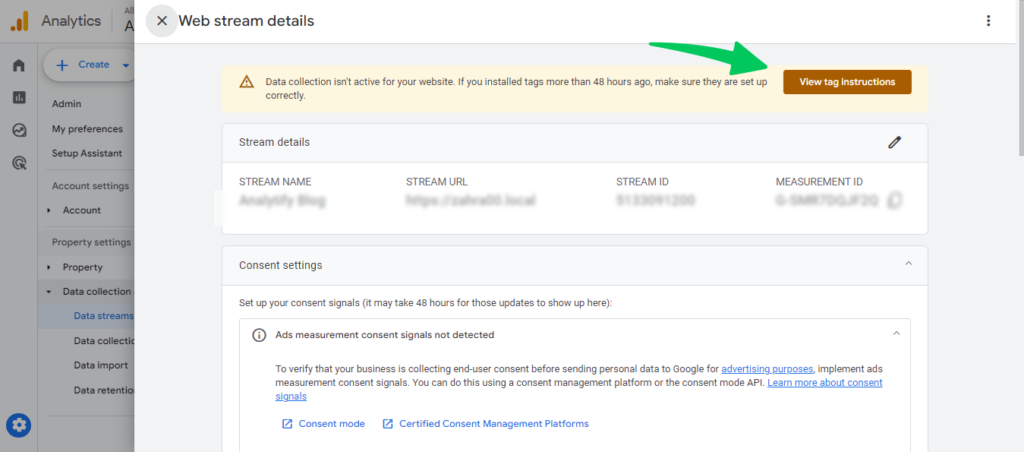
- In the same data stream settings, see the “Tagging Instructions” section. Click on the “GA4 Configuration Tag” option to access your tracking code.
- Copy GA4 Tracking Code:
- You’ll see a code snippet with your Measurement ID. Copy the entire code snippet.
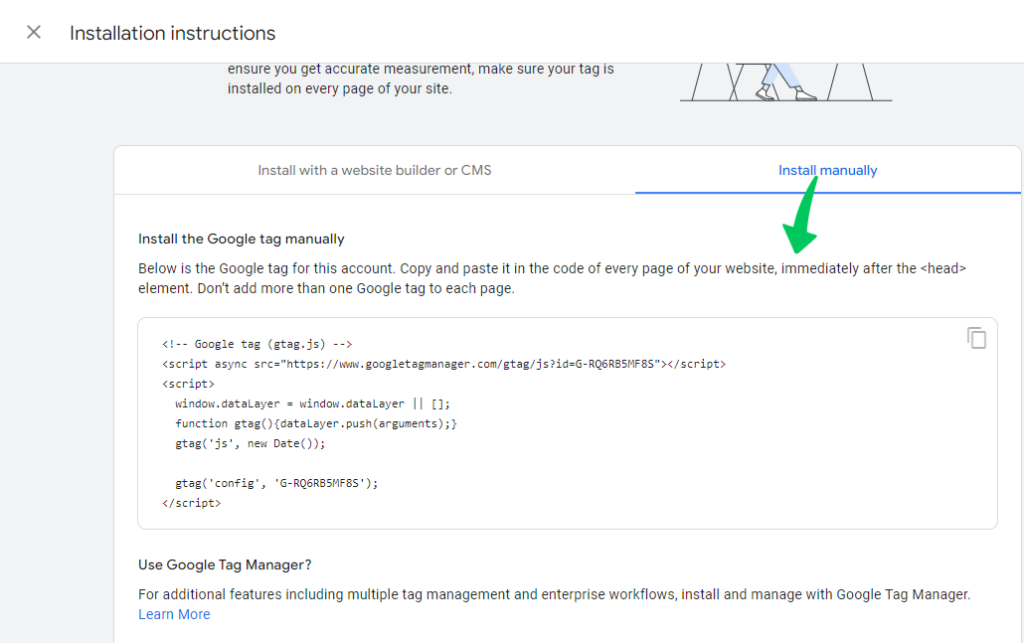
- Paste Code in Head Tags:
- Open your website’s HTML source code in a text editor or content management system. Locate the <head> section of your HTML document. Paste the GA4 tracking code just below the opening <head> tag.
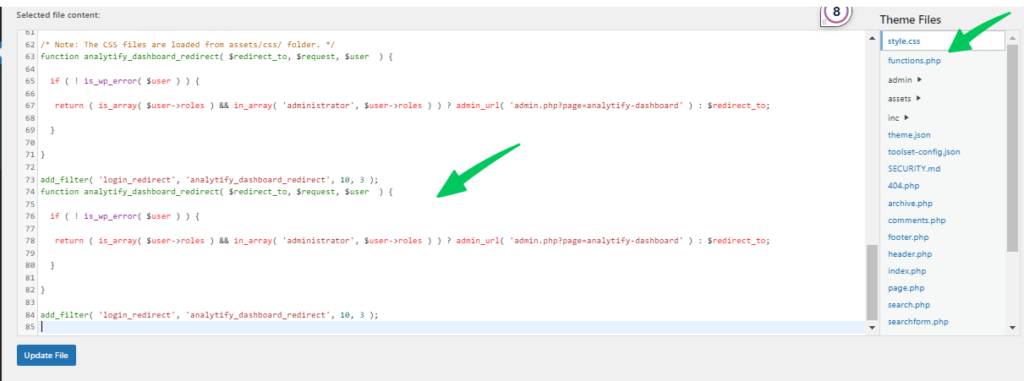
- Implement Call Tracking:
- Identify phone numbers on your site. Add this code wherever you have a phone number link:
| <a href=”tel:YOUR_PHONE_NUMBER” onclick=”gtag(‘event’, ‘phone_call’, { ‘event_category’: ‘Engagement’, ‘event_label’: ‘Phone Call Clicked’ });”>Call Us</a> |
Limitations of Phone Call Tracking in Google Analytics
Tracking phone calls in Google Analytics gives valuable insight, but it has limits. Knowing those limits helps you build a better analytics strategy.
Here’s a look at some of the limitations:
| Limitation | Why It Matters |
|---|---|
| Dependency on third-party tools | Setup relies on Analytify, GTM, or Google Ads instead of native GA4 tracking |
| Limited user journey insights | Call events do not show the full path a visitor took before calling |
| Complex setup for detailed tracking | GTM configuration requires trigger and tag knowledge |
| Privacy and compliance issues | GDPR and similar regulations affect how call data can be stored |
| Inaccurate data from call forwarding | Forwarded calls can be misattributed to the wrong source |
| No caller demographic data | GA4 shows that a call happened, not who called |
| Accidental clicks counted as conversions | A tel: link tap can register as a call even without a real conversation |
| Unable to determine lead quality | GA4 tracks that a call occurred, not whether it converted to a sale |
1. Dependency on Third-Party Tools
You often need a third-party service to track phone calls in Google Analytics. That means your data’s accuracy depends on that service’s own limits.
2. Limited User Journey Insights
Phone call tracking confirms a call happened, but rarely shows the caller’s full journey. Mapping on-site actions before the call needs advanced setup.
3. Complex Setup for Detailed Tracking
Setting up phone call tracking in Google Analytics takes several technical steps. That’s a real barrier for businesses without a dedicated IT or marketing team.
4. Privacy and Compliance Issues
Privacy laws like GDPR and CCPA set strict rules on call data collection. Staying compliant can take extra effort, and sometimes legal advice.
5. Inaccurate Data Due to Call Forwarding and Routing
Phone call tracking gets complicated when calls are forwarded or routed. That can hide the call’s origin, making attribution hard. The result: skewed data and misguided marketing conclusions.
6. No Insights into Caller Demographics or Behavior
Tracking phone call leads gives numbers, not context like caller demographics. Knowing the who and why behind each call shapes better marketing. Without it, decisions stay less informed.
7. Accidental Clicks Tracked as Conversions
Accidental clicks on tel: links can inflate your call metrics. That can pull budget away from channels that actually work.
8. Unable to Determine Lead Quality
Tracking phone calls in Google Analytics rarely shows lead quality. Some calls are idle inquiries. Others are from ready-to-buy prospects, and GA4 can’t tell them apart. That makes optimizing for conversions harder.
Despite these limits, phone call tracking stays a powerful tool for understanding customers and campaigns. Weigh the limits against the benefits, and add complementary tools to fill the gaps. That builds a fuller view of performance and behavior.
Phone Calls Tracking FAQs
1. How do you track phone calls in Google Analytics 4?
Use Google Tag Manager (GTM) to create triggers for tel: link clicks. Configure GTM to send that data to GA4 as events. You’ll then see call interactions in your GA4 dashboard.
2. What is phone call tracking in Google Analytics 4?
Phone call tracking in GA4 monitors calls made through your website. Tracking tags and triggers capture that call data. It then shows how those calls drive your marketing and engagement.
3. How to set up phone call tracking in Google Analytics?
Set up phone call tracking with three GTM steps. Configure a trigger for tel: link clicks. Create a tag to capture that event, and link it to your GA4 property.
4. What are the benefits of phone call tracking in Google Analytics 4?
Key benefits: accurate call conversion tracking, better marketing ROI, and clearer customer behavior insight. You also get more personalized service, better sales training, and optimized ad campaigns.
5. Are there limitations to phone call tracking in Google Analytics?
Yes. Limitations include dependency on third-party tools, offline conversion gaps, and inaccurate data from call forwarding. You also can’t easily tell unique from repeat callers, see caller demographics, or guarantee privacy compliance.
6. How can I track phone call leads in WordPress using Analytify?
Download and activate Analytify Pro, then authenticate your GA4 account in Analytify’s settings. Add the Events Tracking add-on and configure it to monitor tel: link clicks. Enable anchor tracking and enhanced link attribution for more detail.
7. How does Analytify simplify phone call tracking in WordPress?
Analytify gives you one dashboard for the whole process. Authenticate GA4, add event tracking, and configure phone call link tracking, all from WordPress.
8. Can Analytify differentiate between repeat and unique callers?
Analytify strengthens event tracking, but distinguishing repeat from unique callers depends on GA4 data granularity. Detailed analysis may need extra GA4 configuration.
9. Will tracking phone calls in Google Analytics affect my website’s privacy compliance?
Yes, so weigh privacy laws before you set it up. Your GTM and Analytify configuration needs clear disclosures and visitor consent to stay compliant.
10. How do I ensure accurate data when tracking phone calls in Google Analytics?
Set up GTM triggers and tags carefully so they capture only intended interactions. Test and validate the setup regularly. Use enhanced link attribution and anchor tracking to sharpen your data’s precision.
11. Why is my phone call tracking not showing up in GA4?
Phone call tracking usually fails in GA4 for one of four reasons. The Events Tracking add-on isn’t activated in Analytify, or Anchor Click Tracking is turned off. Your phone number isn’t formatted as a clickable tel: link. Or GA4 simply hasn’t processed the data yet (reports take 24 to 48 hours). Check each setting, then confirm the tel: link is clickable before assuming tracking is broken.
How to Track Phone Calls in Google Analytics: Recap
Understanding phone call interactions helps businesses optimize marketing and improve user engagement.
For WordPress users, Analytify brings GA4 tracking into your dashboard, no GTM needed. With Analytify Pro’s Events Tracking add-on, you authenticate GA4 and activate call tracking. You then get detailed analytics, all inside WordPress. The result: a simpler setup and more precise call tracking through link and anchor attribution.
With GTM, you configure triggers and tags to capture phone call data in GA4. This gives a clear picture of customer behavior and the conversion path.
Still, phone call tracking has real limits: setup complexity, third-party dependence, and compliance challenges. Even so, better data, ROI, and customer insight outweigh those drawbacks.
You might also like: How to Use Google Analytics Email Reports (2024).
This guide covers everything you need to track phone call leads in Google Analytics.
Now, we’d like to hear from you.
How have you used phone call tracking in your marketing analytics? What did it reveal about customer interactions and campaign performance?