Predictive Analytics for WordPress: How to Forecast Website Growth with GA4 (2026)

Are you wondering how predictive analytics for WordPress can help you plan your website’s growth?
Most site owners want to understand not only what is happening on their website today but also what will happen next. This is where GA4’s predictive metrics make a real difference.
Predictive analytics uses your website’s past data to estimate future trends such as expected traffic, conversion chances, and user behavior. For WordPress users, this becomes even easier when GA4 is connected through plugins like Analytify. You can track important patterns without leaving your dashboard.
In this article, I’ll explain how GA4 predictions work, what you can forecast, and how to use these insights to plan campaigns, improve content, and make better business decisions. Everything is written in simple steps so you can apply it right away.
Predictive Analysis for WordPress (TOC):
Why Forecasting Website Growth Matters
Forecasting website traffic helps you understand what your website might look like in the coming days, weeks, or months. Instead of guessing, you can plan your content, campaigns, and marketing with real data.
When you know what type of traffic to expect, you can prepare better. For example, if GA4 predicts an increase in visitors, you can schedule new posts, improve important pages, or optimize your site for higher conversions. If GA4 predicts a drop, you can react early and fix issues before they grow.
Predictive analytics for WordPress is useful for planning publishing schedules, SEO strategies, and product or service promotions. It gives you a clearer view of where your website is heading and how to improve your growth with timely actions.
Understanding GA4 Predictive Metrics
Google Analytics 4 offers a set of predictive metrics that estimate what users may do next. These metrics are based on patterns in your website’s past data. Here are the key ones:
Purchase Probability
This tells you the chance that a user will make a purchase within the next seven days. It helps you see which users are ready to buy.
Churn Probability
This shows the chance that an active user will not return in the next seven days. It helps you identify users you may lose soon.
Conversion Likelihood
This tells you how likely users are to complete a goal or key action on your site. It helps you understand which users have strong intent.
Expected Revenue
This estimates the amount of revenue a user might generate in the next 28 days. It helps you forecast earnings and plan sales efforts.
These metrics help you look ahead and make decisions based on expected results, not guesses.
How GA4 Calculates Predictions?
GA4 creates predictions by studying your past user activity. It looks at how people behave on your site, what they click, how often they return, and what actions they complete. Then it uses machine learning to find patterns in this behavior.
When GA4 sees the same pattern repeating, it estimates what similar users may do next. It does not use personal details. It only uses event data, such as page views, add-to-cart actions, or form submissions.
The better your tracking setup is, the better the predictions become. GA4 needs enough clean data to understand your audience and create reliable results. This is why consistent event tracking is important for WordPress sites.
How to Forecast Website Traffic (Step by Step)
Make sure you have a proper setup of GA4 for predictive analytics for a WordPress site.
Here is a simple process to do predictive analytics for WordPress using GA4 and WordPress:
Step 1: Ensure Predictive Metrics are Available
GA4 predictive analytics relies on historical data. You need:
- At least 7 days of consistent data for basic predictive metrics.
- Key predictive metrics enabled: GA4 provides these under Predictive metrics, such as:
- Purchase probability (for e-commerce)
- Predicted Spenders
- Revenue prediction
- Churn probability
Note: For general traffic forecasting (sessions, pageviews), GA4 doesn’t provide a direct “traffic prediction,” but you can leverage trends and predictive audiences for insights.
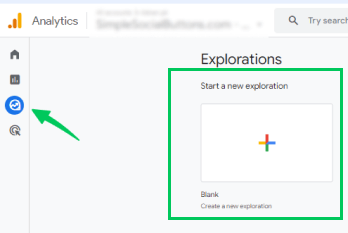
Step 2: Open GA4 and Go to Explorations
- In your GA4 property, navigate to Explore in the left-hand menu.
- Click Blank to start a new Free-form exploration.
Step 3: Set Up Your Segment
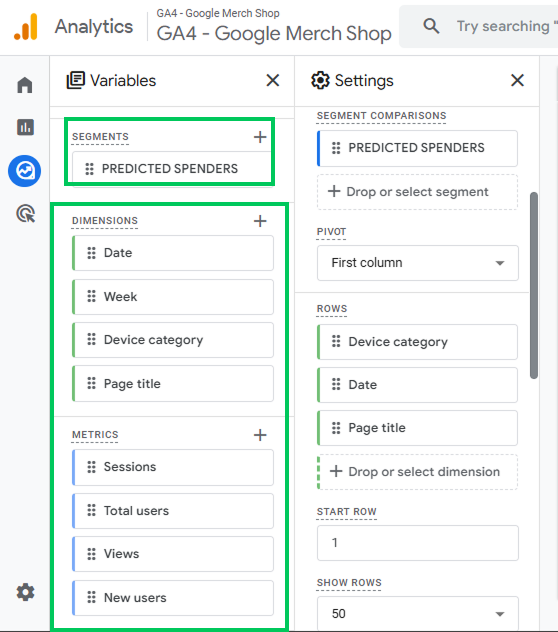
- On the left panel under Segments, click + to create a segment.
- Select Predicted Spenders (or another predictive segment GA4 offers) to focus on users GA4 predicts are likely to take action.
Step 4: Add Dimensions
- Drag the following dimensions into your exploration:
- Date – to track predicted traffic over time.
- Week – to group daily data into weeks for easier analysis.
- Device category – to see traffic by desktop, mobile, or tablet.
- Page title – to understand which pages predicted users are likely to visit.
- Date – to track predicted traffic over time.
Step 5: Add Metrics
- Add the key metrics you want to track:
- Total users – predicted number of users.
- Event count – predicted interactions/events.
- Optionally, Sessions, Views, or New users, depending on your analysis needs.
- Total users – predicted number of users.
Step 6: Configure Rows and Pivot
- Under Rows, drag:
- Device category
- Date
- Page title
- Device category
- Pivot by the First column to structure your table.
Step 7: Analyze the Predictive Analytics Report
Once you build the Free-Form exploration with the Predicted Spenders segment, GA4 shows you exactly how high-value users behave on your site.
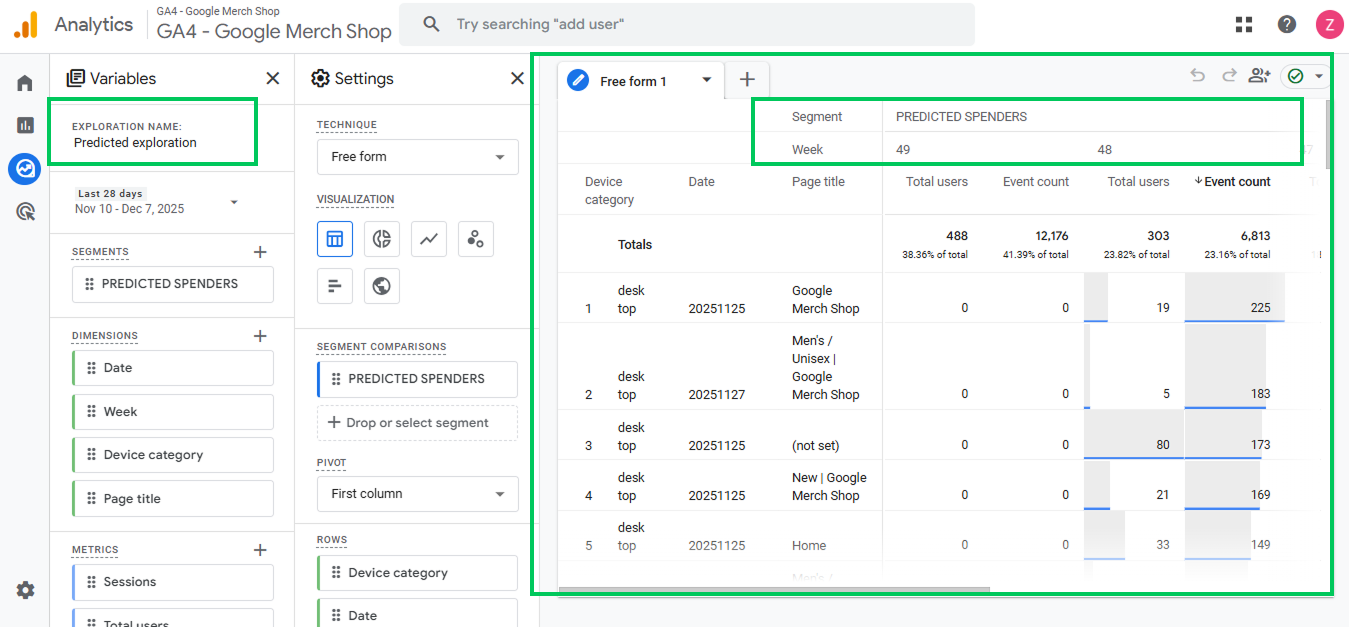
This report helps you answer one question:
Which users are most likely to purchase, and what pages are they engaging with the most?
Here’s how to read the report step by step.
1. The Report Only Includes Predicted Spenders
Since we applied the PREDICTED SPENDERS segment, the numbers you see (Total Users, Event Count) belong only to users that Google’s model believes are likely to purchase soon.
This is not the behavior of all users, but only your most valuable ones.
2. Weekly Columns Show Activity Over Time
The table is split into week numbers, such as:
- Week 49
- Week 48
- Week 47
Under each week, GA4 shows:
- Total users: number of predicted spenders that week
- Event count: actions performed by these high-value users
Example:
- Week 49: 488 predicted spenders
- Event count: 12,176
This means your highest-value audience was very active during this week.
Learn how to identify high-value traffic for your business
3. Rows Show Which Pages Attract Predicted Spenders
Each row represents a combination of:
- Device category (desktop, mobile)
- Date
- Page title
This tells you where predicted spenders are spending their time.
Examples from the report:
- Google Merch Shop: 225 events
- Men’s/Unisex | Google Merch Shop: 183 events
- New | Google Merch Shop: 169 events
- Home page: 149 events
Pages with higher event counts are strong indicators of purchase interest.
4. Desktop Users Drive Most High-Value Activity
Almost every row shows Device category: Desktop.
That means:
Predicted spenders are browsing and engaging primarily from desktop devices.
If you sell products, this insight can influence:
- checkout optimization
- pricing layout
- page design focus (desktop-first for these users)
What You Can Learn From This Report
This Free-Form exploration helps you:
- Identify which content attracts potential buyers
Pages with higher predicted spender engagement should be prioritized for optimization.
- Compare high-value user behavior week-to-week
If Week 49 shows more predicted spenders than Week 48, your marketing is improving.
- See which pages or product categories matter for conversions
You can focus your CRO or content improvements on pages that predicted spenders frequently view.
- Understand device behavior
Since desktop dominates, ensure your desktop UX is friction-free.
6. Why This Report Matters
Instead of analyzing all visitors, this report highlights the users most likely to generate revenue. It gives you a shortcut to understanding:
- What brings them in
- Which pages signal purchase intent
- How their behavior changes week-by-week
For ecommerce or product-focused sites, this is one of the fastest ways to spot what’s influencing potential buyers.
Learn what are the best Ecommerce Digital Marketing Strategies & Tools in 2025 for your business.
Tips for Better Forecasting
- Use at least 30–90 days of historical data for accuracy.
- Segment by traffic source: Predictive metrics may behave differently across organic, paid, or referral traffic.
- Combine GA4 with external tools if you need numeric traffic forecasts. GA4 predictive metrics are more behavioral than raw traffic numbers.
- Regularly update the forecast as new data comes in.
Limitations and Best Practices to Forecast Website Traffic
GA4 predictive metrics are helpful, but they are not perfect. Here are a few things to keep in mind:
Minimum Data Requirements
GA4 needs a certain amount of data before it can create predictions. If your site has low traffic or few conversions, predictive metrics may not appear.
Short-Term vs. Long-Term Predictions
GA4 works best for short-term forecasts. It can estimate what may happen in the next few days or weeks, but it cannot predict long-term trends with high accuracy.
Clean Event Tracking Matters
Your predictions depend on the quality of your tracking. If important GA4 events are missing or set up incorrectly, GA4 will not have enough information to work with.
Predictions Improve Over Time
As your website grows and collects more data, GA4’s models become more accurate. Staying consistent with tracking helps build better forecasts.
These points help you understand what GA4 can and cannot do, so you can make better decisions based on its predictions.
Leveraging GA4 Predictive Metrics and Analytify Reporting
Join 50,000+ beginners & professionals who use Analytify to simplify their Google Analytics!
GA4 helps you look ahead, while Analytify helps you understand what is happening right now. Using both together gives you a clear picture of your website’s growth.
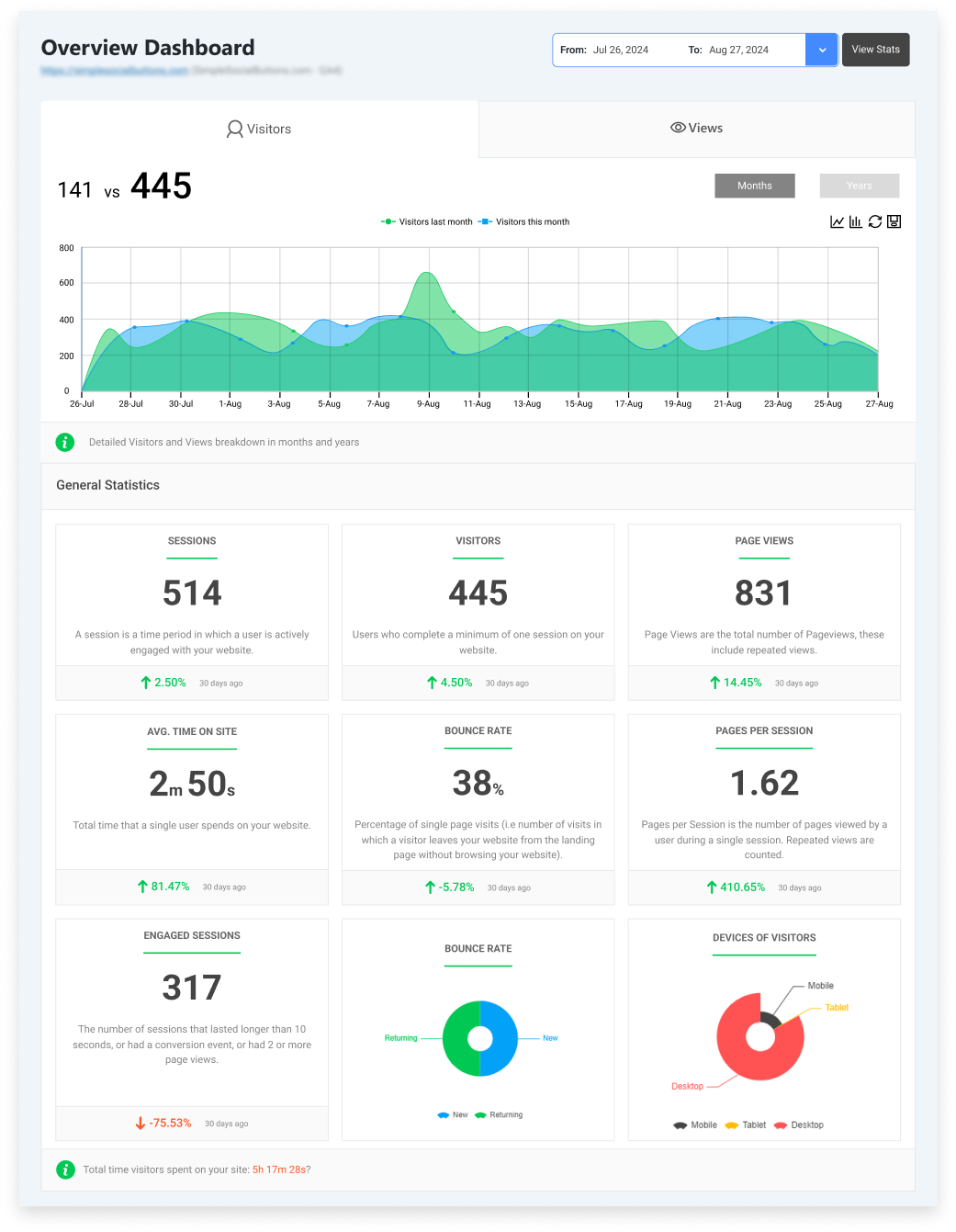
How Analytify Helps WordPress Users
- Shows your GA4 data inside the WordPress dashboard
- Displays top pages, user behavior, traffic sources, and engagement
- Makes reports easy to read without opening GA4
- Helps you compare real-time trends with GA4 predictions
- Gives context to your numbers so you can understand why changes happen
Analytify does not generate future forecasts. Predictions come only from GA4.
However, Analytify makes it easier to interpret GA4 data and monitor trends.
This combination helps you take the right actions at the right time.
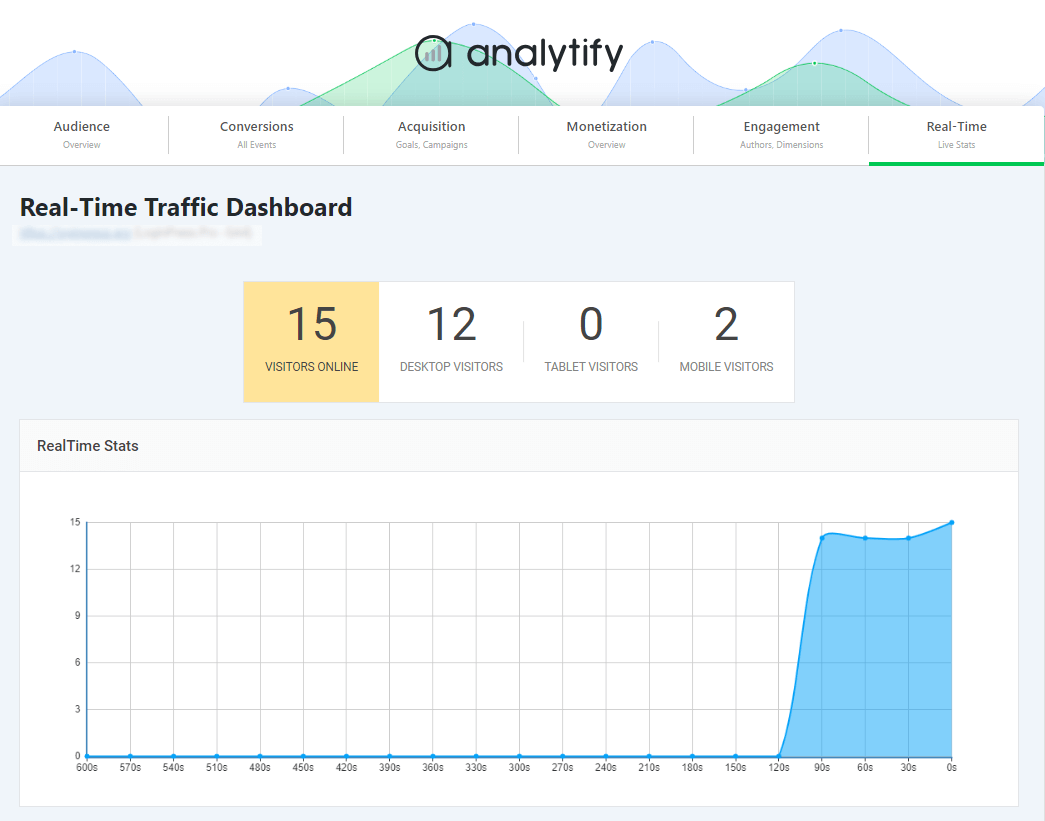
By using GA4 for predictions and Analytify for daily reporting, WordPress users get a strong workflow for planning content, optimizing pages, and tracking growth.
Frequently Asked Questions
1. What is predictive analytics for WordPress?
Predictive analytics for WordPress means using your past website data to forecast future trends. This includes predicting traffic, user behavior, conversions, and content performance. Tools like GA4 predictive metrics help you understand what may happen next based on historical patterns.
2. How can I forecast website traffic on my WordPress site?
You can forecast website traffic by using analytics tools that detect patterns in your past pageviews, sessions, and seasonal trends. Predictive analytics tools and GA4 insights help you estimate future traffic growth so you can plan content and prepare for high-traffic days.
3. What are GA4 predictive metrics, and how do they help WordPress users?
GA4 predictive metrics use machine learning to estimate future actions like purchase probability, churn probability, and predicted revenue. When GA4 is connected to WordPress, these predictions help you understand which users may return, convert, or drop off, making your marketing more proactive.
4. How does predictive analytics improve website growth prediction?
Predictive analytics improves website growth prediction by showing which pages, keywords, and user behaviors lead to long-term growth. It helps you identify rising content topics, forecast engagement, and optimize your content strategy before trends peak.
5. What tools can I use for predictive analytics and traffic prediction on WordPress?
You can use tools like Google Analytics 4, Analytify, and AI-based traffic prediction tools. These tools analyze your past data and generate forecasts about traffic, conversions, and user journeys to help you plan future website decisions.
6. What limits the accuracy of website traffic prediction on WordPress?
Traffic predictions can be limited by low traffic volume, missing event tracking, or inconsistent data. GA4 predictive metrics also require minimum data thresholds. If your site is new or receives low activity, predictive analytics may not generate reliable results.
7. Why are predictive metrics not appearing in GA4?
You may not have enough data, or your key events are not tracked properly. Check your event setup and allow more time for data collection.
Predictive Analytics for WordPress: Recap
Predictive analytics helps you make smarter decisions for your WordPress website. With GA4’s predictive metrics, you can see which users are likely to convert, which ones may leave, and how your traffic may change in the near future. These insights help you plan content, improve pages, and run better campaigns.
Analytify supports this process by showing your GA4 data inside WordPress in a simple and clear way. It cannot predict future metrics, but it helps you understand real-time performance and long-term trends. When you use GA4 for predictions and Analytify for daily reporting, you get a complete view of your website’s growth and can take action at the right time.
You may also like to read:
- Predictive SEO Guide: Forecasting Search Trends With
- AI Data Analytics (Tools and Tips)
- Using AI In Marketing Analytics (Guide)
Now, I’d love to hear from you. Wouldn’t it be easier to plan content if you knew your upcoming traffic trends in advance?