GA4 Explorations for Bloggers: How to Analyze Content Performance

Are you using GA4 Explorations for bloggers to understand why some posts perform and others fall flat?
Most bloggers rely on standard GA4 reports, but those only show surface metrics. Explorations go deeper, they reveal how readers move through your content, where they engage, and what triggers conversions like signups or affiliate clicks.
With the right Exploration reports, you can analyze complete content journeys, compare behavior across traffic sources, and spot patterns that standard analytics never show. This is the level of insight serious bloggers need to plan updates, improve internal linking, and grow conversions.
For WordPress users, Explorations become even more powerful when combined with Analytify. It pulls key GA4 insights directly into your dashboard, auto-tracks essential engagement events, and simplifies the data you’d otherwise dig through manually.
In this guide, I’ll explain how bloggers can use GA4 Explorations step-by-step, Free-form, Path, Funnel, Cohort, and more, plus how Analytify simplifies advanced analytics for WordPress.
GA4 Explorations for Bloggers (TOC):
What are GA4 Explorations?
GA4 Explorations are advanced reports that help bloggers understand content performance in a deeper way. They give more control than the standard reports in Google Analytics. With Explorations, you can study how readers behave, how they move across your blog, and what actions they take.
There are several types of GA4 Exploration reports:
- Free-form for custom tables and comparisons
- Path Exploration for mapping reader journeys
- Funnel Exploration for tracking conversion steps
- Cohort for studying returning readers
- Segment Overlap for comparing traffic segments
- User Explorer for viewing individual user behavior
These reports matter for bloggers because they show real behavior patterns, not just basic numbers. Explorations help you find content gaps, strong traffic sources, and the posts that drive actions.
Compared to normal GA4 reports, Explorations offer richer Google Analytics content insights, more flexible filters, and better segmentation. This makes them more powerful for blog performance tracking and advanced analytics in WordPress.
GA4 Setup Checklist for Bloggers
Before using GA4 Explorations, you need the right GA4 tracking setup. A proper setup ensures accurate content insights in GA4 and cleaner reports inside Explorations.
1. Track Essential Events
Make sure these key events are collected:
- Scroll
- Click
- Outbound affiliate clicks
- Newsletter signups
- Comment submissions
- File downloads
How to check:
Go to GA4 >> Reports >> Engagement >> Events.
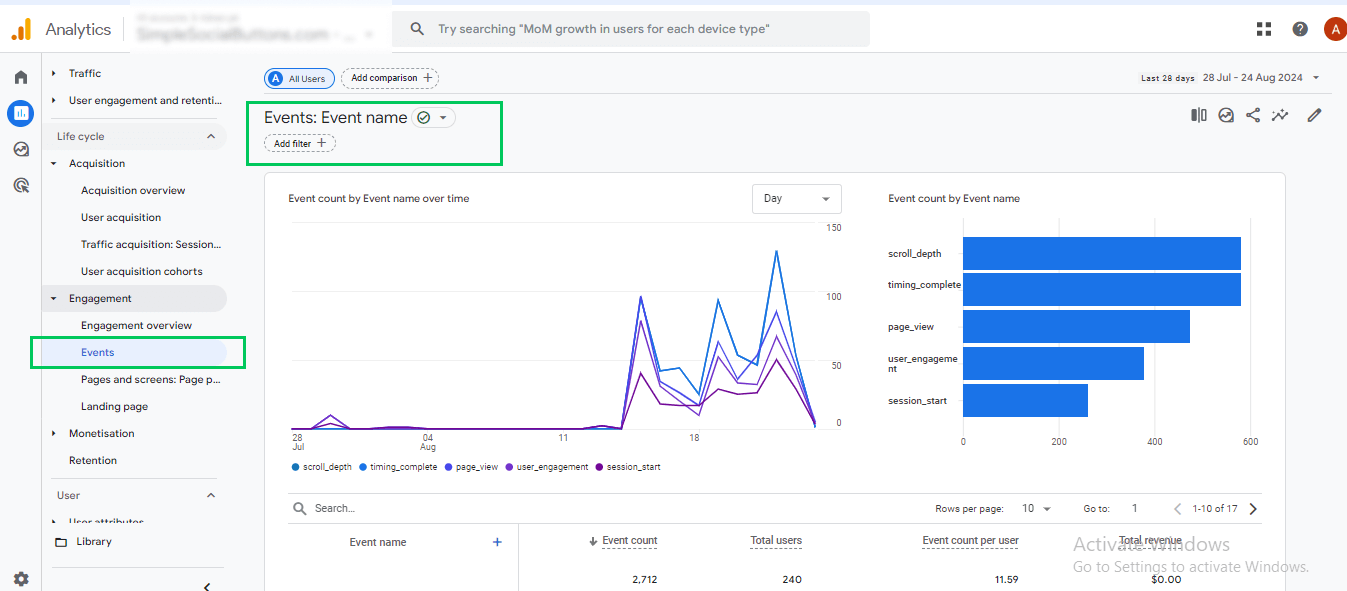
If you see these events listed and increasing over time, your tracking is active.
2. Set Up Content Groups
Content Groups let you organize blog posts by category, like “Reviews,” “How-To Guides,” or “Tutorials.” This makes it easier to compare performance across different content types in Google Analytics exploration reports.
Need detailed steps? Check this guide: GA4 Content Grouping Setup with Analytify
3. Use UTMs for Content Promotion
UTMs show which campaigns or platforms send quality traffic. This improves blog performance tracking and helps segment sessions in Explorations.
How to set up:
- You can manually add UTM parameters to your links, like ?utm_source=facebook&utm_medium=social&utm_campaign=post.
- Or, for WordPress bloggers, Analytify lets you generate and track UTMs directly inside your dashboard, saving time and avoiding errors.
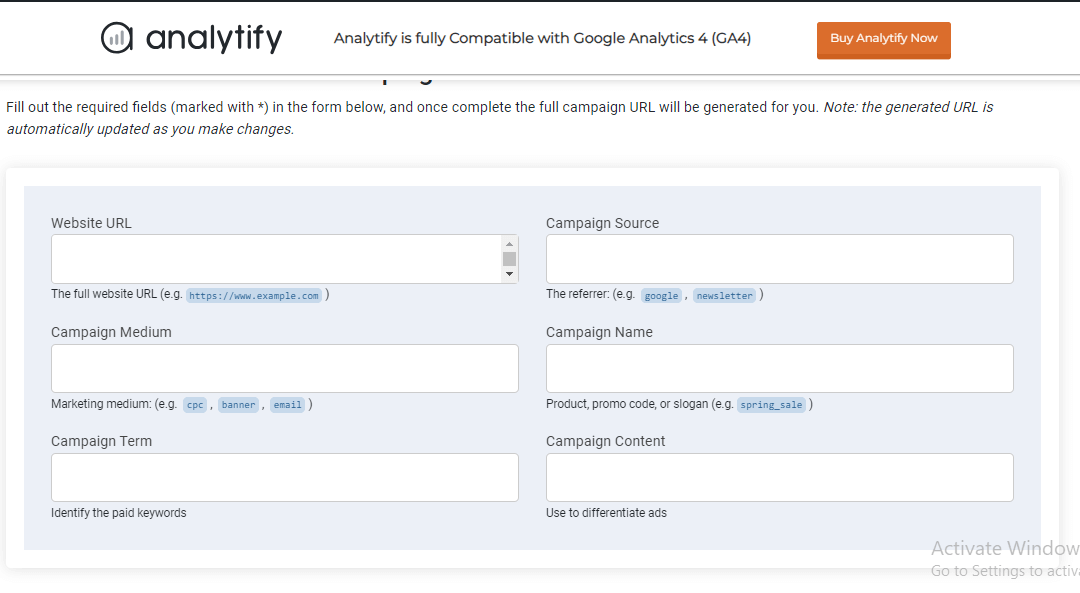
How to check:
- Go to Reports >> Acquisition >> Traffic Acquisition.
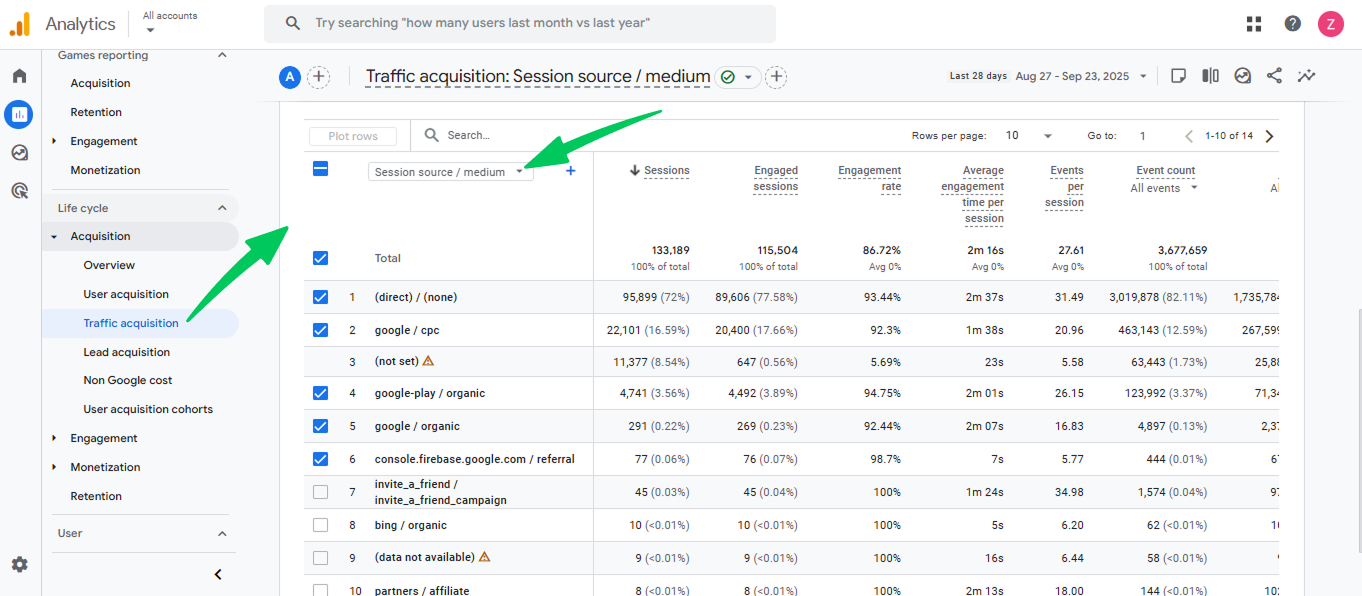
- Look for session source/medium and check if your UTMs appear.
4. Check Mobile vs Desktop Behavior
Device tracking is important for bloggers because mobile readers behave differently.
How to check:
- Go to Reports >> Tech >> Tech details>> Device Category.
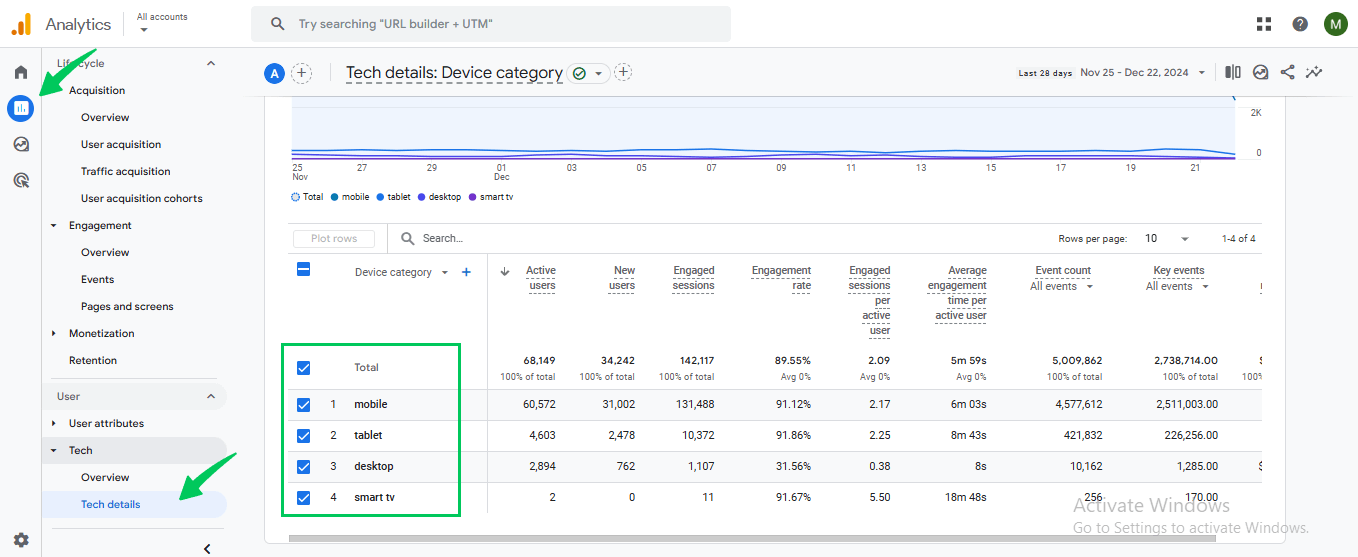
You should see mobile, desktop, and tablet traffic.
5. Analytify for Easy Setup
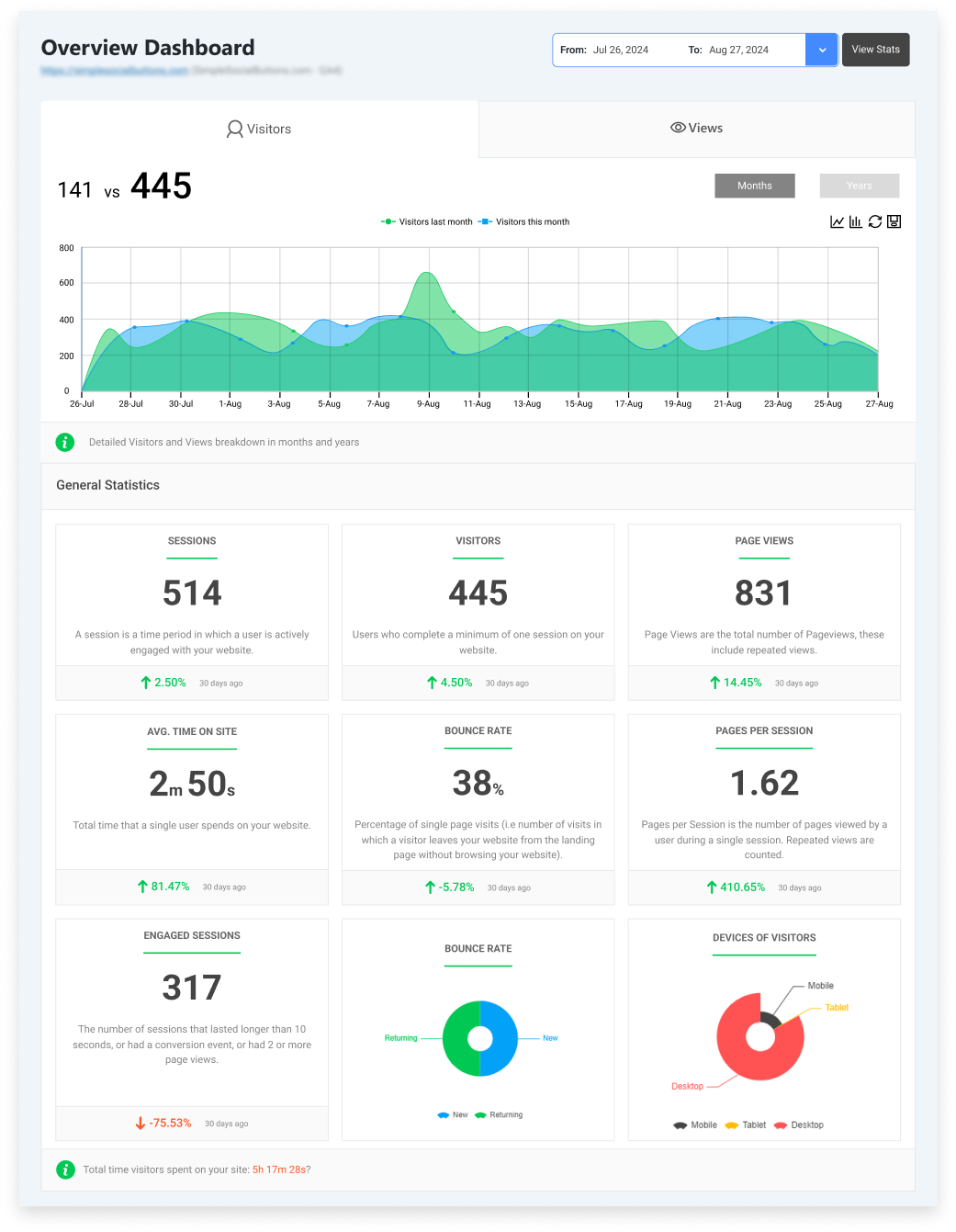
WordPress bloggers can auto-track many important events with Analytify, including scroll depth, clicks, outbound affiliate link clicks, form submissions, and file downloads. It simplifies advanced analytics in WordPress by showing post-level metrics directly in your dashboard, without the need to dig through GA4.
Read How to Install Analytify (Easy Set Up)
Analytify also lets you:
- See pre-summarized engagement data for each blog post, including sessions, engagement rate, and conversions.
- Track traffic from UTMs, referrals, and campaigns automatically.
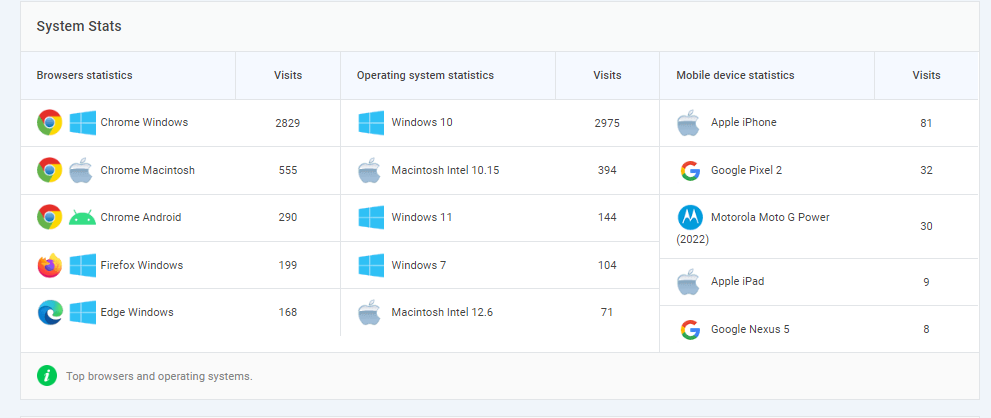
- Compare mobile vs desktop performance for better content optimization.
How to check:
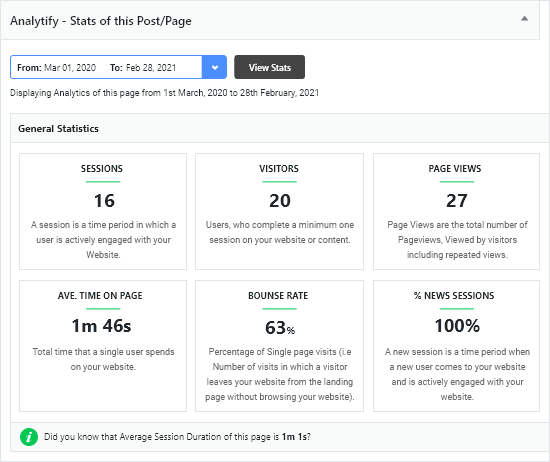
Open any blog post in your WordPress dashboard. Scroll to the Analytify panel. You will see engagement, clicks, device metrics, and conversion events if tracking is working correctly.
Free-Form Explorations for Blog Performance Tracking
Free-form Explorations are one of the most powerful GA4 tools for bloggers. They let you create custom tables to analyze your blog performance tracking and get detailed content insights in GA4.
How to Create a Free-Form Exploration
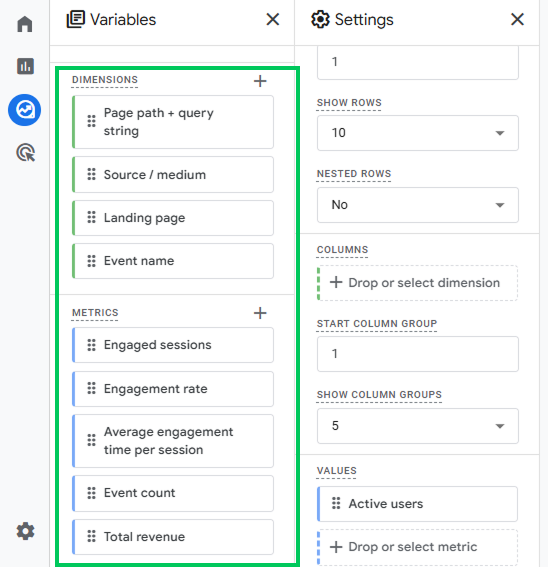
- Go to GA4 >> Explore >> Free-form.
- Select the dimensions you want, such as:
- Page path
- Page title
- Device category
- Source/medium
- Page path
- Choose metrics like:
- Engaged sessions
- Engagement rate
- Average engagement time
- Conversions
- Event count (scrolls, clicks, form submissions)
- Engaged sessions
What to Look For
- High traffic but low engagement: Intro or layout may need improvement.
- High scroll but low clicks: Missing internal links or weak CTAs.
- Segment by device: Mobile users often behave differently from desktop users.
Analytify Makes It Easier
For WordPress bloggers, Analytify simplifies content analytics by pulling key GA4 metrics directly into the dashboard. You can see post-level engagement, conversions, scroll depth, and clicks without building custom Free-form reports in GA4. While it doesn’t replicate Free-form tables, it gives quick, actionable summaries that help you understand which posts perform best and where readers drop off.
Path Exploration for Mapping Content Insights in GA4
Path Exploration in GA4 helps bloggers understand how readers move through their content. It shows the sequence of pages users visit, highlighting where they continue reading or drop off.
How to Use Path Exploration
- Go to GA4 >> Explore >> Path Exploration.
- Select a starting point, like the Page Title and Screen name, and then select any specific blog post/page.
- Choose the Event Name at the ending point to focus your analysis.
Pages = starting points
Events = best ending points
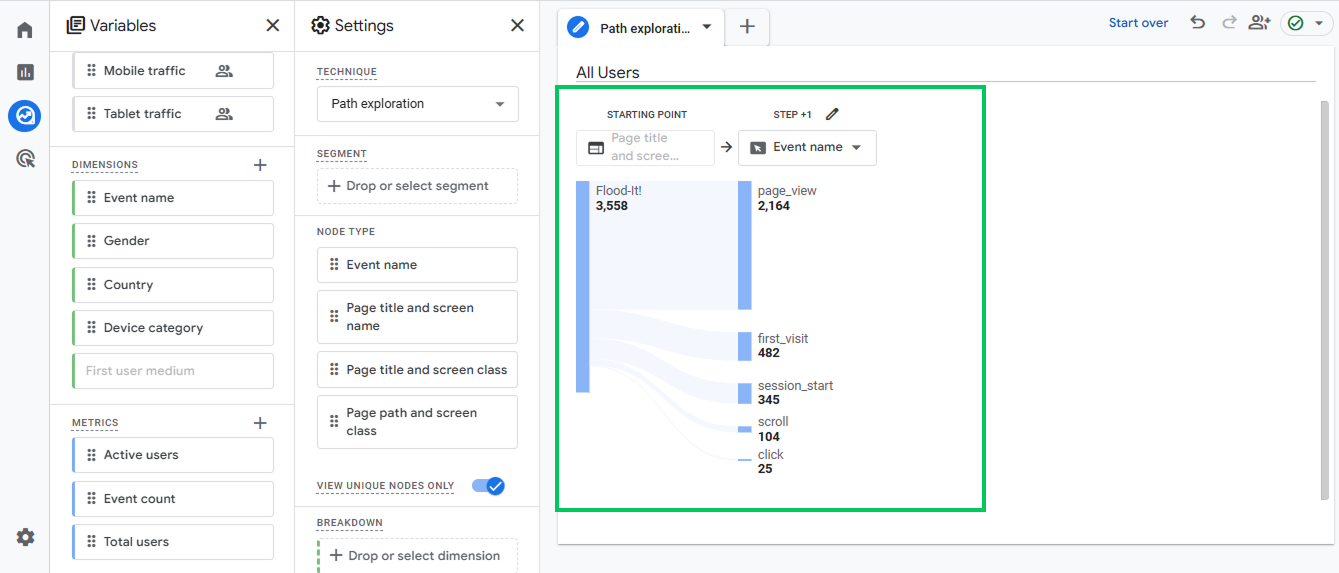
You can also set a page as an ending point, but events give clearer insight for conversions.
What Bloggers Can Learn
- Identify common entry-to-next-page journeys.
- Spot pages where readers leave your site too soon.
- Find weak internal linking or missing calls-to-action (CTAs).
- Understand which content encourages deeper engagement.
Tips for Optimization
- Improve navigation by linking related posts.
- Add clear CTAs to guide readers toward newsletter signups or affiliate links.
- Test different layouts or formats for pages with high drop-off rates.
How Analytify Helps in it
While Path Exploration is a GA4 feature, Analytify provides easy-to-read summaries of user engagement and page-level interactions inside WordPress. This helps bloggers quickly spot strong and weak pages without navigating complex GA4 reports.
Funnel Exploration for Google Analytics Content Insights
Funnel Exploration in GA4 helps bloggers track how readers move through a series of steps that lead to conversions. It shows where people drop off and which paths lead to desired actions like newsletter signups or affiliate clicks.
How to Create a Funnel
- Go to GA4 >> Explore >> Funnel Exploration.
- Define the steps in your funnel. Common blogger funnels include:
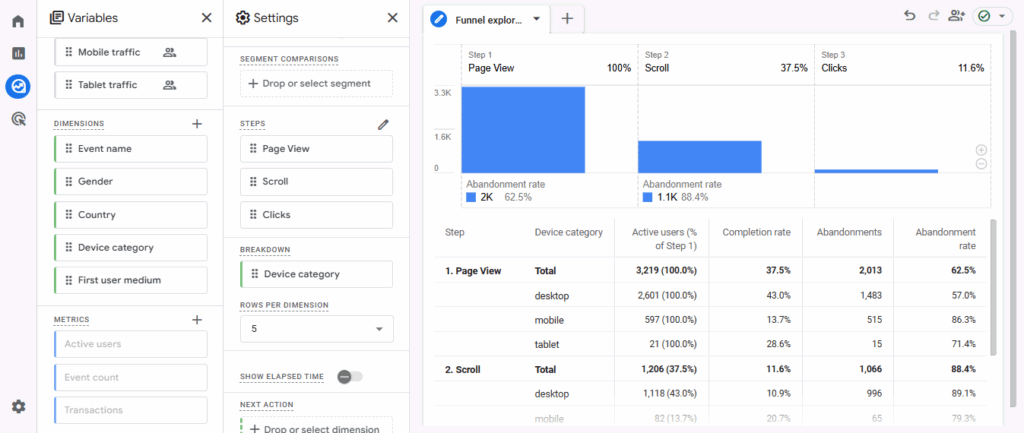
- Page View >> Scroll >> Click or Signup or Affiliate click

Then click on Apply to save the steps.
You’ll see a complete funnel telling you about active users, completion rate and abandonment rate as shown in the report below:
What Bloggers Can Learn
- See which content leads readers toward conversions.
- Identify points where readers leave before completing the desired action.
- Understand which articles support affiliate clicks or newsletter signups.
Tips for Optimization
- Place CTAs strategically at points with high drop-offs.
- Link related posts to guide readers along the funnel.
- Test different post layouts or content formats to improve engagement.
Cohort and Segment Overlap Insights for Bloggers
Cohort and Segment Overlap reports in GA4 help bloggers understand user behavior over time and across different traffic segments. These insights show which readers are loyal, which channels perform best, and how content drives conversions.
Cohort Analysis
- Groups users by shared characteristics, like the first visit date or engagement with a specific post.
- Helps identify returning readers and loyalty patterns.
- Example: Track readers who visited a “How-To” post last month and see how many returned this month.
How to view in GA4:
- Go to GA4 >> Explore >> Cohort Exploration.
- Choose a cohort type, like first session date or a specific event (e.g., clicked an affiliate link).

Common choices for bloggers:
| Cohort Type | Example |
| Acquisition date | Users whose first visit was in a specific week or month |
| Event | Users who viewed a specific blog post (page_view) |
| Conversion | Users who signed up for the newsletter (sign_up) |
| Engagement | Users who clicked an internal link (link_click) |
- Choose the Cohort size: Day, Week, or Month
- Day → analyze daily trends
- Week → best for blogs with moderate traffic
- Month → best for long-term retention analysis
- Day → analyze daily trends
- Cohort date range: Pick the starting period for your cohort (e.g., last 30 days)
- Select metrics to analyze, such as engagement, conversions, or retention rate.
Metrics show how the cohort behaves over time. For bloggers:
- Retention → how many return each day/week/month
- Engaged sessions → how many pages they read
- Conversions → newsletter signup, affiliate clicks, form submissions
- Event count → scrolls, link clicks
- Optional: segment cohorts further by device, traffic source, or content group.
Segment Overlap
- Compares different traffic sources or user segments.
- Example segments for bloggers:
- SEO vs Social vs Email traffic
- Mobile vs Desktop users
- Users who clicked affiliate links vs those who didn’t
- SEO vs Social vs Email traffic
- GA4 shows a Venn diagram of overlapping segments and engagement metrics.
How to view in GA4:
- Go to GA4 >> Explore >> Segment Overlap.
- Add 2–3 segments to compare.
- Use the visual and metrics to identify which segments perform best or overlap most with conversions.

Why This Matters
- Helps you prioritize content that attracts repeat visitors.
- Shows which channels drive high-quality traffic.
- Supports decisions on internal linking, content updates, and email campaigns.
How Analytify Simplifies Blog Analytics in WordPress
Join 50,000+ beginners & professionals who use Analytify to simplify their Google Analytics!
Analytify adds extra value to GA4 by simplifying content performance tracking for WordPress bloggers. It brings key GA4 metrics directly into your dashboard, so you don’t need to navigate complex GA4 reports.
Key Features of Analytify
- Post-Level Insights: See engagement, conversions, scroll depth, and clicks for each blog post.
- Pre-Summarized Metrics: Quick view of which posts perform best, saving time on analysis.
- UTM and Referral Tracking: Automatically track campaign traffic and sources.
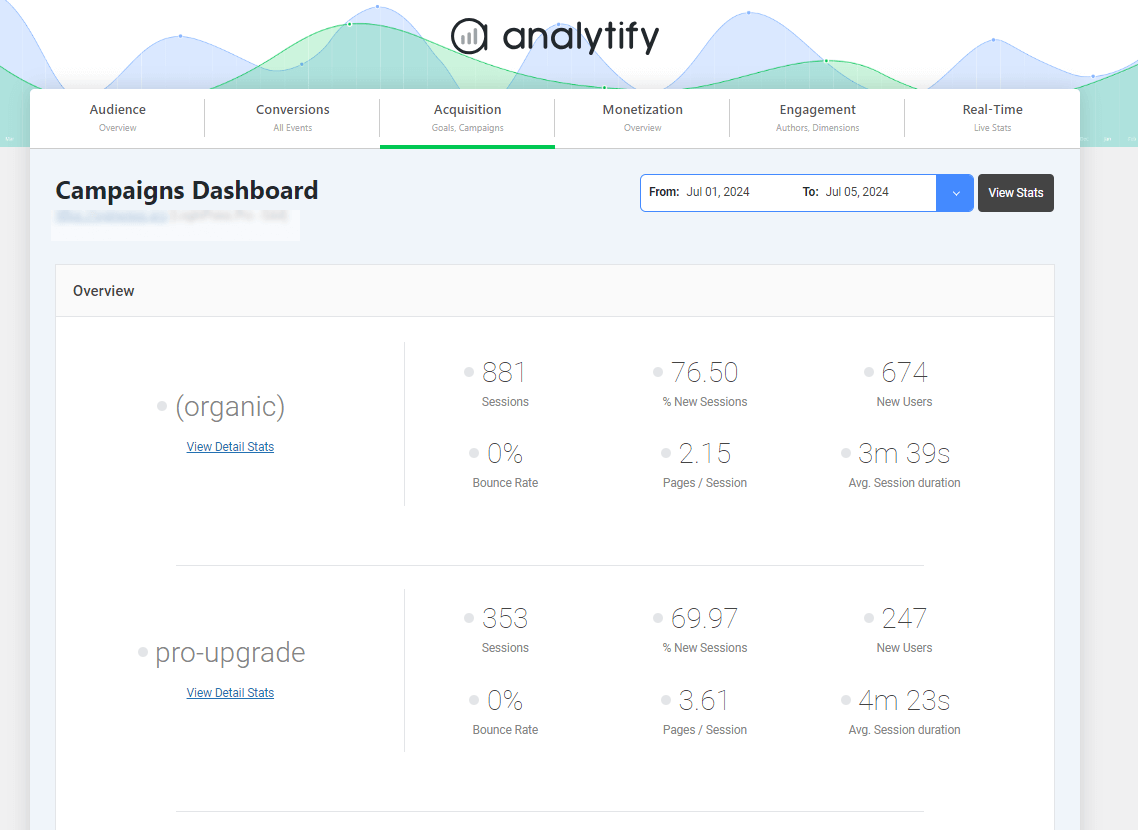
- Device Segmentation: Compare mobile vs desktop performance for every post.
- Event Tracking: Track affiliate link clicks, form submissions, and downloads without extra setup.
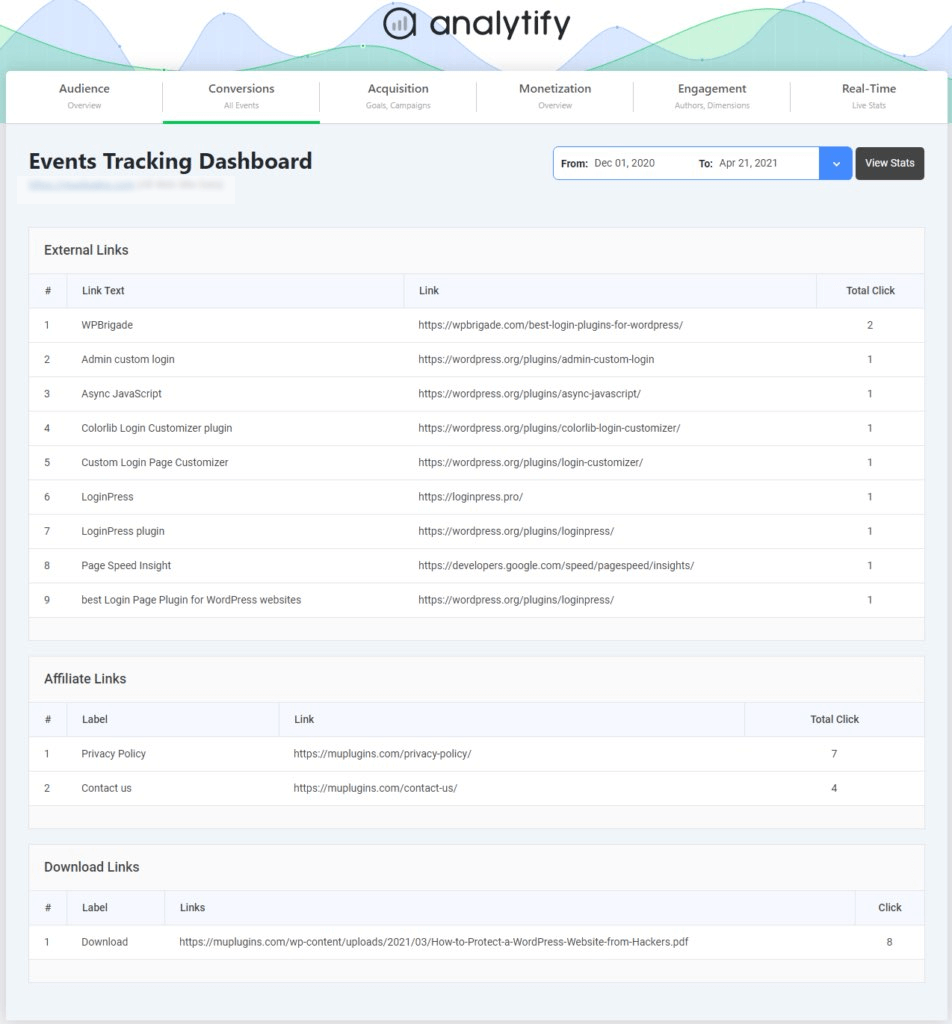
Why Analytify Matters in Content Analytics for Bloggers
- Bloggers can make data-driven decisions faster.
- Combines the depth of GA4 Explorations with the simplicity of WordPress dashboards.
- Helps identify top-performing content, weak posts, and opportunities for optimization.
Common GA4 Exploration Mistakes
Even experienced bloggers can make mistakes when using GA4 Explorations. Avoiding these ensures accurate content insights in GA4 and better blog performance tracking.
1. Overusing Dimensions or Segments
- Adding too many dimensions or segments can make reports confusing.
- Keep it focused on the most relevant metrics, like page path, device, or traffic source.
2. Not Defining Conversions
- Many bloggers track clicks or views but forget to mark key events as conversions in GA4.
- Define conversions like newsletter signups, affiliate clicks, or form submissions to measure real performance.
3. Ignoring Mobile vs Desktop Behavior
- Readers behave differently on mobile and desktop.
- Always segment your data by device to uncover engagement patterns and improve UX.
4. Misinterpreting Free-Form or Funnel Reports
- Free-form tables or funnels show correlations, not causation.
- Use these insights to guide testing and optimization, not as absolute rules.
FAQs: GA4 Explorations for Bloggers
1. What are GA4 Explorations for bloggers?
GA4 Explorations for bloggers are advanced reports that let bloggers analyze detailed user behavior, content performance, and conversion paths beyond standard GA4 reports.
2. Do I need GA4 to use Analytify?
Yes. Analytify works by connecting your WordPress site to GA4 and simplifying the metrics, events, and engagement data inside your dashboard.
3. Can Analytify track conversions automatically?
Yes. It tracks events like affiliate link clicks, newsletter signups, form submissions, and downloads, then summarizes them at the post level.
4. Which GA4 Exploration type is best for bloggers?
It depends on your goal:
Free-form: deep content comparisons
Path Exploration: track reader journeys
Funnel Exploration: optimize conversion steps
Cohort & Segment Overlap: analyze repeat visitors and segments
5. How can bloggers use Path Exploration?
Path Exploration shows the journey users take through your blog, from the starting page to where they exit. It helps identify popular content paths and optimize internal linking.
6. Can I see user segments in GA4 Explorations?
Yes! You can create segments based on behavior, like readers who visit multiple posts, subscribe, or bounce after one page. This helps in targeting content better.
7. Is GA4 Explorations for bloggers better than standard reports?
Explorations offer more flexibility and deeper insights. Standard reports give high-level metrics, while Explorations let you analyze detailed paths, funnels, and user cohorts specific to your blog.
GA4 Explorations for Bloggers: Recap
GA4 Explorations are the backbone of modern content intelligence for bloggers. They reveal how readers engage, which posts drive conversions, and where improvements are needed.
By combining GA4 Explorations with Analytify, WordPress bloggers get both advanced analytics and simplified, post-level insights. You can track engagement, conversions, scrolls, and clicks without navigating complex GA4 reports.
You may also like to read:
- How to Create Custom Reports in Google Analytics
- Top 5 Content Marketing Analytics Reports in GA4
- How To Find Top Performing Content And Improve It
- 17 Content Marketing Metrics To Track
Which blog posts on your site would you start analyzing first with GA4 Explorations and Analytify to boost engagement and conversions?