How to Set Up the Google Analytics MCP Server (and When a Hosted One Is Easier)

Google built a free way for AI apps to read your GA4 data. The catch is the setup: a Google Cloud project, two APIs, credentials, and a config file.
The Google Analytics MCP server is Google’s open-source connector that lets apps like Claude, Cursor, and Claude Code run reports on your GA4 property. You install it on your own computer and point your AI app at it.
Below, I’ll walk you through the setup step by step, show the mistakes that usually break it, and explain when a hosted option like Analytify MCP is the easier choice.
Table of Contents
What Is the Google Analytics MCP Server?
The Google Analytics MCP server is a free, open-source program from Google that lets AI apps read your Google Analytics 4 data. MCP stands for Model Context Protocol, the standard AI apps use to call outside tools.
You run the server on your own computer. Your AI app asks it for a report, the server calls Google’s Analytics APIs with your credentials, and the AI explains the result.
What you should know about it:
- It’s free and open source. Google publishes it on GitHub under the Apache 2.0 license.
- It covers GA4 only. It doesn’t read Search Console.
- It’s read-only by default. It can’t change your GA4 settings unless you turn on write access.
- It’s labeled experimental. The GitHub page calls it “Google Analytics MCP Server (Experimental).”
- It runs locally. It works while your computer and AI app are open.
These are the tools it gives your AI app:
| Tool | What it does |
|---|---|
| get_account_summaries | Lists the GA4 accounts and properties you can access |
| get_property_details | Shows one property’s settings |
| list_google_ads_links | Lists linked Google Ads accounts |
| list_property_annotations | Lists the notes added to a property |
| get_custom_dimensions_and_metrics | Lists your custom dimensions and metrics |
| run_report | Runs a standard GA4 report |
| run_realtime_report | Shows what’s happening on your site right now |
| run_funnel_report | Builds a funnel report |
| run_conversions_report | Reports on your key events (conversions) |
What Do You Need Before You Set Up the GA4 MCP Server?
You need Python, a package runner, the gcloud command-line tool, a Google Cloud project, and Viewer access to your GA4 property. Get these ready first, and the setup goes much faster.
- Python 3.10 or newer
- pipx or uv, to run the server without a manual install
- The gcloud CLI, installed and signed in
- A Google Cloud project you can enable APIs in
- Viewer access (or higher) on the GA4 property you want to read
- An AI app that runs local MCP servers, such as Claude Desktop, Claude Code or Cursor
If you’ve never used gcloud or a terminal before, give yourself an hour for the first run.
How Do You Set Up the Google Analytics MCP Server?
You set up the Google Analytics MCP server in five steps: install the tools, enable two Google APIs, sign in with Application Default Credentials, add the server to your AI app, and test it with a question.
Step 1: Install Python, pipx and gcloud
Install Python 3.10 or newer, pipx (or uv), and the gcloud CLI. Then run gcloud init to sign in and pick your Google Cloud project.
Step 2: Enable the two Google Analytics APIs
In your Google Cloud project, enable the Google Analytics Admin API and the Google Analytics Data API. In a terminal: gcloud services enable analyticsadmin.googleapis.com analyticsdata.googleapis.com
Step 3: Sign in with Application Default Credentials
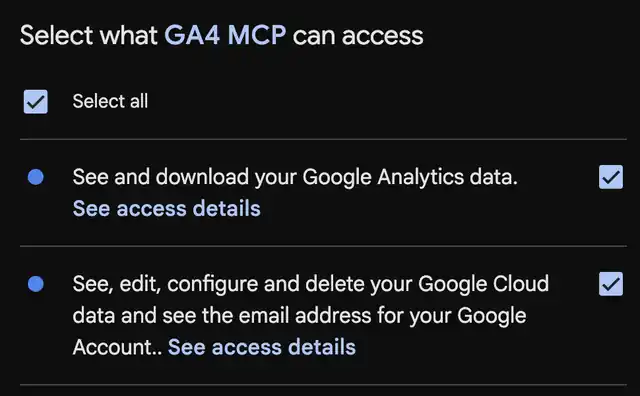
Run gcloud auth application-default login --scopes="https://www.googleapis.com/auth/analytics.readonly,https://www.googleapis.com/auth/cloud-platform", finish the Google sign-in, and copy the credentials file path it prints.
Step 4: Add the server to your AI app
Add the config below to Claude Desktop or Cursor, or run the Claude Code command. Use the credentials path from step 3 and your Google Cloud project ID.
Step 5: Restart the app and test it
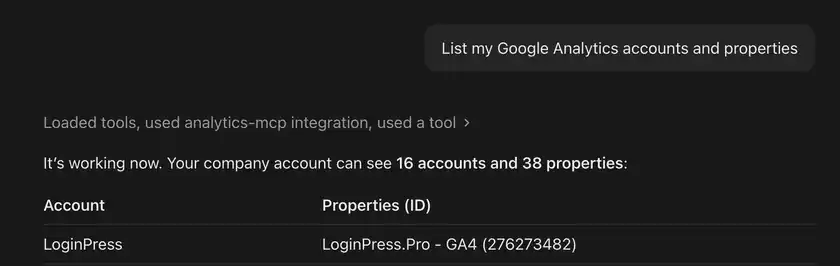
Restart your AI app and ask: “List my Google Analytics accounts and properties.” If you see your properties, the server works.
Here’s the config for Claude Desktop and Cursor. Replace the two values with your own:
{
  "mcpServers": {
    "analytics-mcp": {
      "command": "pipx",
      "args": ["run", "analytics-mcp"],
      "env": {
        "GOOGLE_APPLICATION_CREDENTIALS": "PATH_TO_CREDENTIALS_JSON",
        "GOOGLE_CLOUD_PROJECT": "YOUR_PROJECT_ID"
      }
    }
  }
}
On Claude Code, one command adds it for all your projects:
claude mcp add analytics-mcp --scope user \
  -e "GOOGLE_APPLICATION_CREDENTIALS=PATH_TO_CREDENTIALS_JSON" \
  -e "GOOGLE_PROJECT_ID=YOUR_PROJECT_ID" \
  -- pipx run analytics-mcp
One detail that trips people up: Google’s developer page uses GOOGLE_CLOUD_PROJECT for the project ID, while the GitHub README uses GOOGLE_PROJECT_ID. If the server can’t find your project, try the other name.
For every option, see Google’s official setup page and the GitHub repository.
What Usually Goes Wrong With the GA4 MCP Server Setup?
Most setups fail on the credentials path, a missing API or missing GA4 access. Check these first:
- The credentials path uses ~ or $HOME. Google says the path must be absolute, for example
/Users/you/.config/gcloud/application_default_credentials.json. - One of the two APIs isn’t enabled. You need both the Admin API and the Data API.
- Your account has no access to the property. Ask for at least the Viewer role in GA4.
- The login is missing a scope. Run the gcloud login again with both scopes from step 3.
- Python is too old. Check with
python3 --version. You need 3.10 or newer. - The app wasn’t restarted. Claude Desktop and Cursor read the config when they start.
Stuck on credentials or APIs? Analytify MCP skips all of this: paste one URL, sign in with Google, and ask your GA4 and Search Console data in Claude or ChatGPT.
What Does a Google Analytics MCP Server Answer Look Like?
A Google Analytics MCP server answer is a normal chat reply built from your live GA4 numbers, usually as a table with a short summary.
Our team connected Google’s server to Claude and asked: “Show the top 5 pages on LoginPress by engaged sessions last month, as a table.” Claude called the server, pulled October 2026 from our loginpress.pro GA4 property and returned this:
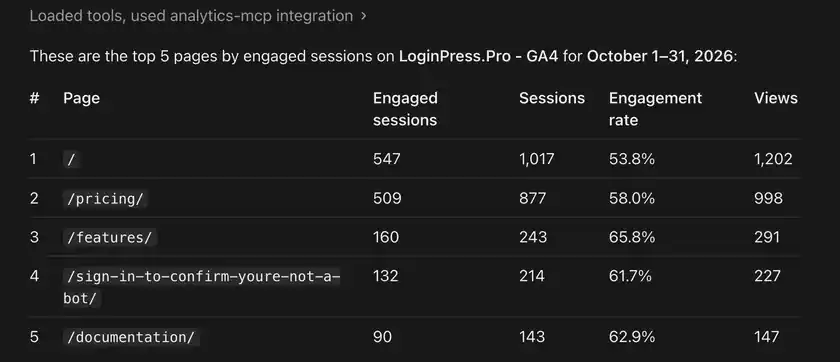
The homepage (547 engaged sessions) and the pricing page (509) led by a wide margin, and /features/ had the highest engagement rate at 65.8%. Getting the same table in GA4 means opening a report, adding a dimension, and sorting it yourself.
Does the Google Analytics MCP Server Work With ChatGPT?
Not directly. ChatGPT connects to MCP servers over the internet, and Google’s Google Analytics MCP server runs on your computer. Google’s setup page lists Claude Desktop, Claude Code, Cursor and Antigravity, not ChatGPT.
To use GA4 in ChatGPT, you’d need to host the server yourself on a public HTTPS address, or use a hosted GA4 MCP server that’s already online. Analytify MCP works in ChatGPT: in the desktop app on the Free plan, and on chatgpt.com on Pro, Business, Enterprise, and Edu. Here’s how to connect GA4 to ChatGPT with Analytify MCP.
When Is a Hosted Google Analytics MCP Server Easier?
A hosted Google Analytics MCP server is easier when you don’t want to manage a Google Cloud project, need ChatGPT or browser access, or want Search Console in the same chat. Google’s server is the better fit when you’re comfortable in a terminal and only need GA4.
| Google’s GA4 MCP server | Analytify MCP (hosted) | |
|---|---|---|
| Setup | Python, gcloud, Cloud project, two APIs, config file | Paste one URL, sign in with Google |
| Where it runs | Your computer | Analytify’s servers |
| Works in ChatGPT | Not without your own hosting | Yes |
| Works in Claude on the web | No | Yes |
| Data | GA4 | GA4 and Search Console |
| Bot traffic | Raw GA4 numbers | Flags likely bot traffic, and removes it when you ask |
| Updates | You update it | Handled for you |
| Cost | Free | Paid plans, from $4 a month billed yearly |
Pick Google’s server if:
- You’re comfortable with a terminal and gcloud
- You only need GA4 data
- You want free and open source
Pick a hosted server if:
- You’d rather sign in than set up a Cloud project
- You use ChatGPT, or Claude in the browser
- You want GA4 and Search Console in one chat
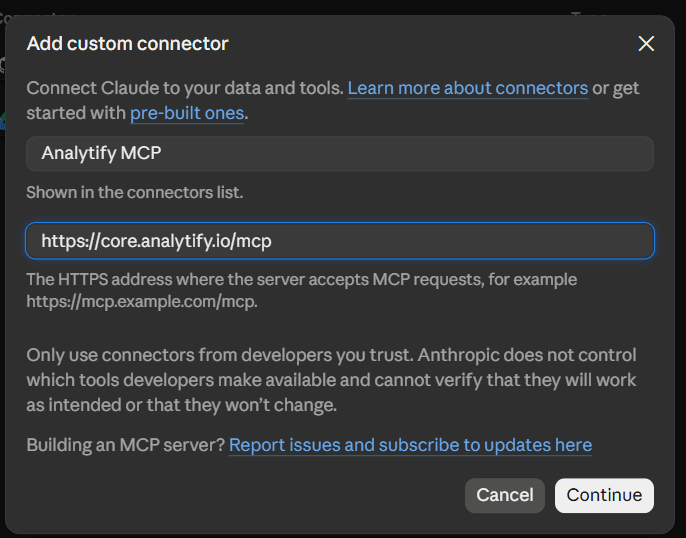
Don’t want to set up a Google Cloud project? Analytify MCP is a hosted Google Analytics MCP server: paste one URL into Claude or ChatGPT, sign in with Google, and ask about your GA4 and Search Console data. Plans and limits are on the Analytify MCP pricing page.
My take: if you’re a developer, try Google’s server first. It’s free, and it’s a good way to learn how MCP works. If you just want answers about your site this week, the setup time costs more than a hosted plan.
Frequently Asked Questions
Is the Google Analytics MCP server free?
Yes. Google’s Google Analytics MCP server is free and open source under the Apache 2.0 license. You pay nothing for the server, but you need a Google Cloud project, and normal Google Analytics API limits apply.
Is the Google Analytics MCP server official?
Yes. Google publishes it on its own GitHub account (googleanalytics/google-analytics-mcp) and documents it on Google for Developers. The GitHub page labels it experimental, so features and setup steps can change.
Can the Google Analytics MCP server change my GA4 settings?
Not by default. The server is read-only unless you start it with the –allow-write flag and give your credentials the analytics.edit scope. Even then, the only write tool creates property annotations.
Does the Google Analytics MCP server include Search Console?
No. Google’s server reads Google Analytics 4 only. For Search Console data, you need a separate Search Console MCP server or a hosted service like Analytify MCP that covers both. Our Google Search Console MCP guide explains the options.
Why does my AI app say the Google Analytics MCP server failed to start?
The server usually fails to start because of an incorrect credentials path, a missing API, or an old Python version. Use an absolute path with no ~, enable both the Admin API and the Data API, and check you have Python 3.10 or newer. Then restart your AI app.
Do I need to keep my computer on to use it?
Yes. Google’s Google Analytics MCP server runs as a process on your computer, so it only works while your computer and your AI app are running. You can’t use it from your phone or from ChatGPT on the web. A hosted server like Analytify MCP works from any device where your AI app is signed in.
What Should You Do Next?
Here’s how I’d decide:
- If you’re comfortable in a terminal, set up Google’s server with the steps above and ask it for your top pages.
- If the Cloud setup stops you, or you use ChatGPT, try a hosted server instead.
- Either way, start with one question you check every week, then save the prompts that work. The Analytify MCP prompt library has tested prompts you can copy.
Connect Analytify MCP to Claude or ChatGPT and ask your GA4 data in plain English.
Further Reading