How to Track Website Traffic with Google Analytics 4? (2026 Guide)

Track website traffic in Google Analytics 4 using three reports: Traffic Acquisition, Engagement, and Realtime. Traffic Acquisition shows where visitors come from. Engagement shows what they do on your site. Realtime shows who’s active right now. Install the GA4 tracking code to start collecting this data. Or skip that step. Analytify connects GA4 automatically. It displays these reports inside your WordPress dashboard.
Google Analytics 4 (GA4) replaced Universal Analytics with an events-based tracking model. GA4 tracks Users and engagement instead of sessions and pageviews alone. This gives a more accurate view of visitor behavior across devices. Older terms like Google Analytics website hits no longer apply. GA4 replaced hits with events. Most site owners track their website with Google Analytics because it’s free and familiar. This guide covers GA4 setup and the reports to check. You’ll also see how to view this data inside WordPress.
Quick Answer
Track website traffic in GA4 with these three reports:
- Traffic Acquisition: where visitors come from (organic, social, referral, direct)
- Engagement: what visitors do once they land, and which pages hold their attention
- Realtime: who is on your site right now
How to Track Website Traffic with GA4 (TOC):
Why Tracking Website Traffic is Essential
Tracking website traffic tells you how many people visit your site, where they come from, and whether your campaigns work. No more guessing based on gut feeling. This way, you can track website visits over time and spot real trends.
Think of it like running a physical store, where you’d track:
- How many customers visit each day
- Which products they look at the most
- Which entrances they use
- How long they stay in the store
A website works the same way. Tracking traffic lets you:
- Understand Visitor Behavior: You learn who visits your site, how long they stay, and what pages they view.
- Improve Your Marketing Campaigns: Let’s say you’re running ads or email campaigns. By tracking website traffic with Google Analytics for website traffic, you can see if those efforts are actually bringing in visitors.
- Discover High-Performing Content: Some blog posts or pages on your site will naturally do better than others. Understanding how to track hits on a website lets you identify which content drives the most engagement so you can create more like it.
- Optimize Traffic Channels: Not all traffic is created equal. Knowing how to check website traffic on Google Analytics helps you focus your efforts on the most effective channels.
Before you start tracking your website traffic, you need to set up a Google Analytics account. Follow this step-by-step guide to set up your first GA4 account.
| Benefits | Explanation |
| Visitor Behavior Insights | Know where your visitors come from, how long they stay, and what they do on your website. |
| Marketing Campaign Measurement | Track how well your ads, social media, or email campaigns are driving traffic to your site. |
| Content Optimization | Identify the pages and posts that resonate most with your audience. |
| Channel Optimization | Focus on high-performing channels and optimize those that aren’t driving much traffic. |
Setting Up Google Analytics 4 to Track Website Traffic
Set up Google Analytics 4 in three steps: create a GA4 property, install the tracking code, then configure the reports you need. It takes about ten minutes.
Follow these three steps to get GA4 tracking your site.
1. Create a Google Analytics 4 Account
If you haven’t already, you’ll need to create a GA4 property. This property is where Google Analytics will store all your traffic data.
- Go to Google Analytics and sign in (or sign up if you don’t have an account).
- In the Admin section, click “Create Property.”
- Choose Google Analytics 4 as your property type.
- Enter your property name, time zone, and currency.
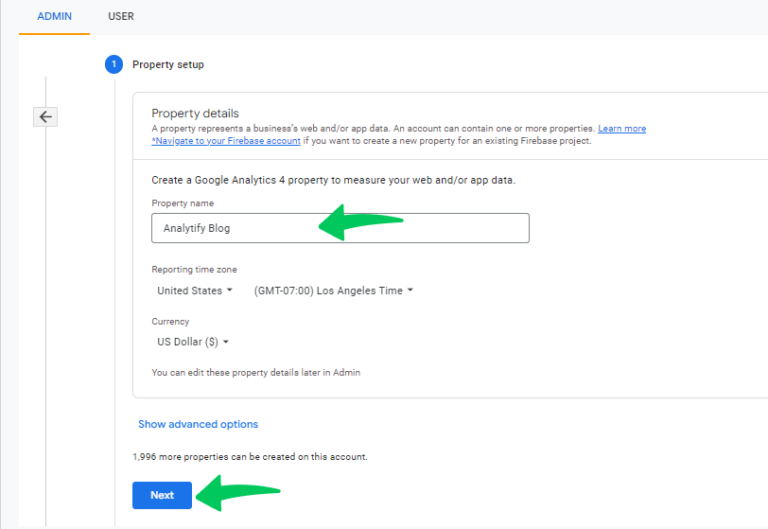
- Click Next and follow the instructions to set up your property.
Read our complete guide on How to set up GA4 property for more details.
2. Install the GA4 Tracking Code on Your Website
Now that your property is ready, install the tracking code on your website. This lets GA4 start collecting data, so you can see how many people visit and what they do once they’re there.
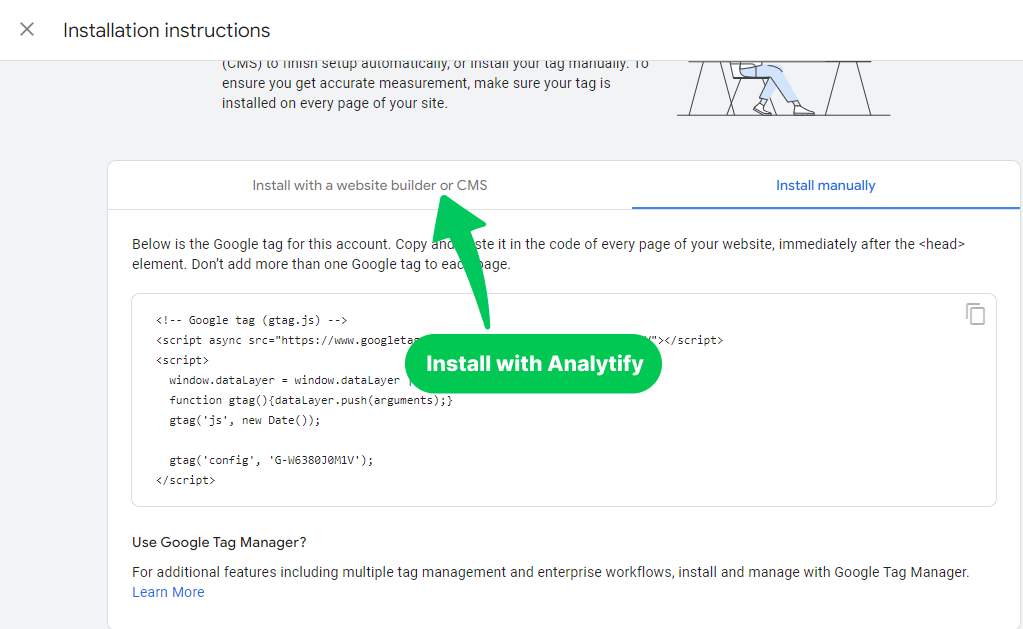
If you use Analytify, you can skip this process of manually adding code. Analytify handles this automatically.
Analytify is a popular WordPress plugin that connects Google Analytics 4 to your website.
Join 50,000+ beginners & professionals who use Analytify to simplify their Google Analytics!
3. Configure Key Reports for Tracking Website Traffic
GA4 comes with many reports. Focus on the ones that show your traffic sources, visitor behavior, and site engagement.
Here’s a quick list of the key reports you’ll want to familiarize yourself with:
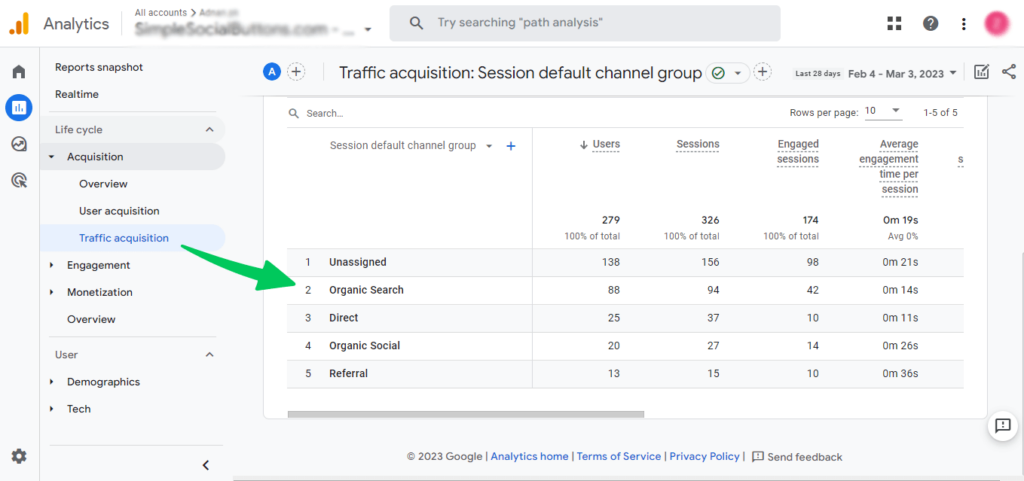
- Traffic Acquisition: This report shows where your visitors are coming from, such as Google search, social media, or referrals.
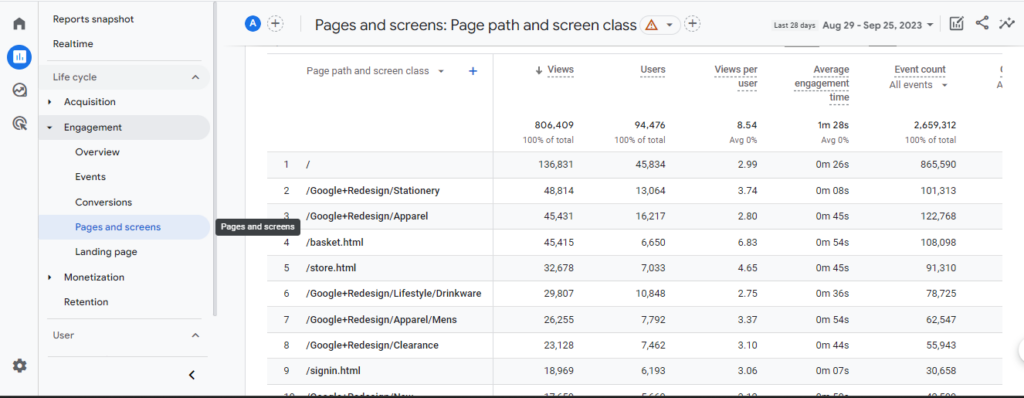
- Page and Screen Engagement: See how long visitors are staying on your site, and which pages they’re viewing.
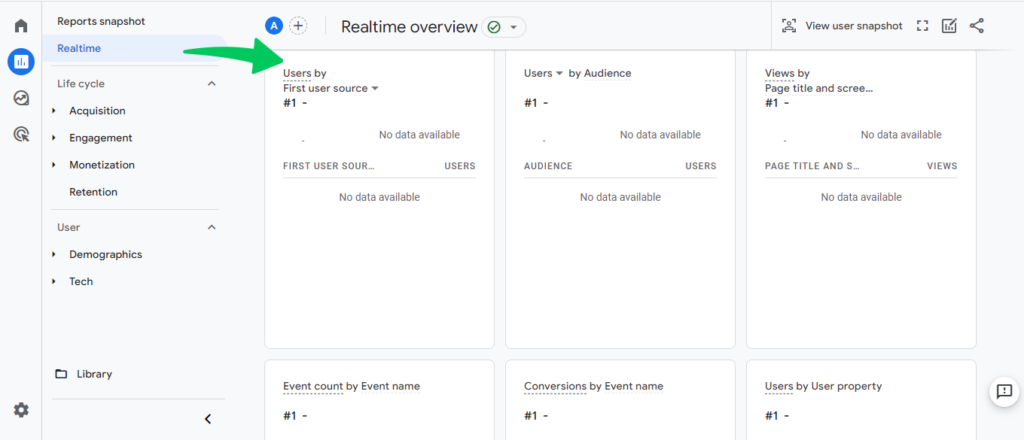
- Realtime Report: Monitor who is on your site in real-time, which is especially helpful when running promotions or launching new content.
How to Track Website Traffic in WordPress Dashboard
Track website traffic in your WordPress dashboard through Analytify. Install it, connect your GA4 property, then open Analytify » Dashboard from your WordPress admin sidebar. No coding or developer needed.
Every report updates automatically once GA4 is connected, so you always see current traffic data without switching tabs or logging into Google Analytics separately.
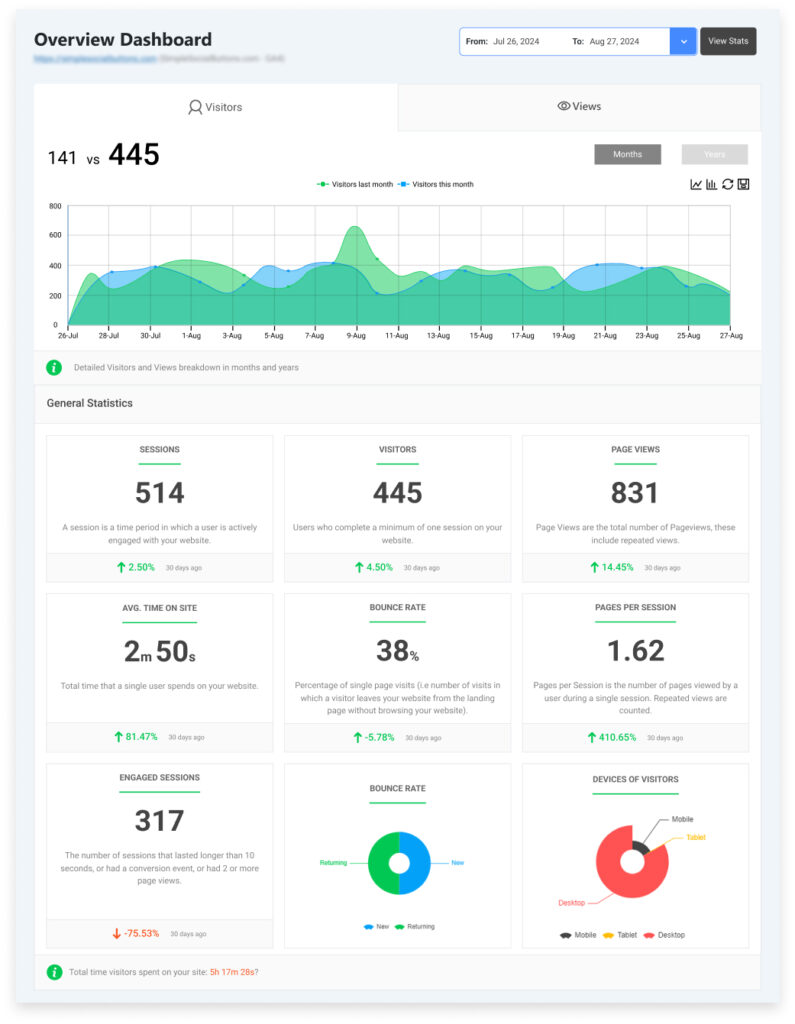
Once installed and connected, the dashboard opens to a clear overview of your traffic: visitors, sessions, top pages, and where people came from, all in one screen.
Review Website Traffic Data:
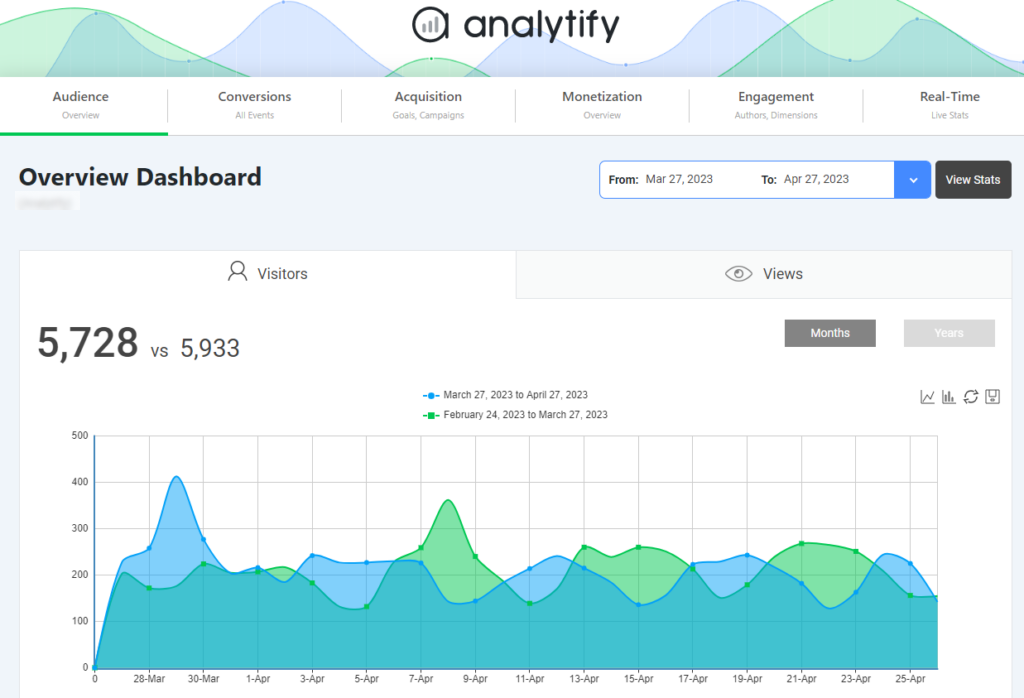
- In the dashboard, you’ll see key metrics such as:
- Sessions: The number of visits to your website.
- Visitors: The number of visitors.
- Page Views: Total pages viewed.
- Bounce Rate: Percentage of visitors who leave after viewing only one page.
- Average Session Duration: The average time users spend on your site.
Filter Data by Date Range:
- You can customize the date range to view traffic for a specific period by selecting the date filter in the top-right corner of the dashboard.
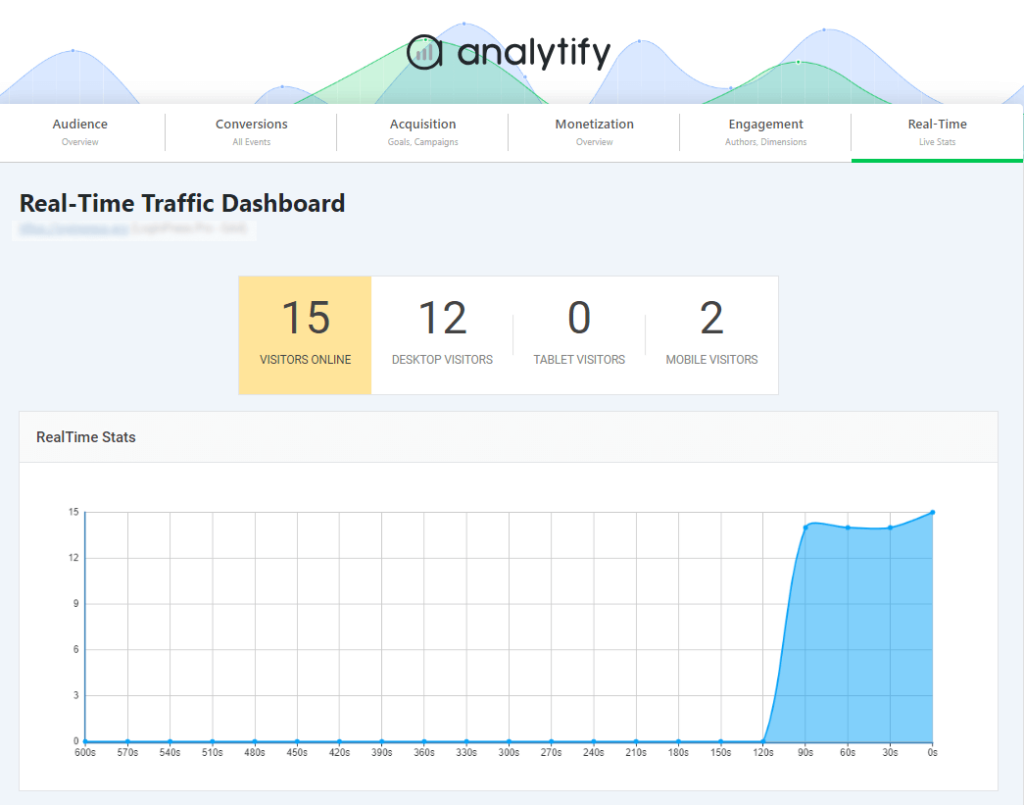
Monitor Real-Time Traffic:
- To view live traffic, go to the Real-Time section of the Analytify dashboard, which shows current visitors, the pages they are on, and their locations.
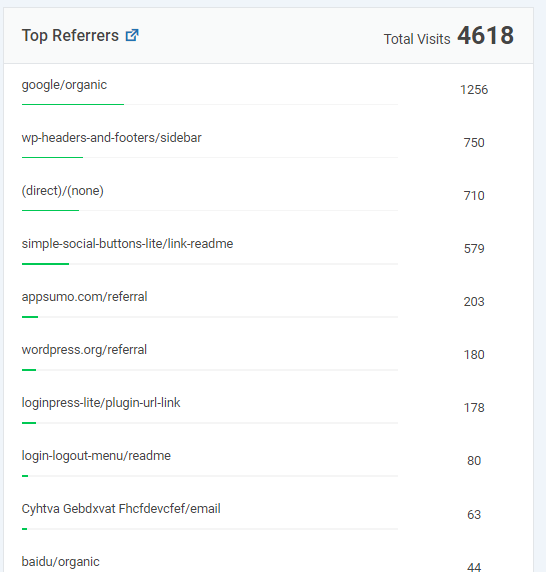
Analyze Traffic Sources:
- You can break down traffic by traffic sources to see where your visitors are coming from, such as organic search, direct, social media, or referral links.
How to Track Website Traffic in Google Analytics 4
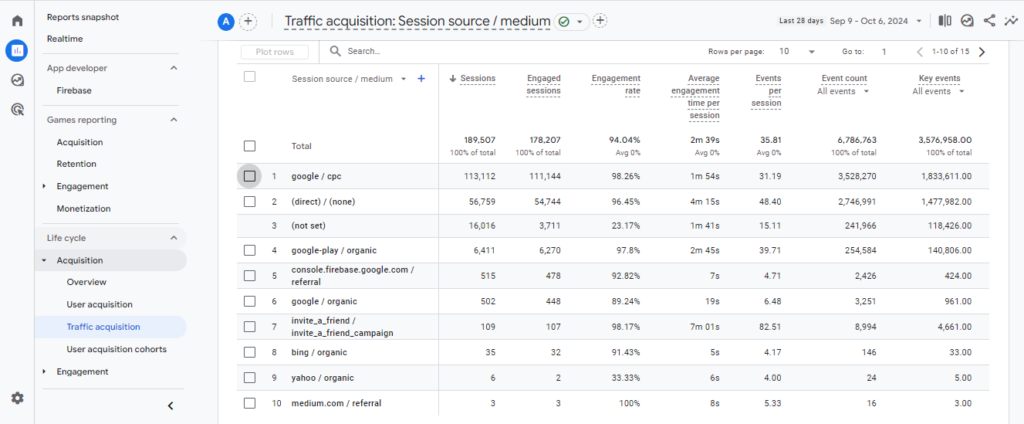
GA4’s Traffic Acquisition report is where you see exactly which channel- search, social, referral, or direct- sent each visitor to your site. This is a live Google Analytics traffic report, so the numbers update as visitors arrive.
Navigating to the Traffic Acquisition Report
The Traffic Acquisition report is your go-to for understanding how to track site traffic. This report tells you where your visitors are coming from: organic search, social media, referral links, or direct traffic.
Steps to Access the Traffic Acquisition Report:
- Log in to Google Analytics 4.
- In the left-hand menu, go to Reports » Acquisition » Traffic Acquisition.
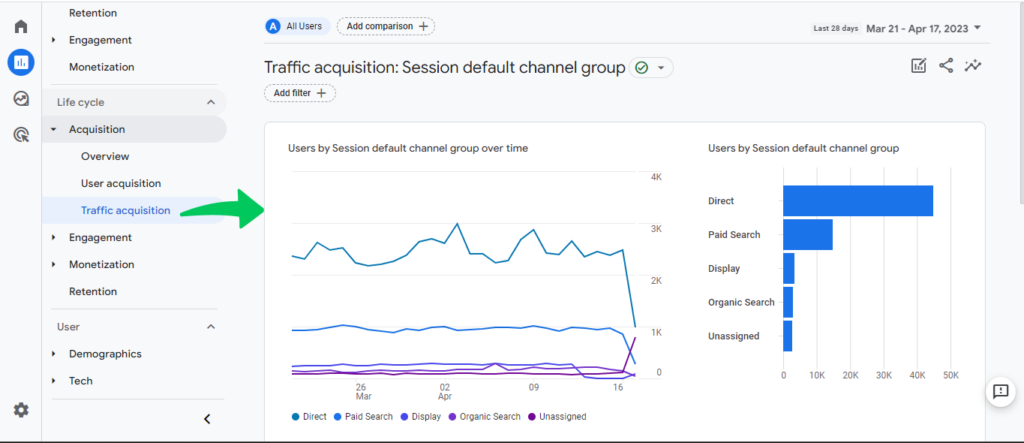
- Here, you’ll see a breakdown of your website’s traffic by source and medium.
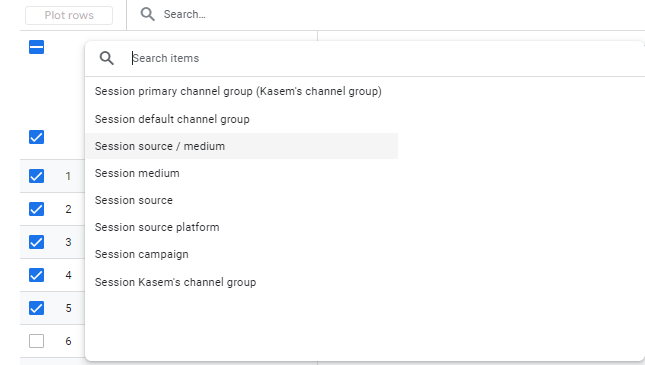
- For example, you’ll be able to see if most visitors are coming from Google search, Facebook, or directly typing in your website URL.
Key Metrics to Focus On:
| Metric | Definition |
|---|---|
| Users | Total number of individual visitors to your site in the date range |
| New Users | Visitors on their first-ever visit |
| Sessions | Total visits, including multiple pageviews per visit |
| Session Duration | Average time visitors spend on your site per session |
Tracking Website Visits and User Engagement
Beyond traffic sources, GA4’s Pages and Screens and Events reports show what visitors do on your site. You see which pages hold their attention and where they drop off.
1. Using the Pages and Screens Report
The Pages and Screens Report shows how individual pages on your website are performing. This report shows which pages your visitors are viewing the most and how they are interacting with those pages.
Steps to Access the Pages and Screens Report:
- In the GA4 dashboard, go to Reports » Engagement » Pages and Screens.
- This report will show you a list of your website’s most visited pages, along with metrics like views, users, and average time spent on page.
This report shows which content resonates with your audience and which pages need improvement. A high pageview count with low engagement time signals the content isn’t holding attention.
Why Your Traffic Numbers Look Wrong: Common Tracking Errors
Most traffic-tracking problems come from the setup, not GA4 itself. Check this table against what you’re seeing before assuming your numbers are accurate.
| Symptom | Likely Cause | Fix |
|---|---|---|
| No data showing up at all | GA4 tag was never installed, or was added to the wrong template | Check Admin → Data Streams for tag status, or install GA4 with Analytify to cover every page automatically |
| Traffic numbers look doubled | The GA4 tag is firing twice, such as through manual code plus a plugin, or GTM plus direct code | View page source for two gtag or G- tags and remove one installation |
| Numbers don’t match your old Universal Analytics reports | GA4 counts visits differently than Universal Analytics did | Compare GA4’s Users metric against UA’s Users metric, not UA’s old Sessions or Pageviews figures |
| One traffic source dominates everything | Marketing links are missing UTM parameters, so GA4 files them under Direct or Unassigned | Add utm_source, utm_medium, and utm_campaign to every link before you share it |
| Traffic dropped sharply after a site change | A redesign, migration, or GA4 vs. UA property mismatch broke the tracking code | Confirm the GA4 property is receiving live traffic under Admin → Data Streams |
Skip the manual setup: install Analytify and these reports show up live in your WordPress dashboard, no GA4 navigation or tracking code required.
Track Website Traffic with Google Analytics (FAQs)
1. What is the best way to track website traffic using Google Analytics 4?
To track website traffic using Google Analytics 4 (GA4), set up a GA4 property for your site, install the tracking code, and access key reports like the Traffic Acquisition and Realtime reports. These reports help you see where your visitors are coming from, what pages they view, and how they interact with your site.
2. How can I check where my website traffic is coming from in Google Analytics 4?
You can check where your website traffic comes from by accessing the Traffic Acquisition report in GA4. This report shows a breakdown of traffic sources such as organic search, direct visits, social media referrals, and more. Navigate to Reports » Acquisition » Traffic Acquisition to see the details.
3. What is the difference between Users and Pageviews in Google Analytics 4?
In Google Analytics 4, Users represent the unique visitors to your website, while Pageviews refer to the total number of pages viewed. A single user can generate multiple pageviews if they visit more than one page during their session.
4. How do I set up conversion tracking in Google Analytics 4?
To set up conversion tracking in GA4, go to Configure » Conversions and create a new conversion event. You can define key actions like form submissions, purchases, or newsletter sign-ups as conversions, allowing you to track how well your site achieves its goals.
5. Can I track real-time website traffic with Google Analytics 4?
Yes, GA4 offers a Realtime report that allows you to track website traffic as it happens. This report shows live data on how many visitors are on your site, which pages they view, and where they are located.
6. How can I monitor traffic for specific pages in Google Analytics 4?
To monitor traffic for specific pages, use the Pages and Screens report in GA4. This report shows you which pages on your website receive the most views and how users engage with those pages. Navigate to Reports » Engagement » Pages and Screens to view this data.
7. Why isn’t Google Analytics showing my website traffic?
Check that the GA4 tracking code is installed on every page, not just the homepage. Ad blockers, cookie consent tools, and cached pages can also block the tag from firing. Give it 24 to 48 hours after setup, since GA4 does not backfill data from before installation.
Final Thoughts
Tracking website traffic in GA4 comes down to three things. Get the tracking code installed correctly. Check the Traffic Acquisition and Engagement reports regularly. Fix tracking gaps before they skew your numbers. That’s how to check website traffic with Google Analytics, start to finish.
You may also like to read 21+ Ways To Increase Website Traffic on WordPress.