Real-Time Analytics for WordPress: Why Instant Insights Matter in 2026

Do you know why WordPress real-time analytics are becoming essential for site owners?
WordPress real-time analytics show what’s happening on your website the exact moment it happens, who’s visiting, which pages they’re viewing, and how they’re engaging. These instant insights help site owners, ecommerce stores, publishers, and marketers react faster, fix issues quickly, and optimize campaigns in real time.
But GA4’s built-in real-time report is limited and often hard to interpret. This is where Analytify steps in with an easier real-time dashboard inside WordPress.
In this article, you’ll learn how WordPress real-time analytics work, how Analytify simplifies them, and how to monitor the right metrics effectively.
Let’s get started!
WordPress Real-time Analytics (TOC):
Why WordPress Real-time Analytics Matters in 2026
Real-time analytics are important because they let you see what is happening on your website right now. Instead of waiting hours or days, you can watch live website activity.
You can also check real-time traffic stats that show who is on your site, what they are doing, and where they came from the moment it happens.
Google Analytics makes this even easier through GA4 real-time reports, which show live pageviews, referrals, and actions in just a few seconds. In the GA4 Real-time reports:
- Instant insights help you test headlines, buttons, CTAs, and landing pages; you immediately see what works and what doesn’t.
- If more users click after a change, it’s effective.
- If engagement drops, you can fix it immediately.
- Real-time analytics are also very helpful for online stores. You can watch people move through the checkout process as it happens.
- If visitors are dropping off or getting stuck, you’ll notice it immediately. This helps you solve problems before they hurt your sales or your customer experience.
- Real-time data helps you spot problems with your site.
- If your live website activity suddenly drops or your site slows down, you can catch it instantly. This lets you take quick action and protect your website’s performance.
- Marketers also get better results by watching real-time traffic stats, UTMs, and ads as they run.
- If an ad is wasting money, they can stop it.
- If a campaign is performing well, they can boost it right away, resulting in a stronger ROI.
Challenges With Built-in GA4 Real-Time Reports
GA4’s real-time reporting is helpful, but it also comes with several limitations. Some key challenges include:
- Limited 30-Minute Data Window: GA4 only shows activity from the last 30 minutes, so you can’t monitor longer-term trends, traffic spikes, or ongoing campaigns in real time.
- Limited Insight Into Individual User Behavior: GA4 doesn’t provide detailed, user-level actions in real time. You can see active users, but not the whole journey of what each visitor is doing moment-by-moment.
- No WordPress Context: GA4 doesn’t show data for WordPress elements such as posts, categories, tags, or authors. This makes it harder for bloggers and publishers to understand which content is performing well right now.
- Constant Tab Switching: To check real-time activity, you must switch between GA4 dashboards and your browser tabs, breaking focus and slowing down analysis.
- Difficult to Compare Traffic Sources Instantly: GA4 doesn’t provide an easy side-by-side view of how different channels (such as Facebook, Google Ads, and email) are performing at the same time.
- Not Beginner-Friendly: GA4’s layout and terminology can feel confusing for beginners. Many WordPress users find it hard to navigate, interpret live data, or take quick action based on what they see.
These challenges make it harder for teams to monitor live website activity smoothly, especially when fast decisions are needed.
How Real-Time Analytics Work in WordPress
WordPress Real-time analytics may sound complicated, but the way it works is actually very simple. Think of it as watching things happen on your website the moment someone visits it.
So when a person visits your website and does something, such as clicking a link, opening a page, or pressing a button, GA4 sends a small signal (event). Your WordPress plugin catches this signal (event) at exactly the same moment, and your WordPress dashboard shows the action instantly. This is how instant analytics WordPress works.
For example, if a visitor clicks on a link, you can see that click appear on your screen almost immediately. You don’t need to switch screens, open new tabs, or write any code. Everything just appears in one place.
What’s Tracked by Realtime
Real-time analytics also show you several important things while they happen:
- Active visitors: You can see how many people are on your website right now. This helps you understand when your site is busy.
- Top pages: You can see which pages people are reading the most at this moment. This is great for spotting trending content.
- Events and conversions: You can see actions like button clicks, sign-ups, or even sales as soon as they happen.
- Traffic sources: You can see where visitors are coming from, such as Google, Facebook, email, or another website.
- Devices: You can see whether people are using a phone, tablet, or computer.
- Campaigns: You can track active promotions and see which ones are working.
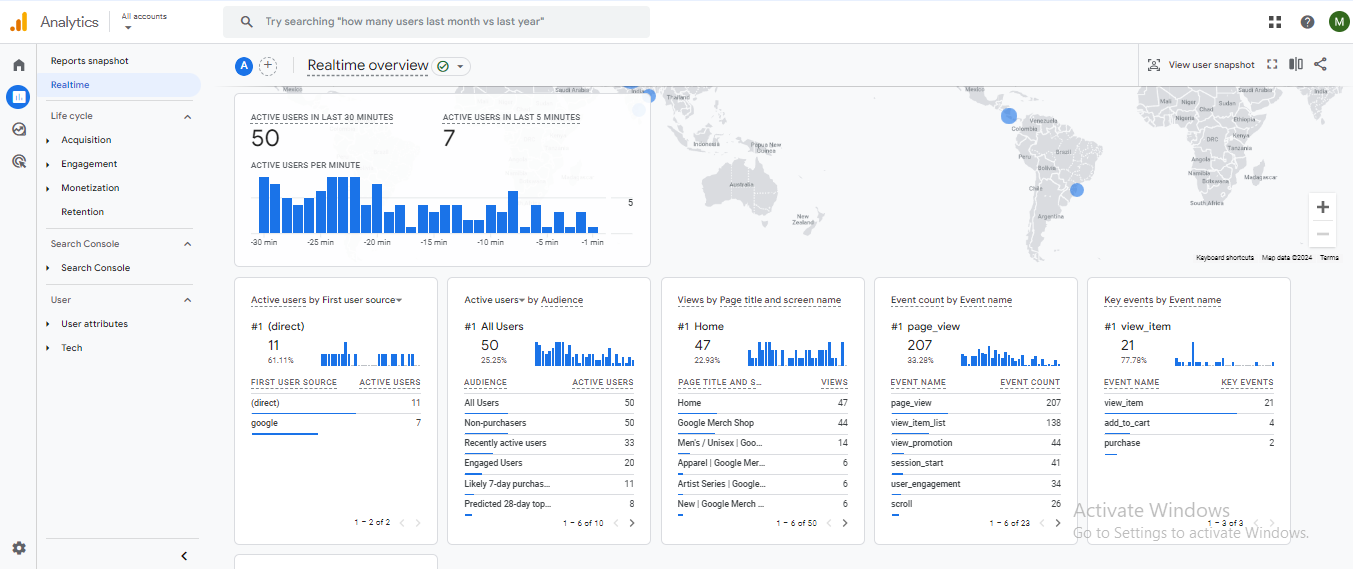
So, seeing your real-time analytics right inside WordPress makes everything much easier to understand. You can view all your instant analytics in WordPress itself. This saves time, keeps things simple, and helps beginners by showing all the significant numbers in one place.
How to Get WordPress Real-Time Analytics Using Analytify
Join 50,000+ beginners & professionals who use Analytify to simplify their Google Analytics!
Analytify makes real-time analytics in WordPress much easier by turning GA4’s live data into a simple, easy-to-read dashboard.
As one of the best Google Analytics WordPress plugins, Analytify seamlessly integrates with GA4 and brings all your important insights directly into your WordPress dashboard.
So, instead of opening GA4 separately, you can monitor everything in one place. This helps you instantly understand how people are interacting with your website and whether your campaigns, posts, or promotions are bringing the expected traffic at the right moment.
To help you get started, here’s a simple step-by-step guide to using Analytify for real-time tracking:
Step 1: Install and Connect Analytify with GA4
Start by installing the Analytify plugin and connecting your GA4 property. Complete authentication and ensure enhanced measurement is enabled so GA4 can automatically capture important interactions.
Step 2: Open the Real-Time Dashboard
Once connected, go to Analytify’s real-time dashboard.
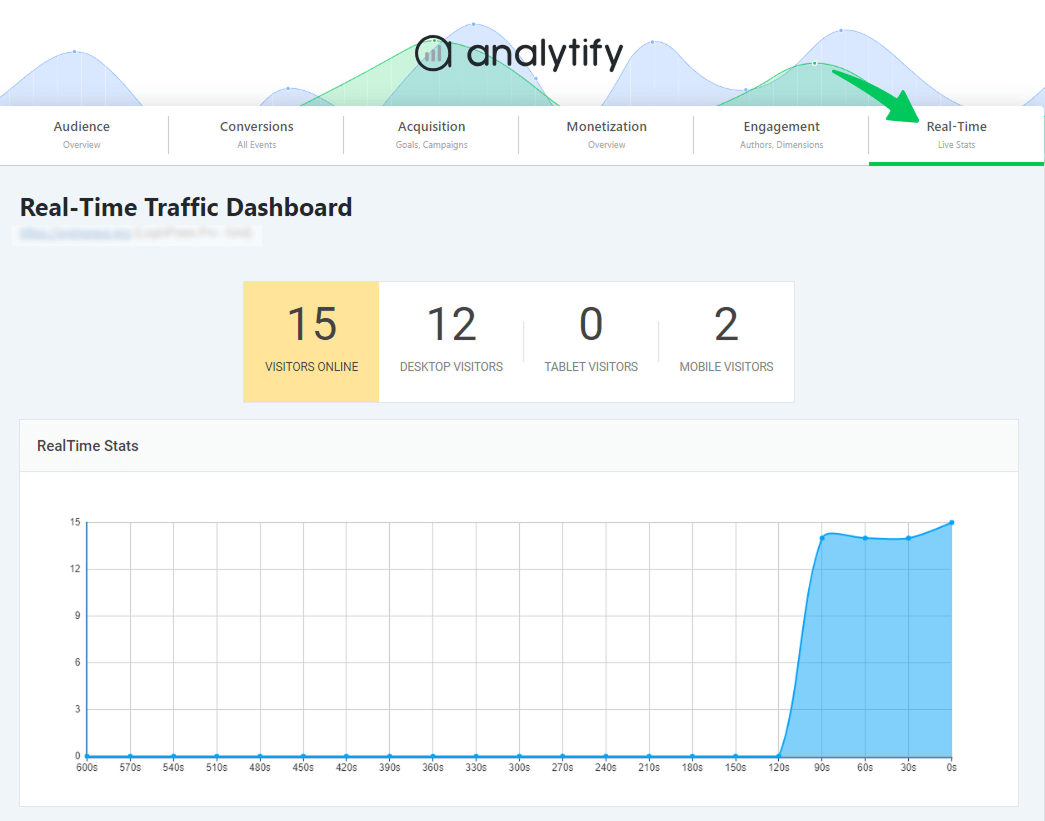
Step 3: Monitor Active Users
Use this view to track how many visitors are currently active on your site and what they’re doing.
When using Analytify’s real-time analytics, focus on the following reports to understand user activity more clearly:
- Active Users: which shows how many people are currently browsing your site
- User Devices: Monitor whether visitors are joining from mobile, desktop, or tablet.
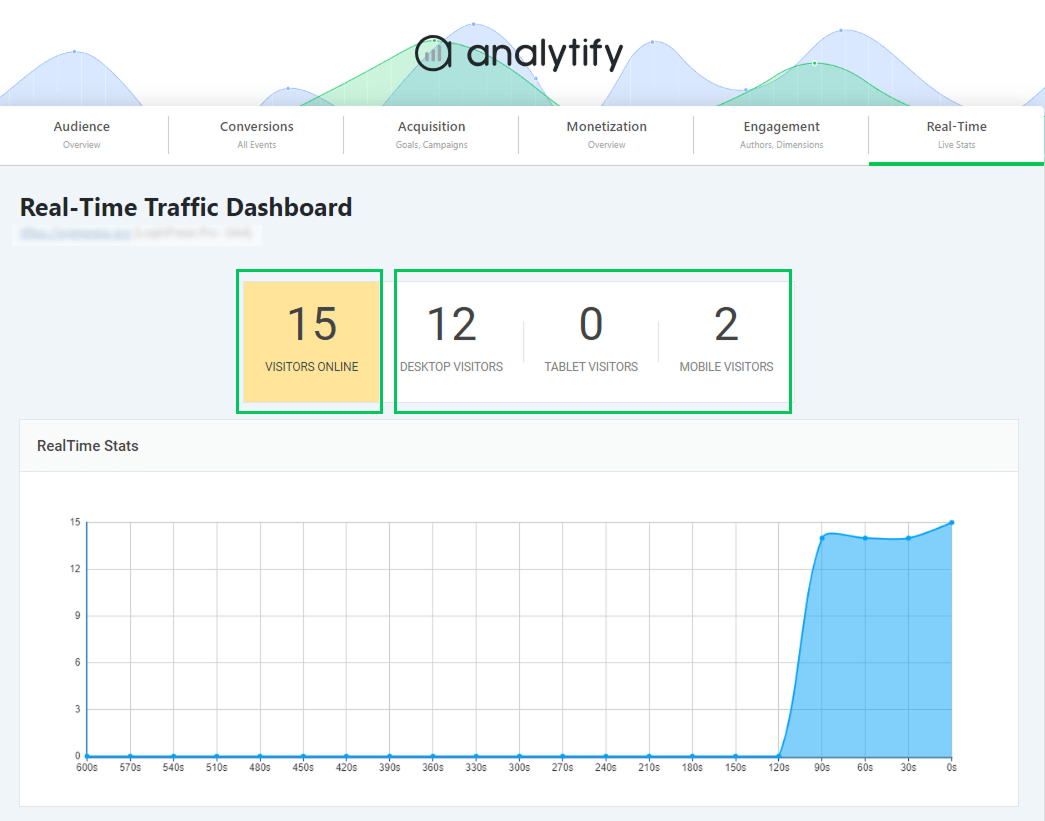
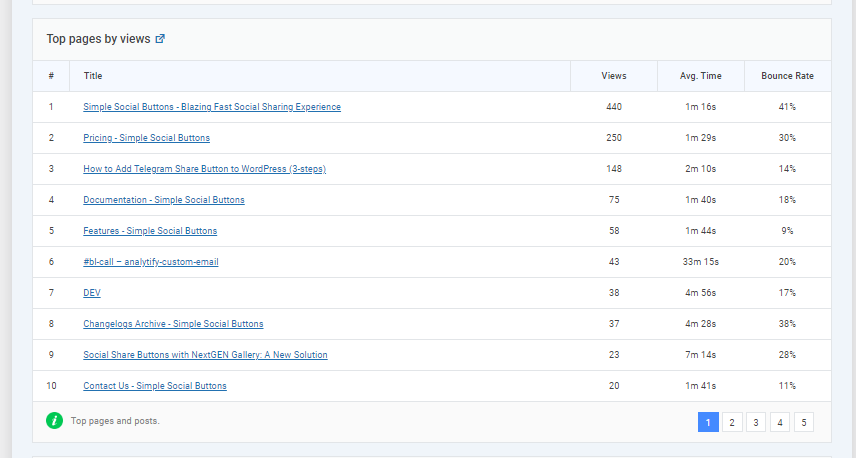
- Top Active Pages: See which content is currently attracting the most visitors.
Frequently Asked Questions
1. What counts as a “real-time user”?
A real-time user is anyone currently active on your website within the last few minutes. GA4 measures this based on ongoing page views, scrolls, clicks, and engagement signals. Analytify displays these users instantly inside your WordPress dashboard.
2. Which dashboard type is best for monitoring real-time data?
A real-time analytics dashboard is the best option. It refreshes automatically and shows live metrics such as active users, top pages, traffic sources, devices, and key events. This type of dashboard helps you monitor activity second-by-second and take quick action when needed.
3. What is the role of the Google Analytics dashboard in monitoring real-time website performance?
The Google Analytics dashboard helps you monitor live website activity by showing what’s happening on your site at this very moment. It displays active users, pages they’re viewing, and key interactions in real time. When paired with WordPress real-time analytics, you get a clearer picture because your GA4 real-time reports appear directly in WordPress, making it easier to react quickly to traffic changes and visitor behavior.
4. How accurate are the stats?
Real-time stats are highly accurate because they come directly from GA4. There may be a slight delay of a few seconds due to data processing, but overall, the numbers closely match the activity on your site at that moment.
5. How frequently does the data update?
Analytify updates real-time data every few seconds, similar to GA4, so you’re always seeing the latest user activity, page views, sources, and device types without refreshing the page.
6. Can WooCommerce or LMS activity be tracked live?
Yes. If GA4 is appropriately set up, Analytify can show real-time actions from WooCommerce stores (such as product views or cart activity) and LMS platforms (such as course views or lesson engagement). You’ll see the user count and what pages or products they’re interacting with.
7. Does real-time tracking affect site performance?
No. Real-time tracking does not affect your site’s performance because Analytify does not run extra-heavy scripts on your pages. GA4’s lightweight tag handles all monitoring, and Analytify only reads and displays that data inside your WordPress dashboard. This means your website speed, load time, and user experience remain entirely unaffected.
Final Thoughts: WordPress Real-time Analytics
In this guide, we explored why WordPress real-time analytics have become essential for site owners in 2026. We began by understanding how real-time data helps you react instantly to live website activity, spot traffic spikes, fix issues faster, and optimize campaigns as they run.
We also looked at the challenges inside GA4 real-time reports, which often lack clarity and offer limited insights.
Then we learned how Analytify fills these gaps by bringing instant analytics WordPress features directly into your dashboard, making it much easier to monitor real-time traffic stats, active users, devices, and top pages.
So, for further guidance, you can read:
- Real-Time vs Event-Based Reporting in GA4: Which One to Use When
- Analyzing Content Engagement with Google Analytics 4 Funnels
Have you tried real-time tracking before, and what challenges did you face? Share your thoughts or questions in the comments. I’d love to hear what you think!