

Google Tag Manager ID (Explained)

A Google Tag Manager ID is the unique identifier of your GTM container. It starts with GTM- followed by letters and numbers, and it appears at the top of your GTM workspace.
Google Tag Manager (GTM) helps manage and deploy marketing tags without modifying the website’s code. Examples are Google Analytics and Facebook Pixel.
Your GTM account provides you an ID that is a key element in using Google Tag Manager. This ID is a unique identifier for your GTM container. It is essential for setting up and using GTM properly.
This guide shows why you need the ID and how to find it.
Table of Contents:
What is Google Tag Manager ID?
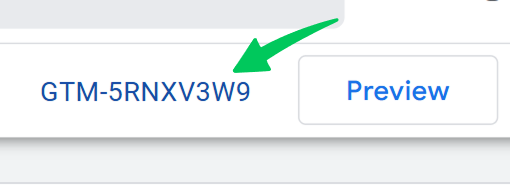
The Google Tag Manager ID is a unique identifier assigned to each container created in Google Tag Manager. This ID is critical. It tells Google Tag Manager which container to load on a website. GTM then triggers the right tags, sets the right variables, and activates the correct triggers for the page.
This ID is used across various platforms, ensuring that your website’s tags function properly. Without this unique ID, GTM wouldn’t be able to recognize and deploy the correct tags for your site.
Why Do You Need Google Tag Manager ID?
The Google Tag Manager ID is necessary for effectively using GTM on your website. It acts as a unique identifier for your Google Tag Manager container. That makes sure the correct tags trigger at the right time.
Here’s why you need your ID from GTM:
- Tag Management: GTM allows you to manage all your website tags in one place. This ID links your tags, triggers, and variables to a specific container. That makes it easier to deploy and maintain tracking codes.
- Troubleshooting: If you run into any issues with your tags not firing, knowing your ID helps you troubleshoot. It’s often the first thing you’ll check to make sure your GTM container is correctly implemented.
- Multiple Containers: If you manage several websites, each one has its own Google Tag Manager container with a unique ID. This helps keep your tags organized and ensures each website is using the correct tags.
The GTM Container ID is essential for setting up and maintaining your tags. That matters most when you run multiple tags across different websites.
How to Find Google Tag Manager ID
To find your Google Tag Manager ID, open your container in Google Tag Manager and look at the top of the workspace. The ID starts with GTM-. If you do not have an account yet, the ID appears when you create your first container.
1. If You Already Have a GTM Account
- Log in to your Google Tag Manager account.
- Open the container for which you need the ID.
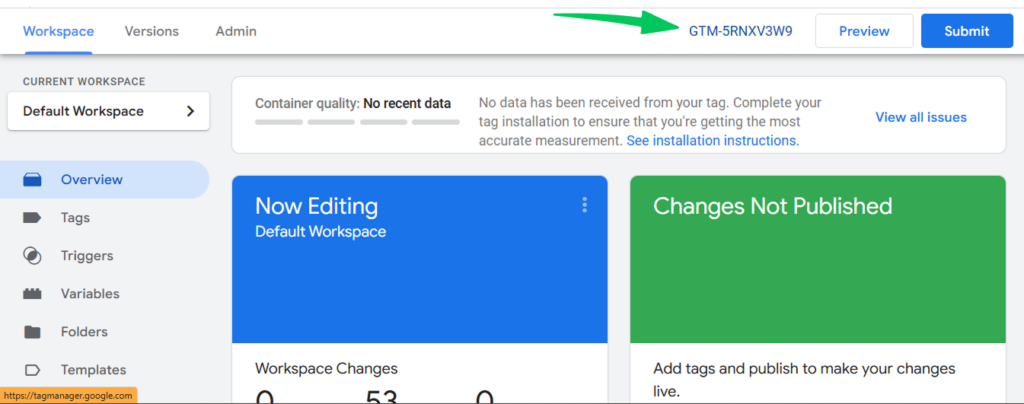
- Look at the top right corner of the container dashboard, next to the “Submit” and “Preview” buttons. You’ll see text starting with GTM-. A unique string of letters and numbers follows it. That’s your ID for tracking.
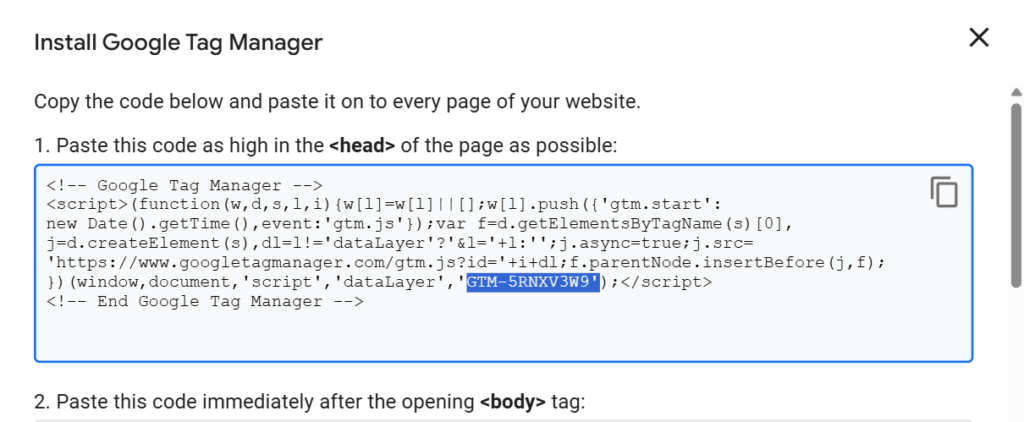
- Click the GTM ID to open a popup with the container code snippet. The same ID appears inside the snippet.
2. If You Don’t Have a GTM Account Yet
- Go to the Google Tag Manager website and click on “Create Account”.
- Use your existing Google account to log in.
- After setting up your account, you will create a container for your website or app.
- During the container setup, you will be provided with the GTM ID. It will look like GTM-XXXXXX.
Once you have the GTM ID, copy it. Use it as needed for your website or app.
How to Retrieve Google Tag Manager ID from an Existing Website
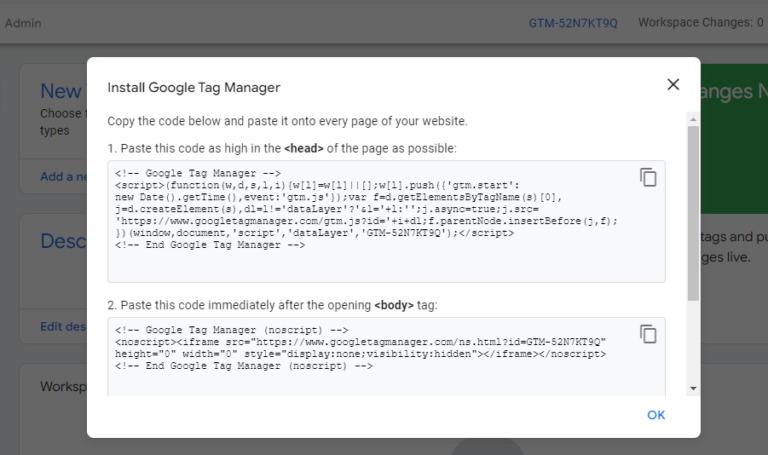
To find a Google Tag Manager Container ID, view the page source and search for GTM-. You can also use Chrome Developer Tools. Here are the methods:
1. Inspect the Website’s Source Code
- Open the website in your browser.
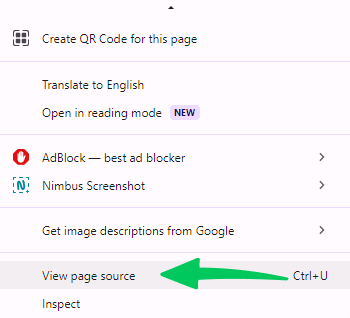
- Right-click anywhere on the page and select “View Page Source” (or press CTRL + U).
- Use your browser’s search function (press CTRL + F or CMD + F) and search for GTM-.
- You should find a string like GTM-XXXXXX, which is the ID.
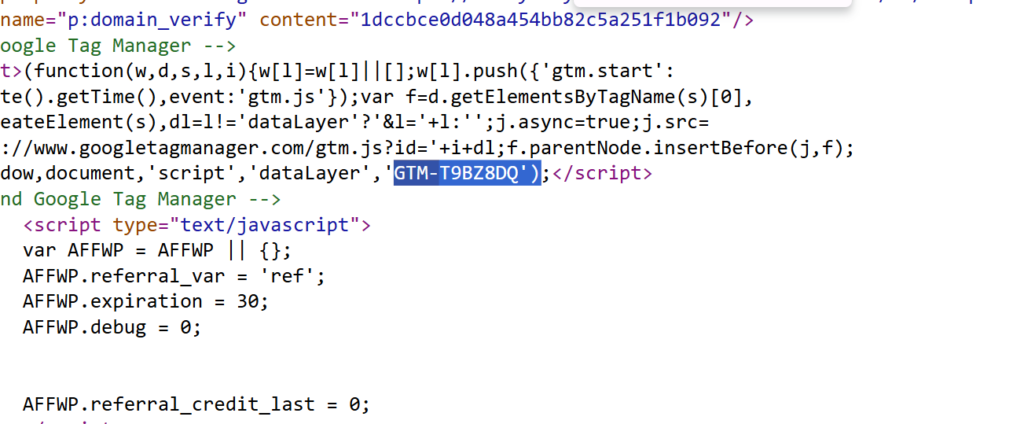
3. Copy the GTM ID for use.
2. Use Chrome Developer Tools
- Open the website in Google Chrome.
- Right-click and select Inspect or press CTRL + Shift + I.
- In the Developer Tools window, go to the Network tab.
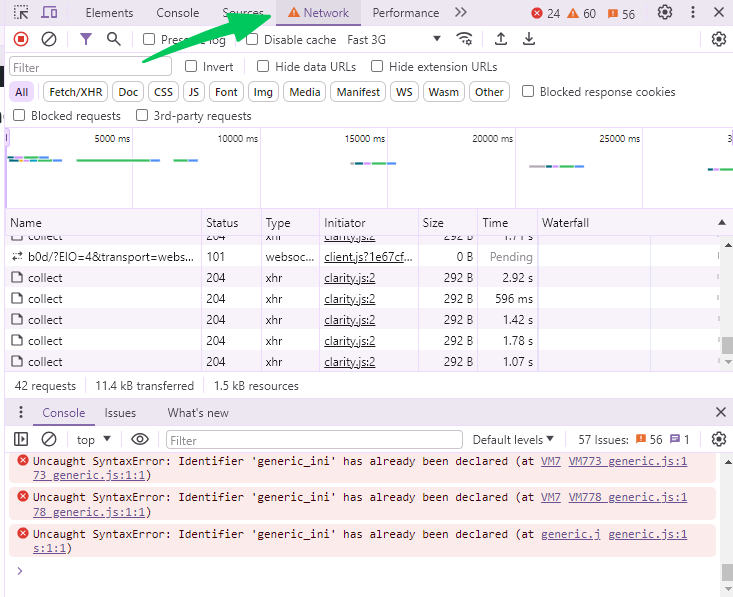
- Refresh the page (press F5).
- In the search bar of the Network tab, type gtm.
- Look for a line containing gtm.js?id=GTM-XXXXXX. This is the GTM ID you are looking for.
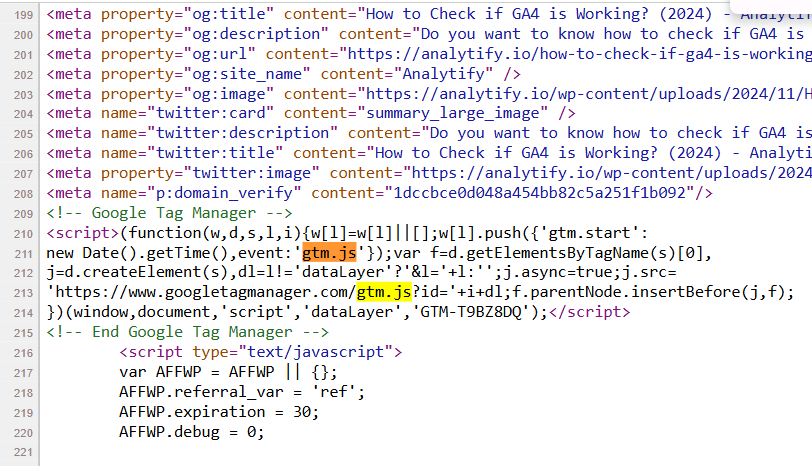
These methods help you quickly find the ID without needing access to the GTM account.
Maximize Your Google Tag Manager Data with Analytify
Join 50,000+ beginners & professionals who use Analytify to simplify their Google Analytics!
You manage your website’s tags with Google Tag Manager. Tracking and analyzing the performance of those tags and other user behaviors matters just as much. This is where Analytify comes in.
Analytify is a powerful Google Analytics plugin that simplifies Google Analytics data and presents it in a user-friendly way. With Analytify, you can track your website’s performance and gain valuable insights directly from your WordPress dashboard. You may manage tags through GTM or implement custom tags. Either way, Analytify makes it easier to interpret the data and adjust your strategies.
Here’s how Analytify can enhance your Google Tag Manager setup:
- Easy Integration with Google Analytics: If you use GTM to manage your tags, Analytify automatically connects your website’s Google Analytics account. This means you can see how your tags are performing without jumping between multiple platforms.
- Real-Time Analytics: Get real-time data and see how your website performs. Up-to-date insights appear directly in your WordPress dashboard.
- In-Depth Reports: Dive deeper into your website’s performance with detailed reports. With Analytify, you can track metrics like page views, bounce rates, and conversions, helping you refine your tagging strategy.
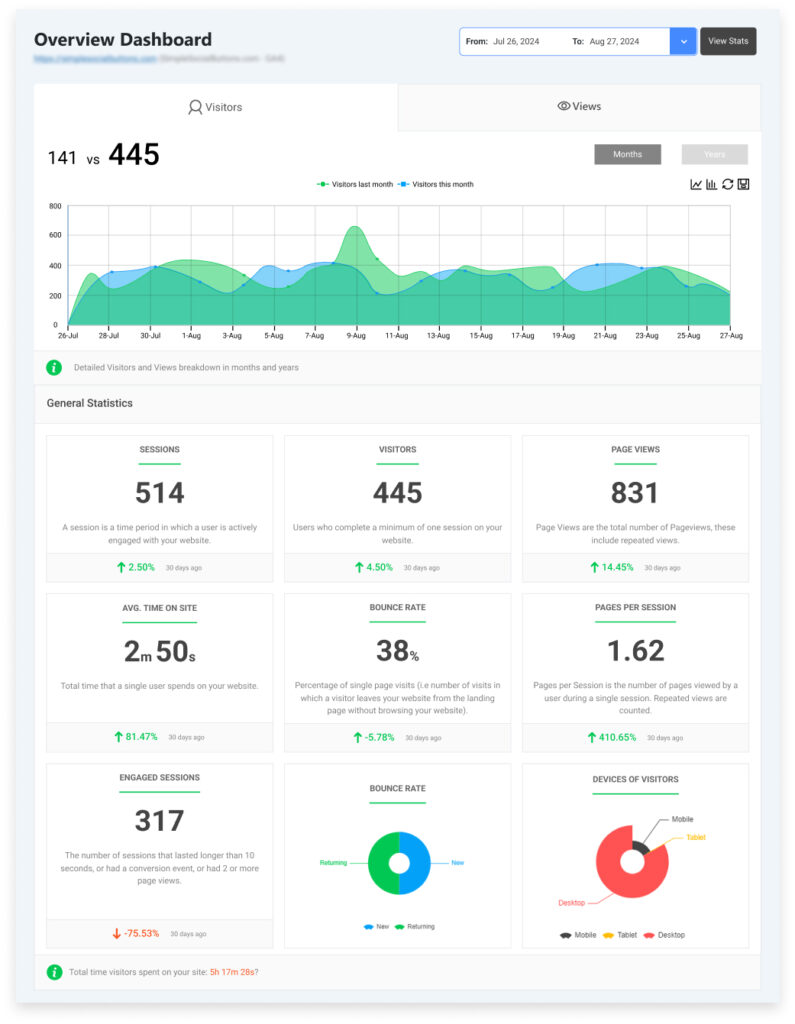
- User-Friendly Interface: Analytify offers a clean, intuitive interface that makes analyzing data much easier than using Google Analytics directly. You don’t have to be a data expert to understand how your GTM tags are impacting your website’s performance.
- Event Tracking: You may use GTM to track specific events (like button clicks, form submissions, etc.). Analytify lets you view these event results directly within the plugin. That makes it easier to analyze and optimize your website.
Combine Google Tag Manager for tag management with Analytify for analytics. You streamline your website’s tracking. You also get a clear view of how your efforts drive results.
Frequently Asked Questions
1. What is a Google Tag Manager ID?
A Google Tag Manager ID is a unique identifier assigned to each GTM container. It typically appears in the format GTM-XXXXXX and is used to identify and manage tags on your website or app. This ID ensures that the correct tags are loaded and executed, facilitating effective tracking and analytics.
2. How do I find my Google Tag Manager ID?
To locate your GTM ID:
Log into Google Tag Manager: Visit the Google Tag Manager website and sign in with your Google account.
Select your container: Choose the container for your website or app.
Locate the ID: The ID appears at the top of the workspace. It starts with GTM- followed by a unique alphanumeric code.
3. Can I use multiple Google Tag Manager IDs on a single website?
Yes, it’s possible to use multiple GTM IDs on a single website, especially if you’re managing different containers for various purposes, such as separate containers for different sections of the site or for testing environments. However, it’s essential to ensure that each container’s code is correctly implemented to avoid conflicts or duplicate tracking.
4. How can I secure my GTM ID to prevent unauthorized use?
To protect your GTM setup:
Restrict access: Give only authorized users access to your GTM account and containers.
Review permissions: Periodically check who has Edit, Approve, or Publish permission on each container.
The GTM ID is visible in your website’s source code, so anyone can see it. Controlling who can edit and publish the container is what protects your setup.
5. Is the Google Tag Manager ID the same as the Google Tag ID?
No. The two IDs identify different things.
Google Tag Manager ID: Identifies the GTM container that holds all your tags, triggers, and variables. It starts with GTM-.
Google tag ID: Identifies a Google tag that sends data to a Google product. A GA4 measurement ID, which starts with G-, is an example.
Final Thoughts
Google Tag Manager and your unique ID in your GTM account are important for setting up and managing tags on your website. You may be new to Google Tag Manager or troubleshooting an existing implementation. Either way, know where and how to find your ID in GTM.
Follow the steps in this guide to locate your ID. Your tags then fire correctly, and your website is properly tracked. You may work with a new GTM setup or look for the ID on an existing website. The methods outlined here help you get the job done.
Now you know what a Google Tag Manager ID is and how to find it. You can use it with confidence to manage tags across your websites and digital marketing campaigns. If you run into any issues, check your GTM account or inspect the source code. Make sure the ID is implemented correctly.
You may also like to read about Google Analytics 4 Measurement ID (Explained)
If you have any questions, feel free to ask in the comment box.




 Halloween Sale: Know which campaigns drive sales this season.