
How to Track Unique Visitors in GA4 (5 Steps)

In GA4, unique visitors are called Total Users. Find them in Acquisition in the Life Cycle Reports. You can also build a custom Explore report around the Users metric. Each person counts once per date range, no matter how many times they visit.
The most common reason this number looks wrong is a tracking gap, not a GA4 limit. The gap can be a missing tag, a duplicate tag firing twice, or a leftover GA4/Universal Analytics mismatch.
Below are the 5 steps to find Total Users in GA4. You also get the tracking errors that most often skew the count, and how to see it live in WordPress.
Google Analytics 4 Unique Visitors (TOC):
What are Unique Visitors in Google Analytics?
Unique visitors are the number of people visiting a website at least once during a specific period (session). Unique visitors differ from views: a user can visit a website more than once but is only counted once.
- Visiting your site 5 times in one day still counts as 1 unique visitor
- Visiting from your phone, then your laptop, without signing in, counts as 2, GA4 can’t link them automatically
- Clearing cookies and returning counts as a new unique visitor; GA4 sees a new ID
Understanding GA4 and Unique Visitors
GA4 doesn’t use the term “unique visitors.” It calls the same concept “Users.” It uses “Total Users” for the unique-per-period count.
Traditional metrics often count the same user many times if they visit on different days. GA4 counts individual users instead. That gives a more accurate count of actual visitors.
A unique visitor in GA4 is an individual user who visits your website within a given time frame. Whether they visit your site once or a dozen times during that period, they’re counted as one unique visitor. This metric matters. It shows how many different people engage with your content, not just the volume of visits or repeated views.
Unique Visitors Terminology: Universal Analytics vs. GA4
| Universal Analytics Term | GA4 Equivalent | What It Means |
|---|---|---|
| Unique Visitors | Total Users | Every distinct person in the date range, counted once |
| New Visitor | New Users | First-time visitors only |
| Returning Visitor | Returning Users | Visitors who’ve been to the site before |
| Pageviews | Views | Every page load, including repeats |
| Unique Pageviews | No direct equivalent; use Users + page_view events | GA4 dropped this metric |
| Sessions | Sessions | Still exists in both, largely unchanged |
What Makes GA4 Different?
GA4 differs from Universal Analytics by tracking users and events instead of sessions and pageviews. This makes its unique-visitor count more accurate across devices.
GA4 focuses on users and events, not sessions and pageviews. This gives a fuller view of how people interact with your site across devices.
Unique Visitors Explained
Unique visitors are every distinct person who visits your site in a period, new and returning combined. GA4 calls this “Total Users.” “New Users” is a narrower metric: only people on their first-ever visit.
Imagine three people visiting your site: Alice visits once, Bob visits twice, and Charlie visits three times. In GA4, these would count as three unique visitors, regardless of the total number of visits (sessions).
While the term has changed, tracking unique visitors in GA4 is still straightforward. The “Total Users” metric serves the same purpose as the old “unique visitors” metric. It’s prominently displayed on the GA4 homepage and included in many reports.
Here’s a breakdown of relevant user metrics in GA4:
- Total Users: Previously known as unique visitors. It is the total number of unique users who visited your site/app in the selected timeframe. Their activity level doesn’t matter.
- (Active) Users: This is a subset of Total Users. These users had an engaged session (defined by specific events or duration).
- New Users: This metric represents users visiting your site/app for the first time.
- Returning Users: This metric represents the visitors who revisit the site. Returning users can be active or not.
GA4 User Metrics at a Glance
| Metric | Definition | Where to Find It |
|---|---|---|
| Total Users | Every unique person in the date range | Reports → Life cycle → Acquisition |
| Active Users | Total Users who had an engaged session | Reports → Engagement overview |
| New Users | Visitors on their first-ever visit | Reports → Acquisition → User acquisition |
| Returning Users | Visitors who’ve been to the site before | Explore → segment by New vs. Returning |
Why Should We Keep Track of Unique Visitors?
Tracking unique visitors shows the real size of your audience, not just how many times your pages loaded.
- The first thing it does is help businesses and marketers figure out how big their community is. The number of unique visitors shows how many people are interested in their products or services.
- Second, businesses and marketers can find out how many possible customers they have by keeping track of unique visitors.
- Third, tracking unique visitors shows businesses and marketers how well their marketing and website content work.
How Does Google Analytics 4 Keep Track of Each Visitor?
GA4 assigns each visitor a unique client ID stored in a first-party cookie when they land on your site. On a later visit, GA4 checks that ID. A match counts as a returning visitor. No match counts as new.
How to Track Unique Visitors in Google Analytics 4?
Track unique visitors in GA4 by opening Reports, then Life cycle or Acquisition, and reading the Users metric. Here’s the exact path:
- Access Your GA4 Property: Log in to your Google Analytics account. Select the GA4 property for your website.
- Navigate to the ‘Reports’ Section: You’ll find pre-configured reports here. To track unique visitors, focus on the Life cycle and User reports.
- Explore ‘Life cycle’ Reports: These reports provide insights into user acquisition, engagement, monetization, and retention.
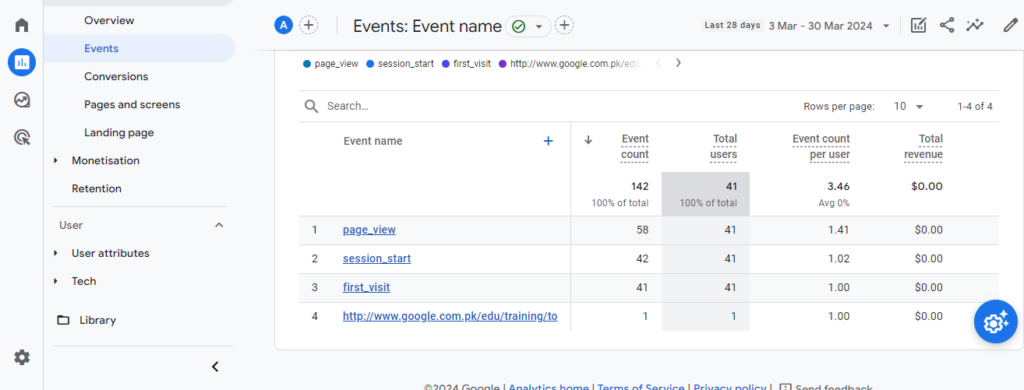
- Look at the ‘Events’ report. It shows how many new unique visitors (Total Users) your site attracts over a selected time period.
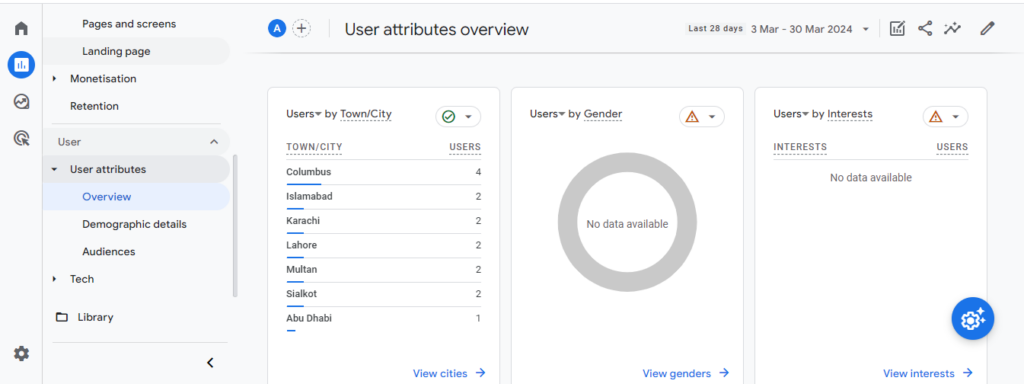
- Open ‘User’ Reports: The ‘User Overview’ report offers a closer look at your audience demographics, interests, and behaviors.
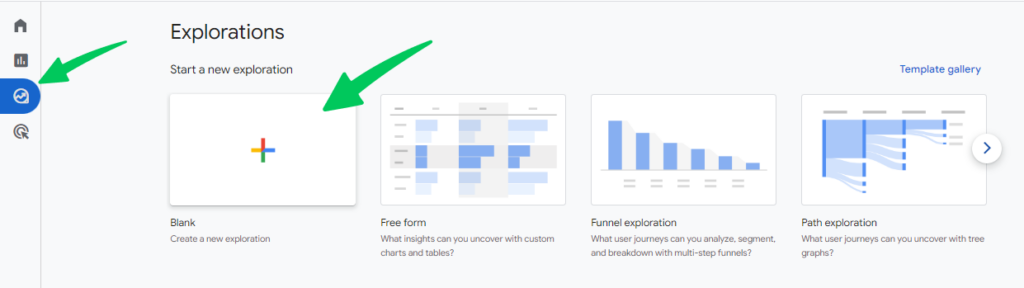
Customize Your Analysis: GA4 allows for deep customization.
- Go to Explore in GA4.
- Select the Blank report template.
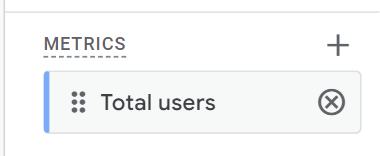
- In the Metrics section, click the plus sign (+).
- Search for and select Total Users.
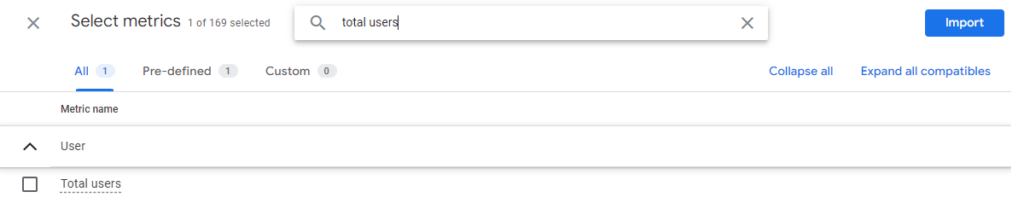
- This will add Total Users as a metric.
- You can also add other relevant conversion metrics, such as “Conversions” or “Event name,” for further analysis.
- Drag the metrics you want to analyze (e.g., Users, Conversions) to the Values section.
- It lets you see total users and conversion data within the same report.
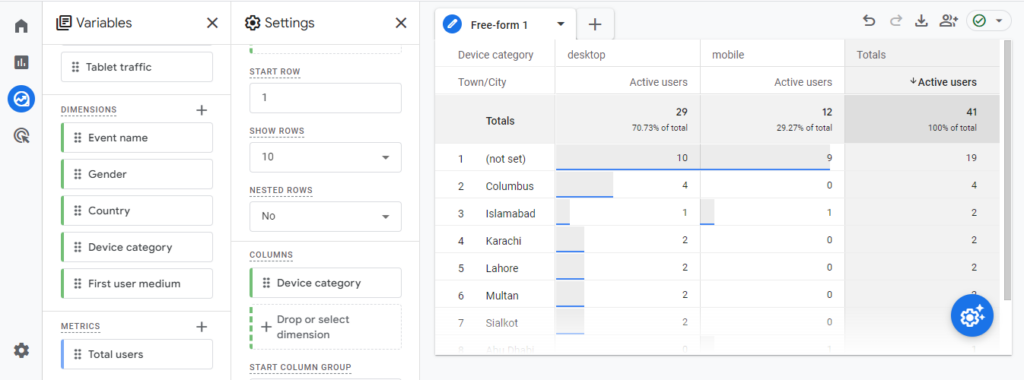
Segment this data by traffic source, device type, or location to compare visitor groups directly.
Skip the manual setup. Install Analytify and Total Users shows up live in your WordPress dashboard. You don’t need to navigate GA4.
Why Your Unique Visitor Count Looks Wrong: Common Tracking Errors
| Symptom | Likely Cause | Fix |
|---|---|---|
| Total Users is much lower than expected | GA4 tag is missing from some pages or was never installed | Check Admin → Data Streams for tag status, or install GA4 with Analytify to cover every page automatically. |
| Total Users is inflated or doubled | The GA4 tag is firing twice, such as through a manual installation and a plugin, or through GTM and direct code | Check the page source for two gtag or G- tags and remove one installation. |
| Numbers don’t match your old Universal Analytics reports | GA4 counts users differently from Universal Analytics. This is not necessarily a tracking error. | Compare GA4’s Users metric with UA’s Users metric, rather than comparing it with UA’s old Unique Visitors calculation. |
| Users count drops sharply after a migration | GA4 and UA are using mismatched properties, or UA data was not carried over | Confirm that your GA4 property is receiving live traffic under Admin → Data Streams. |
| Returning visitors are counted as new | Cookies were cleared, private browsing is being used, or visits occur across devices without sign-in | This is expected behavior. GA4 cannot reliably merge these visits without Google Signals or a logged-in User-ID. |
Interpreting the Data
Interpret Total Users by watching two things: the trend over time, and the split between new and returning visitors. When you look at Users, consider:
- Trends Over Time: Are you seeing growth in new users? What does this say about your content’s reach and appeal?
- User Engagement: How do the behaviors of new versus returning users differ? This difference can inform your content strategy and user engagement efforts.
- Impact of Marketing Campaigns: Track new users to gauge the effectiveness of your marketing campaigns. Then adjust your strategies.
Integrate your analytics with best email platforms. You see subscriber behavior, campaign performance, and revenue from email efforts alongside unique visitor data.
Unique Events in Google Analytics 4
Custom Events are user-defined interactions. You set them up yourself to track specific actions that Google Analytics 4 doesn’t capture by default.
In GA4, each unique event name is counted as a unique event. This means you can add different factors, like event category and event action, as custom event parameters.
Some examples of unique events are below.
- When a user gets a file or document from your website, GA4 tracks this as a custom (unique) event.
- When a user watches a video on your website, this can be recorded as a custom event (unique event).
- A user may submit their information on a submission form on your website. That counts as a custom event (unique event).
How to Track Custom (Unique) Events in Google Analytics 4?
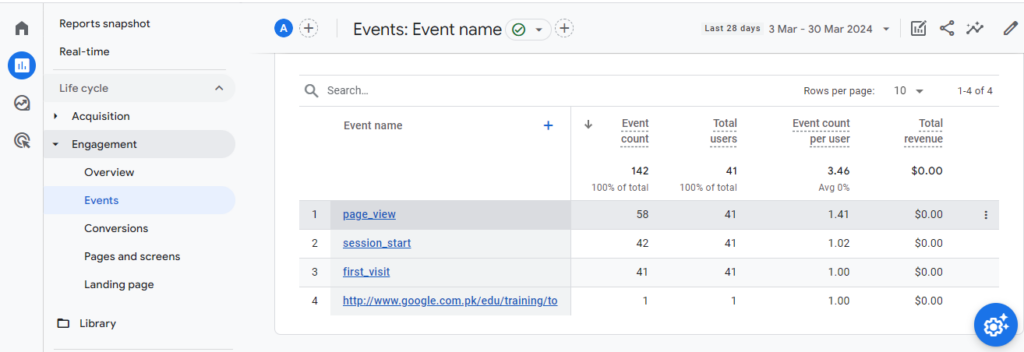
To track Unique Events in Google Analytics 4, navigate to Reports >> Engagement >> Events.
Read our complete guide on GA4 Custom Events: What Are They and How to Create Them?
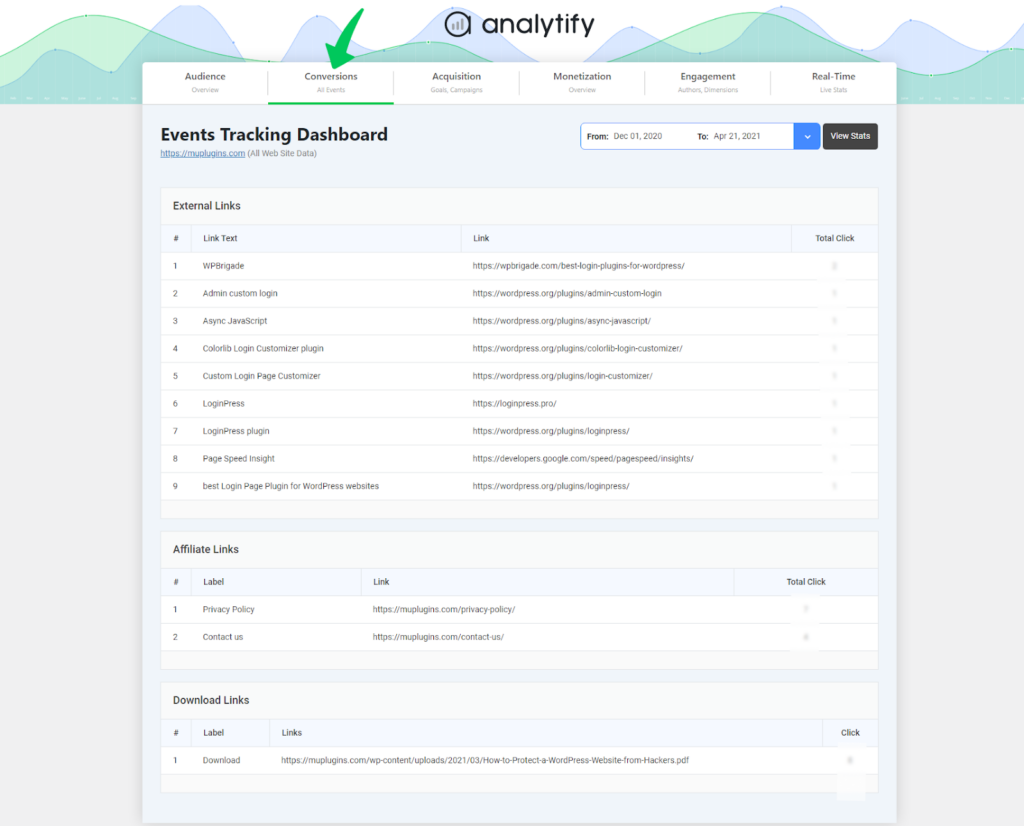
You can also track Events from the Analytify dashboard.
How to Track Unique Page Views In Google Analytics?
Unfortunately, Google Analytics 4 (GA4) doesn’t have a built-in metric for “Unique Pageviews” in the traditional sense.
The concept still exists, but GA4 uses different metrics to achieve a similar goal.
Why No Unique Pageviews?
GA4 takes a more user-centric approach. It focuses on understanding individual users’ journeys across your site/app. While “Unique Pageviews” counted each page load, GA4 prioritizes counting unique users and their engagement.
Alternative Metrics in GA4:
- Users: This metric represents the total number of unique users who visited a specific page during the timeframe.
- Events: While not a direct replacement, the “page_view” event can be used to understand individual page visits. However, it won’t eliminate duplicate views from the same user within a session.
Tracking Unique Page Views with User Engagement:
There are two methods to get a sense of unique page views in GA4:
- Combine Users with Page Views:
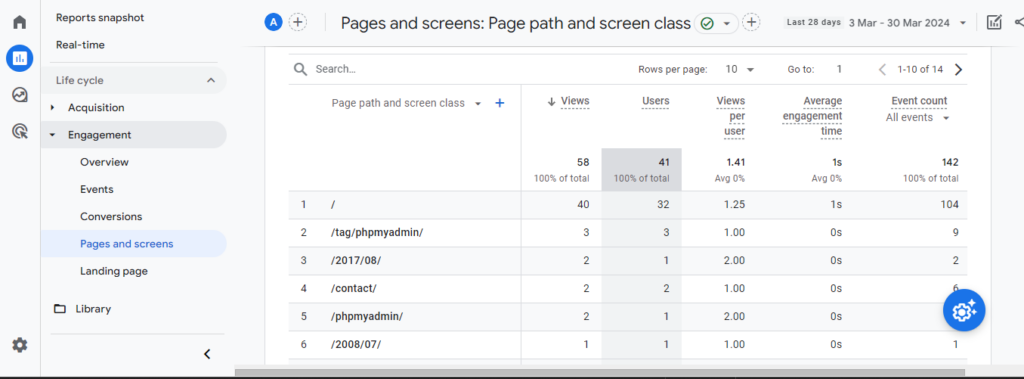
- In the Engagement >> Pages and Screens report, you’ll see “Users” and “Page views” metrics. This report shows how many users viewed each page. While it doesn’t eliminate duplicate views per user, it provides a user-centric view of page popularity.
WordPress CRM plugins add customer interactions, purchase history, and communications on top of your GA4 visitor data. You get a fuller view of your audience.
Track Unique Visitors on your WordPress Site Through Analytify
Yes, you can track unique users on your WordPress site through Analytify. Analytify is a WordPress plugin. It connects to Google Analytics and shows important analytics data right on your WordPress site.
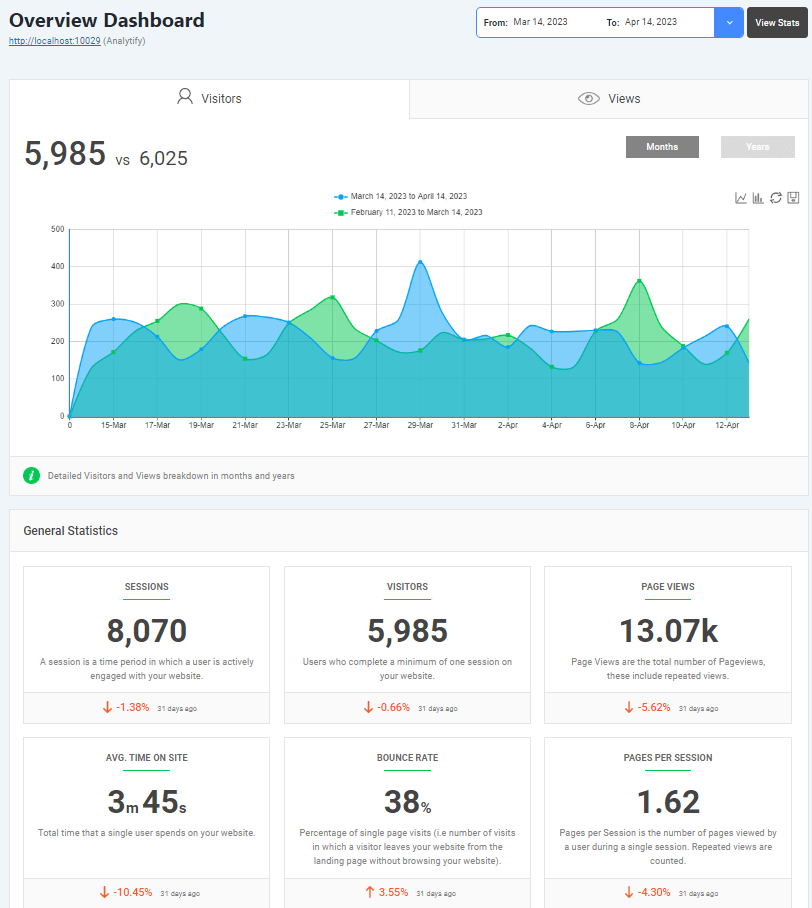
To track unique users with Analytify, install and enable the Analytify plugin on your WordPress site.
Once you set up Analytify to track visitors, you see this information in the Analytify dashboard on your WordPress site. You will see the number of unique visitors. You will also see other key data such as page views, bounce rate, and average session length.
Analytify also lets you track eCommerce sales, custom post types, and search terms, among other things. These tools help you learn how people use your WordPress site so you can improve its performance.
Tracking unique visitors requires an active Google Analytics account connected to Analytify. To weigh your options for tracking unique visitors, read Google Analytics plugins, compared.
You can also break this down by individual content creators, not just site-wide totals.
Tracking WordPress author performance shows which contributors drive the most unique visits and engagement.
Frequently Asked Questions
1. What are unique visitors in Google Analytics 4?
A Unique Visitor in GA4 refers to an individual who visits your website within a specific time frame. GA4 identifies Unique Visitors using a combination of user IDs, device IDs, and browser cookies to distinguish between new and returning visitors, ensuring that each visitor is counted only once, regardless of how many sessions they initiate.
2. How does Google Analytics 4 track Unique Visitors?
GA4 tracks Unique Visitors by employing a sophisticated system that combines user IDs (if you have user authentication on your site), device IDs, and browser cookies. This multi-faceted approach allows GA4 to recognize a visitor across multiple devices and sessions, providing a more accurate count of individual visitors to your site.
3. Why is it important to track unique visitors in Google Analytics?
Tracking Unique Visitors is crucial for understanding the reach and effectiveness of your website and marketing campaigns. By knowing how many different individuals are visiting your site, you can gauge the success of your efforts to attract a new audience, assess the impact of your content and marketing strategies, and make informed decisions to improve your site’s performance and user engagement.
4. How does Google Analytics track individual visitors?
Google Analytics tracks unique visitors by giving a unique ID to each individual user. This ID is saved in a cookie or other tracking mechanism and is used to identify users across multiple sessions.
5. Can GA4 differentiate between new and returning Unique Visitors?
Yes, GA4 can differentiate between new and returning visitors. GA4’s analytics engine uses its tracking mechanisms to identify whether a user is visiting your site for the first time or if they are a returning visitor. This distinction helps website owners understand their audience’s engagement level and the effectiveness of their strategies in attracting new versus retaining existing visitors.
6. Why does my Total Users count differ from my Sessions count?
Sessions count every visit, so one person can generate several sessions in a day. Total Users counts that same person once. A high Sessions-to-Users ratio usually means people are returning often, not that your tracking is wrong.
7. Why is my Total Users count showing 0 in GA4?
This almost always means a tracking problem, not zero traffic: the GA4 tag isn’t installed, or it’s on the wrong property. Check Admin → Data Streams for tag status, and see the tracking-errors table above.
Wrapping Up
Total Users is GA4’s version of unique visitors. Find it in Reports, Life cycle, and Acquisition. You can also build it as a custom Explore report. If the number looks off, check the tracking-errors table above. A tracking gap explains it more often than a GA4 quirk.
Offline and online tracking strategies connect a visitor’s activity across channels. You get one accurate view of the customer journey and conversions.
Related read: How to Track Facebook Traffic in Google Analytics 4.
Not using Analytify yet? What are you waiting for?