
Is your content truly influencing conversions, or just bringing traffic? Content attribution in GA4 exposes the difference.
Most people judge performance by traffic alone, but traffic doesn’t reveal which articles guide users, which pages assist conversions, or how your content supports the entire journey from first visit to final action. That’s exactly why content attribution matters.
It shows how users interact with your pages across multiple touchpoints, highlighting the actual impact of your WordPress content on conversions, even when a page wasn’t the final step.
In this guide, you’ll learn what content attribution means in GA4, where to find built-in attribution reports, and how to build custom content attribution reports using Explorations. You’ll also learn how Analytify makes content attribution inside WordPress even easier.
Let’s get started!
Content Attribution in GA4 (TOC):
What Content Attribution Means in GA4?
Content attribution in GA4 shows how your pages, posts, and on-site experiences influence conversions throughout the user journey.
Instead of only focusing on where visitors came from, content attribution looks at how each piece of content contributes to results. Whether users convert after reading a blog, watching a video, or interacting with a CTA. This helps you understand your overall WordPress content performance with much more clarity.
Content attribution is different from traffic-source attribution. Traffic-source attribution tells you where the visitor came from (email, social, search), while content attribution explains which pages kept them engaged long enough to convert.
GA4 uses events and parameters to map important touchpoints, such as page views, scrolls, video plays, and form submissions.
When these events are captured correctly, GA4 builds a clearer picture of the entire content journey analytics, showing which pages assist, influence, or directly drive conversions.
GA4 Attribution Models Explained
GA4 attribution models decide how credit is divided across your content touchpoints. Today, GA4 mainly uses two active attribution models for reporting:
- Data-Driven Attribution (DDA) is GA4’s default and most accurate model, using machine learning to give fair credit to all content touchpoints that influence a conversion.
- Last-Click Attribution gives 100% credit to the final page or interaction before a conversion, ignoring earlier content that assisted the journey.
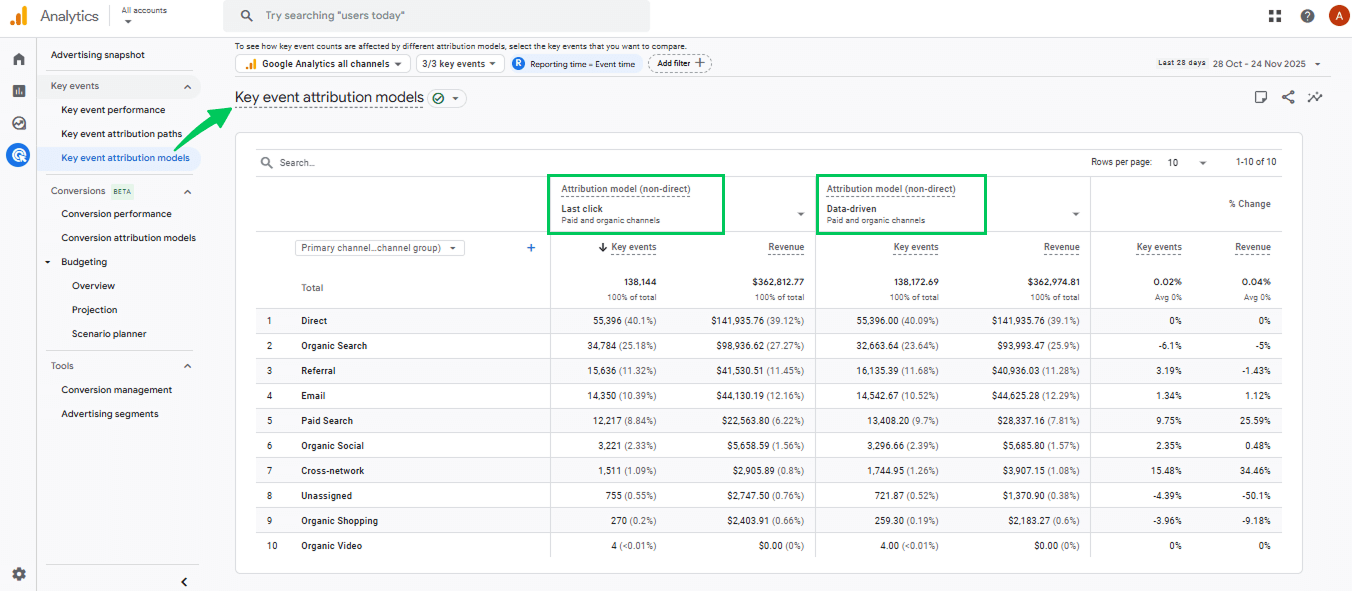
For content-heavy sites and publishers, data-driven attribution is the recommended choice because it highlights every page that plays a role, not just the last one users touch before converting.
GA4 Setup for Accurate Content Attribution
To get accurate content attribution in Google Analytics 4, you need to set up your tracking correctly from the start. Follow these steps to make sure every important content touchpoint is captured.
Step 1: Configure Your Data Streams Properly
- Start by opening Admin >> Data Streams in your GA4 property. This is where all your website’s tracking settings live.
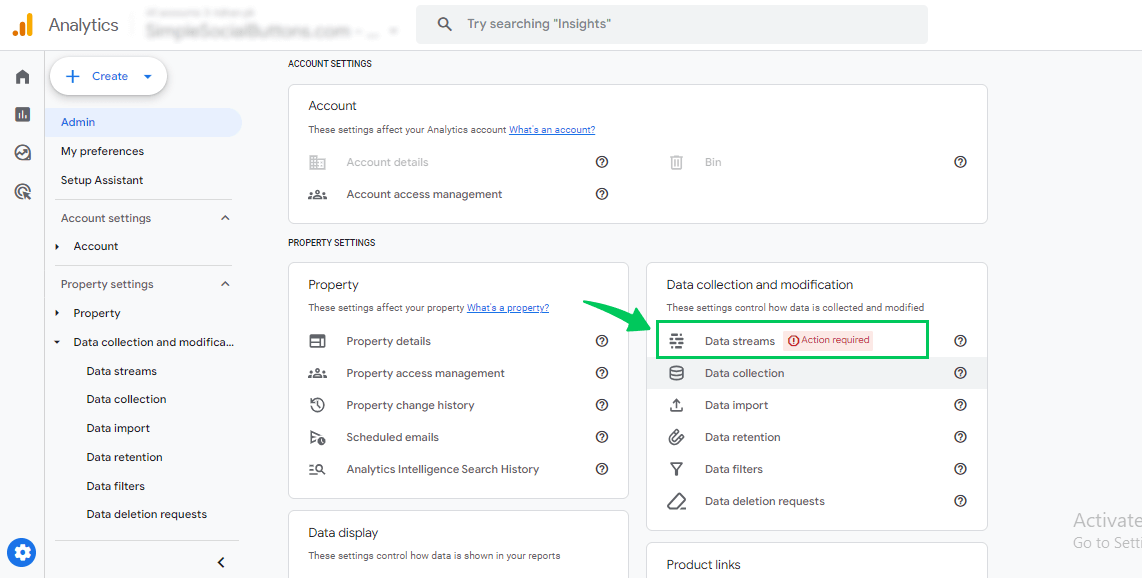
- Inside the Web Stream settings, turn on Enhanced Measurement so GA4 can automatically track page views, scrolls, outbound clicks, and site search without extra setup.
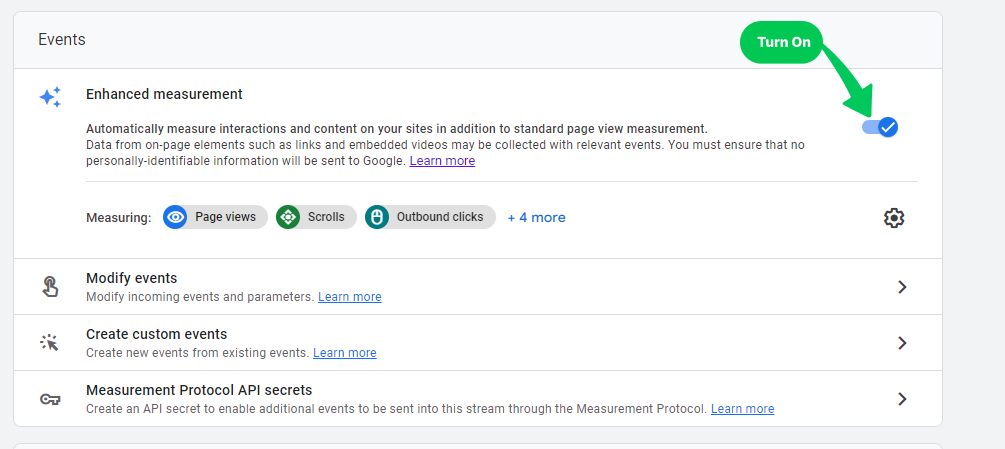
Make sure scroll events and page_view events are firing correctly, because these signals help GA4 understand how users interact with your content.
Step 2: Identify and Mark Key Content Conversions
- Next, decide which content actions matter the most for your website goals. Newsletter signups, ebook downloads, form submissions, video plays, and CTA button clicks all count as high-value interactions.
- Track these events in GA4 and mark them as key events, so GA4 can monitor how your content drives results across different channels.
- To mark an event as a key event, go to Admin >> Events.
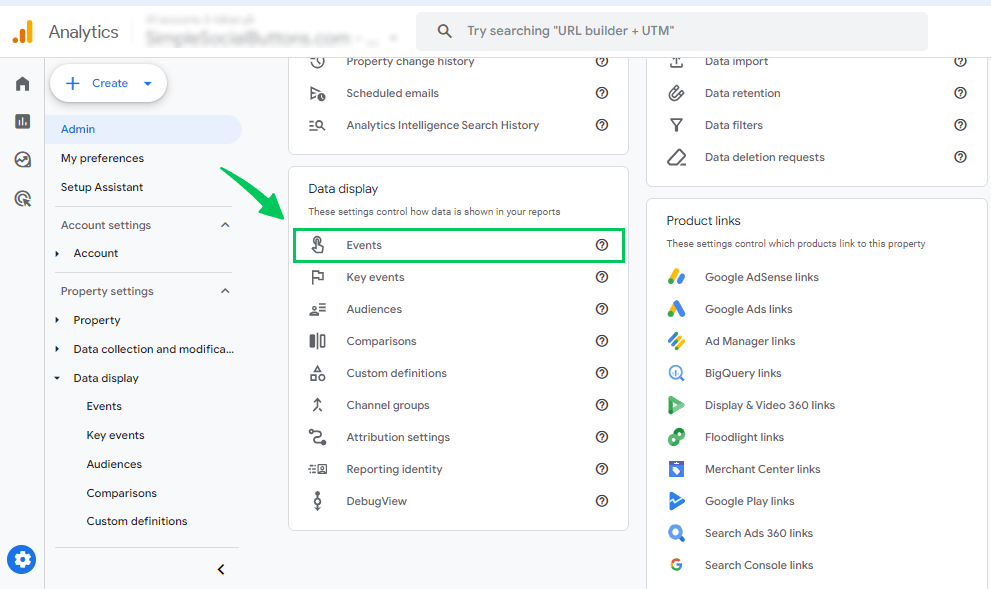
- Find your event in the list, and toggle it on.
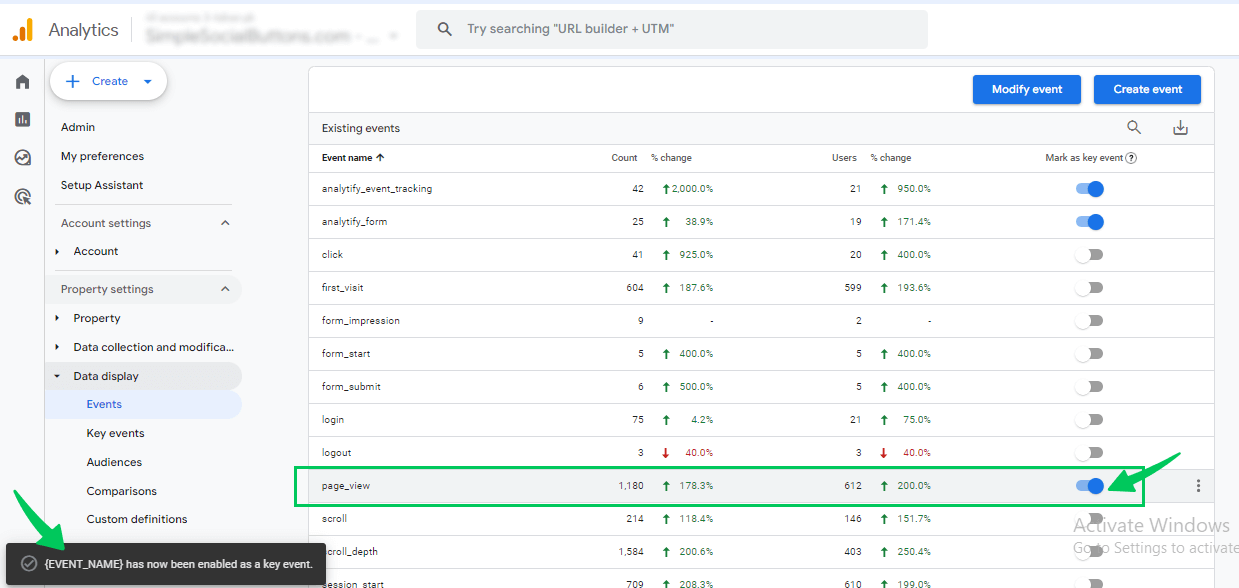
This step is essential for accurate WordPress user behavior stats and content attribution reporting.
Step 3: Enable UTM Tracking for Content Campaigns
- Finally, set up consistent UTM tracking for all your content-related campaigns.
- Add UTM parameters to email newsletters, social posts, and internal promotions (banners, in-post CTAs, sidebar links).
This helps GA4 identify which content pieces drive users back to your site and which contribute to conversions.
Where to Find GA4’s Built-In Content Attribution Reports
You can find GA4’s content attribution insights in a few different places. The following methods show where to look and how to access the reports that highlight how your pages influence conversions:
1. Using the Advertising Attribution Reports
The best place to analyze how different pages influence conversions in GA4 is the Key Event Attribution Paths report. Follow the following steps to access it:
- Open GA4.
- Go to Advertising in the left menu.
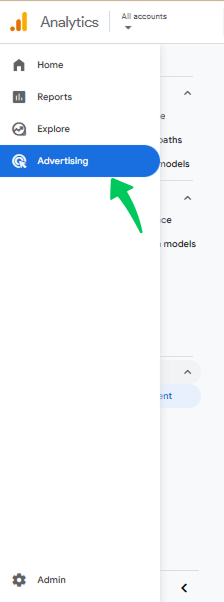
- Click Key event attribution paths.
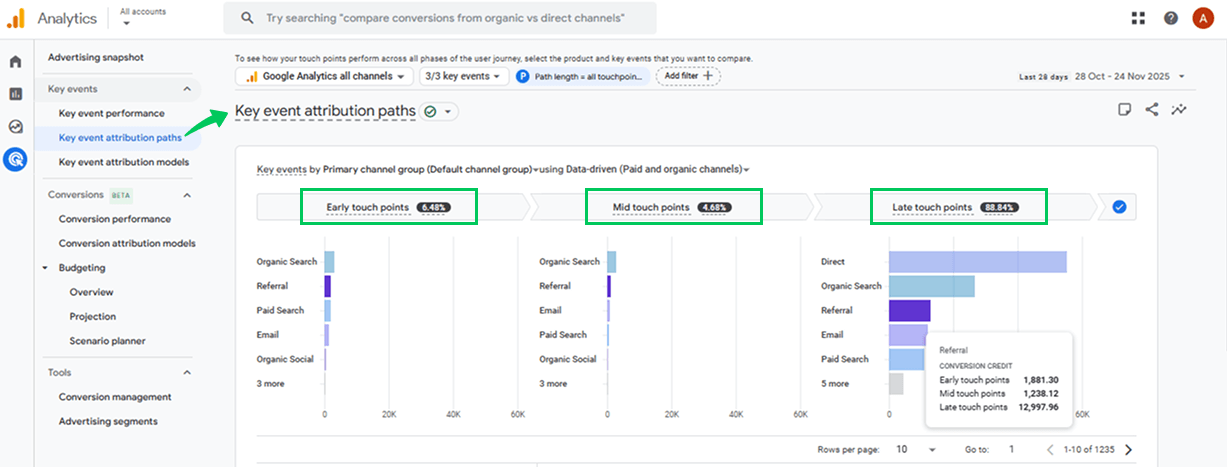
- Inside this report, you’ll see a full multi-touch journey for each key event. GA4 shows the complete sequence of interactions leading to a conversion, including the pages users viewed, the channels they came from, and how early, mid, and late touchpoints contributed to the final key event.
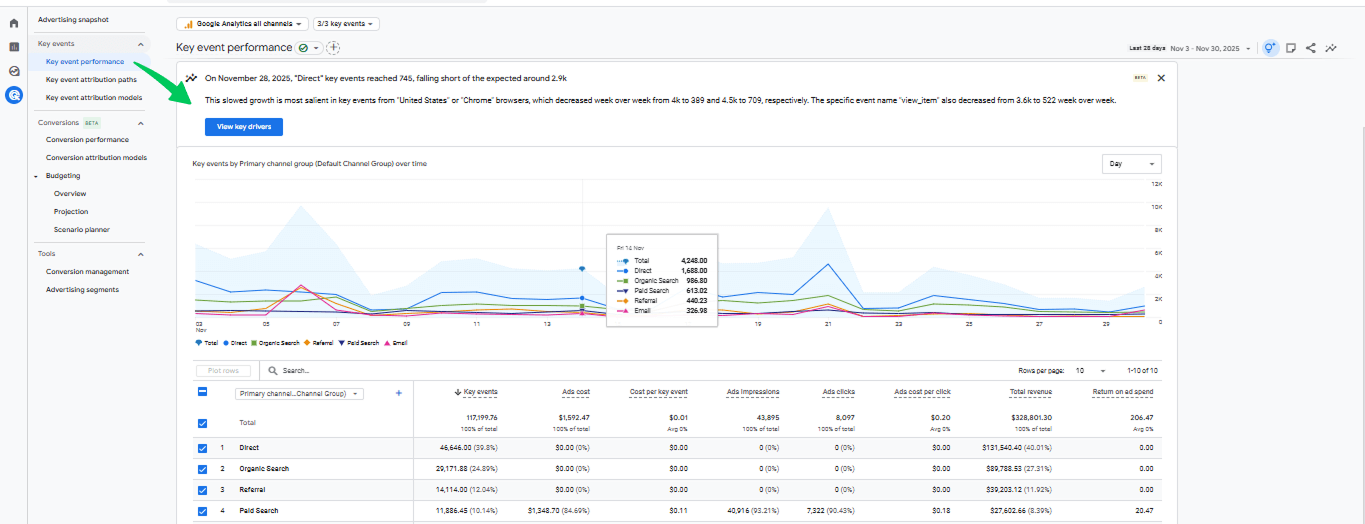
- Next, you can view the Key Event Performance report.
- Use this report to identify which pieces of content, such as newsletter signups, form submissions, and ebook downloads, trigger the highest conversions.
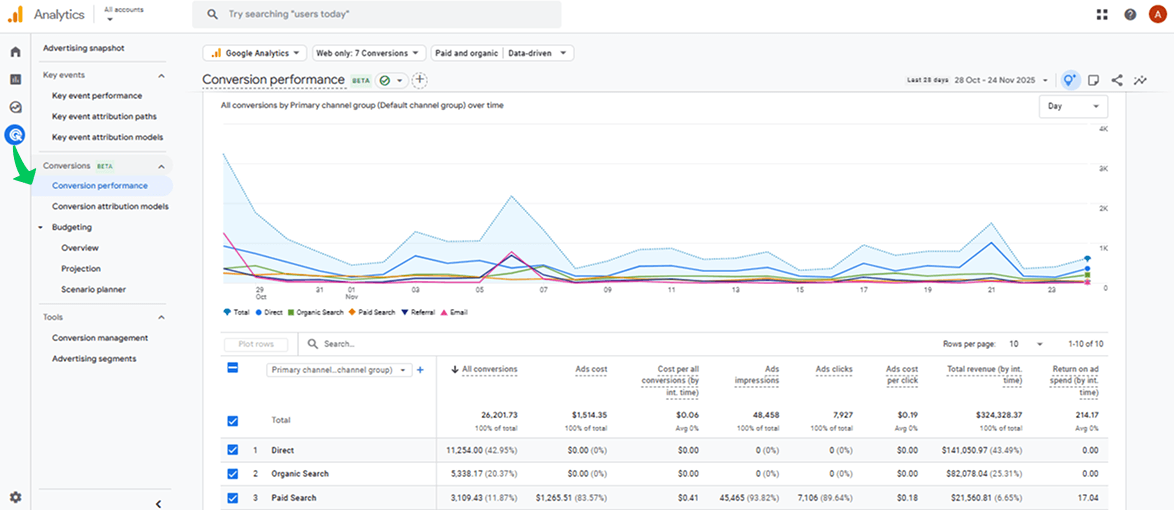
- After that, open the Conversion Performance report.
- It displays total conversion counts, revenue value (if tracking is enabled), and is broken down by traffic channels and content.
- Next, review the Key Event Attribution Models report.
- This is where GA4 shows how conversion credit shifts between data-driven and last-click attribution.
- Use this report to see which pages matter more in early touchpoints vs final conversion steps.
- Compare how multi-touch influences changes under different attribution models.
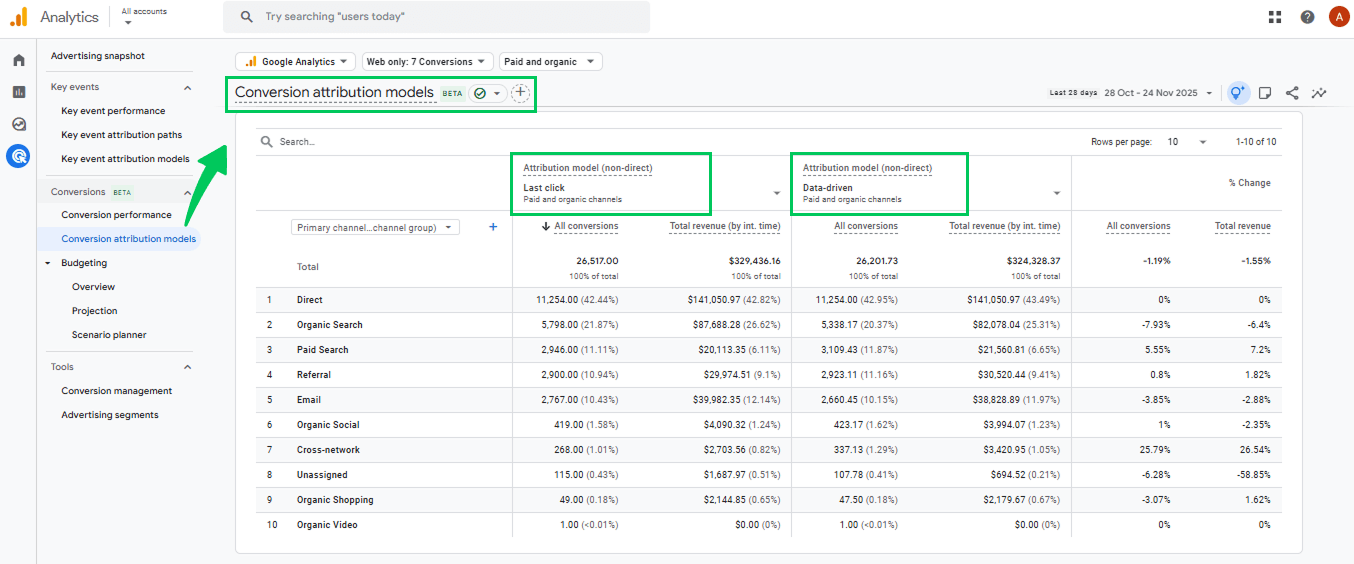
- Finally, the Conversion Attribution Models section gives you a broader view of how different attribution models assign credit to touchpoints across your site. This includes last-click, data-driven, and overall model comparison insights.
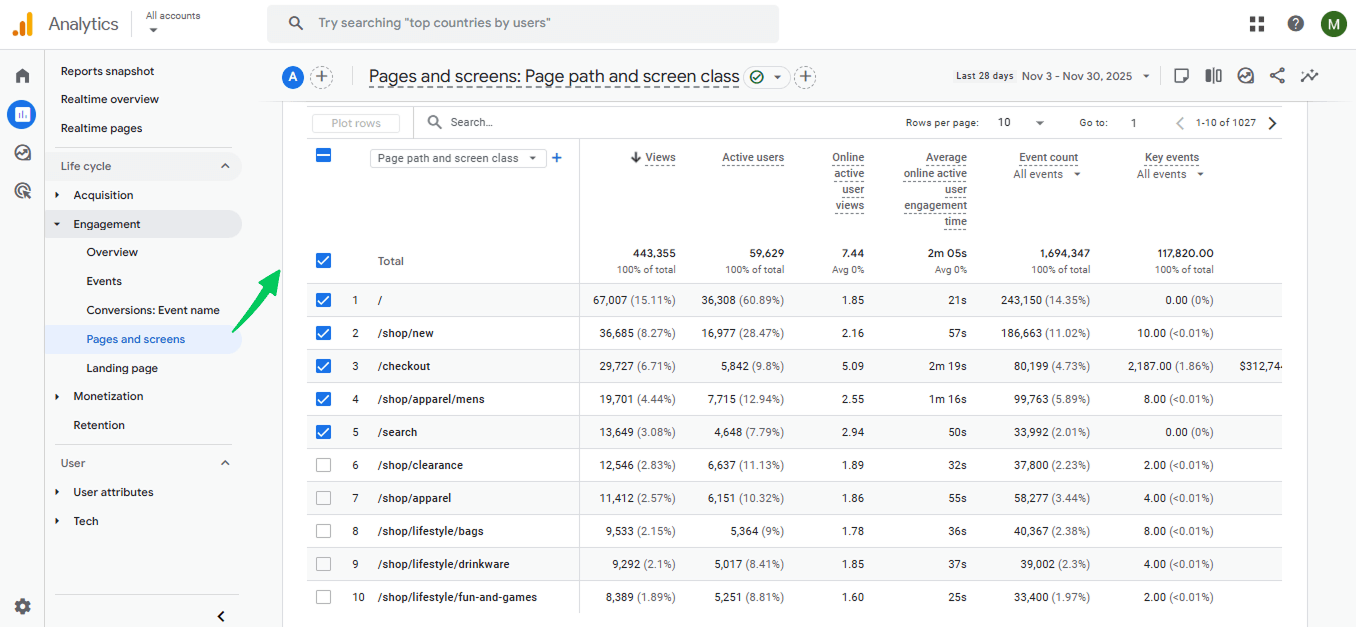
2. Pages and Screens Report
The Pages and Screens report is one of the easiest ways to view page-level engagement and identify which content drives key events.
It helps you understand how users interact with different pages. This makes it a useful and simple way to begin analyzing the content journey before diving into deeper multi-touch attribution in GA4.
3. Landing Pages Report
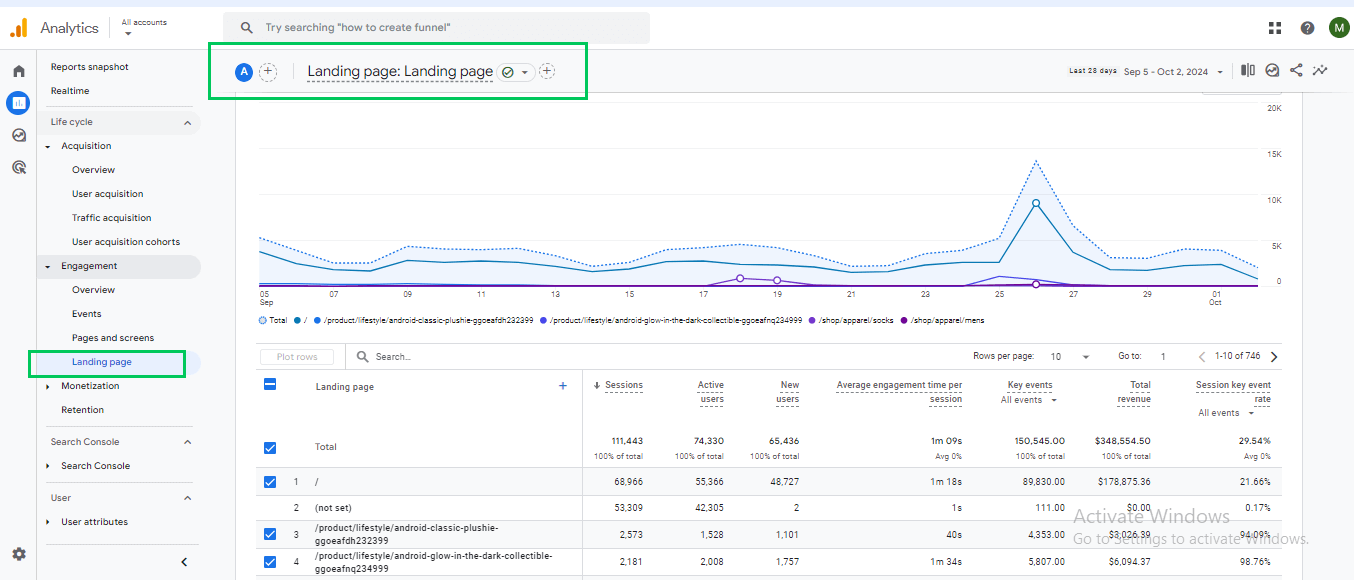
As one of GA4’s built-in content attribution reports, it shows which pages first attract users, making it best for first-touch attribution.
4. Traffic Acquisition with Page Dimensions
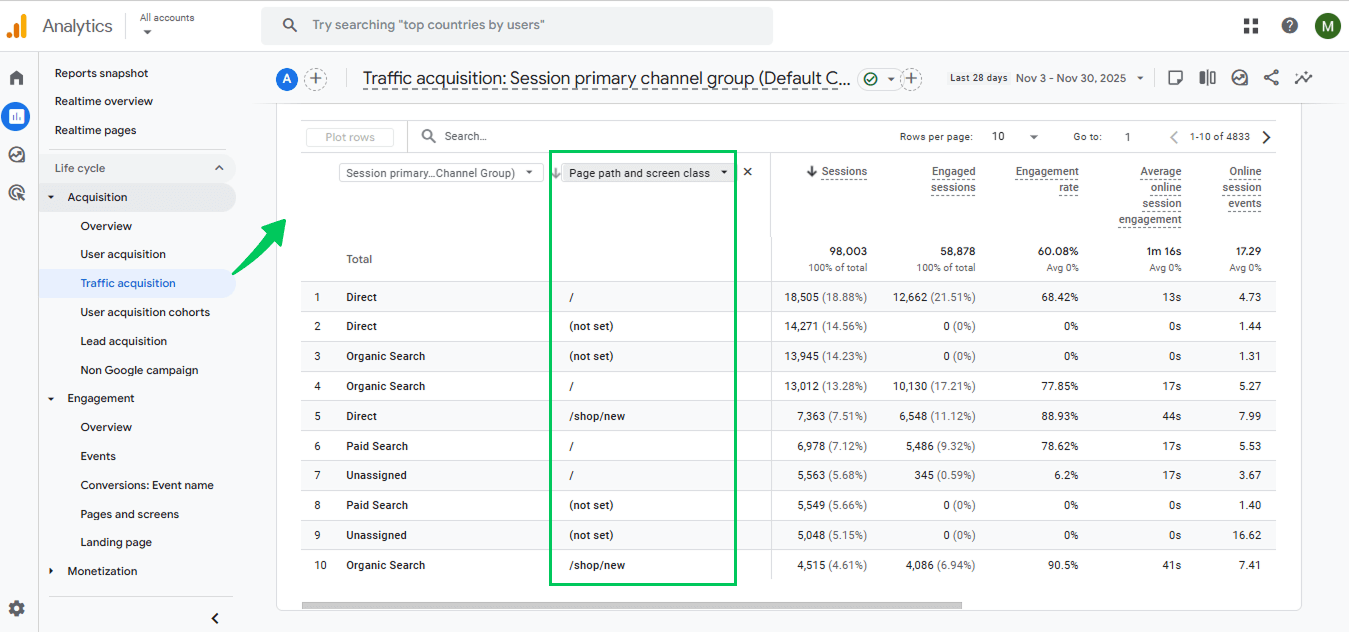
This report reveals how your WordPress content performs across different channels. It gives a clear view of the user journey and helps you evaluate multi-touch attribution in GA4 to see which pages truly drive engagement and conversions.
How to Build a Custom Content Attribution Report in GA4 (Explorations)
Follow the following steps to build a custom content attribution report in GA4:
Step 1: Open Explorations
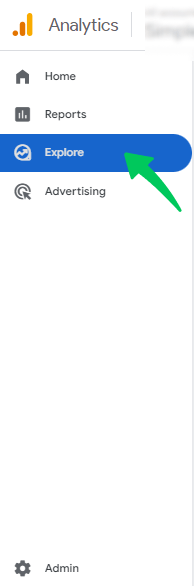
Go to your GA4 property and click “Explore.” This area lets you build custom reports focused on content paths and user behavior.
Step 2: Choose Path or Funnel Exploration
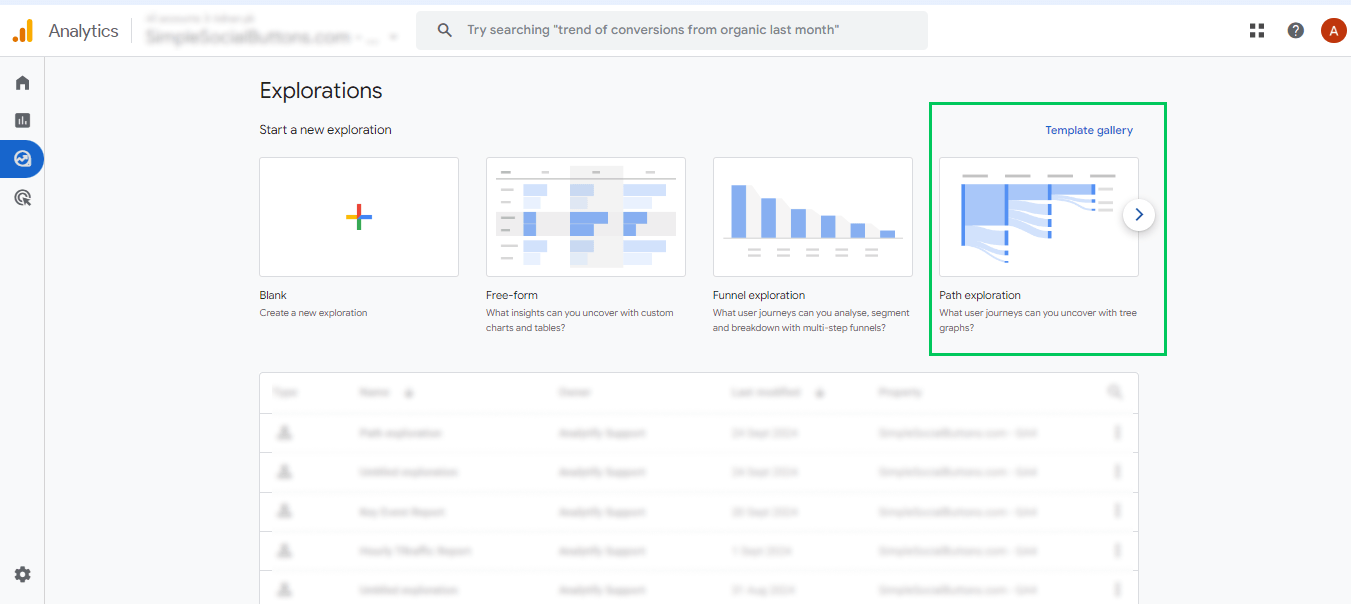
- Pick Path Exploration to see how people move from page to page.
- Choose Funnel Exploration to track how users complete steps before converting.
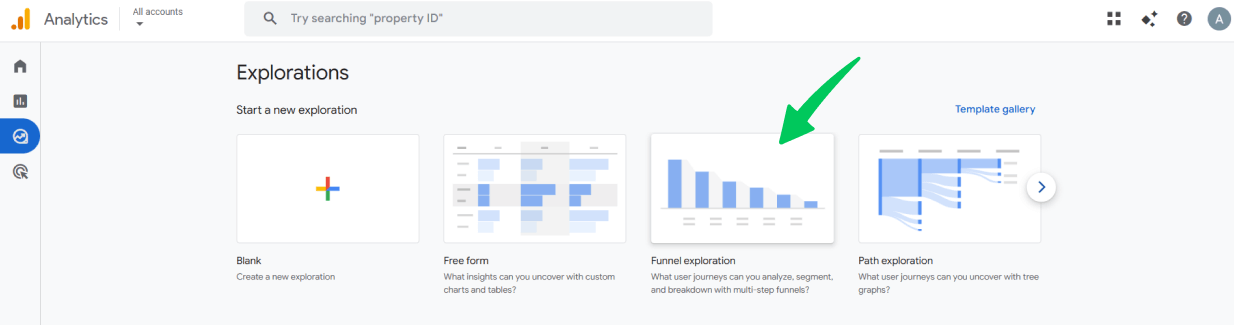
Both options help with multi-touch attribution in GA4. Pick Funnel Exploration for this setup guide. But remember, you can apply similar customizations in Path Exploration too.
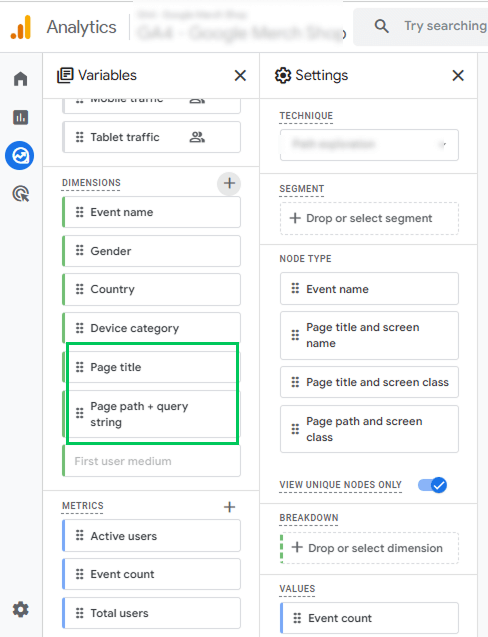
Step 3: Add Dimensions (page_title, page_path)
Add page_title and page_path so GA4 can show you which pages appear first, in the middle, or last in a user’s journey.
Step 4: Add Content Events (scroll, view, engagement, conversions)
Include key content events like scrolls, page views, engagement events, and conversions. These help you understand how users interact with each page before taking action.
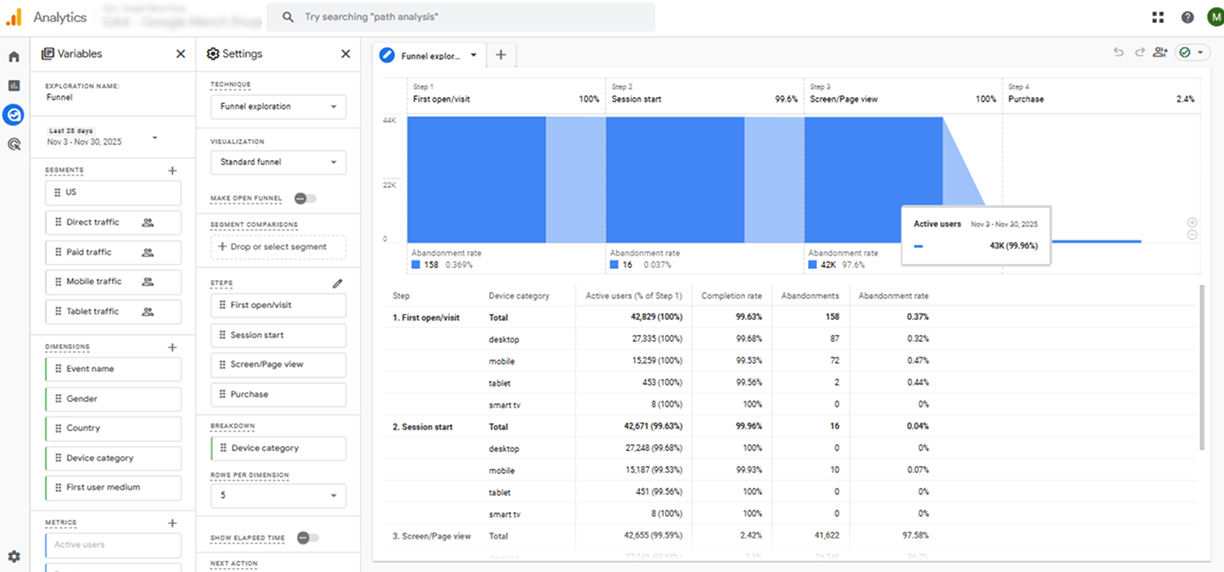
Step 5: Build a Content Conversion Funnel
Create a funnel showing how users move from reading content to completing a goal. This helps you see which pages help users move forward, and which ones lose attention.
Step 6: Add User Segments
Add segments such as new users, returning users, converters, and organic readers. Comparing these groups helps you understand WordPress content performance across different audiences.
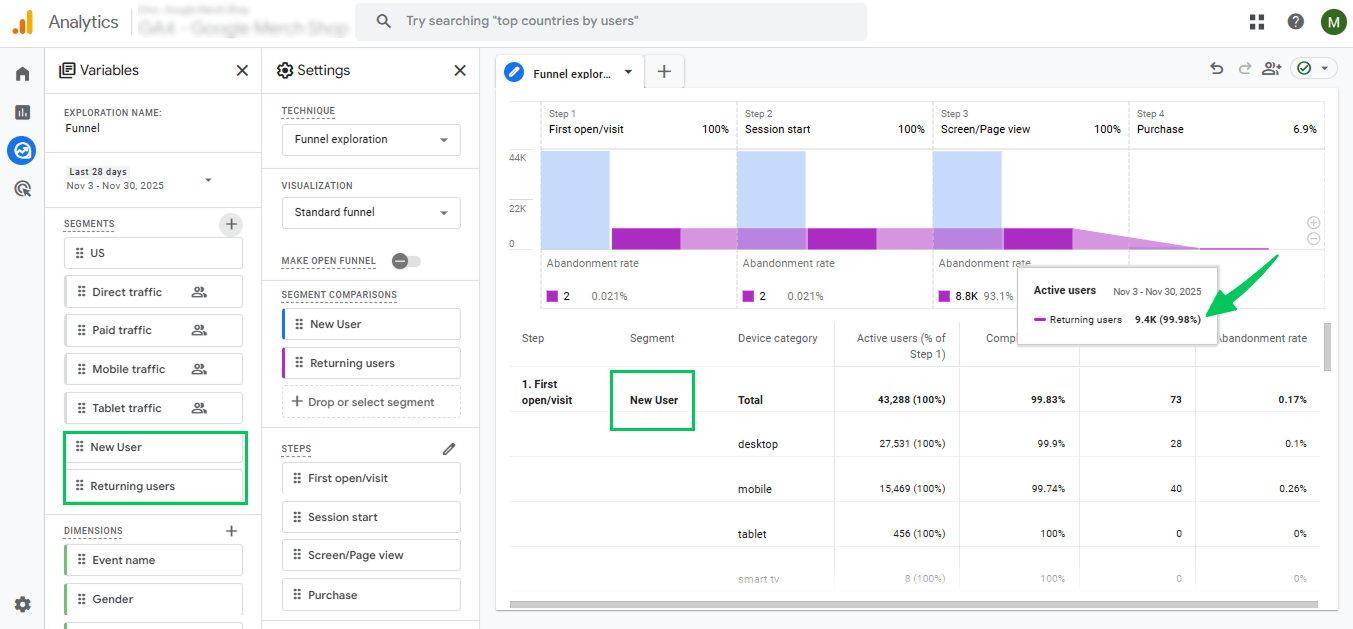
Step 7: Compare Content Pieces by Influence
Look at how often each page appears in the journey. Some pages may not convert directly, but still guide users to important steps.
Step 8: Save, Schedule, and Share
Once your exploration is ready, save it, schedule recurring email updates, or share it with your team for ongoing insights.
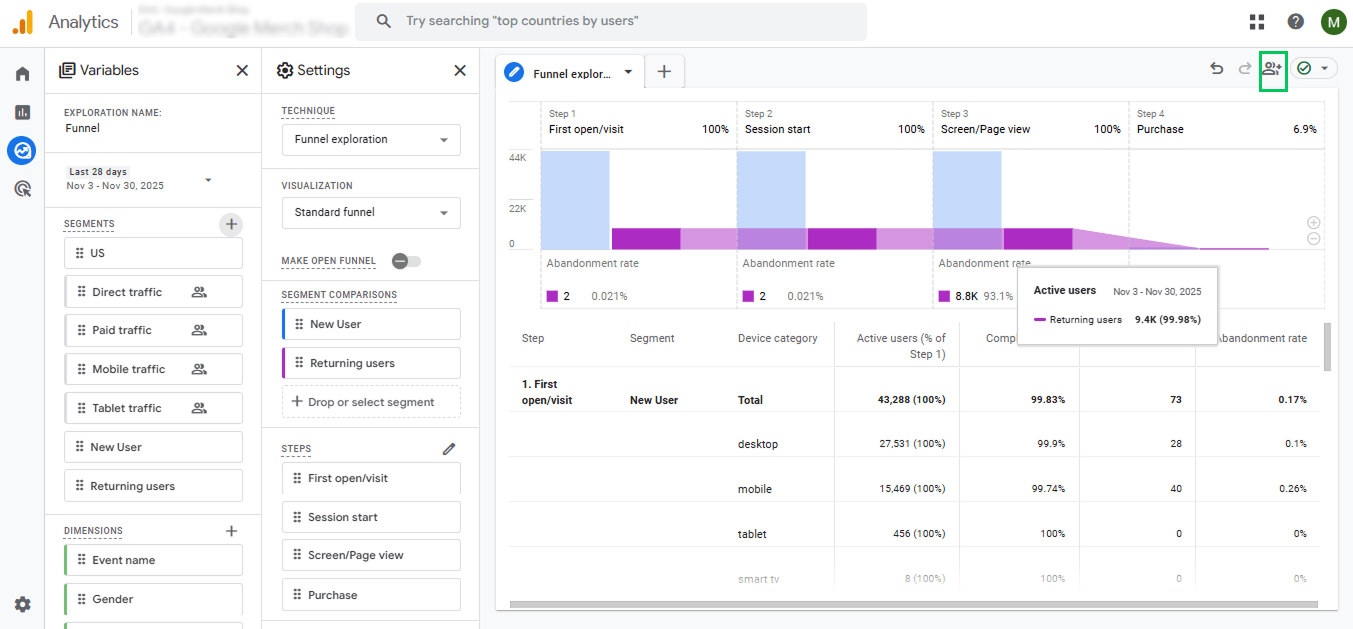
Next, let’s explore how to interpret these results.
How to Interpret Content Attribution Insights (With Practical Use Cases)
Here are some practical use cases to understand the interpretation of content attribution insights:
Use Case 1: High Traffic, Low Influence
Some pages get a lot of visitors but don’t prompt people to take action, such as signing up or buying. These pages show where your content could be better.
By improving the content and adding clear CTAs or links, you can guide visitors to do what matters most, boosting engagement and WordPress content performance.
Use Case 2: Low Traffic, High Influence
Some pages don’t get many visitors but are very important for helping people complete actions. These hidden pages often play a key role in conversions.
Focusing on them with SEO and promotion can make your content more effective in multi-touch journeys and overall WordPress performance.
Use Case 3: Content-Assisted Conversions
Some pages or posts don’t directly make people take action, but they help in steps along the way. These pages support the journey that leads to a conversion, such as signing up or buying.
By tracking these interactions, you can see how your WordPress content helps people reach their goals. This shows which content is important, even if it’s not the final page people visit.
Use Case 4: Top-of-Funnel Articles Bringing High-Value Subscribers
High-value subscribers often enter through awareness-stage content. Recognizing which articles perform well at the top of the funnel lets you replicate successful content strategies and grow subscriber engagement.
Use Case 5: Category-Level Content Attribution
Looking at content by category helps you see which groups of pages do the best job at driving conversions. It tells you which topics your visitors like and interact with the most.
When you use these insights from your content attribution report, you can focus on the categories that work really well. This makes your content stronger and improves content journey analytics across your site.
Content Attribution Inside WordPress Using Analytify
Join 50,000+ beginners & professionals who use Analytify to simplify their Google Analytics!
GA4 has many powerful reports, but switching between different sections can feel overwhelming, especially when you just want to understand how your WordPress content is performing. This is where Analytify makes everything easier.
Analytify is the best WordPress plugin for Google Analytics, and it connects to GA4 with just one click. After that, it makes content attribution in WordPress much easier by bringing all your GA4 insights directly into your dashboard.
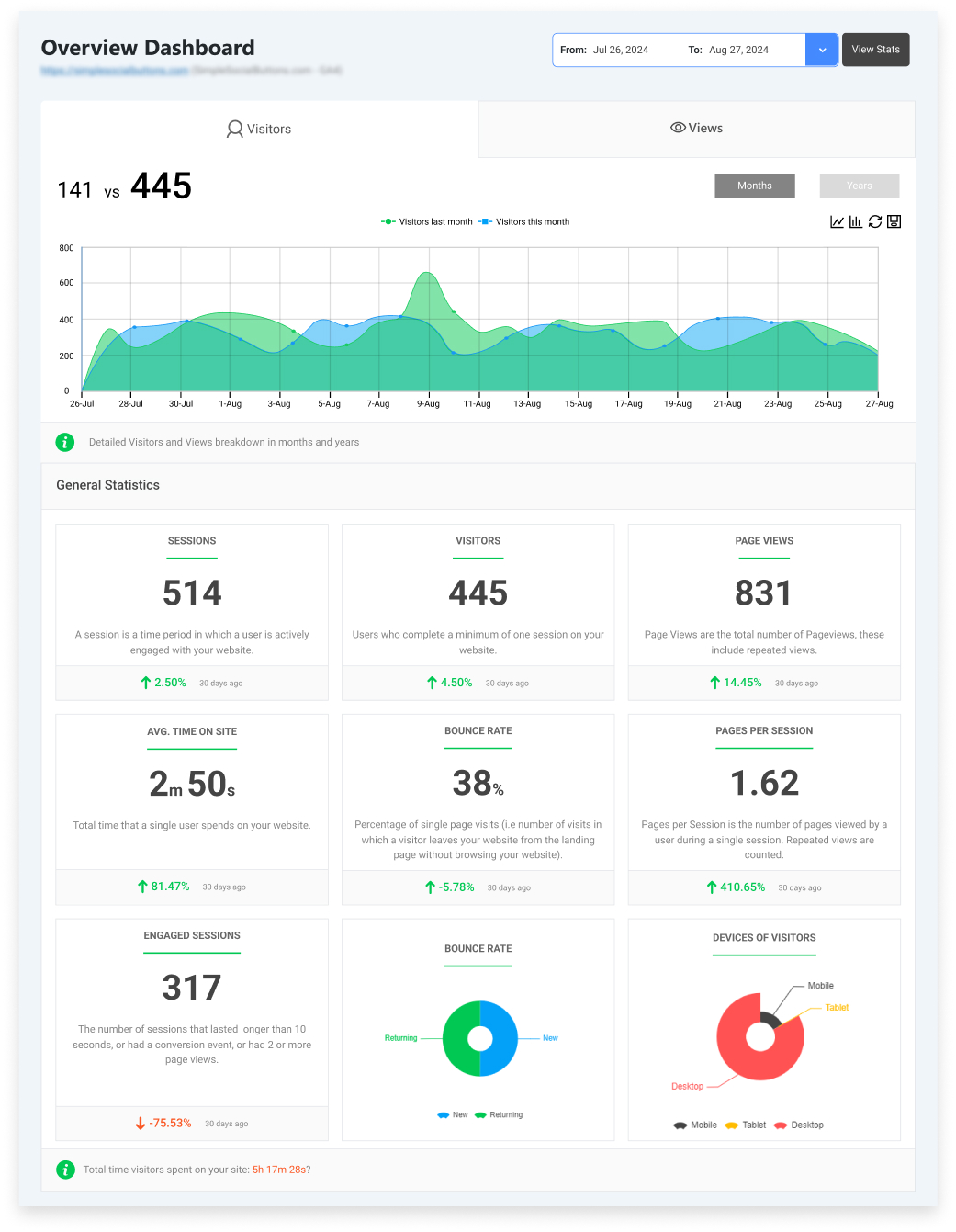
You don’t have to switch between tabs or search for reports. You can quickly see which pages people read, how long they stayed, and which pages helped them take action, making your content attribution in GA4 easier to interpret.
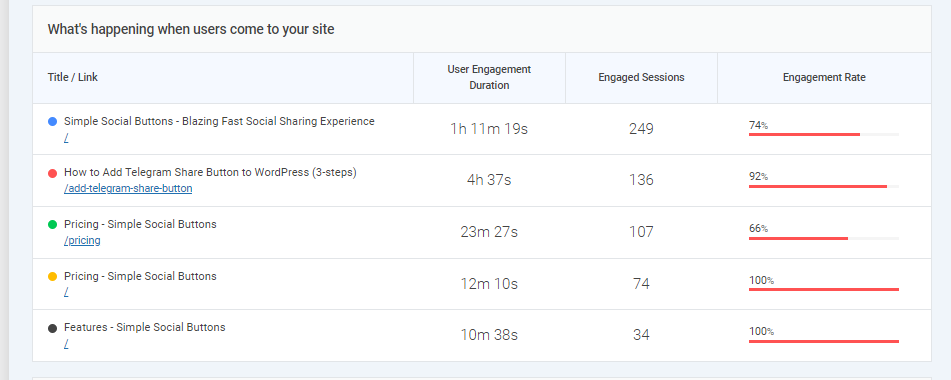
Analytify pulls your GA4 metrics, such as views, scroll depth, engagement, and key events, so you can understand which pieces of content help move users along the content journey.
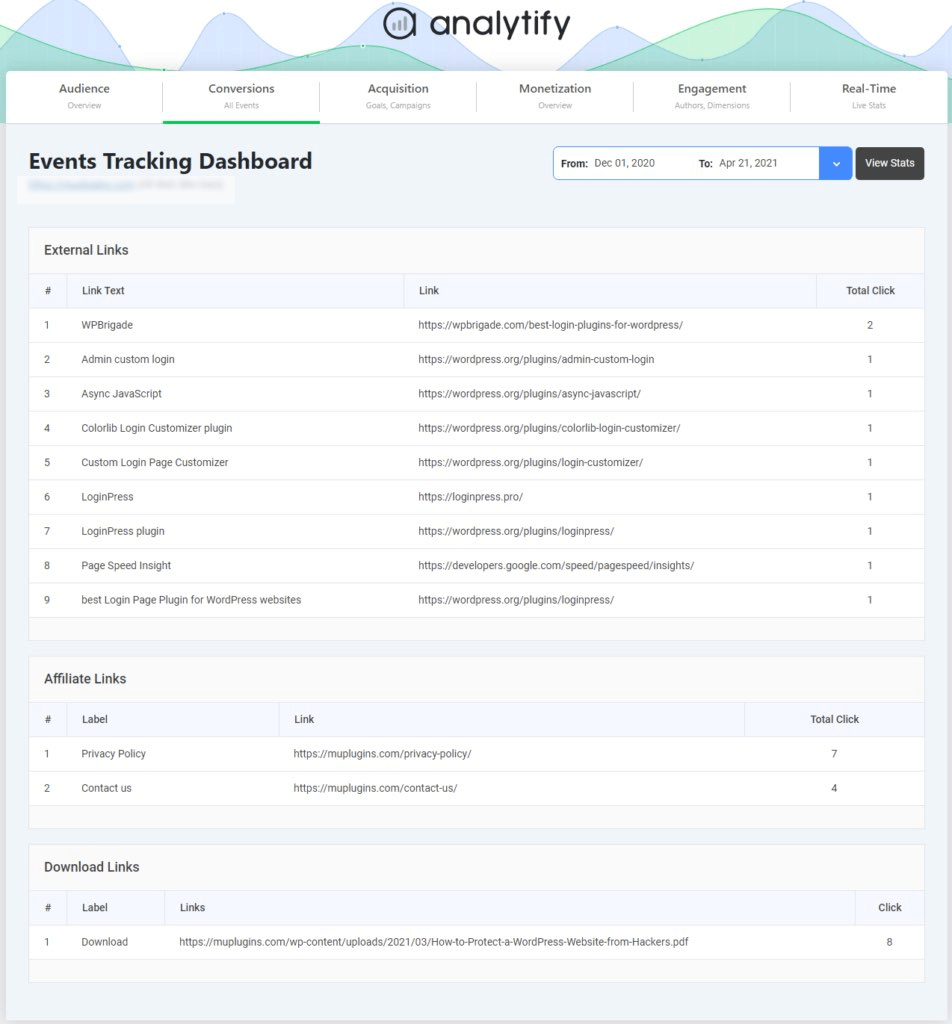
Analytify also makes UTM-based content attribution simple. If you share blog posts in email newsletters, on social media, UTM tags help you see which platform works best and which content gets the most engagement.
To help you do this, Analytify gives you a simple UTM URL Builder. You can create special tracking links for every campaign without any confusion. These links tell GA4 where the visitor came from and which content they clicked.
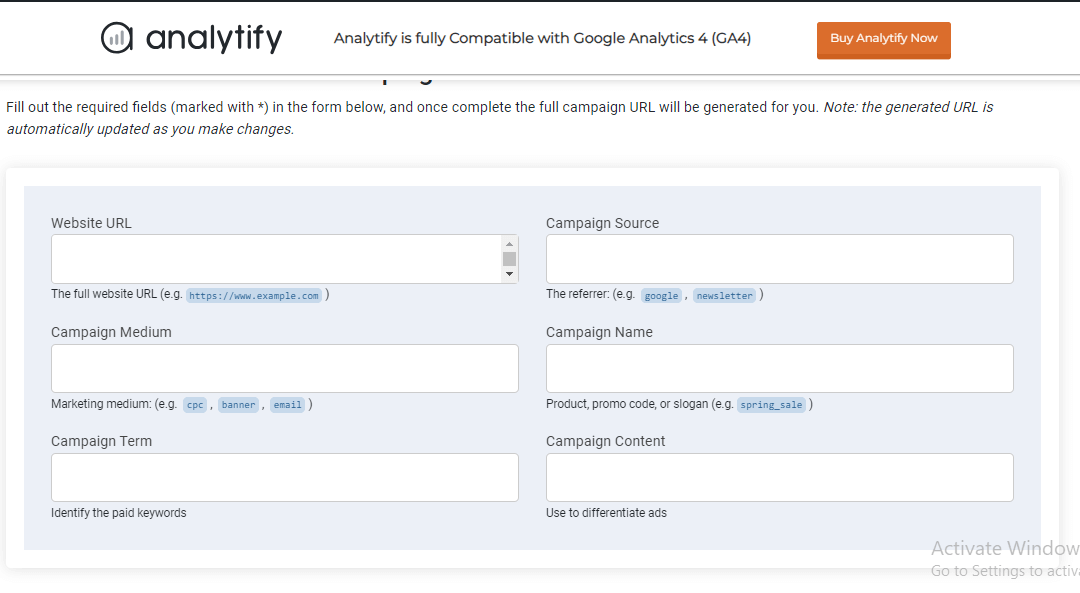
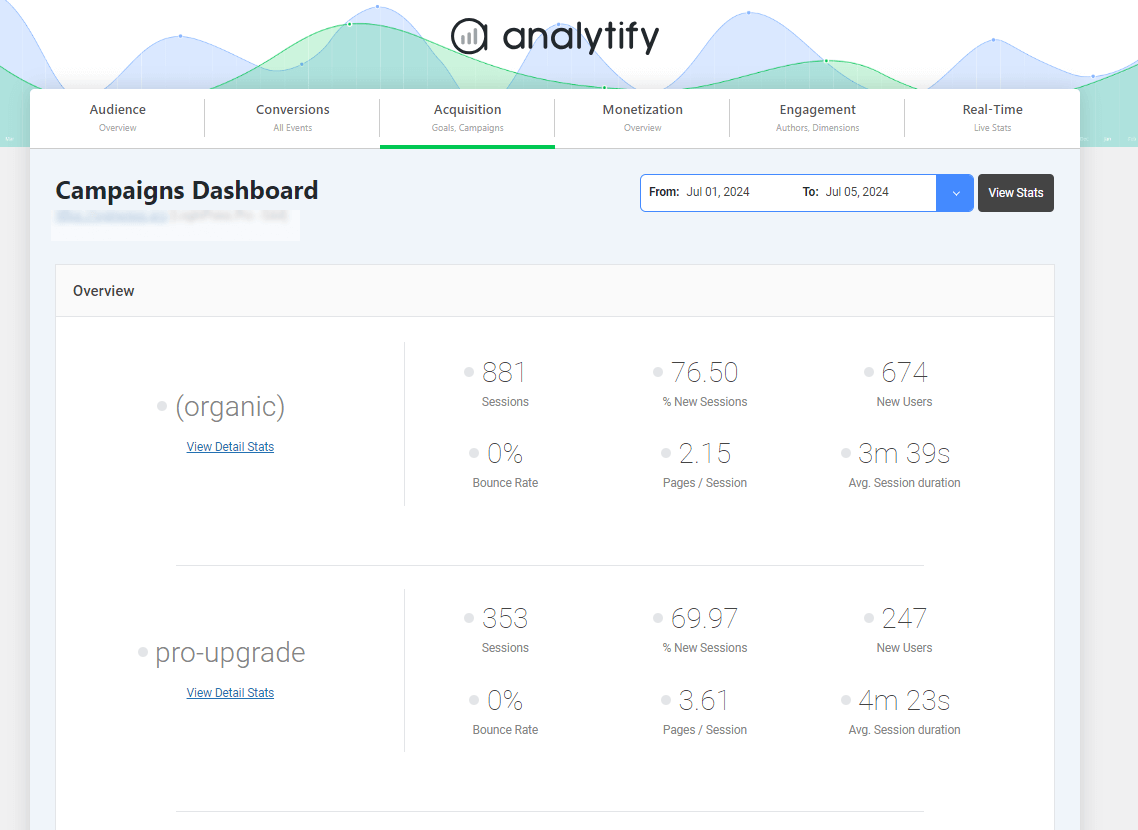
After that, the Campaign Tracking Add-on automatically reads those UTMs. Inside your WordPress dashboard, you can see all your UTM-based reports in one place: views, clicks, engagement, and conversions.
This helps you understand which promotions truly work and which content brings the best results.
GA4 Limitations and Privacy Considerations for Content Attribution
There are some limitations you need to understand when analyzing content attribution:
- Missing data due to privacy and consent: If users don’t grant tracking permission, GA4 can’t collect complete data, creating gaps in content journey analytics.
- Thresholding: When only a few users complete a goal, and GA4 decides not to show it because the count is too small, it hides it to protect those users’ privacy. That’s why some pages or categories disappear from the report, making it harder to see how every piece of content performs.
- Attribution accuracy limits: Sometimes GA4 guesses the missing steps by using modeled data. These guesses aren’t always exact, so that multi-touch paths may look unclear. This means you might not see the real order in which users interacted with your content.
- Cross-device identity gaps: When people switch from phone to laptop or tablet, GA4 may lose track of them. Their journey is broken, so you can’t see their full path, affecting WordPress content performance insights.
- Cookieless challenges: As cookies become less common, GA4 has fewer ways to follow user actions. It relies more on modeling, which is helpful but not perfect. This reduces the precision of your content attribution report and hides small behavior patterns.
Frequently Asked Questions About Content Attribution in GA4
1. What is content attribution in GA4?
Content attribution in GA4 helps you understand which pages, posts, or content pieces influence a user before they complete a key event. It connects different interactions across the journey so you can see the true impact of your WordPress content.
2. How to create an attribution report in GA4?
To create an attribution report in GA4, start by opening your GA4 property and navigating to Reports >> Advertising. Once you open any report under advertising, you can select the key event, adjust the lookback window, and choose the attribution model you want to apply. This helps you build a precise and customized attribution view based on how your users interact with your website before converting.
3. What are the 6 basic reports of Google Analytics?
The following are the six basic reports of Google Analytics:
Realtime Report
Acquisition Report
Engagement Report
Monetization Report
Retention Report
Advertising Report
4. How does GA4 track multi-touch attribution for content?
GA4 tracks multi-touch attribution for content by assigning credit to every page and interaction that influences a user before they convert. Instead of only counting the last page they visited, GA4 looks at all touchpoints, such as blog posts, landing pages, product pages, and engagement events, to show how each one contributes to the final result.
5. Where can I find the attribution path report in GA4?
You can find the attribution path report in GA4 by going to the Advertising section and opening Conversion paths. This report shows the complete sequence of touchpoints users interact with before completing a key event, allowing you to understand how different channels, campaigns, or pages contribute at each stage of the journey. It’s one of the most useful reports for visualizing multi-touch paths and seeing how users move from awareness to conversion.
6. Can I track SEO content performance with content attribution in GA4?
Yes. By combining GA4 attribution insights with organic traffic data, you can see how search-driven content contributes to key events, helping you evaluate the real value of your SEO efforts.
Final Thoughts: Content Attribution in GA4
In this guide, we explored how content attribution in GA4 helps understand which pages influence conversions. We began by explaining what content attribution is and how GA4’s attribution models, especially Data-Driven Attribution, shape credit assignment across touchpoints.
Next, we looked at where you can access GA4’s built-in reports and how each one helps you analyze WordPress content performance from different angles. After that, we created a complete content attribution report using Explorations.
We also reviewed practical use cases to help you interpret the data. Towards the end, we explored how Analytify simplifies content attribution inside WordPress, making GA4 insights much easier to read and act on.
Finally, we addressed GA4’s limitations. By using these insights, you can confidently evaluate the role each content piece plays, improve your user journeys, and strengthen your multi-touch attribution in GA4.
For further guidance, you can read:
- Top 5 Content Marketing Analytics Reports in GA4
- How to Create a Content Strategy (Result-Oriented Approach)
Which GA4 content attribution report do you rely on the most to track your WordPress content performance? Share your thoughts in the comments below. I’d love to hear your experience!