
How to See Google Analytics Page Views by URL

To see Google Analytics page views by URL, open Reports, then Engagement, then Pages and screens in GA4. Switch the primary dimension to Page path or Page location. Each row shows views, users and engagement time for one URL.
This article shows how to see GA4 full-page URLs. It covers different ways to access them by customizing GA4 standard reports and explorations. You’ll also learn about advanced features and Analytify for simplified GA4 URL analytics.
Analytify shows the same page view data by URL inside your WordPress dashboard, without building a custom GA4 report.
Google Analytics Page Views by URL (TOC):
What is Google Analytics Page Views by URL?
Google Analytics Page Views by URL means tracking and analyzing performance and user interaction on specific URLs (or web pages) in Google Analytics 4. It helps website owners understand how individual pages perform by providing insights into user behavior, engagement, and traffic sources.
You can see the following Key metrics in the GA4 URL Analytics report:
- Views: The number of times a specific URL is viewed.
- Average engagement time: The average time the page was in focus in a visitor’s browser.
- Bounce rate: The percentage of sessions that were not engaged sessions. It is the inverse of engagement rate.
- Engagement rate: The percentage of sessions that were engaged sessions.
- Traffic sources: Insights into how users land on a specific URL (e.g., organic search, social media, referral links).
GA4 also supports event-based tracking. Website owners can monitor specific interactions on a URL, such as button clicks, form submissions, and video plays.
Why is URL Analytics Important?
URL analytics matters because it shows which pages drive traffic, engagement, and conversions, and which pages need improvement.
When you track URLs, you see where your visitors come from. Search engines, social media, ads, or referrals, so you can focus on the channels that drive the most traffic. You can also spot high-performing pages, refine your content strategy, and fix slow-loading or broken links that hurt SEO. URL analytics also measures the success of your marketing campaigns. It shows which emails, PPC ads, or social posts bring in the most clicks and conversions.
Beyond traffic, URL tracking reveals how users interact with each page. That helps you improve navigation, internal linking, and calls to action. It even pinpoints drop-off points in the user journey so you can tweak your pages for better results.
At its core, Full page URL GA4 tracking gives you the understanding you need to optimize your website. You engage visitors and drive more conversions.
How to View Full Page URLs in Google Analytics 4
To see full page URLs in Google Analytics 4, add the Page location dimension to the Pages and screens report or build an Exploration. The Pages and screens report does not show full URLs by default. Instead, it uses the “Page title and screen class” and “Page path and screen class” dimensions. They may not always show the complete URL, especially with query parameters. However, you can still view full page URLs by making a few adjustments in GA4’s reporting interface.
Method 1: Finding GA4 Full Page URL in Standard Report
Follow the following steps to see Google Analytics 4 page views by URL :
Step 1: Access GA4 Property
- Start by logging into your Google Analytics account.
- Selecting the GA4 property for your website. Make sure you have the necessary permissions to customize reports.
Step 2: Navigate to the Reports Section
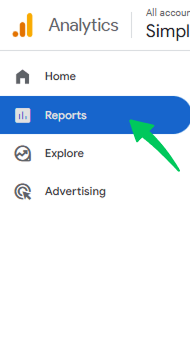
- Click on Reports in the left-hand menu.
- Under the Engagement section, select Pages and Screens.
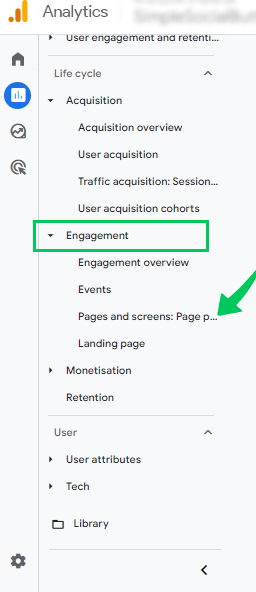
- This report will show you page titles and paths, but not full URLs yet.
Step 3: Add URL as a Dimension
To display the full page URL, you need to modify the report:
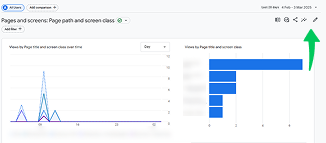
- Click on the Customize report (pencil icon) at the top right.
- Select Dimensions tab.
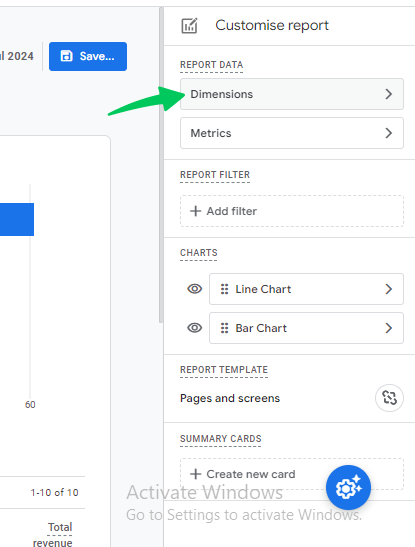
- Click on the add dimension tab and search for the page location.
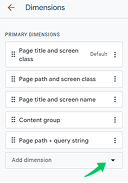
- Add page location in the dimensions list.
- Click Apply, and this will now show full URLs, including query parameters.
- By clicking on the save tab, you save all your changes in the report.
Step 4: Customize the Report
- Click on the dropdown arrow to change dimension.
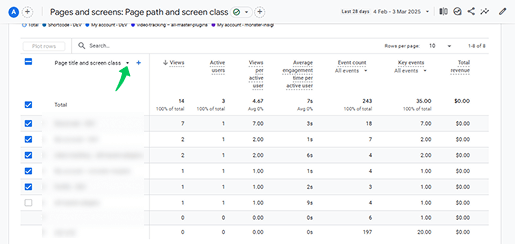
- Add Session source / medium as the secondary dimension to see where traffic to each URL comes from.
- Now you can see the full page URL in the report.
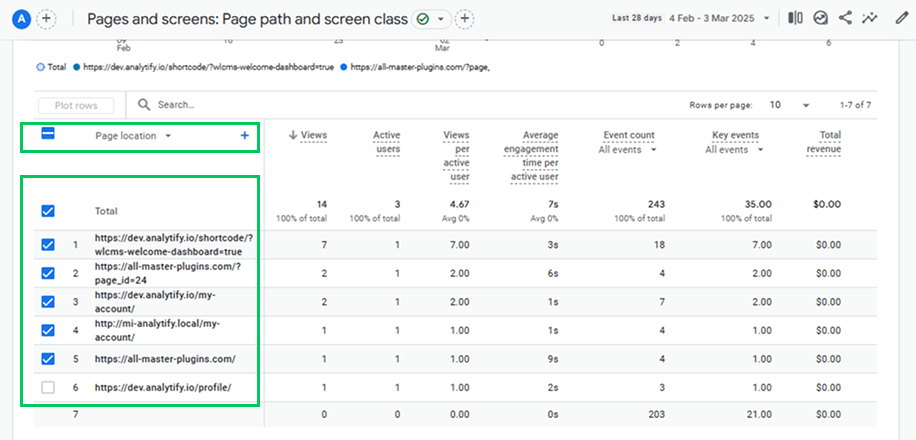
Follow these steps to track and analyze GA4 full page URLs. You see user behavior and website performance more clearly.
Method 2: GA4 Full Page URL in Explorations
You can also view full page URLs in Google Analytics 4 using the Explorations. Follow these steps to set up a custom report:
Step 1: Open Explorations
- In your GA4 property, go to Explore from the left-hand menu
- Click on Blank to create a new custom exploration.
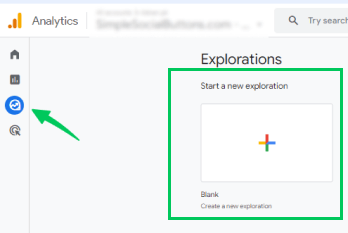
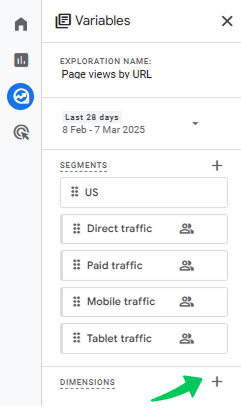
Step 2: Add the Page Location Dimension
- Click the + (plus) icon next to Dimensions.
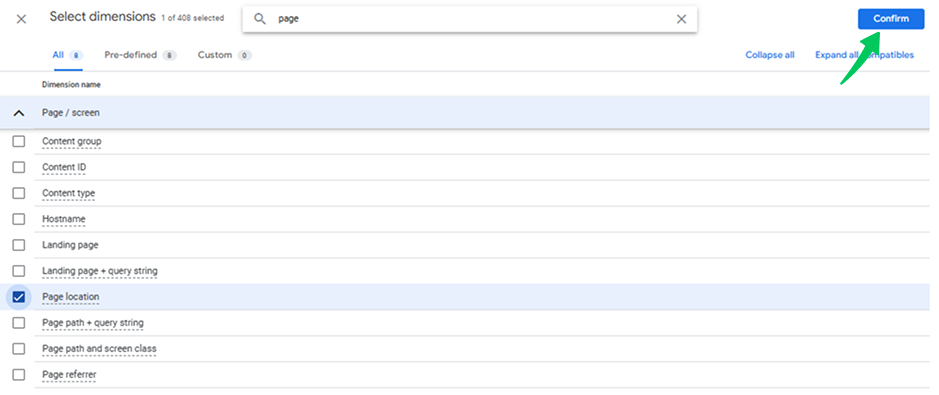
- Search for Page location and check the box next to it
- Click Import to add it to your exploration.
Step 3: Add Key Metrics
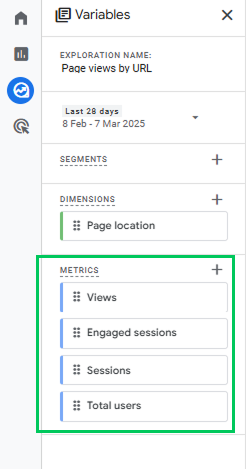
- Click the + (plus) icon next to Metrics and select:
- Views (to track pageviews)
- Sessions (to analyze visitor interactions)
- Total users (to measure unique users)
- Any additional metrics relevant to your analysis.
- Click Import to apply them.
Step 4: Build the Report
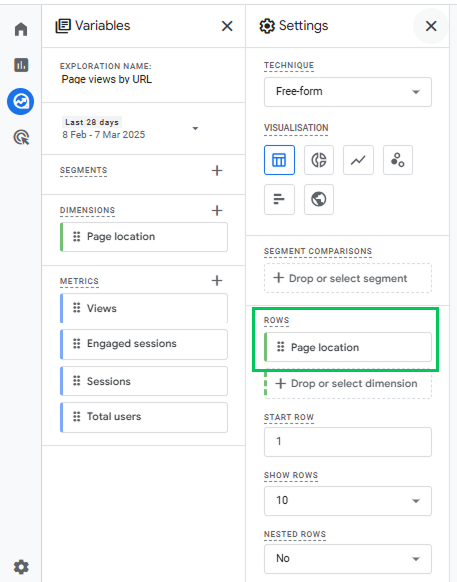
- Double-click all imported dimensions and metrics to add them to the report.
- The Page location dimension will automatically appear under Rows, while the selected metrics will be placed in Values.
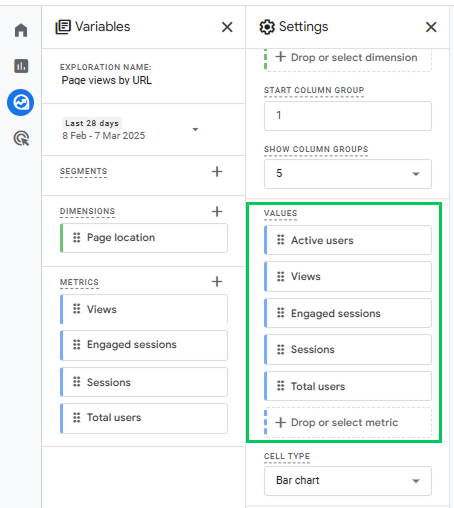
Step 5: Analyze the Report
- You will now see a report displaying full page URLs.
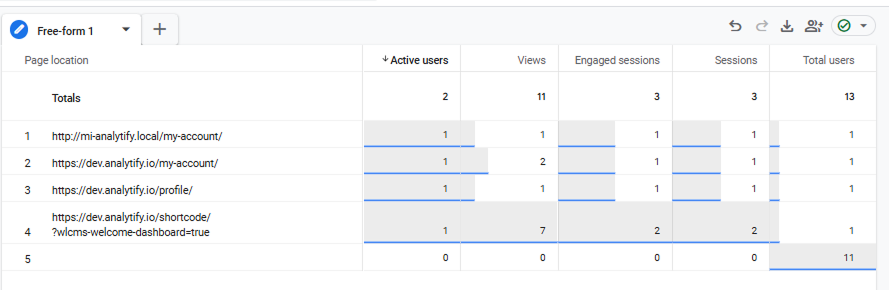
This method lets you track how often each page was viewed. You can analyze user behavior using complete page URLs.
How Do I See Traffic to a Specific Page in GA4?
Now you know how to view full page URLs in GA4. Next, understand how to analyze their traffic. Simply seeing a URL isn’t enough. Tracking views, engagement, and sources helps you know how each page performs.
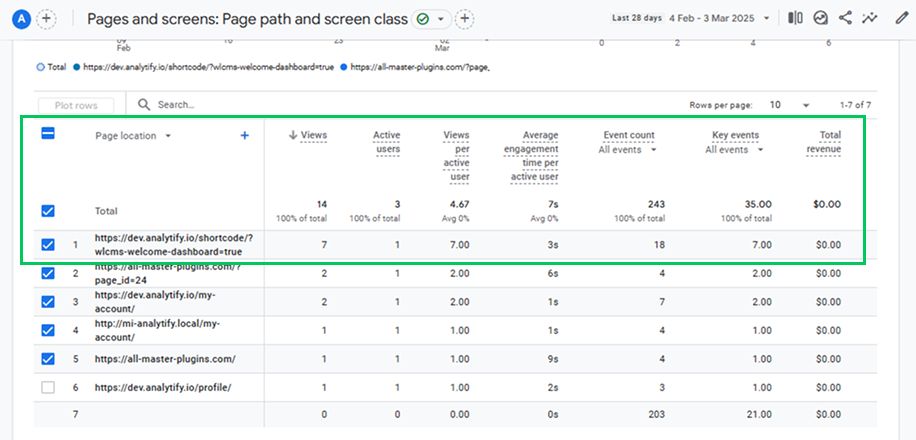
1. Pages and Screens Report
Go to Reports >> Engagement >> Pages and Screens to see a list of page URLs. Here all key metrics like views, engagement rate, and conversions are displayed in front of each URL. This will allow you to track each page performance specifically. You can filter the specific report to focus on a specific URL and analyze its performance over time.
2. Explorations Report
For a more customized view, use Explore >> Blank Exploration and add Page Location as a dimension. You will now see a report displaying full page URLs and corresponding page views, sessions, and user data.
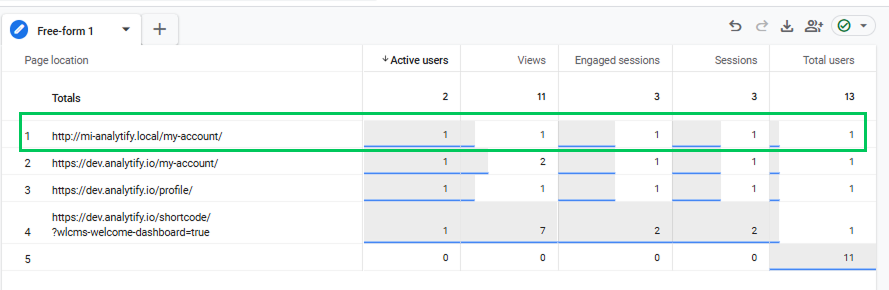
This allows you to analyze traffic sources, user engagement, and conversions for a specific page in greater detail. You can refine your analysis using sorting and filtering options.
These methods let you track how often each page was viewed. You can analyze user behavior using complete page URLs.
Google Analytics Page Views by URL: Advanced Features
GA4 full page URL tracking helps you clean up extra URL parameters. It also helps you manage dynamic pages and set up better tracking for more useful details. Below are key features to enhance URL analytics in GA4:
Tracking Parameters & Managing Dynamic URLs
Websites often generate multiple URL variations. Tracking parameters (e.g., UTM tags for campaigns) cause some. Dynamic page structures (e.g., product pages with unique IDs) cause others. This can clutter GA4 reports with multiple entries for the same page. To streamline analysis:
- Use “Page path (cleaned)” instead of “Page path + query string” to remove UTM parameters and unnecessary tracking tags.
- Exclude query parameters in GA4 Admin settings to prevent duplicate URL entries from appearing in reports.
- Group dynamic URLs using regex filters or custom dimensions to analyze product/category pages more effectively.
- use event-based tracking to measure user interactions on dynamic pages rather than relying solely on URLs.
By implementing these steps, you can ensure clean, structured URL data in GA4 reports.
Customization in GA4 URL Analytics Using Custom Dimensions & Events
For more detail, set up custom dimensions and event-based tracking in GA4. They track URL-related behaviors beyond standard reports. Here’s how:
- Create a custom dimension to track specific URL structures, such as blog categories (/blog/seo-tips) or campaign landing pages (/promo/summer-sale).
- Use event-based tracking for more profound knowledge about user interactions. For instance:
- Track outbound link clicks using click events.
- Measure user engagement on long-scroll pages by tracking scroll depth.
- Capture downloads, video views, or button clicks with custom events.
- Implement Google Tag Manager (GTM) to fire triggers based on URL patterns. You can then track specific pages or sections dynamically.
These customizations provide greater flexibility in understanding how users navigate through your site. Combine advanced filtering, custom dimensions, and event tracking. You refine Google Analytics page views by URL analytics. You then measure content performance better, along with marketing effectiveness and user behavior.
Integrating Analytify for Enhanced URL Analytics
Tracking full-page URLs and their performance in Google Analytics can be challenging, especially for non-technical users. Analytify simplifies this. Its user-friendly dashboard makes URL-based traffic data easy to access and interpret within WordPress.
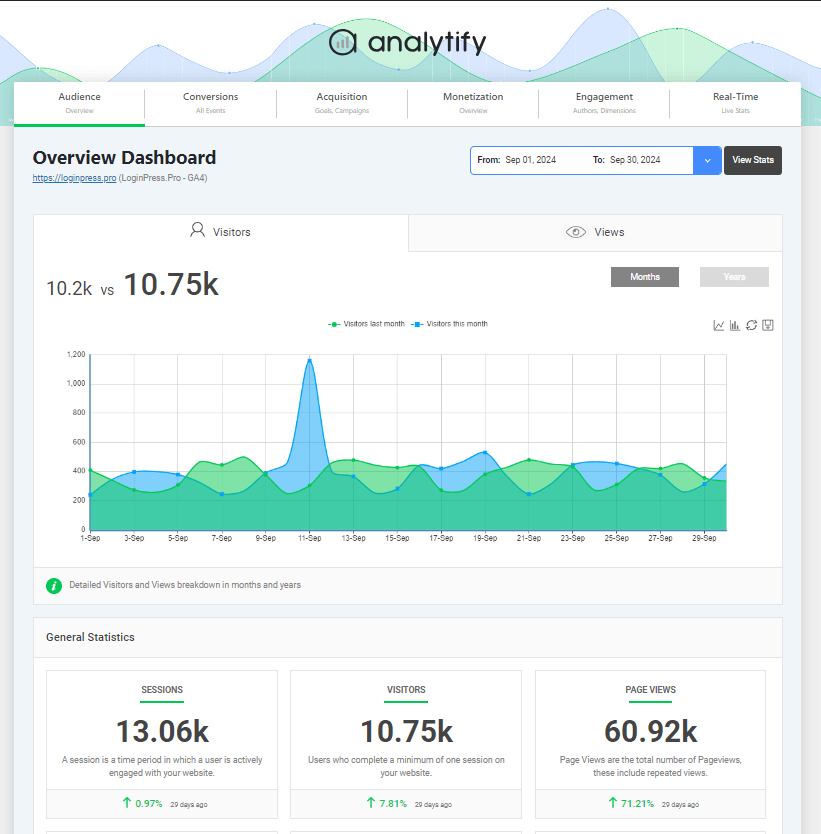
Analytify is a Google Analytics plugin for WordPress. It connects to Google Analytics 4 (GA4) and offers an intuitive interface to track website performance. There are several advantages of Analytify given below:
- Simplified GA4 Data: Converts complex Google Analytics reports into easy-to-understand visual insights.
- No Technical Expertise Required: Designed for non-technical users, making website analytics accessible to everyone.
- Time-Saving Dashboard: Eliminates the need to navigate GA4’s complex interface by bringing key metrics directly into WordPress.
- Customizable Reports: Users can filter data based on specific needs, such as full-page URL analytics and engagement metrics.
Key Features of Analytify
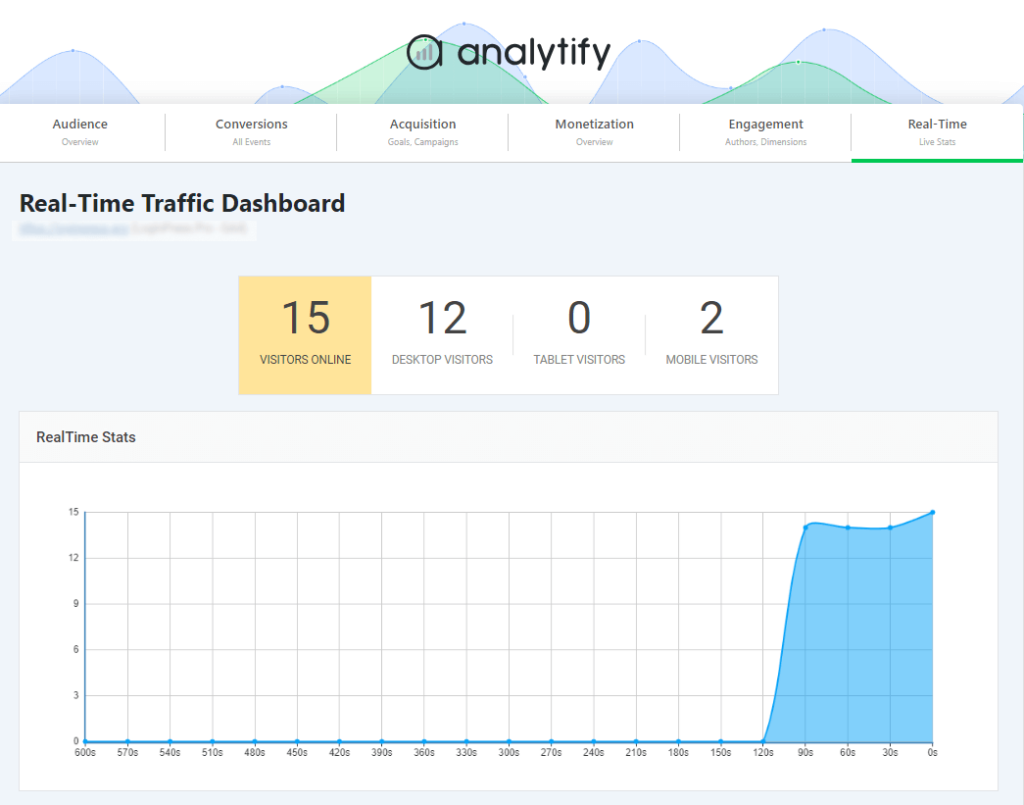
1. Real-Time Reporting
Analytify’s real-time reporting feature allows users to monitor active visitors, top-performing pages, and live traffic sources. This helps website owners track user behavior as it happens. It’s easier to assess the impact of new content, campaigns, or sudden traffic spikes.
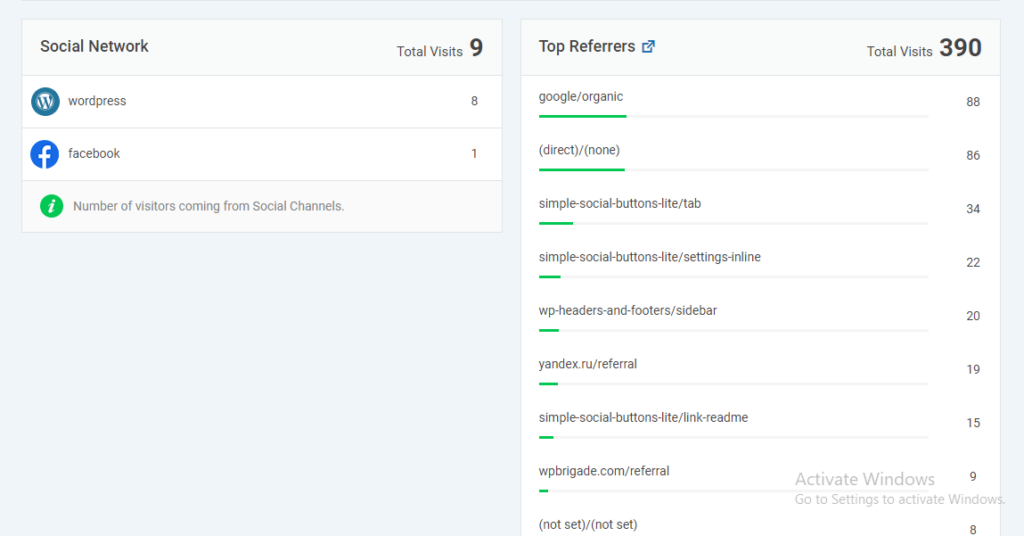
2. Referral Source Report
The referral source report provides insights into where website traffic is coming from. Users can identify the most valuable sources, such as social media, organic search, or backlinks. That allows better optimization of marketing strategies.
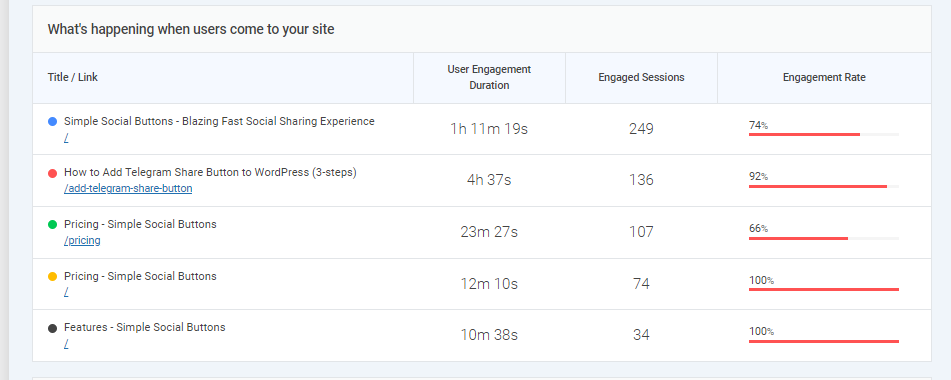
3. Engagement Reports
With Analytify, you can analyze the traffic and engagement of specific pages and URLs. Metrics include User Engagement Duration, Engaged Sessions, and Engagement Rate. The ability to track full URLs helps website owners identify high-performing pages and those needing improvement.
4. UTM Campaign Tracking
The UTM Campaign Tracking Add-on in Analytify plays a key role in URL analytics. It lets you track the performance of marketing campaigns with precision. Integrating UTM parameters helps you measure the effectiveness of different traffic sources, campaigns, and referral links. You do it all within the WordPress dashboard.
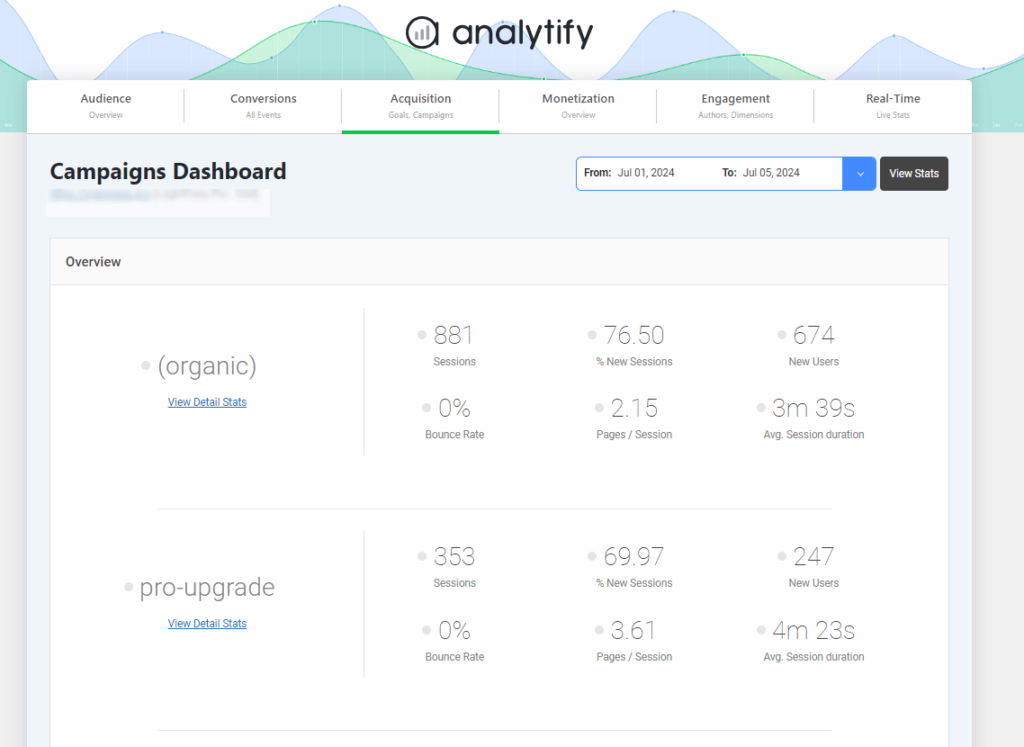
Analytify makes Google Analytics data more accessible. Website owners track full-page URLs, optimize engagement, and improve content performance. Compare every Google Analytics plugin for WordPress to see how each one handles URL reporting.
GA4 Page Views by URL (FAQs)
1. How do I see total page views in Google Analytics?
To see total page views in GA4, go to Reports >>Engagement >> Pages and Screens and check the Views column. Go to Behavior > Site Content > All Pages in UA and look at Pageviews.
2. What is the difference between pageviews and unique pageviews?
Pageviews: Total number of times a page is loaded, including multiple views by the same user.
Unique Pageviews: Counts only one view per session, even if a user reloads the page.
3. How do you calculate total page views?
Total Pageviews = Sum of all page views across all sessions, including repeated views by the same user.
4. What is the maximum URL length for Google SEO?
Google can crawl URLs up to 2,048 characters, but shorter URLs (under 100 characters) are recommended for better indexing and user experience.
5. How to view page URL in GA4?
In GA4, create a custom dimension using “Page Location” to see full URLs. In UA, enable “Full URL” in reports or use Secondary Dimension >> Page URL.
6. How to See URL Parameters in Google Analytics?
In GA4, go to Reports >> Engagement >> Pages and Screens, then use the Page Path + Query String dimension. In UA, check Behavior >> Site Content >> All Pages and use Secondary Dimension >>Full Referrer or Page URL.
Final Thoughts: Google Analytics Page Views By URL
Knowing how to view full page URLs in GA4 is essential. It helps you analyze individual page performance, track user behavior, and optimize content strategies. GA4’s default reports do not display full URLs. Customize the standard Pages and Screens report or Explorations. You then get a clearer view of traffic for specific pages.
Advanced features like filtering query parameters, custom dimensions, and event-based tracking enhance URL analytics. Analytify also simplifies GA4 reporting. Its user-friendly dashboard displays full page URLs, traffic sources, and key engagement metrics without complex configuration.
Using these methods, website owners can refine their SEO strategies, marketing campaigns, and overall user experience. Additionally, if you’re running paid campaigns, UTM parameters are crucial in tracking ad performance. Check out this guide on Google Ads UTM Parameters to learn how to track campaign traffic effectively.
Have any questions? Drop a comment below!