
User Journeys in GA4: How to Track Every Step on Your WordPress Site

Ever wonder how visitors really move through your WordPress site? You’ll be glad to know, you’re in the right place!
GA4 user journey tracking shows how visitors move through your website step by step. It helps you understand their path from the first landing page to key actions like signing up or making a purchase.
Understanding these journeys is important because it shows which steps lead users to take action, identifies where they get stuck, and helps you improve your content. So, visitors move through your site more easily.
In this guide, we’ll discuss everything you need to track GA4 user journey on WordPress. We’ll start by covering the prerequisites and then explain how to set up Path Explorations and Funnels. We’ll also explain how to analyze Cohorts and Segment Overlaps and share tips for troubleshooting common issues.
Let’s get started!
GA4 User Journey Tracking (TOC):
What is a User Journey and Why It Matters
A user journey is the complete experience a person has with your website or product. It starts from the first time they land on a page and continues until they take an action you want, such as making a purchase or signing up.
Unlike a single-session path, which focuses on the sequence of pages visited during a single visit, a user journey captures the broader relationship across multiple sessions and touchpoints.
And when many users follow similar steps, these journeys aggregate to reveal overall behavior patterns. This is where user path analysis becomes useful, helping you understand how people actually move toward key goals.
Understanding the user journey in GA4 matters because it directly supports three major business benefits:
- First, it improves conversions by showing which steps lead users to complete important actions.
- Second, it helps reduce friction by revealing where people hesitate, drop off, or get confused, allowing you to fix barriers before they impact performance.
- Third, it helps inform your content strategy by showing which pages attract users, which guide them forward, and which need improvement.
For example, someone might read a blog post, click through to a product page, and then complete a signup form. This simple journey shows how content can lead users toward your goals.
Prerequisites: What You Need Before You Start
Before you start exploring user behavior through GA4 user journey tracking, you need a few prerequisites in place to ensure accurate reporting.
- First, make sure your GA4 property is fully set up with active data collection. The basic events, such as page views, scrolls, clicks, and session starts, must be running.
- You’ll also need the right access level. Only users with Editor or Admin permissions can create and customize Explorations.
- If you use WordPress, integrating Analytify is strongly recommended. It provides clean, simplified in-dashboard reporting and helps you understand user interactions without the need for technical complexity. This makes it easier to see how users respond to your content, products, or signup flows.
- For users who want detailed analysis, an optional BigQuery export can help connect multiple sessions from the same user. This lets you see how someone returns to your site over time and builds engagement flow reports.
With these prerequisites in place, you can reliably explore the user journey in GA4 and understand how visitors navigate your website.
Data Design: Decide the Journeys You Want to Track
Designing your data setup is an important step before you begin GA4 user journey tracking. It ensures you focus on the journey insights that genuinely matter to your business goals.
- Start by choosing the specific journeys you want to monitor. These might include product discovery, new user onboarding, newsletter signup flows, or the whole checkout process. Each journey should reflect a meaningful path that leads users toward a desired action.
- Once you’ve identified the journeys, map out the steps from beginning to end.
- Outline the flow in a simple structure: start >> events >>conversion.
- This structure helps you understand where users enter, how they interact along the way, and what finally leads them to complete your goals.
For example, a typical eCommerce journey might look like this: a blog reader first lands on your site and then navigates to a category page. From there, they might visit a product page, add an item to their cart, and finally complete a purchase.
Mapping user flows in this way helps you understand the steps users take toward conversion. It also makes it easier to identify gaps or weak points in your website’s navigation, content, or checkout process.
To make these journeys trackable, prepare a checklist of event names and parameters. Ensure key actions, such as page_view, view_item, add_to_cart, and purchase, are firing correctly, and add custom events as needed.
Setting Up GA4 Events and User IDs for Accurate Tracking
Setting up GA4 events and User IDs correctly is essential for accurate GA4 user journey tracking.
- Start by ensuring all key events are tracked. GA4 automatically collects page_view and scroll events. But you should also enable or configure additional events such as file_download, click_to_call, purchase, and form_submit.
- When creating or modifying events, follow GA4’s recommended naming structure and keep parameters consistent.
- For example, use event names such as view_item, add_to_cart, and generate_lead rather than inventing your own terms.
- Consistent naming ensures clearer reporting and easier comparison during user path analysis.
- Well-defined parameters, such as item_id, content_type, or method, add more detail to your reports and help you analyse the intent behind each action.
- Another important setup step is enabling user_id tracking. A user ID helps GA4 recognize the same visitor across multiple devices or sessions, giving you a more complete picture of their journey.
- GA4 protects privacy by anonymizing personal information, but you should still assign user IDs carefully.
If you’re using WordPress, Analytify can simplify much of this work. By enabling its Custom Dimensions add-on, you can capture WordPress-specific values.
How to Build a Path Exploration in GA4
Building a Path Exploration in GA4 helps you visually understand how users move through your site, step by step. So, follow the guide below to create and analyze Path Exploration report:
Step 1: Open the Path Exploration Report
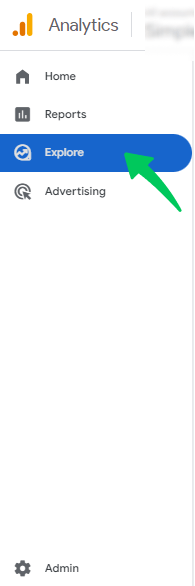
- Go to Google Analytics 4 >> Explore from the left menu.
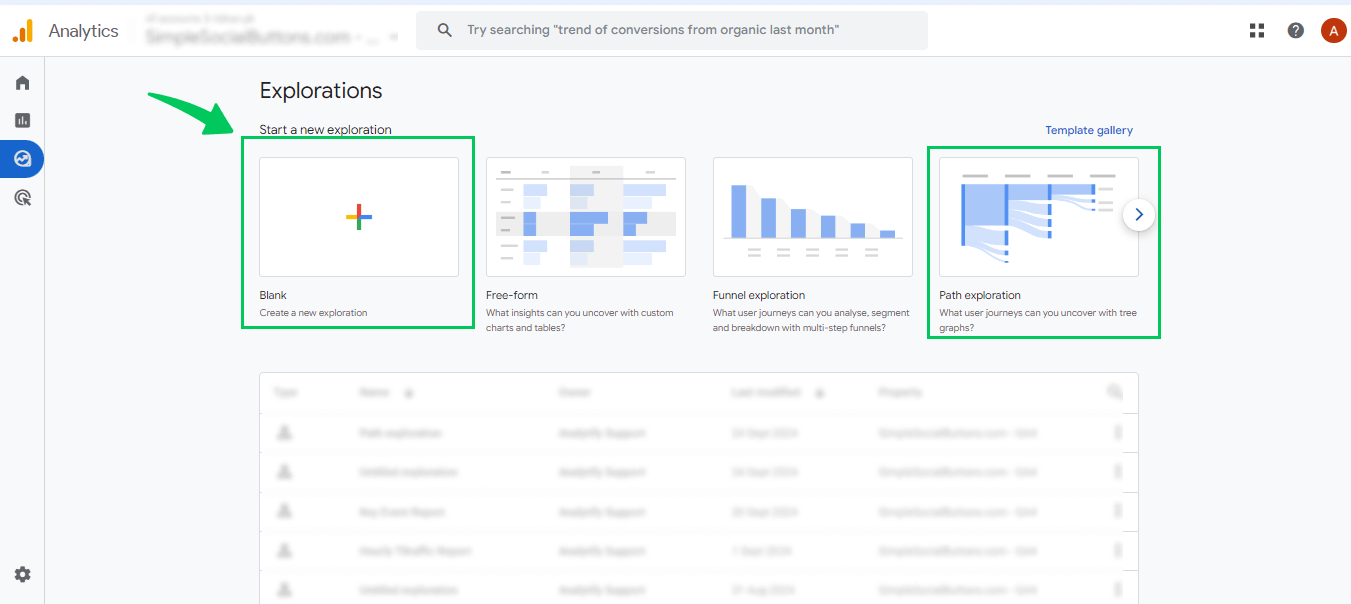
- Select Blank or choose the Path Exploration template to start building your report.
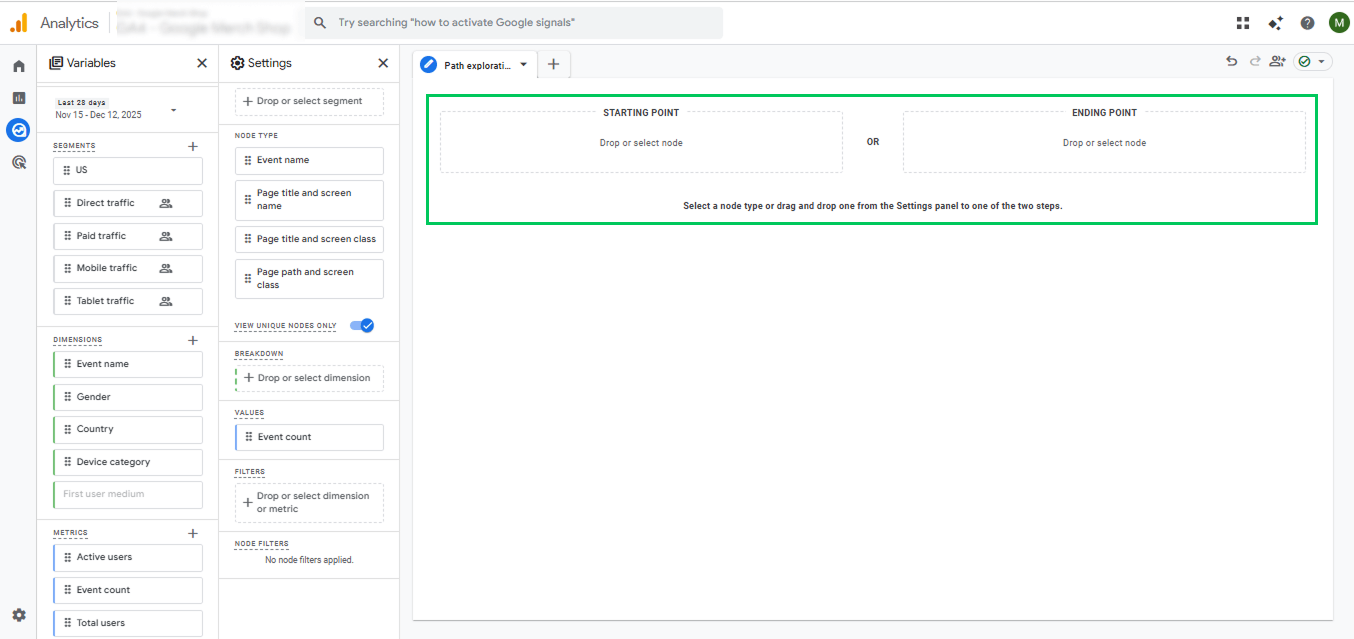
Step 2: Choose a Starting or Ending Point
- Set a starting point, such as page_title, page_path, or an event like page_view, to see what users do after landing on your site.
- To analyze actions before a conversion, set an endpoint and use reverse-path analysis.
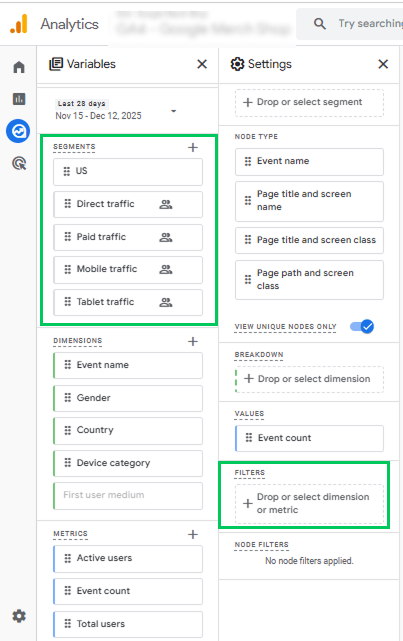
Step 3: Apply Segments and Filters
Add segments or filters to narrow the data. You can focus on new users, a specific traffic source, device type, or campaign to view more relevant journeys.
Step 4: Expand Path Branches
Click on each node to expand branches. GA4 will display the following steps users took, along with user counts and percentage drop-offs.
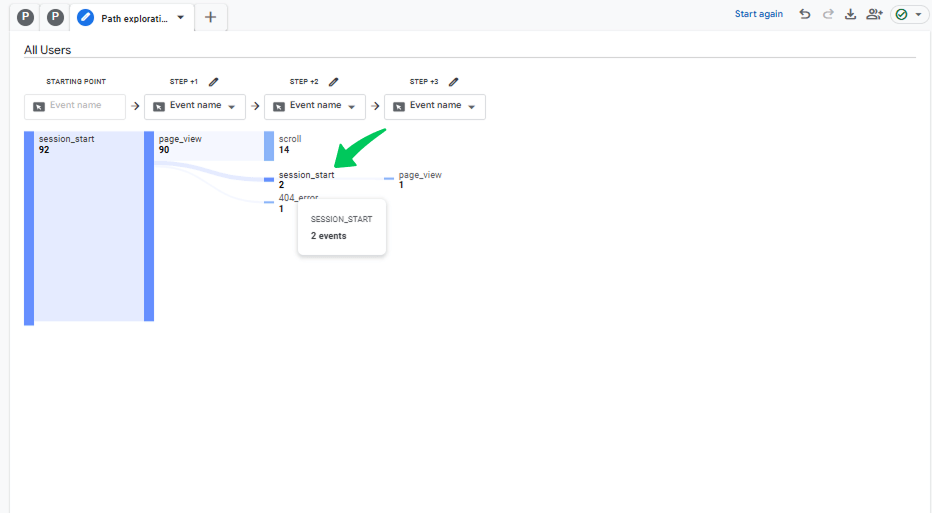
Step 5: Interpret Counts and Percentages
Review how many users followed each path and where drop-offs occurred. Higher percentages indicate stronger paths, while sharp drops highlight problem areas.
Step 6: Identify Behavior Patterns
Look for loops, dead ends, and the top next pages. These patterns reveal navigation issues, content gaps, or high-performing paths.
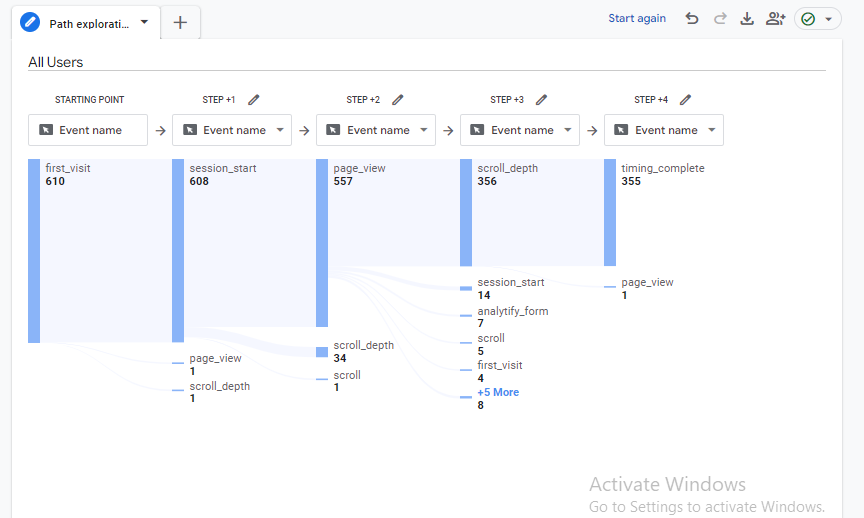
How to Use GA4 Funnels and Sequence Segments to Measure User Journeys
GA4 Funnels and Sequence Segments are measuring how users move through important steps on your website. They help you understand where users continue, where they drop off, and why some journeys do not reach conversion.
When to Use Funnels vs Paths
Use Funnels when you want to track a specific goal that follows a fixed order of steps. This means users are expected to move from one clear action to the next, such as starting on a signup page, filling out a form, and submitting it.
Funnels focus on completion rate at each step and track the abandonment rate, making it easy to see which step causes users to leave before finishing.
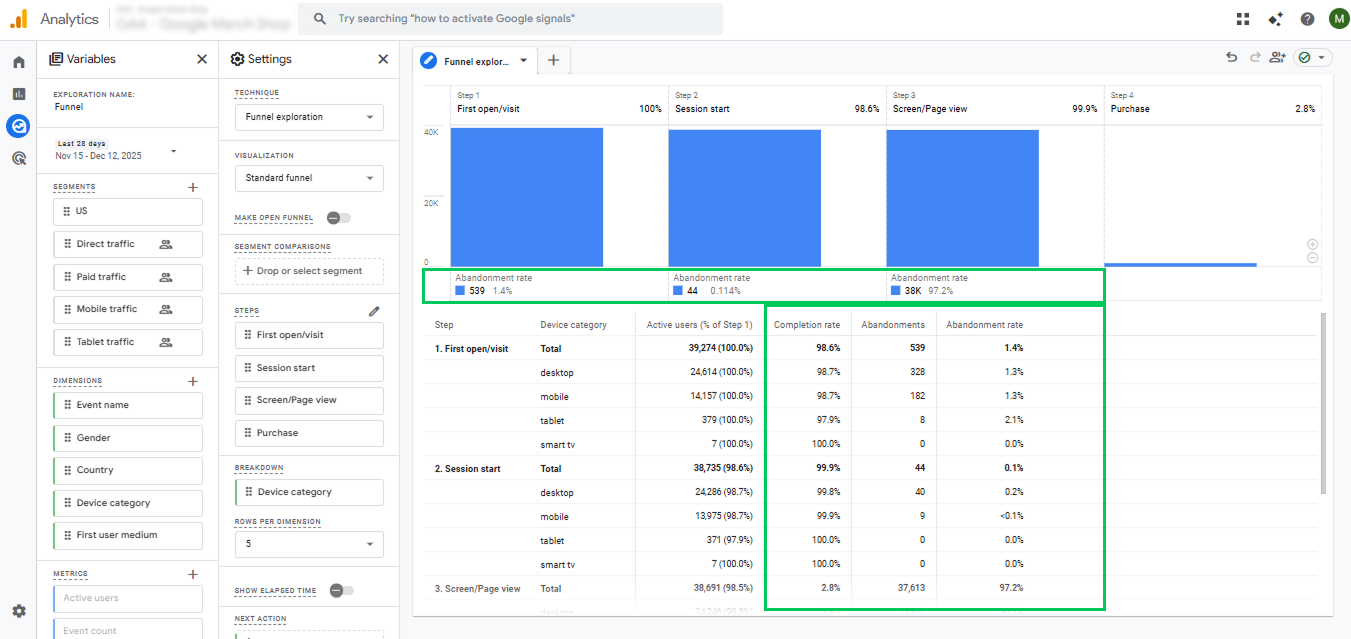
Use Path Exploration when you want to see open-ended navigation and discover unexpected user behavior. Funnels answer “Did users complete the journey?” while paths answer “Where did users go next?”
Create a Funnel Exploration in GA4
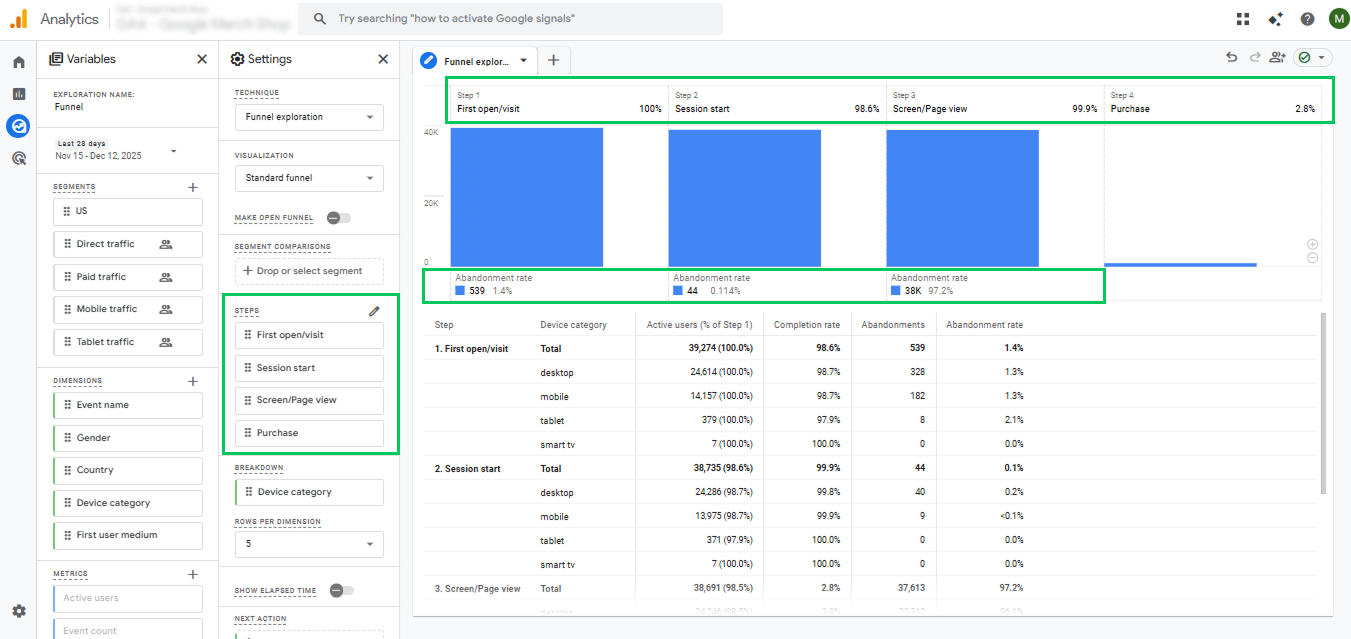
To build a funnel,
- Go to GA4 >> Explore >> Funnel Exploration.
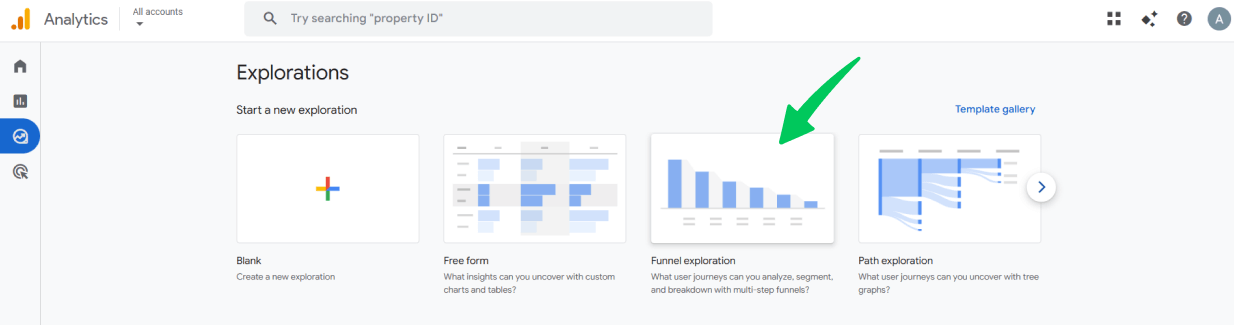
- So, when creating the funnel in GA4, define each step using the events such as: First open/visit → Session start → Screen/Page view → Purchase
- Each step represents a stage in the user journey, enabling you to track completion rates and abandonment accurately.
Open vs Closed Funnels and Retroactive Analysis
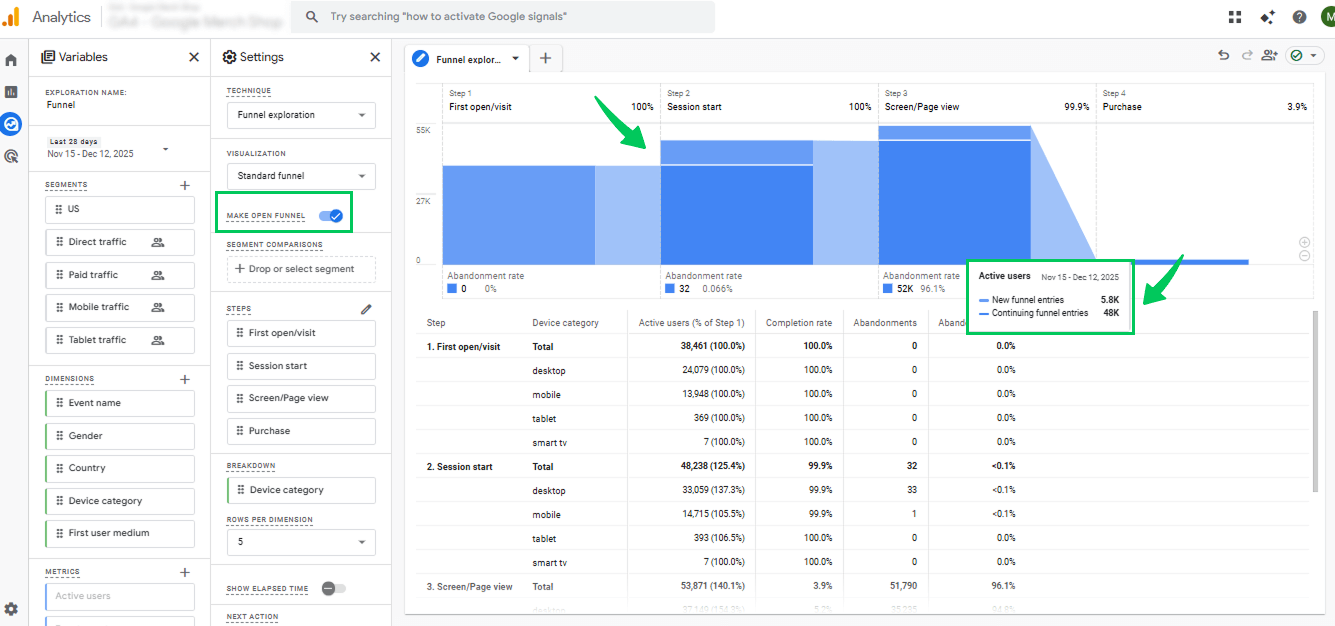
Open Funnel: Users can enter the funnel at any step, not just the first one. This is helpful when you want to see how people naturally move through your site, even if they skip steps.
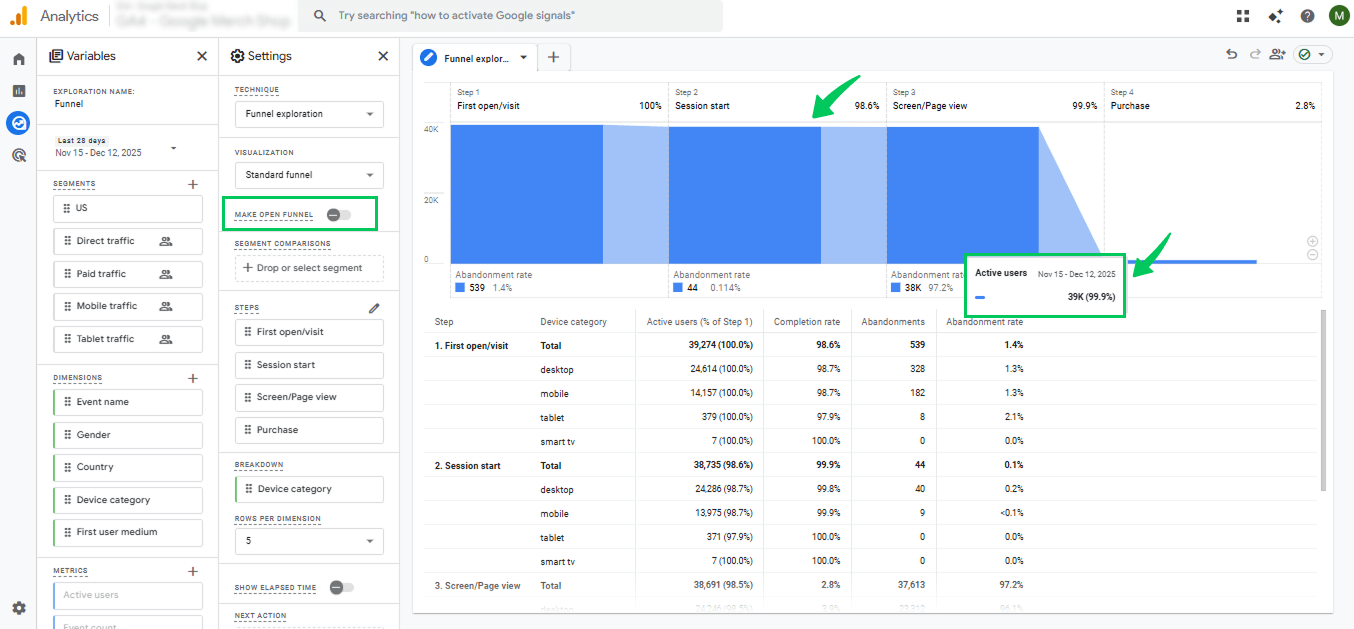
Closed Funnel: Users must start at the first step and follow the funnel in order. This is useful for strict processes, like onboarding or guided tutorials, where you want to track a specific sequence.
Retroactive Analysis: GA4 can look at past data for your funnel, even if you didn’t create the funnel earlier. This means you can analyze previous user behavior without waiting for new data to be collected.
In short, open funnels show real behavior, closed funnels track strict sequences, and retroactive analysis lets you study historical data.
Cohort and Segment Overlap Analysis
GA4 provides Cohort Analysis and Segment Overlap Analysis to see how different segments interact with your site.
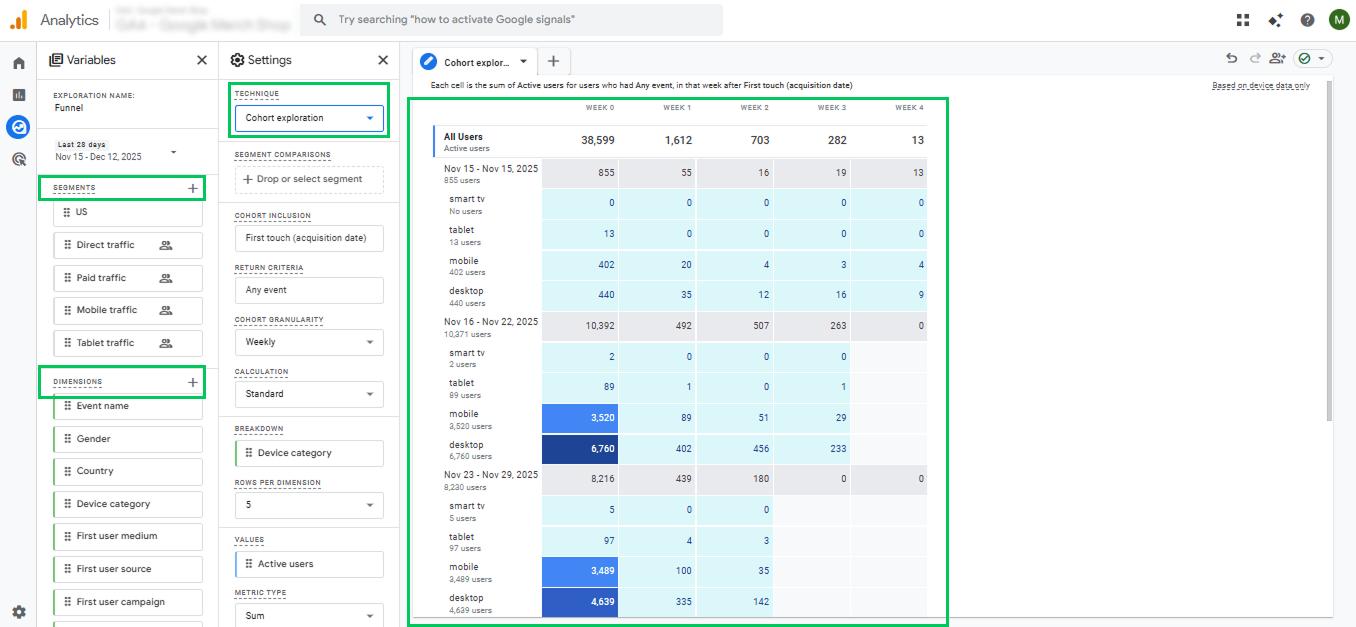
Cohort Analysis is used to understand how a specific group of users behaves over time (time-based behavior). Users are grouped based on a shared starting point, such as the acquisition date, first visit, or specific actions.
This report helps you see whether users return, stay engaged, or convert as time passes. Follow the steps below to access the cohort report:
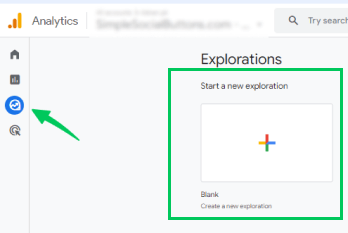
- Navigate to the Explore section in your GA4 property.
- Click on Blank Exploration to build a custom cohort report.
- Select the Cohort Analysis template, or configure it manually by setting a cohort based on the user acquisition date or a specific event.
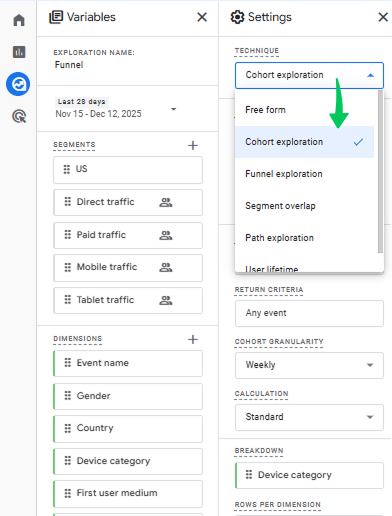
- Choose the user segments, dimensions, and metrics you want to compare.
- Explore the table and chart to understand cohort behavior over time, including retention trends and engagement patterns.
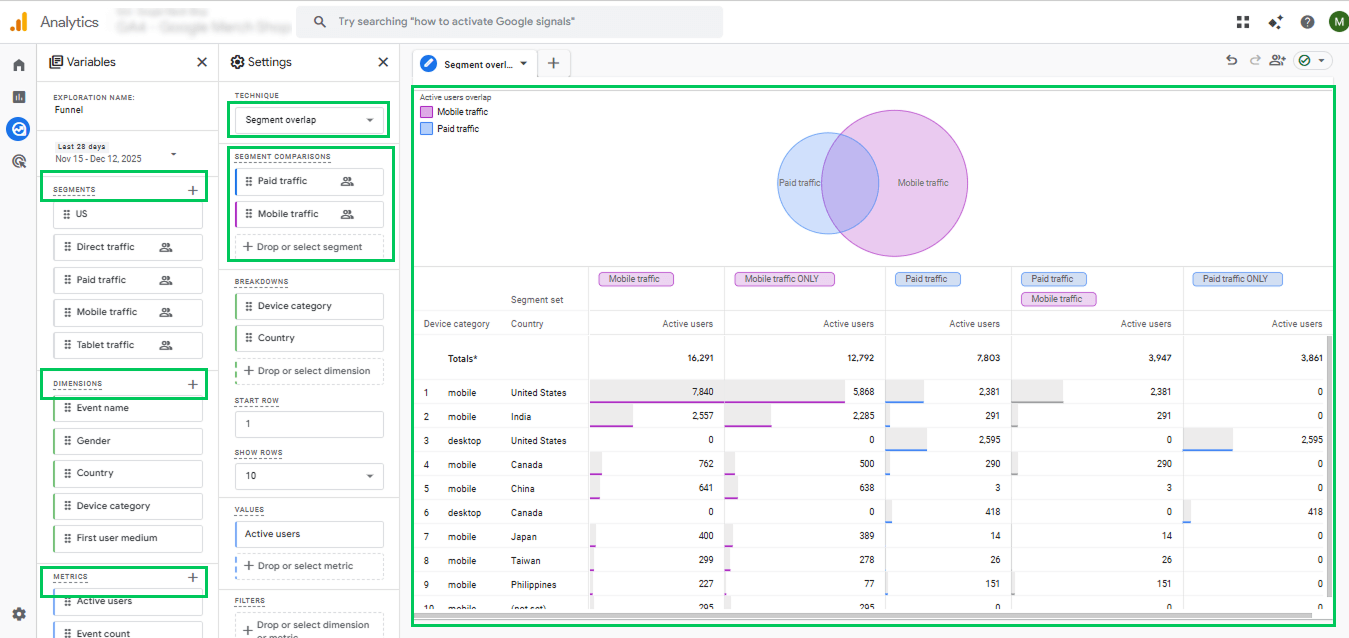
Segment Overlap Analysis focuses on shared behavior between groups, not time. It shows where different user segments intersect, helping you see which actions or characteristics happen together.
For example, it can show whether users who read blog posts are also the ones who add products to the cart. If there is a strong overlap, you know your blog content is helping drive sales.
Follow the steps below to access the segment overlap analysis report:
- Navigate to the Explore section in your GA4 property.
- Click on Blank Exploration to build a segment overlap report.
- Select the Segment overlap Analysis template.
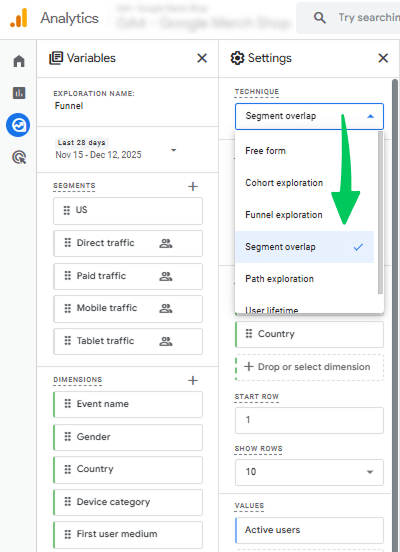
- Choose the user segments, dimensions, and metrics for the comparison.
- The visualization shows which users belong to multiple segments, helping you identify intersections and opportunities for targeting.
How Analytify Simplifies User Journeys in WordPress
Join 50,000+ beginners & professionals who use Analytify to simplify their Google Analytics!
GA4 user journey tracking can feel complicated, especially when you want to see how users interact with your WordPress site. This is where Analytify comes in, making GA4 tracking simpler and more accessible for WordPress users.
Analytify is one of the best Google Analytics plugins for WordPress. Seamlessly integrating with GA4, it simplifies complex reports and presents essential data directly in your WordPress dashboard.
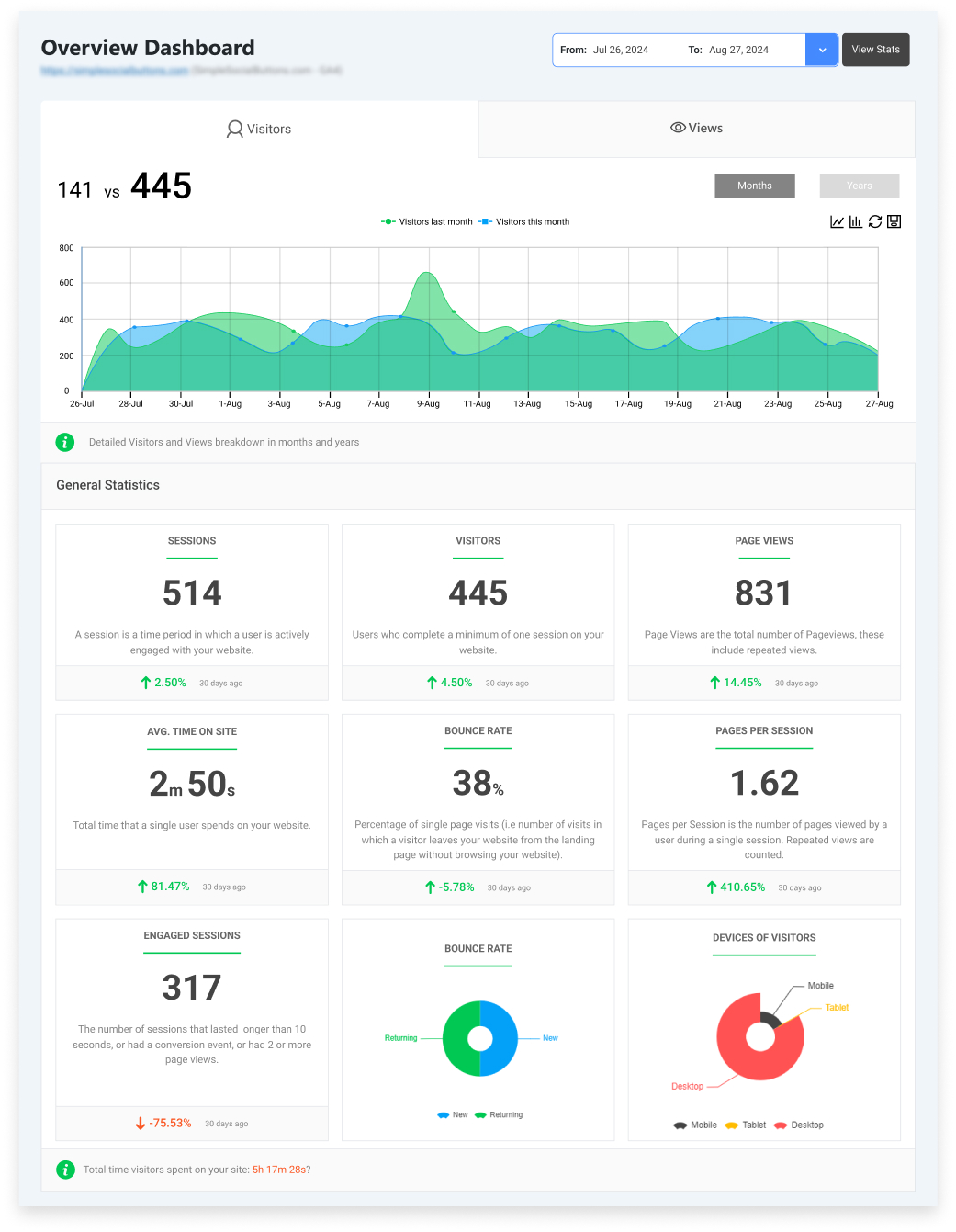
Additional features include real-time traffic stats, top referrers, and the ability to track WordPress-specific Custom Dimensions, offering detailed insights into user behavior.
How It Works:
Follow the steps below to get started with Analytify:
- First, install Analytify on your WordPress site and connect it to your GA4 property. If you want full features, upgrade to Analytify Pro for enhanced tracking and dashboard options.
- From the Analytify dashboard, install the Custom Dimensions add-on and activate it. This allows you to track WordPress-specific data that GA4 alone doesn’t capture.
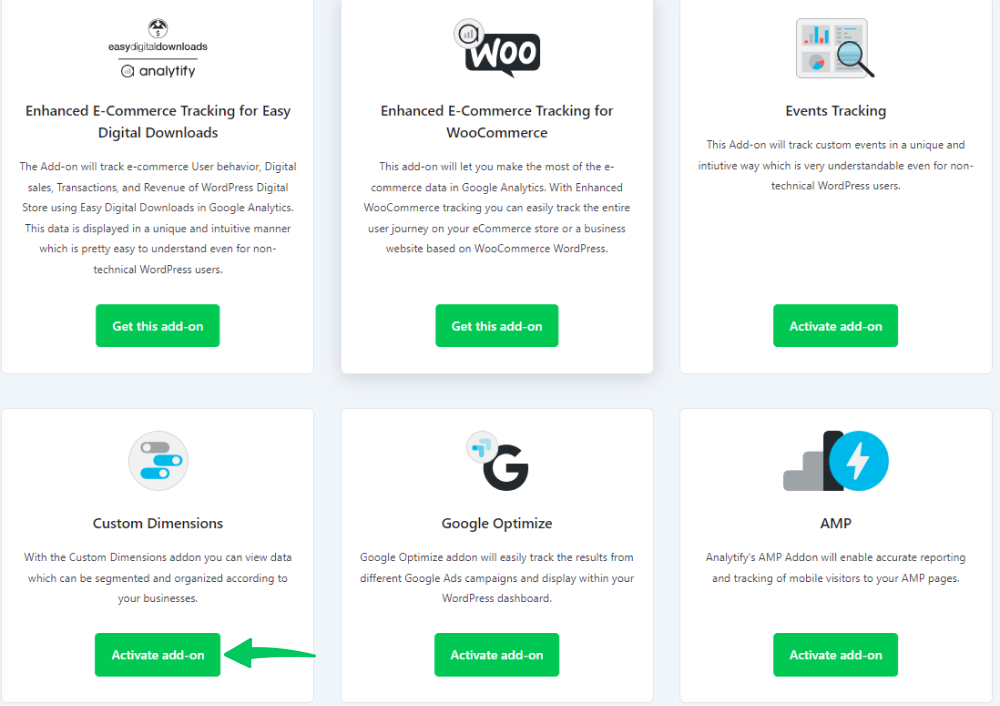
- Setting up custom dimensions, such as User ID, author, or category, gives you more detailed insights into user behavior on your site.
- Once configured, view the dashboards to understand user behavior, engagement flow, and WordPress-specific interactions without navigating the complete GA4 interface.
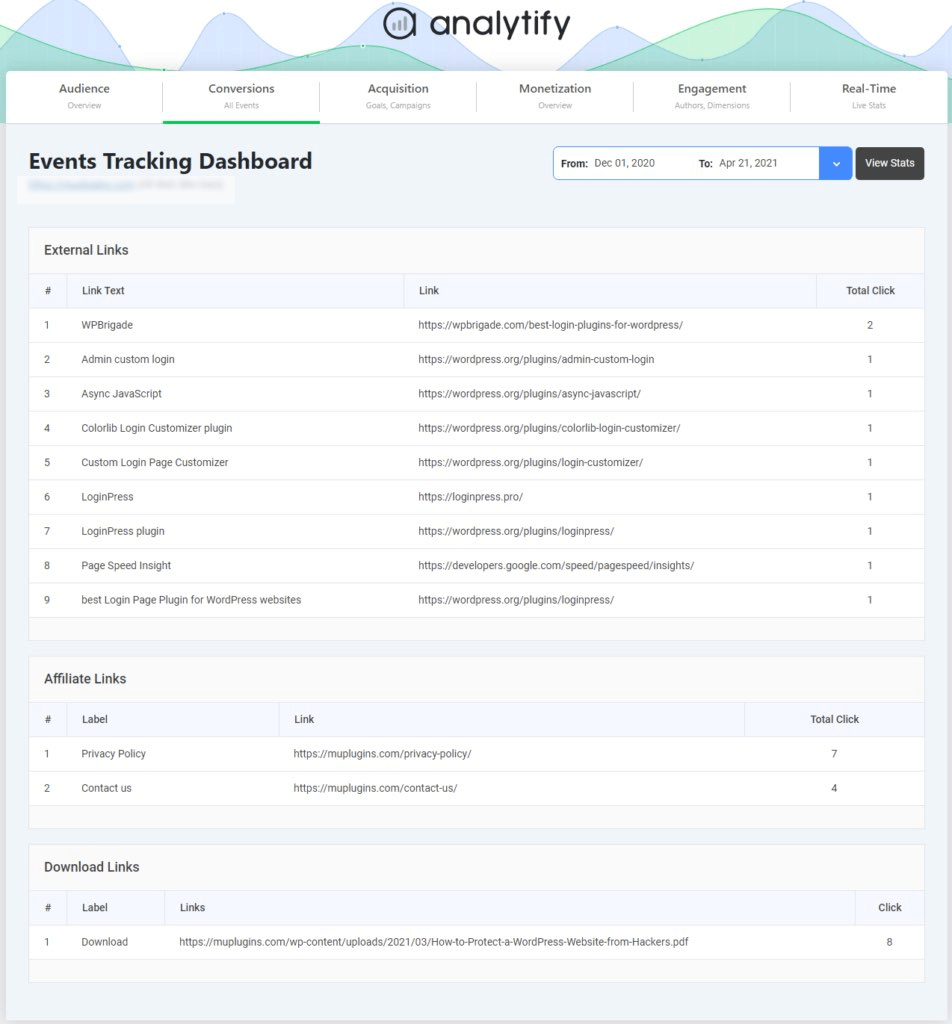
- You can see a simplified event-tracking dashboard for standard actions such as page views, form submissions, and clicks.
- For WooCommerce sites, Analytify provides a dedicated eCommerce dashboard that highlights key events, including add-to-cart actions, checkout steps, and completed purchases.
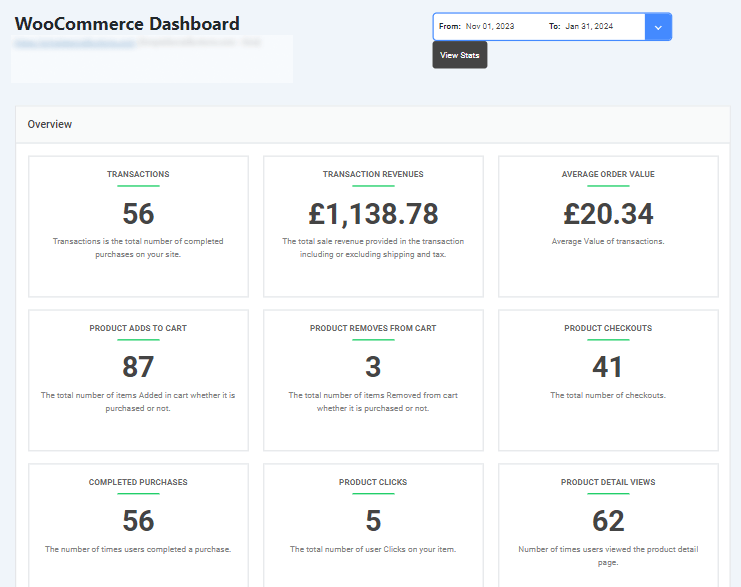
With clear, visual dashboards and real-time stats, Analytify helps you understand your user journeys in GA4 without the complexity of navigating the complete GA4 interface.
Troubleshooting Checklist
Here are the following troubleshooting checks to help you fix common issues in GA4 journey reports:
- Missing events: Use GA4 Debug View or Google Tag Manager to confirm events are firing correctly.
- Low sample sizes: Extend the date range to collect more data and see clearer patterns.
- Unexpected loops: Check for duplicate event firing caused by page reloads or tag misconfiguration.
Privacy or consent impact: Review Consent Mode settings, as declined consent can limit data collection. - Incorrect page names: Verify page_title and page_path values to avoid confusing or split paths.
- Filters removing data: Ensure filters or comparisons do not exclude important users.
- Delayed data updates: Remember, GA4 data can take up to 24 hours to fully process and appear in reports.
Frequently Asked Questions
1. What is GA4 user journey tracking?
GA4 user journey tracking is the process of monitoring how visitors interact with your website from their first visit to the point of conversion. It helps you see the full path users take, including multiple sessions and touchpoints.
2. How can I perform user path analysis in GA4?
You can perform user path analysis in GA4 using the Path Exploration report. Go to Explore >> Path Exploration, then set a starting point (like a page or event) or an end point to view reverse paths. You can add segments or filters. The report shows users’ step-by-step actions with counts and percentages, helping identify common paths and improvement opportunities.
3. How do I track GA4 user journey across multiple sessions?
To track the user journey in GA4 across multiple sessions, enable user_id tracking in GA4. This allows the platform to identify the same user across devices and sessions, providing a more complete picture of their interactions and helping you analyze long-term engagement patterns.
4. How do I create a funnel to monitor the GA4 user journey?
In GA4, go to Explore>> Funnel Exploration and define key steps like page_view, add_to_cart, and purchase. Choose an open or closed funnel, apply segments or filters, and GA4 will show drop-offs and conversions at each stage. You can also analyze historical data to understand past behavior and optimize the user journey and engagement flow.
5. Are there tools to simplify GA4 user journey tracking for WordPress?
Yes. Analytify is a WordPress plugin that simplifies GA4 reporting, allowing you to track the GA4 user journey without complex setup. It provides visual dashboards and insights into WordPress user behavior, making it easier to act on data.
Final Thoughts: GA4 User Journey Tracking
In this guide, we first explored what a user journey is and why it matters. Next, we covered the prerequisites, including setting up GA4 events, enabling User IDs, and using tools like Analytify for WordPress journey insights.
We explained data design, mapped key steps and events, and provided instructions on Path Exploration, showing how to visualize user flows, interpret drop-offs, and identify loops or dead ends.
We also discussed Funnels and Sequence Segments to track conversions and Cohort and Segment Overlap Analysis to compare user groups, improve retention, and optimize targeting. Finally, a troubleshooting checklist addressed common issues and best practices.
By following these steps, you can track and analyze every step of your users’ journeys, uncover patterns, and optimize your website experience.
For further guidance, you can read:
- Customer journey with Google Analytics
- Real-Time Analytics for WordPress: Why Instant Insights Matter in 2026
- Predictive Analytics for WordPress: How to Forecast Website Growth with GA4
Which GA4 report do you rely on most to understand your users’ journeys? Share your thoughts in the comments below!