
How to Display Google Analytics Under Post/Pages Inside the WP-Admin? — Documentation page title
With Analytify, the best WordPress plugin, you have the flexibility to display Google Analytics data on your website right under your posts/pages via your WordPress Dashboard.
This feature provides a quick snapshot of how a specific post or page is performing, which can be incredibly useful for content strategy and analysis.
In this guide, you will learn how to check in-page statistics on your WordPress editor using Analytify.
How to Enable Google Analytics Under Posts in WP-admin
Follow these simple steps to adjust the visibility of Google Analytics data in your WordPress dashboard and showcase analytics under posts:
- Enter Your WordPress Dashboard: Start by logging into your WordPress site.
- Navigate to Analytify Settings: Go to Analytify >> Settings >> Admin. This is where you can manage how Analytify interacts with your WordPress admin area.
- Locate the Relevant Option: In the Admin section, find the option labeled “Enable Analytics” under posts/pages (WP-Admin).
- Make Your Choice: To show the analytics, enable the Enable Analytics under posts/pages (wp-admin) option. Confirm your choice by clicking on the Save Changes button.
Note: Enabling this option will start showing analytics under posts/pages and custom post types. To disable analytics, change the option from Yes to No.
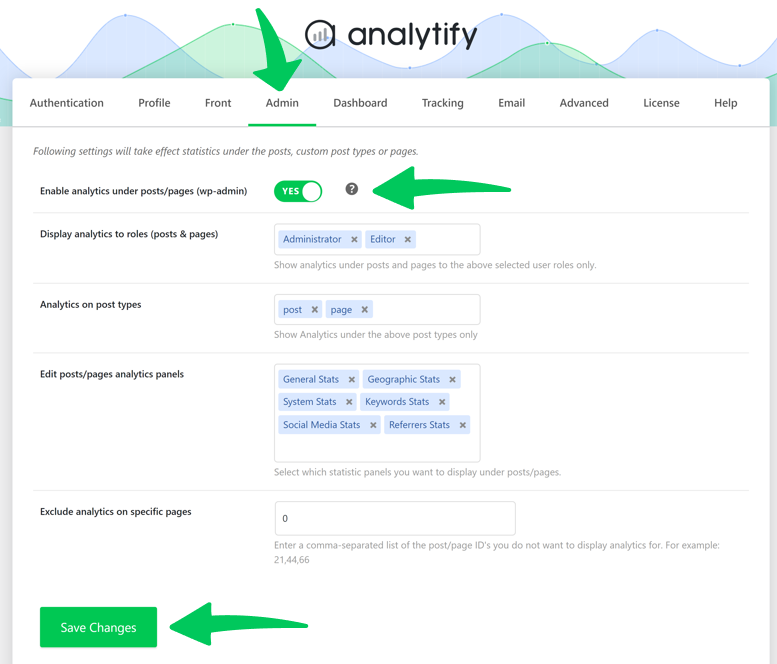
All done! This Analytify feature provides a clear way to manage how analytics are displayed in your WordPress dashboard.
In-post statistics allow you to measure how users interact with your video content without leaving the page you are currently optimizing.
How to Track Video Tracking Analytics Under Posts
When viewing the Video Tracking section within an individual post or page, you can monitor specific engagement signals:

- Top Referrers for Video: Identify which traffic sources (e.g., direct, search, or specific referral sites) are leading visitors to watch the video on this specific page.
- Engagement Activity: View real-time interaction data. If no users have interacted with the video during the selected timeframe, you will see a “No activity during this period” status.
- Seamless Integration: The stats are located right below your Top Referrers list, providing a holistic view of how external traffic transitions into content consumption.
Pro Tip: Use these in-post stats to determine if your video placement is effective.
Furthermore, if you want to display your analytics for specific users, you can refer to our guide: How to Display Analytics to Specific User Roles Under Custom Post Types?
If you have more queries, feel free to contact our support team.