
How to Set Up the Paid Memberships Pro Tracking Addon by Analytify
The Analytify Paid Memberships Pro Tracking Addon brings membership analytics directly into your WordPress dashboard.
Once active, Analytify tracks membership transactions, revenue, funnel performance, and member activity without requiring you to switch between WordPress and Google Analytics.
This guide covers installation, activation, and a full walkthrough of every report section in the PMPro dashboard.
Paid Memberships Pro Tracking (TOC):
Prerequisites: Paid Memberships Pro Tracking
Before installing the addon, confirm all four of the following are in place:
- A WordPress website
- Paid Memberships Pro (PMPro) plugin installed and activated
- Analytify (free version) installed and connected to Google Analytics (GA4)
- Analytify Pro plugin installed and activated
Once these are ready, you can enable the PMPro addon from the Analytify Addons panel.
Step 1: Install and Activate Analytify Pro
The PMPro addon requires Analytify Pro.
Before proceeding, make sure you have installed and activated Analytify Pro on your WordPress site.
Follow this complete guide to install and set up Analytify Pro:
How to Install and Activate Analytify Pro
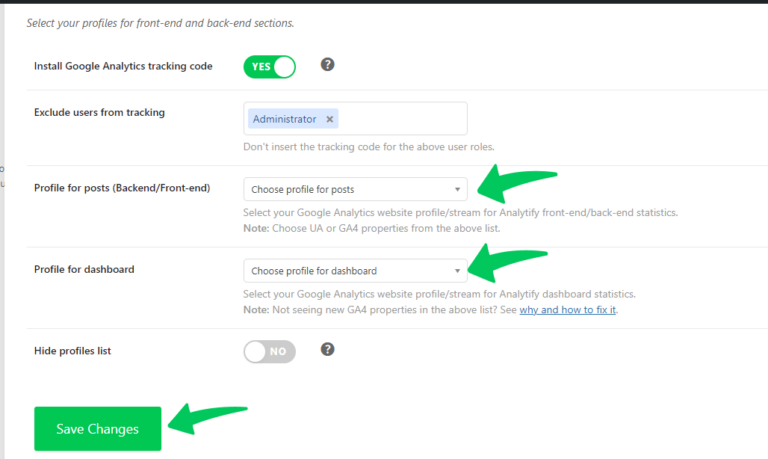
Once installed, ensure your Google Analytics (GA4) property is properly connected in:
Analytify >> Settings
Step 2: Activate the PMPro Addon
After activating Analytify Pro, enable the PMPro addon:
- Go to Analytify >> Addons

- Locate Paid Memberships Pro Addon (listed under Pro addons)
- Click Install & Activate
- If already installed, click Activate

Once activated, the addon becomes available in your Analytify dashboard.
Note: If the addon is not active, you may see a prompt like
“Unlock Google Analytics Tracking for Paid Memberships Pro” on this page.
Step 3: Access the PMPro Analytics Dashboard
After activation, you can view membership analytics inside WordPress:
- Go to Analytify >> Paid Memberships Pro (Membership Analytics)
The dashboard opens to the Overview section. Use the date range selector at the top right (From / To fields) to filter all data by a custom period, then click View Stats.

Overview Metrics of PMPro Analytics
The Overview section shows six summary cards and one percentage metric at a glance.
| Metric | What It Measures |
|---|---|
| Transactions | Total number of online membership purchases in the selected period |
| Transaction Revenues | Total revenue from online membership purchases |
| Average Order Value | Average transaction value across all purchases |
| All-Time Active Members | Total active members from the start (not filtered by date range) |
| Active Memberships | Active membership entries in PMPro for the selected period |
| Conversion Rate | Percentage of sessions that resulted in a completed transaction |
| New Customers | Percentage of purchasers who are first-time buyers |
PMPro Funnel
The PMPro Funnel visualizes the three-stage conversion path for membership sign-ups.

| Metric | What It Measures |
|---|---|
| View Level | Number of visitors who viewed a membership level page |
| Checkout | Number of visitors who reached the checkout step |
| Purchase | Number of completed transactions |
For each stage, Analytify also displays:
- Conversion Rate by Stages: the percentage of visitors who moved from that stage to the next
- Abandonment Rate: the percentage who dropped off at each stage
| Use this for: Identifying where in your sign-up flow members are dropping off. A high abandonment rate at Checkout vs. View Level indicates a pricing or checkout friction issue. |
Recent Membership Orders
This table lists individual membership transactions in the selected date range.
| Metric | What It Measures |
|---|---|
| Order ID | Unique identifier for the membership order |
| Member | Name or identifier of the purchasing member |
| Level | The membership level purchased or changed to |
| Total | Order amount in your store currency |
| Gateway | Payment gateway used for the transaction |
| Date | Transaction date |
Revenue by Membership Level
This table breaks down total revenue by membership level for the selected period. Columns: Level, Revenue.
Use this to identify which membership tiers generate the most income and where to focus pricing or promotion efforts.
Members by Level
This table shows how many active members are on each membership level. Columns: Level, Members.
Use this alongside Revenue by Membership Level to calculate average revenue per member per tier.
Discount Codes Performance
This table tracks the impact of discount codes applied to membership purchases.
| Metric | What It Measures |
|---|---|
| Discount Code | The code used at checkout |
| Revenue | Total revenue attributed to orders using this code |
| Times Used | Number of times the code was applied in the period |
Trial Conversion Statistics
This table shows how trial memberships converted to paid memberships in the selected period.
| Metric | What It Measures |
|---|---|
| Metric | The conversion metric being tracked (e.g., trial starts, conversions) |
| Count | Absolute number of occurrences |
| Percentage | Conversion rate as a percentage of total trials |
Churn and Retention Analysis
This table tracks membership cancellations and retention performance.
| Metric | What It Measures |
|---|---|
| Metric | The churn or retention metric being tracked |
| Count | Absolute number of occurrences |
| Rate | Rate as a percentage of total active memberships |
Payment Gateway Performance
This table compares transaction success across payment gateways.
| Metric | What It Measures |
|---|---|
| Gateway | Payment gateway name (e.g., Stripe, PayPal) |
| Revenue | Total revenue processed through this gateway |
| Transactions | Number of transactions processed |
| Success Rate | Percentage of transactions that completed successfully |
Revenue Breakdown
This table categorizes total revenue by type.
| Metric | What It Measures |
|---|---|
| Revenue Type | The category of revenue (e.g., new, renewal, upgrade) |
| Amount | Total revenue for this type in the selected period |
| Percentage | This type’s share of total revenue |
Step 4: Verify Paid Memberships Pro Tracking
To confirm that tracking is set up correctly:
Perform Test Actions
- Visit membership levels
- Complete a test checkout
- Upgrade or cancel a membership
Then Check Data
- Go to Analytify >> Paid Memberships Pro
- Look for recorded activity in the dashboard
Optional (GA4 Verification)
You can also verify tracking in Google Analytics:
- Check for membership-related events
- Confirm ecommerce conversions are being recorded
What Happens Next: Paid Memberships Pro Tracking
Once the addon is active:
- Tracking runs automatically
- No additional setup or coding is required
- Membership data continues syncing with GA4 in the background
For any issues or queries, you can reach out to the Analytify support team for help.