How to Build a Website Analytics Dashboard for Your Business (2026)

Are you wondering how to use a website analytics dashboard to improve your analytics?
A website analytics dashboard turns complex data into clear, visual insights your team can understand.
Instead of switching between tools and reading confusing reports, a dashboard brings all your key metrics into one place.
Today, a business analytics dashboard is essential, not just convenient.
It helps you track performance in real time, spot trends, and quickly identify opportunities or issues.
Whether you want to increase conversions or improve user experience, the right dashboard helps you make smarter, data-driven decisions.
Curious how your data stacks up against other tools? Our comparison of Microsoft Clarity Vs Google Analytics breaks down the differences.
If you’re new to the space, our guide on Digital Marketing Analytics For Beginners covers the essentials before you build your dashboard.
Considering a dedicated microsite for a campaign? Our comparison of Microsite Vs Landing Page can help you decide.
Once your dashboard is set up, pair it with day-to-day best practices. Our Top 10 Google Analytics Tips And Tricks (2025) – Analytify roundup covers quick wins you can apply right away.
In this guide, I will explain how to build a useful analytics dashboard, which metrics to include, and how to structure it for better results.
I will also add use cases and show how tools like WordPress analytics can simplify the process, so you can focus on growing your business. Let’s begin!
Website Analytics Dashboard (TOC):
What is a Website Analytics Dashboard?
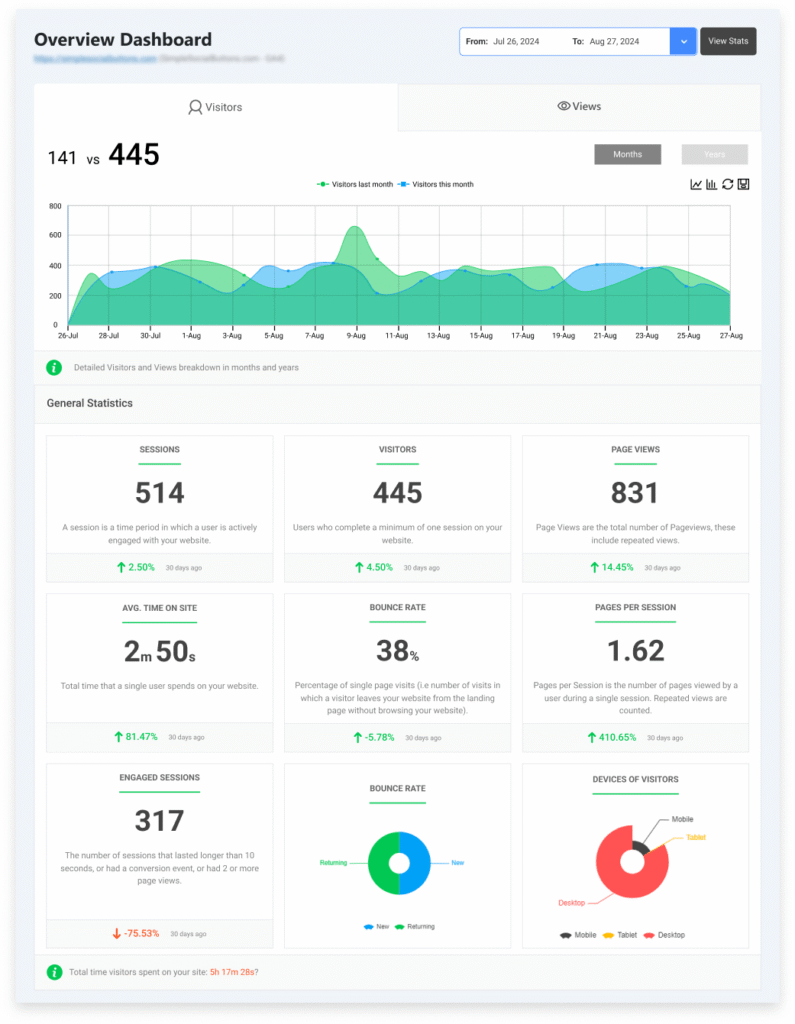
An analytics dashboard is a tool that displays your key website data in one place. It presents metrics such as traffic, conversions, and user behavior in a simple, visual format.
So instead of checking multiple reports, you can see everything at a glance.
A dashboard is different from a standard report. It focuses on real-time data, whereas a report is often static and updated infrequently.
Dashboards use charts and visuals to make data easy to understand. Reports are more detailed but take longer to analyze.
An analytics reporting dashboard is designed for quick insights. It helps teams view performance without needing technical skills.
Reports are better for deep analysis, but dashboards are better for fast decisions.
While dashboards are important for decision-making, they help you track performance in real time. You can spot trends early and act quickly.
GA4’s default interface is powerful but fragmented, meaning data is spread across dozens of menus.
This is exactly why a consolidated analytics structure matters more in the long run for business owners.
Why Your Business Needs a Website Analytics Dashboard
A business analytics dashboard is essential for any modern organization because it consolidates all key data into a single, easy-to-access location.
Instead of switching between multiple tools, teams can quickly understand performance at a glance.
An analytics dashboard helps you monitor traffic, conversions, and overall performance in real time, making it easier to interpret data and take action.
Different teams benefit from dashboards in different ways:
- Marketing teams
- Track campaign performance and ROI
- Identify which channels drive the most traffic and conversions
- Optimize campaigns based on real data
- Product teams
- Analyze user behavior and engagement
- Identify where users drop off in the journey
- Improve user experience and site flow
- Leadership teams
- Monitor overall business performance
- Track growth, revenue, and key trends
- Make strategic decisions based on insights
Dashboards improve decision-making by removing guesswork. Teams rely on real-time, accurate data rather than assumptions, leading to faster, more confident decisions.
They also help identify issues early. For example:
- A high bounce rate may indicate a poor landing page experience
- A weak campaign may signal the need for strategy adjustments
In addition, dashboards improve efficiency. Unlike lengthy reports that take time to analyze, dashboards present key metrics instantly, saving time and helping teams stay focused on what matters most.
Quick Tip: Analytify brings your GA4 data directly into your WordPress dashboard, no bouncing between tabs, no GA4 menus to decode.
What Do Real Analytics Dashboards Look Like?
Looking at analytics dashboard examples helps you understand how to structure your own dashboard.
Different dashboards serve different goals. A good setup focuses on clarity, not complexity.
Here are some real life usecases for designing a good analytics dashboard and what it should track:
A. Website Performance Dashboard Example
A website performance dashboard focuses on how your site is performing.
What it tracks:
- Page load time
- Pageviews
- Bounce rate
- Sessions and users
- Conversion rate
Sample Layout:
- Top section: key metrics (sessions, conversions, bounce rate)
- Middle: traffic trends over time (line chart)
- Bottom: top pages and landing pages (table)
Best use cases:
- Tracking website health
- Improving page speed
- Monitoring user engagement
This type of dashboard helps you spot performance issues quickly.
B. Marketing Analytics Dashboard Example
A marketing analytics dashboard focuses on campaign performance.
Campaign Metrics:
- Click-through rate (CTR)
- Cost per click (CPC)
- Cost per lead (CPL)
- Return on ad spend (ROAS)
Traffic Trends:
- Traffic by channel (organic, paid, social)
- Campaign performance over time
- Conversion trends
Visual Layout:
- Top: campaign KPIs (CTR, CPC, conversions)
- Middle: traffic sources (bar or pie chart)
- Bottom: campaign results (table view)
This dashboard helps you see which campaigns work and which do not.
C. Business Analytics Dashboard Example
A business analytics dashboard focuses on high-level performance.
High-level KPIs
- Revenue
- Profit
- Customer acquisition cost (CAC)
- Customer lifetime value (LTV)
- Conversion rate
Executive Summary Layout
- Top: key business KPIs (revenue, growth, profit)
- Middle: performance trends (line charts)
- Bottom: segmented data (customer, product, or region)
This dashboard is designed for leadership. It shows overall business health.
This is how these analytics dashboard examples show how to structure data for different goals. Each dashboard serves a specific purpose.
The key is to keep the dashboard focused on just one type of metrics so understanding the patterns is easier and more relevant.
Expert Tip: Managing separate dashboards across multiple tools can get complex and time-consuming. Analytify simplifies this by bringing all your data into a single place in WordPress. No need to switch tools or build dashboards manually.
What Makes a Good Analytics Dashboard?
A good analytics dashboard is simple and easy to navigate for the daily users.
It shows only the most relevant data, which helps users focus on what matters. Clarity and simplicity are key to a good analytics dashboard.
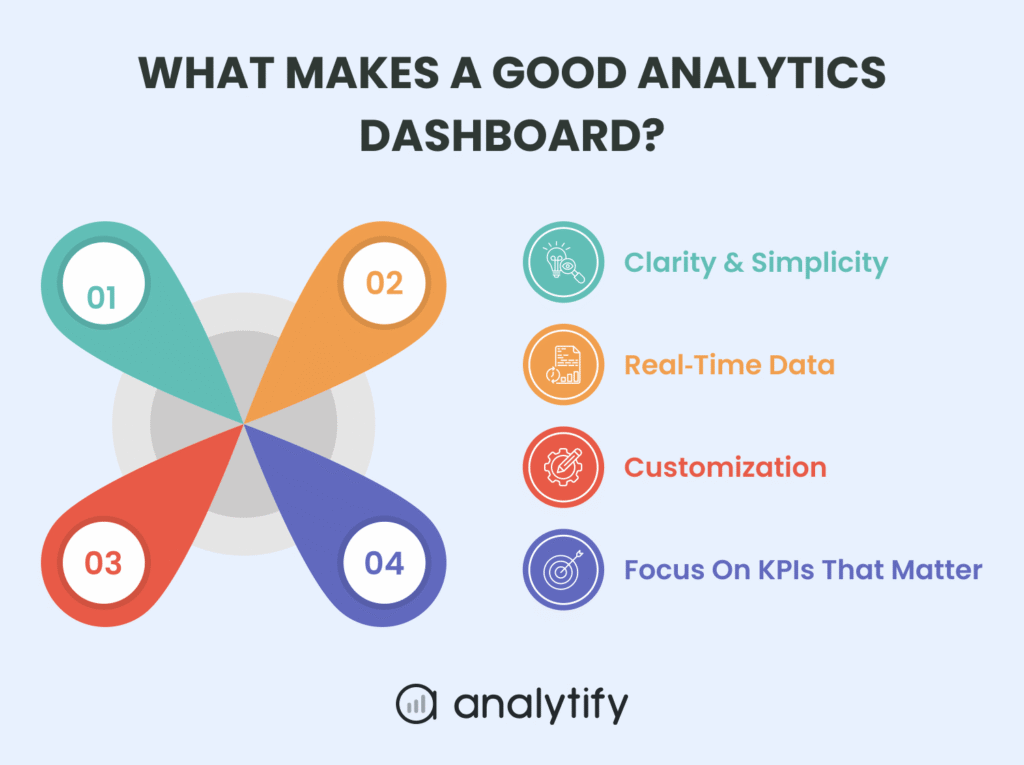
Google Analytics 4 (GA4) provides a powerful but flexible reporting system. However, its default interface can feel complex for many users.
The “Reports” and “Explore” sections allow you to view detailed metrics, including users, sessions, engagement rate, and conversions.

These reports are highly customizable, but they often require time and experience to set up properly.
An effective analytics reporting dashboard built on GA4 should display real-time or near-real-time data.
This would enable users to monitor performance in real time, providing quick responses to changes in traffic, engagement, or conversions.
For example, you can track sudden drops in traffic or spikes in conversions and act immediately.
Customization is another key strength of GA4 dashboards.
Users can adjust reports, apply filters, and build custom explorations based on their goals.
However, this flexibility can also make GA4 overwhelming without proper structuring or predefined views.
A good dashboard should also focus on key performance indicators (KPIs). In GA4, these include sessions, engaged sessions, conversion rate, revenue, and user engagement metrics.
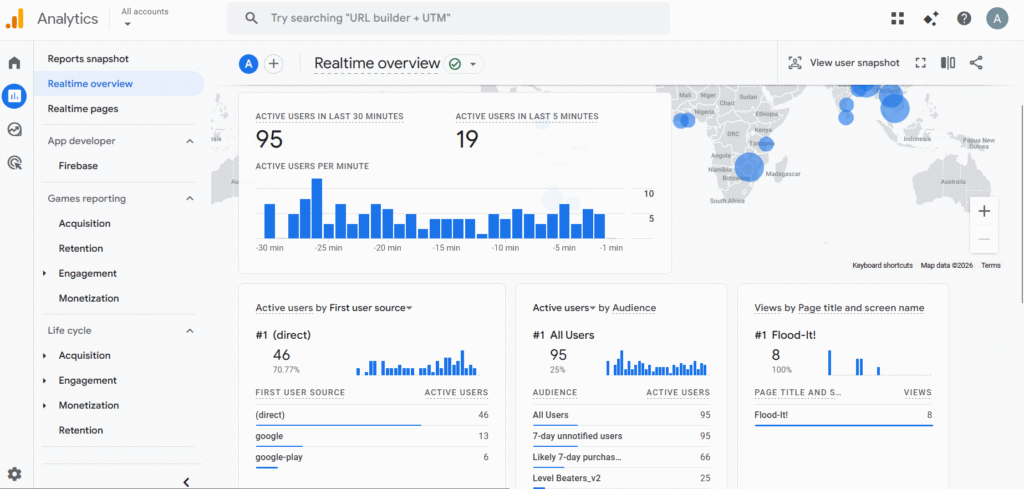
By prioritizing KPIs, teams avoid unnecessary distractions and stay aligned with business objectives.
When asked, “What are the best analytics dashboards for website owners?”, the answer is clear.
The most effective dashboards are those that simplify GA4 data into a clean, focused, and goal-oriented view.
Tools like Analytify enhance this experience by presenting GA4 data in a ready-to-use analytics dashboard, making insights easier to understand and act upon.
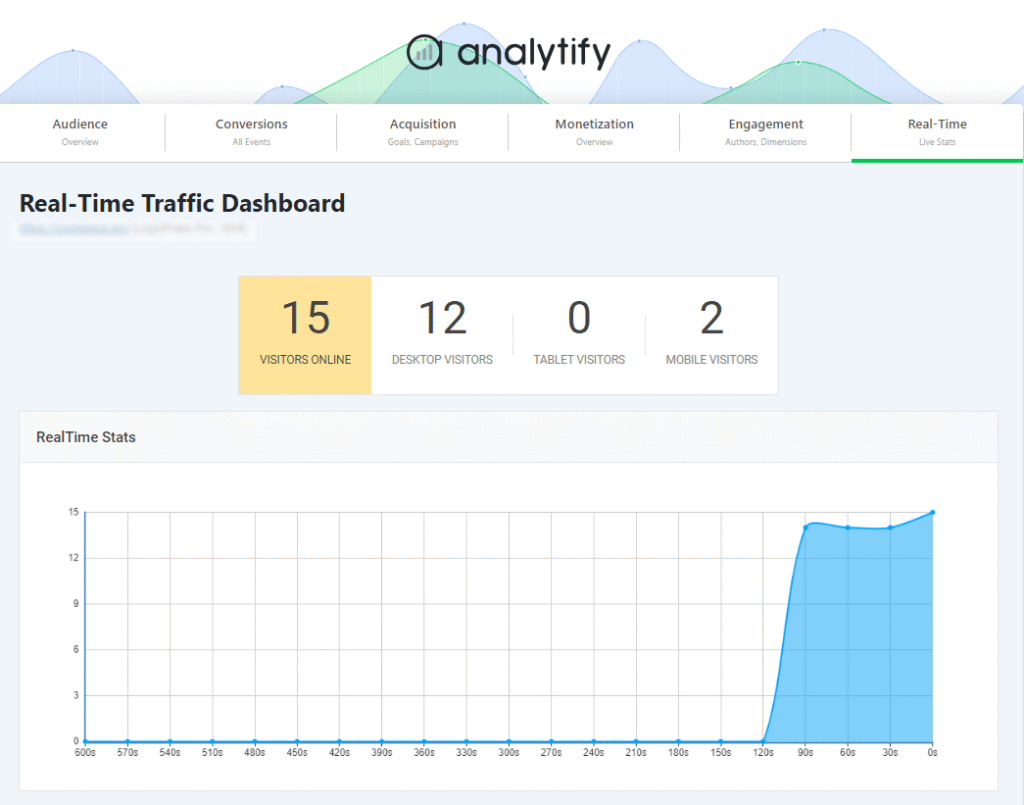
How to Create a Custom Website Analytics Dashboard
Building an analytics dashboard doesn’t have to feel overwhelming.
In 2026, you’re not building an analytics dashboard from scratch anymore; you’re setting up a tool that already does the heavy lifting for you.
Instead of stitching together data sources and designing reports manually, you can use Analytify to get a ready-made dashboard inside WordPress in a few steps.
Let’s walk through the process in a practical, real-world way.
Step 1: Choose the Right Analytics Dashboard Tool
Before anything else, pick the tool that will power your dashboard.
This decision affects how simple or complicated your workflow becomes. Here are your main options:
1. Google Analytics 4 (GA4)
GA4 is the foundation of all your tracking. It collects website data like users, sessions, conversions, and traffic sources.
It’s powerful but not user-friendly for daily use. Data lives across multiple reports, and building custom views takes time and technical know-how.
It works well for data collection, not quick decision-making.
2. Analytify
This is where things get simple. Analytify connects directly to your GA4 account and automatically brings your analytics into your WordPress dashboard.
No setup complexity, no report building, no tool switching. It already includes the reports most websites need:
- Sessions and users
- Traffic sources
- Top pages
- Real-time visitors
- Conversions and engagement metrics
Expert Tip: The real advantage of Analytify is that you don’t build a dashboard; you unlock one that’s already built.
3. Looker Studio

Looker Studio lets you build custom dashboards by connecting GA4 and other sources.
It’s flexible and visual, but you’ll need to design everything yourself, manage connectors, and maintain the dashboard over time.
It’s better suited for analysts or teams with technical resources, and for teams who prefer to customize each dashboard themselves.
Step 2: Install Analytify in WordPress
After selecting your preferred tool, the installation process is straightforward.
I will be using Analytify for this demonstration. Follow these steps:
- Log in to your WordPress admin panel
- Go to Plugins >> Add New
- Search for Analytify
- Click Install Now, then Activate
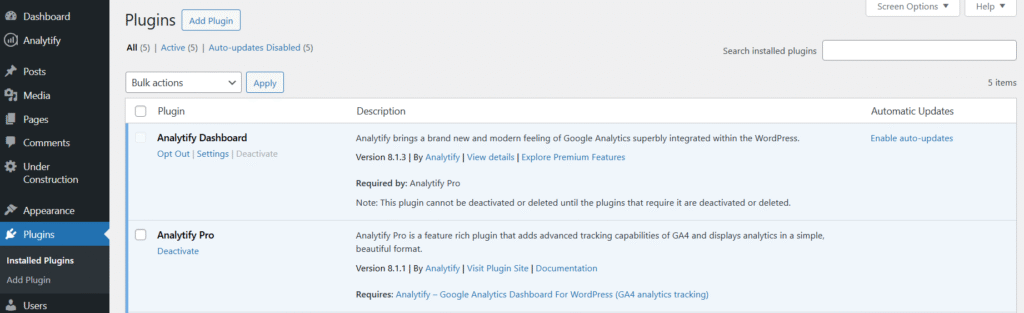
After activation, Analytify prompts you to connect your Google account.

Ensure you are logged into the Google account with access to your Google Analytics 4 property to streamline the authentication process.
No coding or complex configuration is required; only installation and activation are necessary.
Step 3: Connect Analytify to Your GA4 Property
At this stage, your analytics dashboard becomes operational.
- Go to Analytify>> Settings in your WordPress dashboard
- Click Authenticate and sign in with your Google account
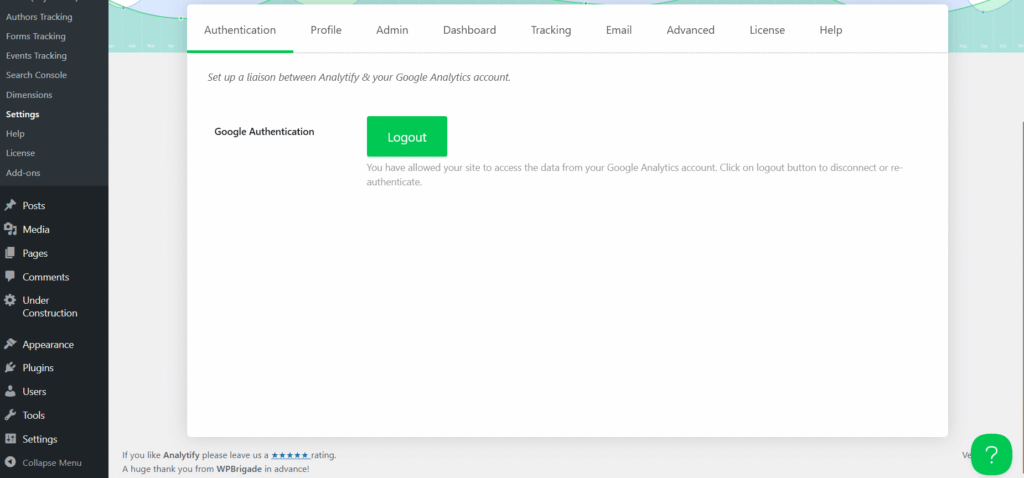
- Grant the required permissions
- Select your GA4 property from the dropdown
- Save your settings
After connection, Analytify automatically imports your analytics data and displays it within WordPress.
At this point, your dashboard is already populated with:
- Traffic overview
- User data
- Top-performing pages
- Real-time activity
- Audience insights
- Acquisition channels
Manual report creation and technical setup are unnecessary; all configurations are pre-set.
Step 4: Define the KPIs That Matter to Your Business
Before conducting analysis, first identify the metrics most relevant to the defined business objectives.
Consider the following guiding question: “What is the desired action for website visitors?”
The response to this question will inform the selection of appropriate KPIs.
Emphasize a concise and meaningful set of metrics, typically four to six. For example:
- Blog / Content sites
- Sessions
- Top pages
- New vs returning visitors
- Average engagement time
- eCommerce stores
- Revenue
- Conversions
- Traffic sources
- Product performance
- Service-based businesses
- Form submissions
- Bounce rate
- Organic traffic
- Conversion rate
- Marketing teams/agencies
- Campaign performance
- Channel traffic
- CAC
- Lead conversions
Analytify speeds up this process by highlighting commonly used metrics on its dashboard, allowing users to select the ones most relevant to their objectives.
KPIs serve as a filter; metrics that do not inform decision-making can be ignored.
Step 5: Enable the Right Add-Ons for Your Needs
After establishing the core dashboard, consider extending Analytify’s functionality according to specific business requirements.
Analytify provides add-ons that transform the dashboard into a specialized reporting hub:
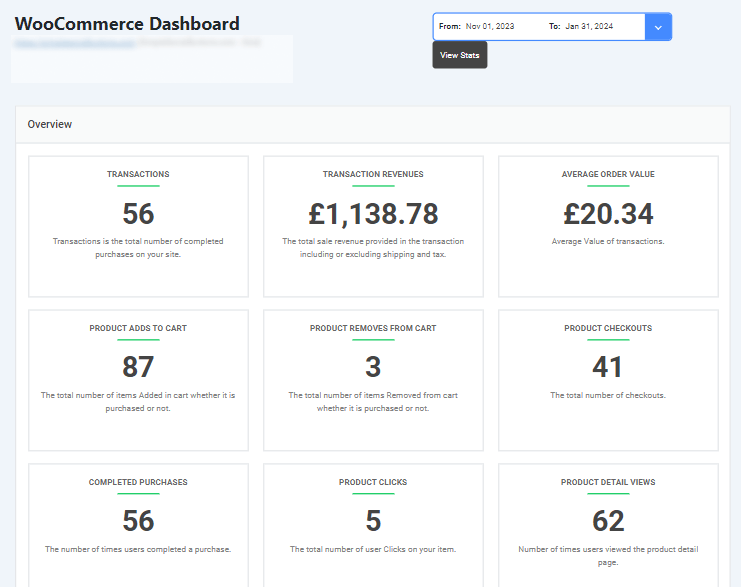
- WooCommerce Tracking: Track revenue, transactions, and product performance
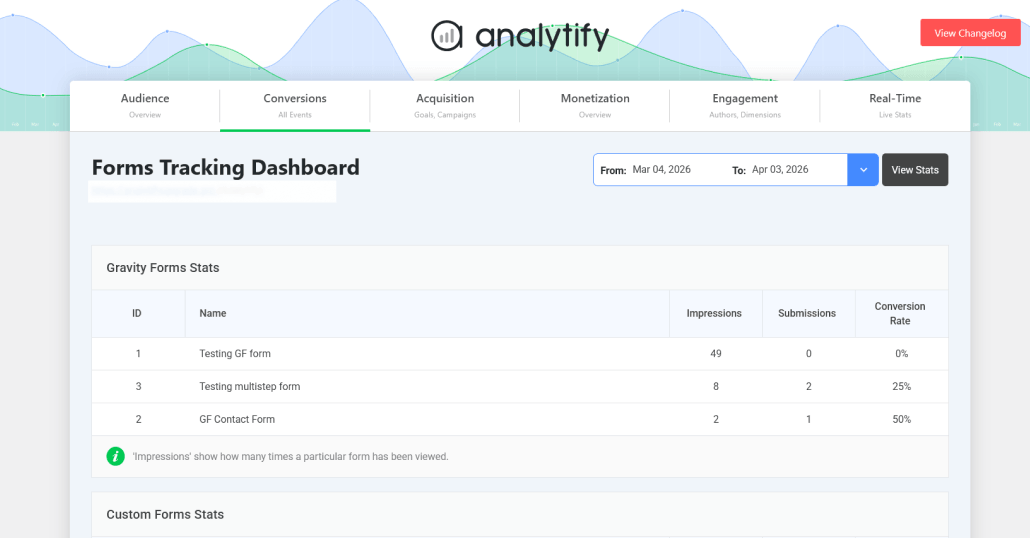
- Forms Tracking: Track submissions from various form plugins, such as Gravity Forms and Contact Form 7.
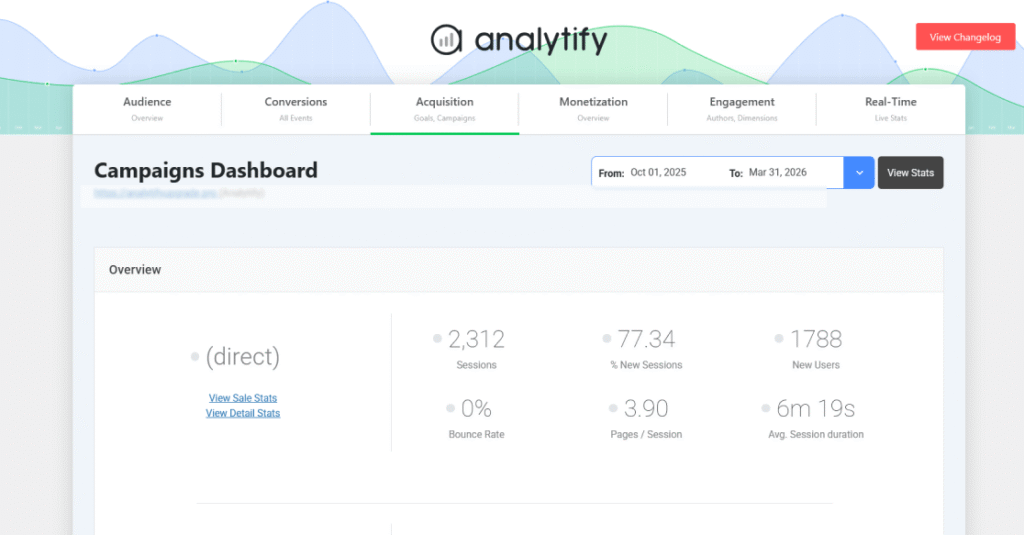
- Campaign Tracking: Monitor UTM campaigns and marketing performance
- Authors Tracking: See which content creators drive the most engagement
Step 6: Configure Automated Email Reports
Once the dashboard is configured, ensure that insights are delivered to relevant stakeholders efficiently.
Navigate to Analytify, select Email Reports, and complete the following steps:
- Choose report frequency (daily, weekly, or monthly)
- Add recipient emails (team members, clients, stakeholders)
- Select the metrics to include
- Save and activate
Suggested schedule:
- Fast-moving sites or campaigns, then add weekly reports
- Stable sites then add monthly reports
Once configured, analytics reporting becomes automated, eliminating the need for frequent manual logins.

For example:
- If you run an online store, WooCommerce tracking becomes necessary.
- For lead generation, form tracking is most relevant.
- For marketing campaigns, UTM tracking provides clarity.
Don’t activate everything; only enable what supports your goals. A focused dashboard always performs better than a cluttered one.
While most websites store analytics data in Google Analytics 4, challenges often arise with data access and usability.
With Analytify:
- Your dashboard is already built
- Your data is already connected
- Your reports are already structured
- Everything lives inside WordPress
No switching tabs. No building reports. No technical setup.
Users can transition directly from raw data to actionable insights.
This distinction highlights the difference between possessing analytics and actively utilizing analytics to inform decision-making.
Which Metrics Should Your Analytics Dashboard Track?
Most dashboards don’t fail because they lack data; they fail because they track the wrong things.
If your dashboard is cluttered with metrics that don’t drive decisions, it quickly becomes something you ignore instead of relying on.
And that’s where opportunities get missed. The goal isn’t to track more, it’s to track what actually moves your business forward.
A strong analytics dashboard focuses on a small set of clear, actionable metrics that tell you:
- What’s working
- What’s not
- What to do next
Let’s break down the essential metrics your dashboard should include, and why they matter.
Here are some important metrics that every analytics dashboard should have:
A. Audience Metrics
Audience metrics show you who is actually landing on your website—and whether they’re the people you want to attract.
- Sessions: Show the total number of visits to your site in a given period
- Users: Show the Unique visitors (your real reach)
- New vs. Returning Visitors: Show that the new traffic = growth. Returning visitors showcase loyalty
- Demographics: Show Age, location, interests
Here’s the important part: traffic alone means nothing if it’s the wrong traffic. These metrics help you validate whether your content and targeting are working, or if you’re attracting visitors who will never convert.
B. Engagement Metrics
Getting visitors is one thing. Getting them to stay and interact is another. You can think of these metrics as the first impression your visitors get. Visitors decide fast whether to stay or leave.
- Pageviews: Show how many pages users explore
- Bounce Rate: Shows the percentage of users who leave without taking action
- Average Session Duration / Engagement Time: Show how long people stick around
If engagement is high, your content is doing its job. If it’s low, something’s off, maybe your messaging, design, or page experience isn’t connecting.
C. Performance Metrics
Even great content won’t perform if your site is slow or confusing. Performance metrics evaluate your site’s speed and optimization.
A fast, smooth experience turns visitors into customers.
- Page Load Time: Shows how quickly your pages load
- Conversion Rate: Shows the percentage of users completing a desired action
- Goal Completions: Shows the Signups, purchases, and form submissions
This is where real business impact shows up. A slow site or broken flow kills conversions, no matter how good your traffic is.
D. Marketing and Acquisition Metrics
Acquisition metrics and marketing metrics help look at how people are finding you, and which channels actually work.
- Traffic Sources: Shows the organic, paid, referral, and direct
- Top Landing Pages: Shows the first pages users land on
- Campaign Performance: Shows how your ads and campaigns perform
These metrics answer critical questions, such as what’s driving results and what’s wasting your budget.
Once you know which channels bring high-quality traffic, you can double down on what works and cut what doesn’t.
Why These Metrics Matter
Strong website analytics includes all four categories. Together, they give a complete view of your website performance.
A good marketing analytics dashboard connects traffic to conversions.
It shows what works and what does not. This helps you improve results over time. Avoid tracking too many metrics; instead, focus on what matters most.
A simple and focused dashboard is easier to use and more effective.
By removing the friction between having data and understanding data, Analytify ensures that your business analytics dashboard becomes a tool you actually use to grow your revenue, rather than another tab you forget to open.
Best Practices and Tips For Website Analytics Dashboards
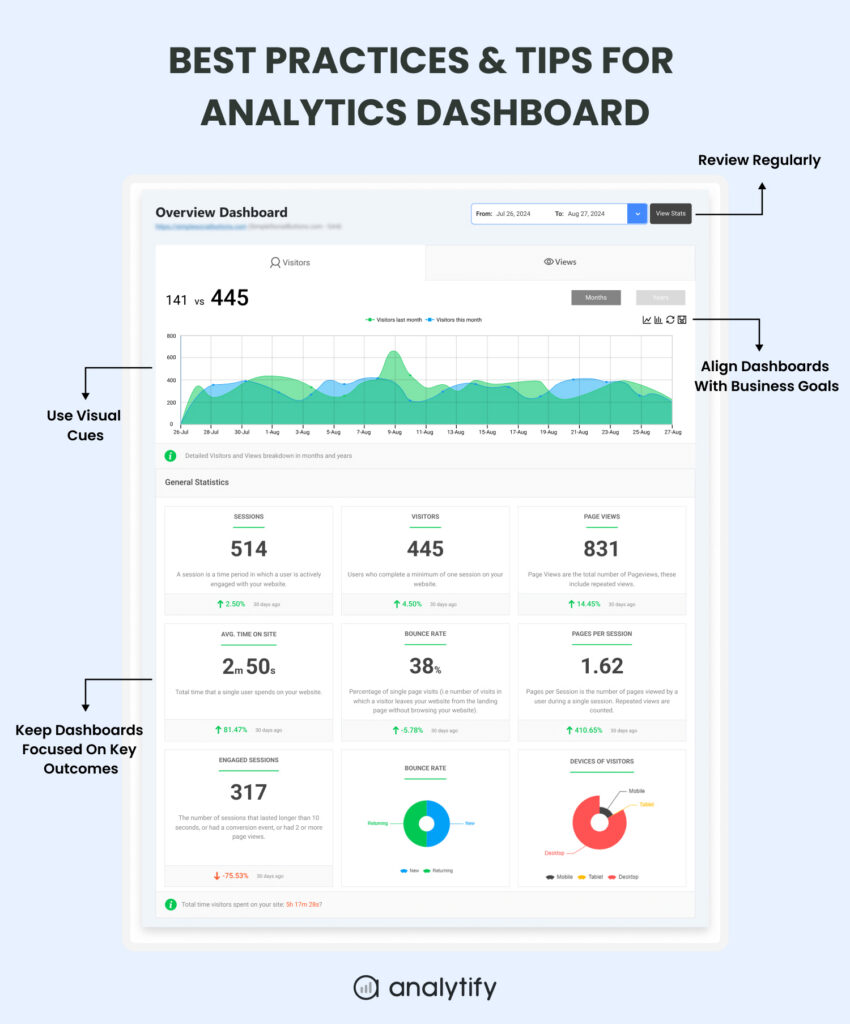
A well-designed dashboard should stay focused on key outcomes. Avoid tracking too many metrics at once. Instead, select a small set of KPIs that align with your business goals.
A clear and focused business analytics dashboard makes it easier to understand performance and take action quickly.
- Prioritize visual clarity by using charts, graphs, and simple visuals instead of raw data tables.
- Use colors to highlight trends such as growth or decline, and add alerts to flag sudden changes. These visual cues make a marketing analytics dashboard easier to scan and interpret at a glance.
- Review your dashboard regularly to keep it up to date. Data changes over time, so your dashboard should evolve as well.
- Check metrics weekly or monthly, update KPIs when goals change, and remove outdated or irrelevant data. This ensures your dashboard continues to deliver accurate and meaningful insights.
- Align your dashboard with business objectives. Every metric should serve a clear purpose.
- Focus on outcomes such as conversions, revenue, and growth rather than vanity metrics that do not impact decisions.
A strong business analytics dashboard connects data directly to real business results.
Keep your dashboard simple and avoid unnecessary clutter for better usability and faster insights.
Avoid clutter and use clear labels and structured layouts. A clean design improves readability and helps teams make faster, more informed decisions.
Common Dashboard Mistakes to Avoid
While many organizations develop dashboards, few utilize them effectively. The following common mistakes should be avoided to derive meaningful value from data.
- Tracking too many metrics can lead to data overload, making dashboards confusing. Emphasize only the key performance indicators that align with organizational objectives.
- Failure to align dashboards with business objectives diminishes their utility. Each metric should be directly connected to measurable outcomes such as conversions, revenue, or organizational growth.
- Neglecting to segment data by device type overlooks significant behavioral differences between mobile and desktop users. Comparing these segments is essential for actionable insights.
- Dashboards require ongoing review and updates. They should not be considered static tools. Regular evaluation ensures alignment with evolving organizational goals.
- Using only default reports instead of customizing. Default reports are generic. Customize your dashboard to match your business needs.
By avoiding these common errors, organizations can develop more effective dashboards that drive actionable results.
FAQs: Website Analytics Dashboard
1. What should a website analytics dashboard include?
An analytics dashboard should include a mix of traffic, engagement, and conversion metrics. This includes users, sessions, traffic sources, bounce rate, and conversion rate. It should also show top pages and campaign performance. The goal is to get a complete view of how your website is performing and where improvements are needed.
2. How often should I check my analytics dashboard?
You should check your dashboard regularly to stay up to date. For most businesses, a weekly review helps track trends and performance. A monthly review is useful for deeper analysis and strategy planning. If you run active campaigns or high-traffic websites, checking daily can help you respond quickly to changes.
3. What is the difference between a dashboard and a report?
A dashboard displays real-time data in a visual, easy-to-read format. It highlights key metrics and trends at a glance. A report, on the other hand, is more detailed and often static. Reports are used for in-depth analysis, while dashboards are designed for quick monitoring and faster decision-making.
4. What is the best analytics dashboard for beginners?
The best dashboard for beginners is simple and easy to use. It should not require technical setup or coding. A WordPress analytics dashboard, such as Analytify, is a good option. It displays key metrics clearly and helps users understand their data without complexity.
Conclusion: Analytics Reporting Dashboard
A well-built website analytics dashboard helps you turn raw data into clear insights. It allows you to track key metrics, understand user behavior, and measure performance in real time.
Instead of relying on complex reports, a dashboard provides a simple, visual way to monitor your website and marketing efforts.
Throughout this guide, we covered what makes a strong dashboard, the core metrics to track, and how to create dashboards for different roles.
We also looked at analytics dashboard examples and best practices to keep your data clean, focused, and useful.
The main goal of any dashboard is to make data actionable. When your metrics are clear and organized, you can make faster and smarter decisions that improve results.
Now is the time to set up your own analytics dashboard and start using your data effectively.
For more related posts, check out:
- Installing the Google Analytics Dashboard Widget by Analytify
- How To Select GA4 Profile for Analytics in WordPress Dashboard?
- Decision Intelligence Marketing: Turning Analytics into Business Actions (2026)
Try Analytify to quickly build a powerful dashboard inside WordPress.
Want to see what a fully connected analytics stack looks like? Explore Website Intelligence Systems.
Scaling analytics across a large organization? Read How To Leverage Website Analytics For Enterprise Website.
Want your dashboards to actually drive decisions? Explore Insight Led Marketing.
Managing an outsourced team? Read How To Use Staff Augmentation Analytics For Better ROI?
Want to see the ROI of your content efforts? Read How To Improve Content Marketing ROI.
Want your content to rank in AI-powered search results? Read AI Search Engine Optimization.
Need to share results with clients or stakeholders? Learn How To Share Your Google Analytics 4 Reports.