
How to Get Started With the Authors Tracking Add-On?
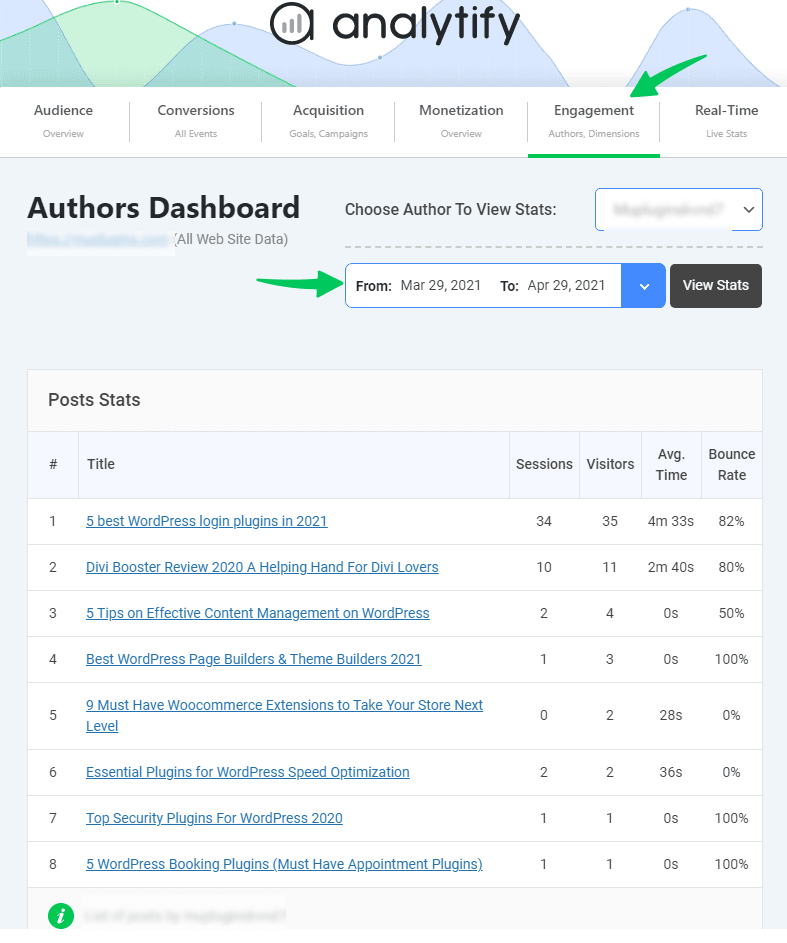
The Authors Tracking add-on for Analytify gives you a dedicated dashboard to compare the performance of every author on your site. You can see which authors drive the most traffic, which posts are performing best by author, and where content engagement is dropping off — all inside your WordPress dashboard.
This is especially useful for multi-author blogs and content teams where editorial decisions depend on real performance data.
What the Authors Tracking Add-on Does
Once activated, the add-on tracks author-level performance metrics across your site:
- Individual Author Tracking — page views, sessions, bounce rate, and average session duration per author
- Post Performance by Author — see how each post by each author performs in terms of traffic and engagement
- Top Authors Report — identify your highest-performing contributors at a glance
- Date-Range Filtering — filter author data by custom date ranges directly from the dashboard
- Role-Based Access — when an author logs into WordPress, they can view only their own post statistics, keeping your full site data private
Before You Begin
Make sure both of these are in place before starting:
- Analytify Pro is installed and activated. See How to Install and Activate Analytify Pro if needed.
- Analytify is connected to a Google Analytics 4 property. See How to Integrate Analytify with Google Analytics 4.
Step 1: Activate the Authors Tracking Add-on
In your WordPress admin dashboard, go to Analytify >> Add-ons from the left sidebar.
Find the Authors Tracking card and click Activate add-on.
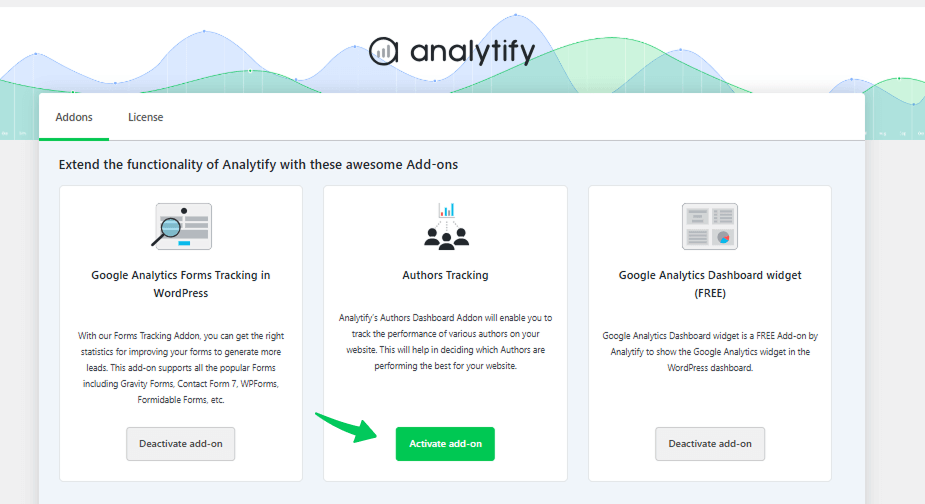
Once activated, the button changes to Deactivate add-on. The add-on is now running.
No zip file download or plugin upload is required. Authors Tracking is bundled inside Analytify Pro and activated directly from this page.
Step 2: Set Up the Author Dimension in Analytify
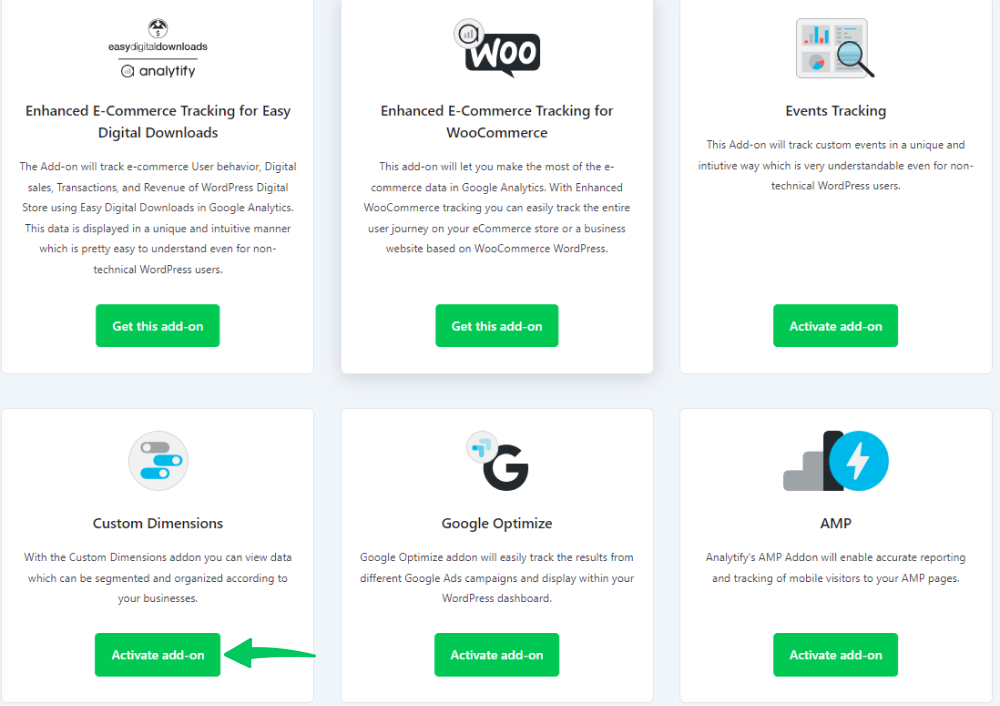
Authors Tracking requires the Custom Dimensions add-on to be active. Custom Dimensions is what tells Google Analytics 4 to associate your traffic data with specific authors.
If the Custom Dimensions add-on is not yet active, go to Analytify >> Add-ons, find the Custom Dimensions card, and click Activate add-on before continuing.
Once Custom Dimensions is active, go to Analytify >> Settings and click the Tracking tab. Then select Custom Dimensions.
Click Add Dimension and select Author from the list of available dimensions. Then click Save Changes.
For a full walkthrough of the Custom Dimensions setup, see How to Get Started with Custom Dimensions.
Step 3: Create the Author Custom Dimension in Google Analytics 4
After setting the Author dimension in Analytify, you need to create a matching custom dimension inside your GA4 property. This is how GA4 knows to receive and store author data.
1. Open Custom Definitions in GA4
Go to Google Analytics and click the Admin gear icon in the bottom left corner. Select your GA4 property, then navigate to Custom Definitions >> Create Custom Dimensions.
2. Configure and Save the Dimension
Fill in the following fields:
- Dimension Name: Author
- Scope: Event (author data is captured at the event level, for example during a page_view)
- Description: Optional — add a note to help you identify this dimension later
Click Save.
Note: After saving, allow 24 to 48 hours for data to start appearing. GA4 does not backfill historical data for new custom dimensions.
Step 4: View Your Authors Tracking Data
Once the add-on is active and the dimension is configured in both Analytify and GA4, author data will begin populating your dashboard.
You can access the Authors Tracking dashboard:
Navigate to Analytify >> Dashboards >> Engagement >> Authors.
Use the date range selector in the top right corner of the dashboard to filter data by a specific time period.
How to Use Authors Tracking Data
The Authors Tracking dashboard shows page views, sessions, bounce rate, and average session duration for each author. Here is how to act on that data:
- High traffic, high bounce rate — the author drives visitors but the content may not be matching what readers expect. Review titles and content depth.
- Low traffic, low bounce rate — engaged readers, but the content is not being discovered. Look at SEO and promotion for those posts.
- Consistently high performers — identify what topics and formats those authors use and apply those patterns across your content strategy.
You have successfully set up Authors Tracking in Analytify. Author-level performance data will now appear in your dashboard once GA4 begins processing the custom dimension.
If you run into any issues, reach out to the Analytify support team.
Are you interested in adjusting the Bounce Rate of your blog/website with Analytify? See our guide on How to Adjust the Bounce Rate with Analytify.