
How to Setup Enhanced eCommerce Tracking for LearnDash with Analytify
Analytify’s Ecommerce tracking for LearnDash connects LearnDash to Google Analytics (GA4) and displays course transactions, revenue, funnel performance, and learner activity data directly inside your WordPress dashboard.
Once the addon is active, tracking runs automatically with no additional setup required.
In this guide, we will explore how to set up LearnDash tracking with Analytify.
LearnDash Tracking with Analytify (TOC):
Prerequisites
Before you begin, make sure your setup includes:
- A WordPress website compatible with LearnDash
- LearnDash LMS plugin installed and activated
- Analytify (free version) installed and connected to Google Analytics (GA4)
- Analytify Pro plugin installed and activated
Step 1: Install and Activate Analytify Pro
Analytify Pro must be installed and activated before the LearnDash addon can be enabled.
You can follow this guide to install and activate it:
Set Up Analytify Pro Plugin
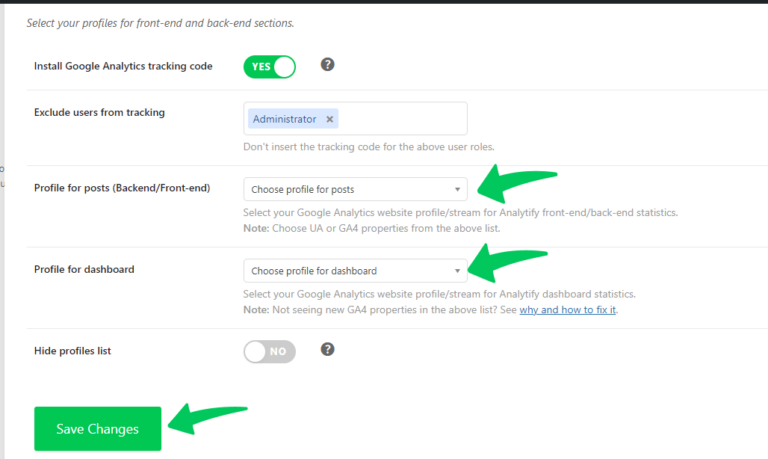
Don’t forget to connect your GA4 property via:
Analytify >> Settings
Step 2: Activate the LearnDash LMS Addon
Once Analytify Pro is active, enable the LearnDash addon to acquire the Enhanced eCommerce Tracking for LearnDash LMS:
- Go to Analytify >> Addons
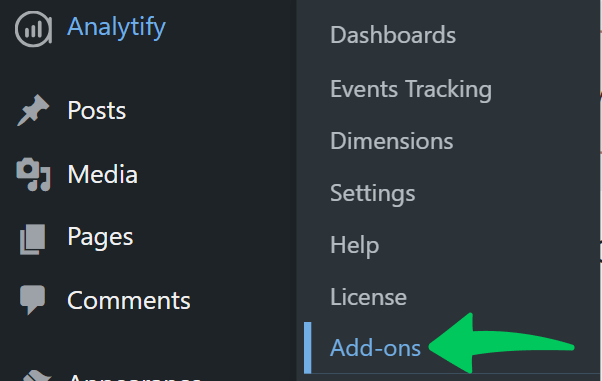
- Locate the LearnDash Addon (under Pro addons)

- Click Activate to install Enhanced eCommerce Tracking for LearnDash LMS.
After activation, Analytify loads the required tracking scripts and automatically begins collecting LearnDash data for Enhanced eCommerce Tracking for LearnDash LMS.
Note: If the addon is inactive, you may see a prompt like
“Unlock Google Analytics Tracking for LearnDash LMS” on this page.
Step 3: Access the LearnDash Analytics Dashboard
After activation, you can view LearnDash analytics inside WordPress:
- Go to Analytify >> LearnDash LMS (Course Analytics)
The dashboard opens to an Overview section.
Use the date range selector (From / To + View Stats button) to filter all data by a custom period.

Overview Metrics: Enhanced eCommerce Tracking for LearnDash LMS
The following metrics are confirmed in the Overview section:
| Metric | What It Measures |
|---|---|
| Sessions | Total number of sessions (Image 2 shows 4,881) |
| Transactions | Total completed course purchases |
| Transaction Revenue | Total revenue from course purchases |
| Average Order Value | Average value per transaction |
| Completed Purchases | Number of times users completed a purchase |
| Refunds | Total number of refunds |
| Conversion Rate | Percentage of sessions resulting in a transaction |
| Refund Rate | Percentage of transactions that were refunded |
| Sessions to Purchase | Average sessions per user before purchasing |
| Days to Purchase | Average days from first visit to purchase |
LearnDash Funnel
Analytify displays a three-stage purchase funnel for LearnDash courses, showing how learners move from checkout intent to completed purchase.
| Funnel Stage | Count | Conversion Rate by Stages |
|---|---|---|
| Begin Checkout | 119 | 93.28% |
| Add Payment Info | 111 | (intermediate) |
| Purchase | 104 | 93.69% |
The funnel shows the conversion rate at each stage. Use this to identify where learners are dropping off before completing a course purchase.
Full Dashboard Report Sections
The Enhanced eCommerce Tracking for LearnDash LMS includes the following report sections:
| Report Section | Data Columns | Use Case |
|---|---|---|
| Overview | Sessions, Transactions, Transaction Revenue, AOV, Completed Purchases, Refunds, Conversion Rate, Refund Rate, Sessions to Purchase, Days to Purchase | High-level course commerce snapshot |
| LearnDash Funnel | Begin Checkout, Add Payment Info, Purchase (count + Conversion Rate by Stages) | Identify drop-off points in the purchase flow |
| Top Courses | Course Name, Revenue, Purchases, Views, Conversion Rate | Identify best-performing courses by revenue and conversion |
| Top Traffic Sources | Source/Medium, Sessions, Bounce Rate, Transaction Revenue | See which channels drive course purchases |
| User Journeys | Page Title, Page Path, Pageviews, Sessions, Avg. Duration | Understand pre-purchase browsing behaviour |
| Course Page Insights | Page Title, Views, Bounce Rate, Avg. Engagement Time | Measure course page engagement and interest |
| LearnDash Activity Tracking | Item Name, Course Views, Course List Views, Course Selections, Lesson Views, Course Enrollments | Per-course engagement and enrollment breakdown |
| Top Coupons | Coupon, Purchases, Revenue | Measure discount code performance |
Step 4: Verify Tracking Is Working
To confirm that enhanced eCommerce Tracking for LearnDash LMS is set up correctly:
Perform Test Actions
- Enroll in a course
- Complete lessons or topics
- Attempt or complete a quiz
- Purchase a paid course (if applicable)
Then Check Data
- Go to Analytify >> LearnDash Dashboard
- Verify that data appears in the dashboard
Optional (GA4 Verification)
You can also check your Google Analytics property:
- Look for LearnDash-related events
- Confirm conversions such as:
- Course enrollments
- Course completions
What Happens Next?
Once the addon is active:
- Tracking runs automatically
- No additional coding or configuration is required in most cases
Facing any problems with Ecommerce tracking for LearnDash or have questions? Contact the Analytify support team for quick assistance.
 Halloween Sale: Know which campaigns drive sales this season.