
How to Set Up Pinterest Pixel Tracking with Analytify
Pinterest Pixel Tracking in Analytify allows you to integrate your Pinterest Tag without manual coding.
This setup in the Analytify pixels tracking add-on lets you track visitor behavior and optimize your Pinterest ad campaigns directly on your WordPress site.
In this guide, we’ll walk you through the simple steps to set up Pinterest pixel tracking, ensuring you can start making data-driven decisions in minutes.
Pinterest Pixel Tracking (TOC):
Step 1: Find Your Pinterest Tag ID
To connect Pinterest to Analytify, you first need to retrieve your unique Tag ID from the Pinterest Ads Manager.
- Log in to Pinterest AdsManager.

- Navigate to Ads >> Conversions.

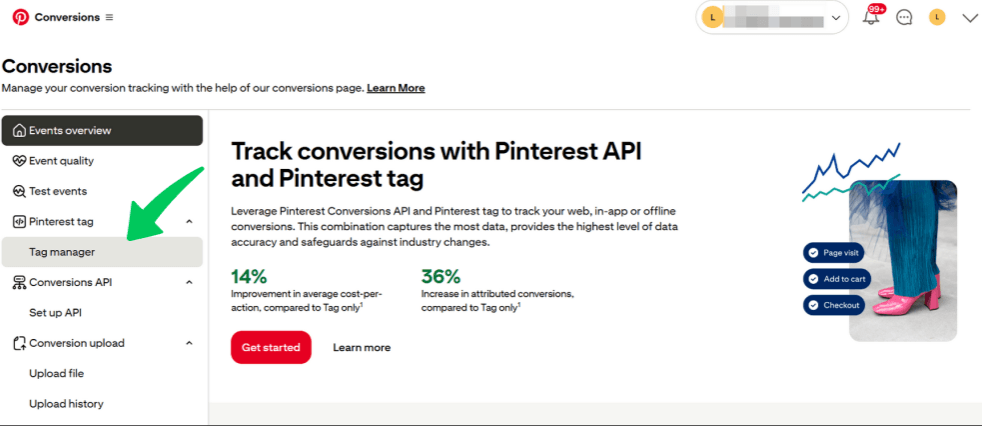
- Click on Tag Manager in the left-hand menu.
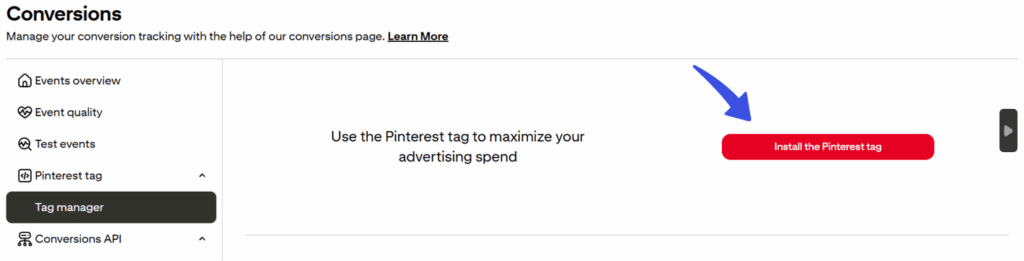
- Select Install the Pinterest Tag.
- On the Data Source page, locate your Tag ID (an alphanumeric string) in the top-right corner. Copy this ID.

Step 2: Enable the Pixels Tracking Addon
- Log in to your WordPress dashboard.
- Navigate to Analytify >> Addons.
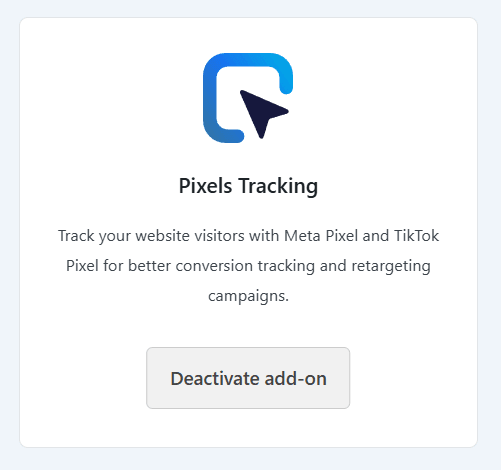
- Find Pixels Tracking in the list and click Activate.
Step 3: Configure Pinterest Tracking in Analytify
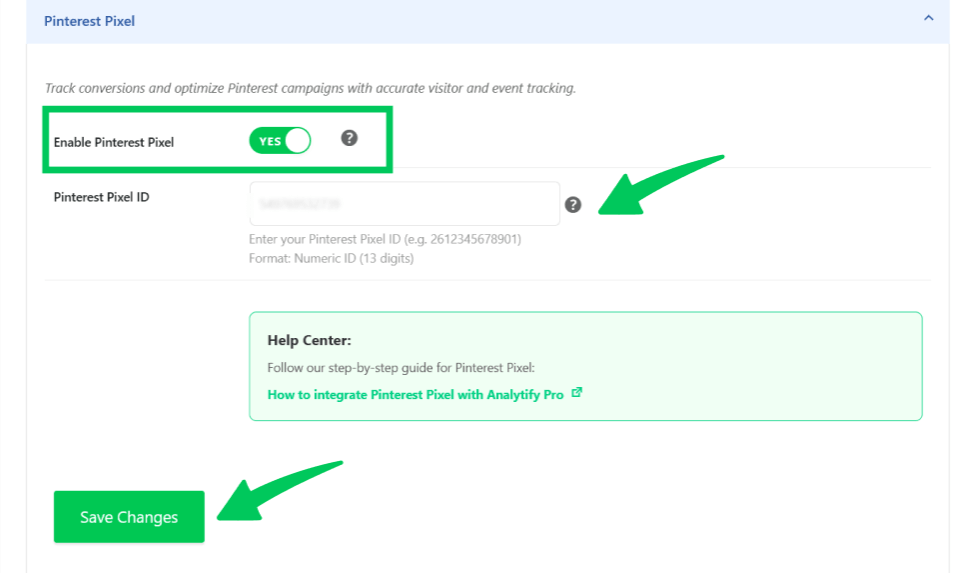
- Go to Analytify >> Settings and click the Tracking tab.
- Select Pinterest from the platform dropdown menu.
- In the Pinterest Tag ID field, paste the ID you copied from Pinterest.
- Ensure there are no extra spaces and click Save Changes.
Step 4: Verify Tracking
Once saved, your Pinterest Pixel will automatically fire for supported events (such as page views). To confirm it is working:
- Visit your website in a new window.
- Go to Pinterest Ads Manager >> Events Overview.
- Verify that incoming events are appearing for your Tag ID.
Final Thoughts
- No Code Required: Analytify automatically handles script injection across all pages.
- Data Delay: It may take a few minutes for new events to reflect in the Pinterest Ads Manager interface after your first visit.
- Browser Extensions: You can use the “Pinterest Tag Helper” Chrome extension to verify that the tag is firing correctly on the frontend.
Explore other pixel tracking documentation below:
- LinkedIn Insight Tag Tracking with Analytify
- X (Twitter) Pixel Tracking with Analytify
- Microsoft Pixel Tracking with Analytify
- Meta Pixel Tracking with Analytify
Have questions or need guidance? Our support team will be happy to help you.