
Documentation
Print This page
— Print the full How to Set Up (Twitter) X Pixel Tracking with Analytify documentation

Go to Events Manager – X 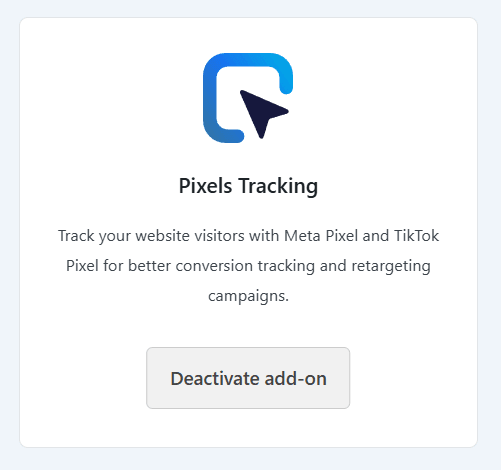
Enable Pixels Tracking Add-On – Analytify 
Enable Twitter X Pixels Tracking option – Analytify
How to Set Up (Twitter) X Pixel Tracking with Analytify
The Analytify X Pixel Tracking allows you to integrate your Twitter pixels without manual coding.
This Analytify pixels tracking add-on enables you to track visitor behavior and measure the effectiveness of your X ad campaigns directly from your WordPress site.
In this guide, we’ll walk you through the simple steps to set up X pixel tracking using the Analytify pixel tracking add-on.
X Pixel Tracking (TOC):
Step 1: Find Your X Pixel ID
Before connecting to Analytify, you must retrieve your unique Pixel ID from the X Ads Manager.
- Log in to X Ads Manager.
- In the top navigation menu, click Tools and select Events Manager.
- If you haven’t created a pixel, click Add event source (or “Install with Pixel code”).
- Follow the prompts to initialize the pixel. Once created, the system will display your unique Pixel ID. Copy this identifier.
Step 2: Enable the Pixels Tracking Addon
- Log in to your WordPress dashboard.
- Navigate to Analytify >> Addons.
- Find Pixels Tracking Add-On in the list and click Activate.
Step 3: Configure X Tracking in Analytify
- Go to Analytify >> Settings and click the Tracking tab.
- Select X from the platform dropdown menu.
- In the X Tag ID field, paste the ID you copied from the X platform.
- Ensure there are no extra spaces and click Save Changes.
Step 4: Verify Tracking
Once saved, your X Pixel will fire automatically for supported events, such as page views. To confirm it is working:
- Visit your website in a new window.
- Go back to X Ads Manager >> Tools >> Events Manager.
- Check the Events Overview to verify that incoming signals are being recorded.
Final Thoughts
- Automatic Integration: Analytify handles the script injection across your entire site, removing the need for manual header code edits.
- Verification Tools: Use the “X Pixel Helper” Chrome extension to verify that the tag is firing correctly on the frontend.
Explore other pixel tracking documentation below:
- Snapchat Pixel Tracking with Analytify
- TikTok Pixel Tracking with Analytify
- Pinterest Pixel Tracking with Analytify
- Meta Pixel Tracking with Analytify
If you have any questions or need help, feel free to reach out to our support team.
Last updated on
April 29th, 2026
— This documentation page was last updated on April 29th, 2026