How to Use Google Analytics To Increase Traffic (10 Easy Ways)

To use Google Analytics to increase traffic, I recommend finding which pages, channels, and content bring in traffic in GA4, then building on what works and fixing what falls short.
If GA4 is not set up on your site yet, I recommend this guide first: How to Set Up Google Analytics 4 and Connect it to Your WordPress Site?.
Website traffic is a core metric for judging SEO and digital marketing campaigns, so you need a way to measure the website traffic and find ways to improve your site’s structure and content. I show you how to use Google Analytics to increase traffic, with ten ways GA4 helps you uncover traffic patterns and areas of improvement.
In this article:
How to Use Google Analytics To Increase Traffic
Google Analytics helps you increase traffic by showing which devices, content, and channels bring visitors, so you can improve each one. These are 10 ways to use it.
Note that Google Analytics is a website traffic analytics platform that provides detailed information about the various aspects of website traffic and user behavior.
1. Be Mobile-First
Google puts mobile users first when designing its products and websites. That’s because over 6.6 billion people around the world use smartphones, making mobile browsing a huge part of the internet today (Statista).
Imagine you have a shop, and you know most of your customers use bicycles to come to you. You should have a bicycle stand nearby, right? Similarly, if you know most of your website visitors are using their phones to visit your site, you’d want to make sure your website looks great and is easy to use on a phone. It is about improving their experience, which can lead to more visits or increase traffic to your website.
Knowing the device category (like mobile, tablet, or desktop) helps you:
- Improve user experience: Make your site easy to use across common devices such as smartphones, tablets, and other hand-held devices.
- Increase organic search traffic: Search engines like Google love websites that work well on mobile devices, which can lead to improved rankings and more organic traffic subsequently.
- Tailor your content: Mobile visitors may prefer short, snappy content, while desktop users like detailed articles. Knowing the device can help you decide what content to create.
How to Find Device Category in GA4
Finding out what devices people are using to visit your website in GA4 is simple. Let’s see how:
- Log into GA4: First, sign in to your Google Analytics account and select the property (website) you want to check.
- Explore Reports: On the left side, you’ll see a menu. Click on Reports to open up the options.
- Go to User Reports: Navigate to Users >> Tech. You’ll find different reports about your visitors.
- Find Device Category: Device category is one of the dimensions in the Tech details report. It shows the breakdown of visitors using mobile, desktop, or tablet.
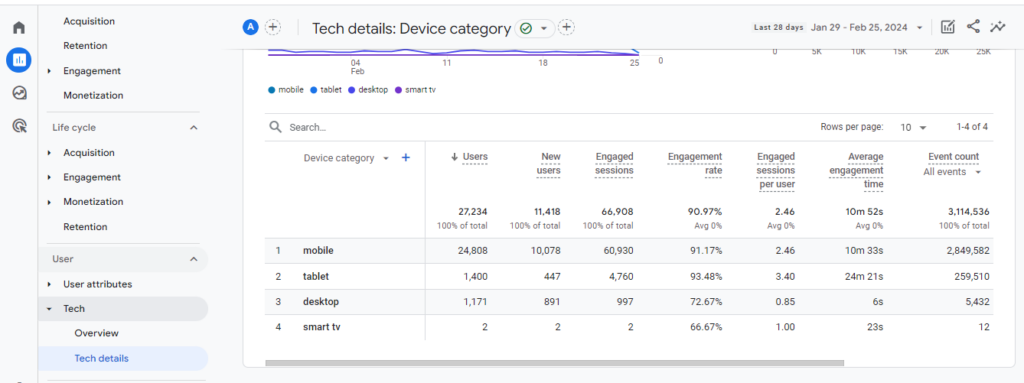
- Analyze the Data: Now, you can see how many people visit your site from each type of device. This information is gold because it tells you where to focus your efforts. If most of them are mobile phone visitors, making your site mobile-friendly is super important.
It’s time to act after you find out which devices your visitors are using. If you see a lot of mobile users, make sure your website’s mobile version is fast, ensures responsiveness, and is easy to navigate. If desktop users are the majority, ensure your website offers them the best experience as well.
By understanding and acting on device category data from GA4, you can make your website more welcoming for everyone. It not only helps to increase traffic but also ensures your visitors have a great time on your site, making them more likely to return.
2. Reduce the Bounce Rate to Increase Engagement Time and Conversions
In GA4, bounce rate is the percentage of sessions that were not engaged. A high bounce rate means visitors aren’t finding what they expected, and it’s a critical factor if you’re looking to improve the conversion rate by reducing the bounce rate.
Understanding Bounce Rate
In GA4, a session counts as engaged if it lasts longer than 10 seconds, has a key event, or has two or more page or screen views. Bounce rate is the percentage of sessions that do not meet any of these criteria. A high bounce rate can indicate that your site may need to be more engaging and relevant. The content may not be what the visitor expected, the layout is confusing, or the page takes too long to load. Whatever the reason, a high bounce rate can hurt your chances of converting visitors into customers.
You must need to track the A low bounce rate (high engagement rate) indicates a well-designed site that keeps users interested. This can lead to:
- Increased time on site: Users who find your content valuable are more likely to spend more time browsing.
- Deeper exploration: Engaged users might visit more pages, increasing overall traffic within your site.
- Improved SEO: Search engines may favor sites with better user engagement, potentially leading to more organic traffic.
How to Find Bounce Rate in GA4
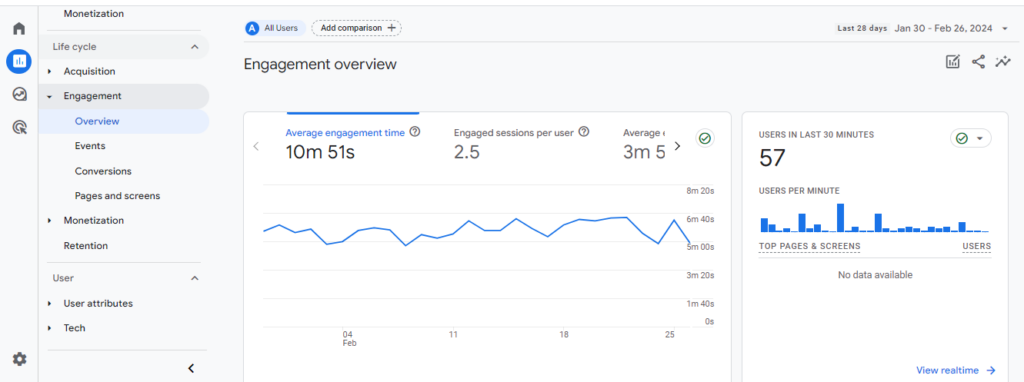
GA4 reports both engagement rate and bounce rate. Bounce rate is the inverse of engagement rate: it is the percentage of sessions that were not engaged. Most GA4 reports do not show either metric by default, so you add them to a report yourself.
To see bounce rate in GA4, add it to a detail report. Here’s how:
- Sign in to GA4: Access your GA4 account and choose the appropriate website property.
- Navigate to Reports: On the left menu, click on Reports.
- Access Engagement Reports: Look for a report section related to Engagement and select it. Here, you can find metrics related to how users interact with your site, including engagement rate, which inversely reflects your site’s bounce rate.
Strategies to Reduce Bounce Rate and Improve Web Traffic:
High-Quality Content: Publish informative and valuable content that addresses your target audience’s needs and search intent.
Target Relevant Keywords: Optimize your content for relevant keywords to attract users searching for those terms.
Speed is King: Ensure your website loads fast. Use tools like Google PageSpeed Insights to identify areas for improvement (e.g., image optimization, caching).
Mobile-First Design: A large chunk of traffic comes from mobile devices. Prioritize a responsive design that offers a smooth mobile experience.
By implementing these strategies, you can create an easy-to-use website with engaging content, ultimately reducing bounce rate and fostering a loyal user base that keeps your web traffic healthy.
3. Identify & Optimize Your Best Content
To effectively increase website traffic, understanding the performance of your landing pages is crucial. Google Analytics 4 (GA4) offers insights into how users interact with your site from the moment they land, providing valuable data to optimize these entry points. Here’s how to see landing pages in GA4 and use that information to increase traffic.
How to Access Landing Page Reports in GA4
- Log in to Google Analytics 4: Start by logging into your GA4 account and selecting the property associated with your website.
- Navigate to Reports: On the left-hand side, click on Reports to access the overview of analytics reports available.
- Use the Life Cycle Report: Within Reports, navigate to the “Life Cycle” section. Here, you’ll find various reports related to how users interact with your website at different stages of their journey.
- Select the Engagement Report: Under the Life Cycle section, go to Engagement >> Landing Pages.
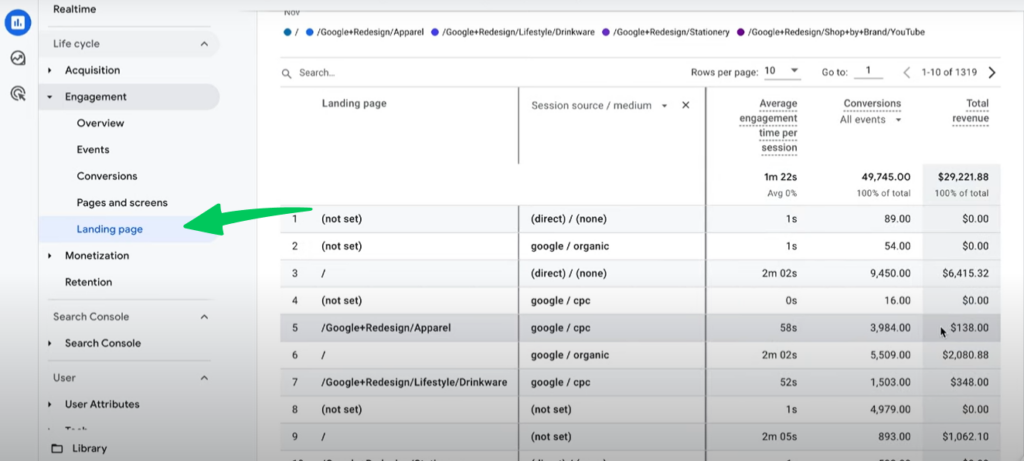
You can also see landing page reports from the Analytify dashboard from your WordPress site. Analytify is a great WordPress plugin to smooth your site integration with Google Analytics.
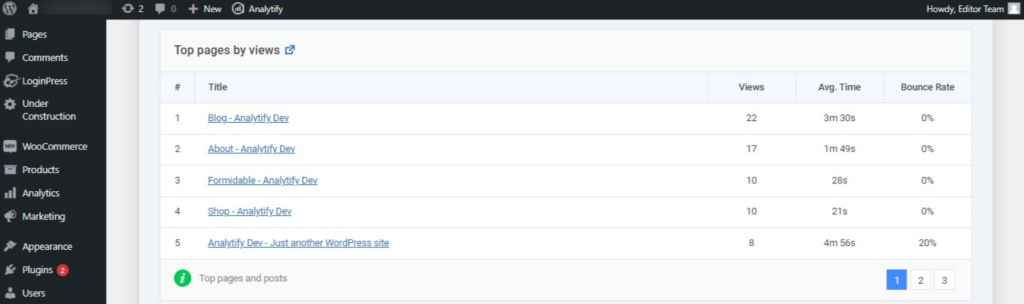
Strategies to Optimize Your Best Content
Identify High-Performing Entry Points
By analyzing the pages where users start their sessions, you can identify which landing pages are effectively attracting visitors. Understanding these high-performing entry points allows you to replicate successful elements across other pages or campaigns to increase organic search traffic and overall site visits.
Optimize User Experience from the First Click
GA4 provides data on user engagement metrics such as time on page and bounce rate for your landing pages. By evaluating these metrics, you can optimize the user experience (UX) to ensure visitors find value from the moment they land on your site. Improving the UX on entry pages can significantly reduce bounce rates and encourage deeper site exploration, thereby increasing traffic.
Tailor Content to Match User Intent
Seeing which landing pages draw the most traffic gives you insights into user intent and preferences. This information allows you to tailor the content of those and related pages to meet user expectations and needs in a better way. You can enhance engagement and increase website traffic by aligning your content strategy with the user search intent.
Improve SEO for Key Landing Pages
Identifying your top landing pages lets you focus your SEO efforts on optimizing these critical entry points. Use GA4 data to refine your keyword strategy, improve meta descriptions, and ensure your landing pages are mobile-friendly and fast-loading. Enhanced SEO efforts on these pages can lead to better search engine rankings, driving more organic search traffic to your site.
4. Discover your Best Traffic Sources & Referrers
Discovering your best traffic sources and referrers is critical in optimizing your website’s traffic strategy. Google Analytics 4 (GA4) offers advanced tools and reports to help you identify where your visitors are coming from, allowing you to focus your marketing efforts on the most effective channels. Understanding how to use this data can significantly increase website traffic and improve your site’s performance. Here’s how to discover your best traffic sources and referrers in GA4 and how it can help increase traffic.
How to Identify Traffic Sources & Referrers in GA4
Navigate to Reports >> Acquisition >> Traffic acquisition report: This report shows the channels contributing to your site’s traffic, including organic search, direct, referral, social, and others.
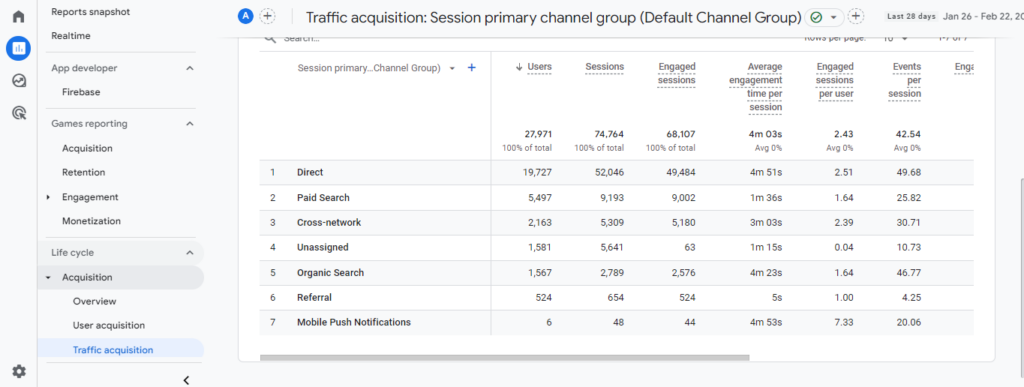
Within the “Traffic acquisition” report, look for the “Referral” channel to see which external sites are sending traffic to your website.
Analytify makes things easier by showing your website to referrals in the Audience tab. Simply scroll down to the Top referral card to see the top referring domains.
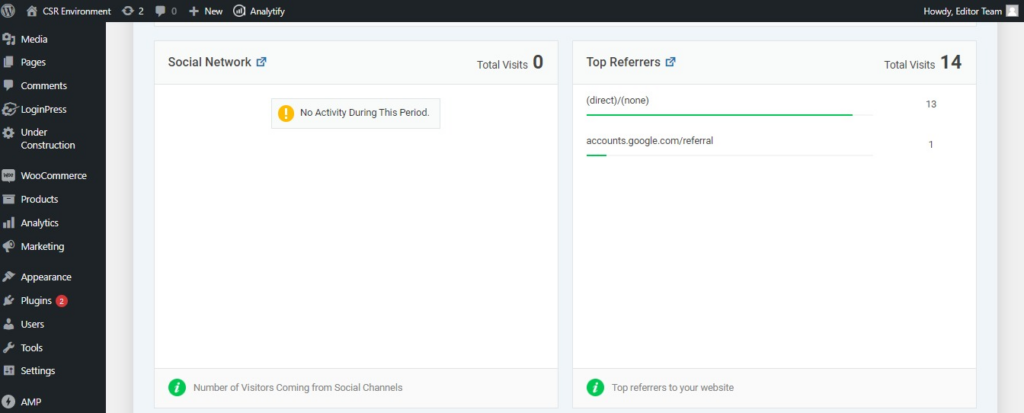
How This Data Can Help Increase Traffic
Focus on High-Performing Channels
You can allocate more resources and effort into these areas by identifying which channels are driving the most traffic, or the highest quality of traffic. For example, if organic search is a significant traffic driver, focusing on SEO and content strategy can further increase organic search traffic.
Optimize for Referral Traffic
Understanding which external sites are referring traffic to your site allows you to see which partnerships or external content are beneficial. You might find opportunities to strengthen relationships with these referrers or replicate the success with similar sites to increase traffic.
Align Strategies for Each Channel
Different channels often require different strategies. Social media traffic might respond better to visual content, while organic search traffic might be more interested in in-depth articles. Tailoring your content and marketing strategies for each channel based on GA4 insights can lead to more engaged visitors and higher conversion rates.
Ecommerce success isn’t just about boosting traffic: it’s also about deploying the right digital marketing strategies. Discover the best e-commerce digital marketing strategies and tools for 2025 in this article.
5. Setup and Track GA4 Conversions
Set up key events (formerly called conversions) in GA4 by marking your important events, then review their counts in standard reports. Key event data shows which actions matter most and which channels deliver them, so you can put your effort into the sources that bring valuable visitors.
Understanding Conversions in GA4
Key events are the GA4 term for conversions. A key event is an event that measures an action important to the success of your business, such as a purchase, a newsletter signup, or a contact form submission. Tracking key events shows which parts of your website and which marketing efforts drive the most valuable user behavior.
How to Track Conversions in GA4
- Define Conversion Events: Identify the key actions you want to track as conversions. These could range from completing a purchase to signing up for an account.
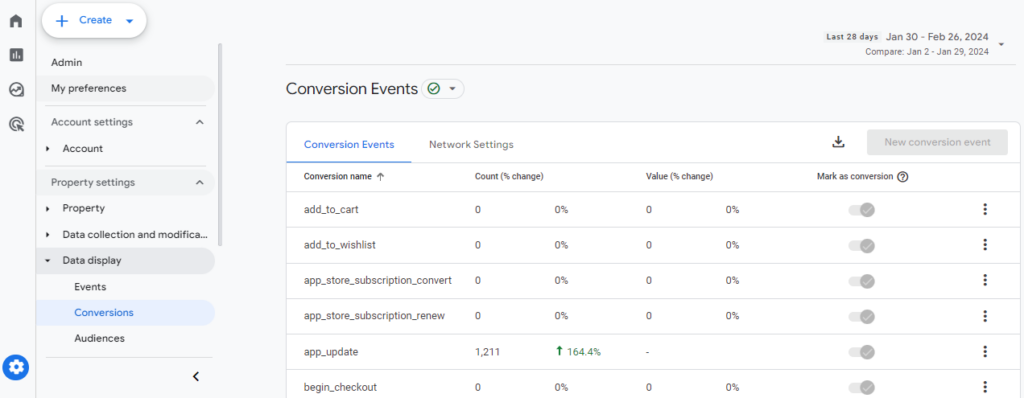
- Configure Conversion Events in GA4: Within your GA4 property, navigate to Admin >> Property Settings >> Conversion. Here, you can mark existing events as conversions or create new conversion events specific to your goals.
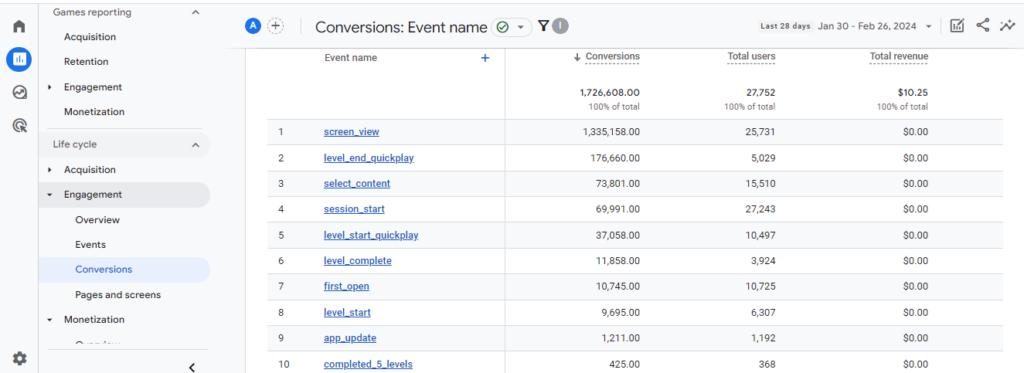
- Analyze Conversion Data: Navigate to GA4 Reports >> Engagement >> Conversions to analyze the performance of your conversion events. This data will show you which events are most valuable, helping you to focus your efforts on the channels that are most effective at driving conversions.
Using Conversion Tracking to Increase Traffic
Optimize for High-Performing Channels
You can identify which traffic sources lead to the most valuable user actions by tracking conversions. This insight allows you to invest more in these high-performing channels, whether organic search, social media, email marketing, or paid ads, to increase organic search traffic and overall site visits.
Paid search campaigns can drive significant traffic to your site, but measuring their effectiveness is key. If you’re using paid search to boost your website traffic, you’ll want to understand the best way to track this traffic using advanced analytics. Our guide on Paid Search Analytics can show you how to optimize and analyze your paid search performance in Google Analytics.
Refine Your Content Strategy
Conversion data can reveal which pages or types of content are most effective at converting visitors. Use this information to increase traffic by creating more content that resonates with your audience and drives conversions. Tailoring your content to meet the interests and needs of your visitors not only attracts more traffic but also enhances user engagement and conversion rates.
Improve User Experience
Analyzing conversion paths in GA4 can help you understand the user journey on your site. Identifying any friction points or drop-offs in the conversion funnel allows you to make necessary improvements to the user experience, potentially increasing traffic and conversions.
6. Analyze Audience Demographics and Interests
Analyzing audience demographics and interests in Google Analytics 4 (GA4) is a pivotal strategy for website owners and marketers aiming to increase website traffic. By understanding your visitors’ age, gender, interests, and other demographic information, you can better tailor your content, products, and marketing strategies to meet their needs and preferences.
How to See User Attributions Report
Here’s a step-by-step guide to using audience demographics and interests in GA4 to boost your site’s traffic:
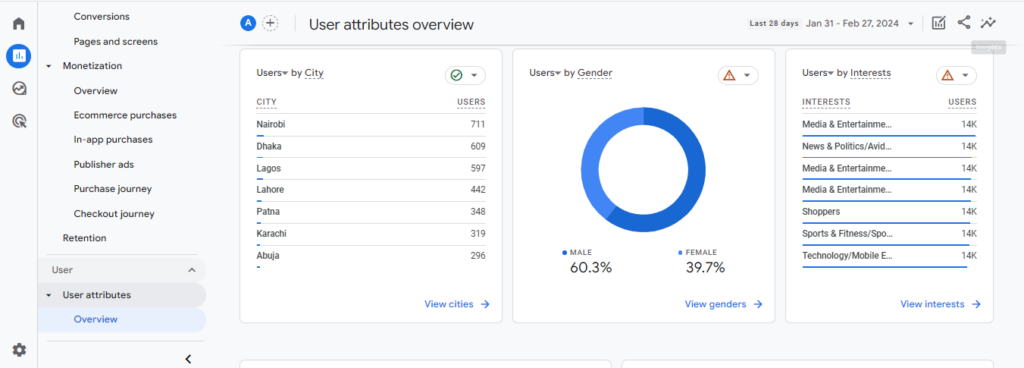
Open Reports >> User attributes >> Demographic details in GA4. The report shows your audience’s language, interests, location, age, and gender, with metrics such as active users, engaged sessions, and engagement rate.
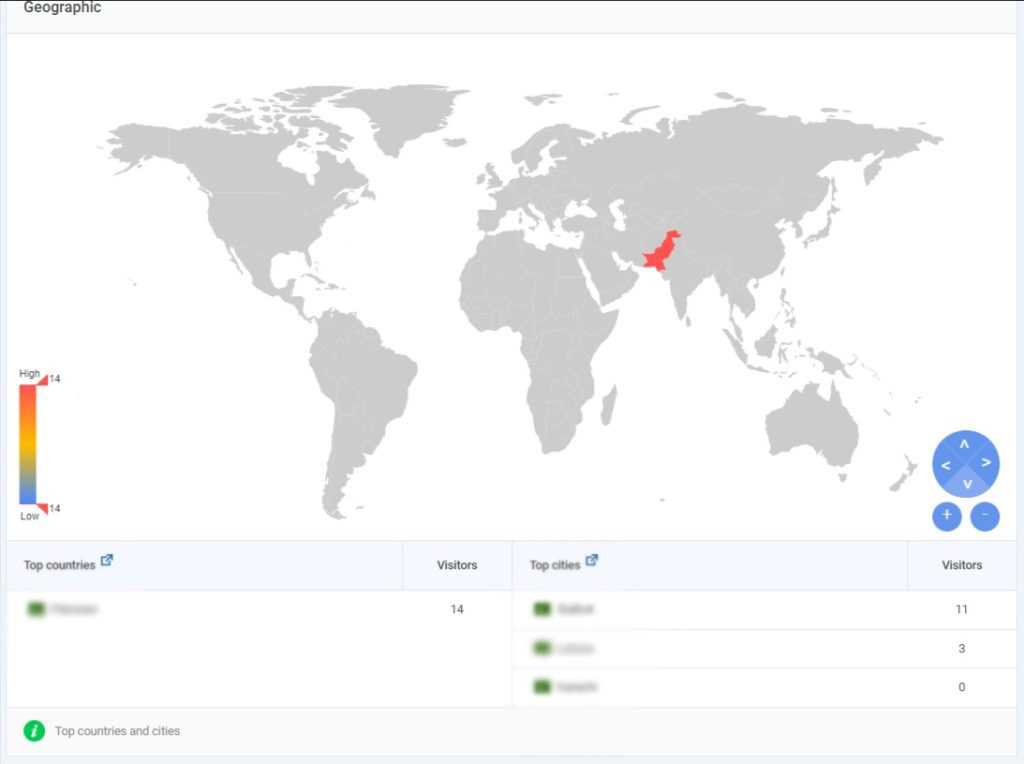
Analytify shows country-specific audience data in a Geographic tab of the dashboard. You can see visitors by countries and cities.
How to Use This Information to Increase Traffic
Redefine Your Content Strategy
Use insights from the demographics and interests data to tailor your content strategy. Creating content that resonates with your primary audience segments can attract more visitors to your site and encourage them to stay longer, potentially increasing organic search traffic.
Optimize Marketing Campaigns
Understanding your audience allows you to create more targeted marketing campaigns. Whether you’re using social media, email marketing, or paid advertising, you can use demographics and interests data to segment your audience and personalize your messaging, increasing the effectiveness of your campaigns and driving more traffic to your site.
7. Check The Retention
Checking retention in Google Analytics 4 (GA4) is crucial for understanding how well your website or app retains visitors over time. Retention analysis helps you gauge user engagement and loyalty, which are key indicators of your site’s value to its audience. Improving retention is a strategic approach to increase website traffic and fostering a loyal user base.
Here’s how to use GA4 to analyze retention and use this information to drive more traffic:
Step 1: Access the Retention Reports in GA4
Navigate to GA4 Reports >> Life cycle >> Retention. The Retention overview report shows how many new users and returning users visit your site or app, and how often users return after their first visit.
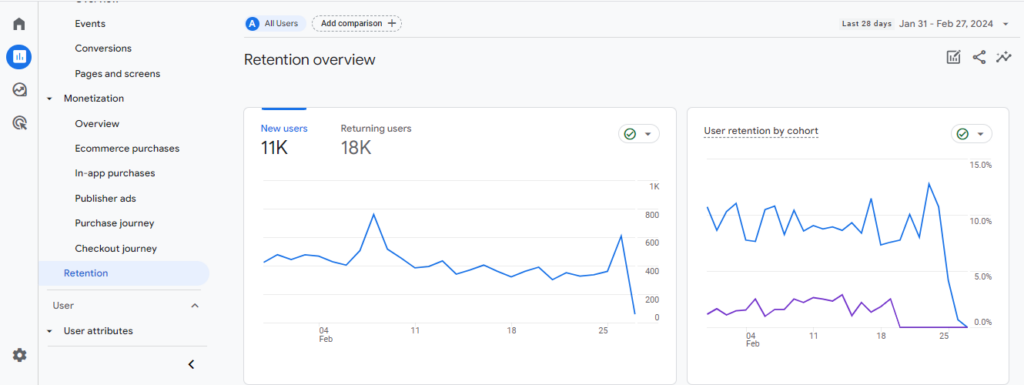
If the number of Returning users is higher, it means that your site effectively encourages users to return.
How to Use Retention Data to Increase Traffic
Improve Content Quality and Relevance
Analyze retention data to understand what content resonates with your audience. By focusing on creating high-quality, relevant content that meets your visitors’ needs and interests, you can encourage them to return, thereby increasing organic search traffic.
Optimize User Experience
Retention data can reveal user experience issues that may discourage repeat visits. Use this insight to improve your site’s design, navigation, and mobile responsiveness to enhance user satisfaction and user retention rate.
8. Monitor The Purchase Journey
Monitoring the purchase journey in Google Analytics 4 (GA4) provides invaluable insights into how users interact with your website or app before making a purchase. Understanding this journey can help you identify areas for improvement in your marketing strategies, website design, and user experience, ultimately leading to increased conversions and traffic.
How to Track Purchase Journey
Here’s a guide on how to monitor the purchase journey in GA4 and how to use this information to boost your traffic:
Navigate to the Monetization section in GA4. Here, you’ll find reports that are vital for analyzing the purchase journey, including:
- E-commerce Purchases: This report shows the number of purchases and the revenue generated, offering a high-level view of your e-commerce performance.
- Product Performance: Detailed insights into how individual products perform, including views, adds to cart, and purchase rates.
- Purchase Funnel: Visualizes the steps users take, from viewing a product to completing a purchase, highlighting drop-off points.
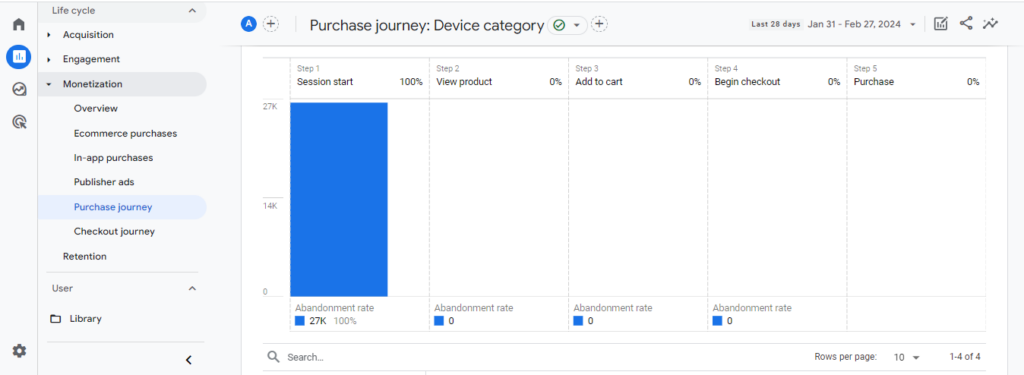
Analyze the Purchase Funnel: The Purchase Funnel report is particularly important for understanding the purchase journey. It allows you to identify where potential customers are dropping off before completing a purchase. Analyzing these drop-off points can reveal issues with the user experience, such as complicated navigation, lengthy checkout processes, or lack of information that might discourage users from proceeding.
How to Use This Information to Increase Traffic
Enhance User Experience
Improving the user experience based on your findings can help reduce hurdles in the purchase process. For instance, simplifying the checkout process can increase conversions, and satisfied customers are more likely to refer others to your site, increasing traffic.
Target Your Marketing Efforts
Understanding the purchase journey allows you to tailor your marketing strategies more effectively. For example, if you notice a significant drop-off at the add_to_cart stage, you might focus on retargeting ads or emails encouraging users to complete their purchases.
Enhance Product Pages
Use the Product Performance report to identify which products are most popular and which are not performing well. Optimizing product pages for higher engagement (through better product descriptions, images, and user reviews) can improve conversion rates and, as a result, increase organic search traffic as these pages rank higher in search results.
Understanding your website’s traffic sources is crucial, but if your revenue data is inaccurate, your entire analytics strategy could be flawed. Many GA4 users face a common issue where revenue data is missing due to tracking errors, leading to incomplete reports and misinformed decisions. If you’re experiencing this issue, follow our in-depth guide on how to fix missing revenue in Google Analytics 4 to troubleshoot and resolve tracking discrepancies.
9. Track Real-Time Reports in GA4
Real-Time Reports in GA4 display data about active users on your site or app over the last 30 minutes. These reports provide information on the number of active users, the pages they’re viewing, the events they’re triggering, and the sources of your traffic. This instant feedback can be incredibly valuable for understanding the immediate impact of your content, marketing campaigns, and more.
Real-time reports provide instant feedback on the effectiveness of your content, campaigns, and site changes, allowing for rapid adjustments.
Navigate to GA4 Reports >> Realtime.
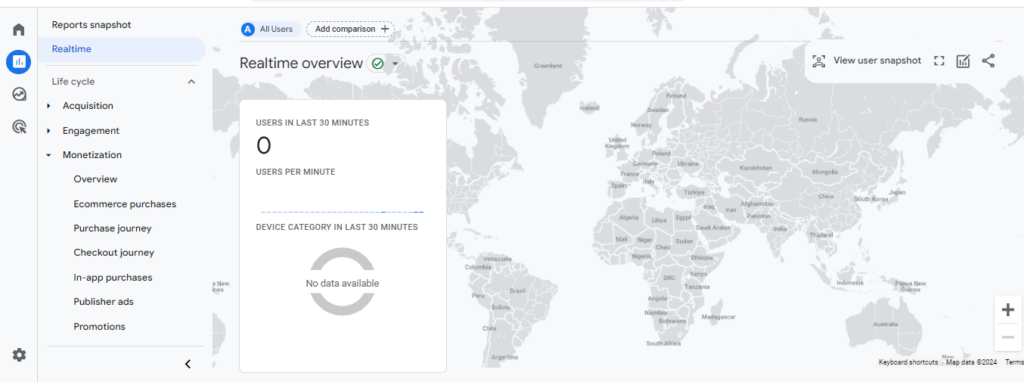
You can also access Realtime reports right in the Analytify dashboard from your WordPress site.
Analytify is the best WordPress plugin
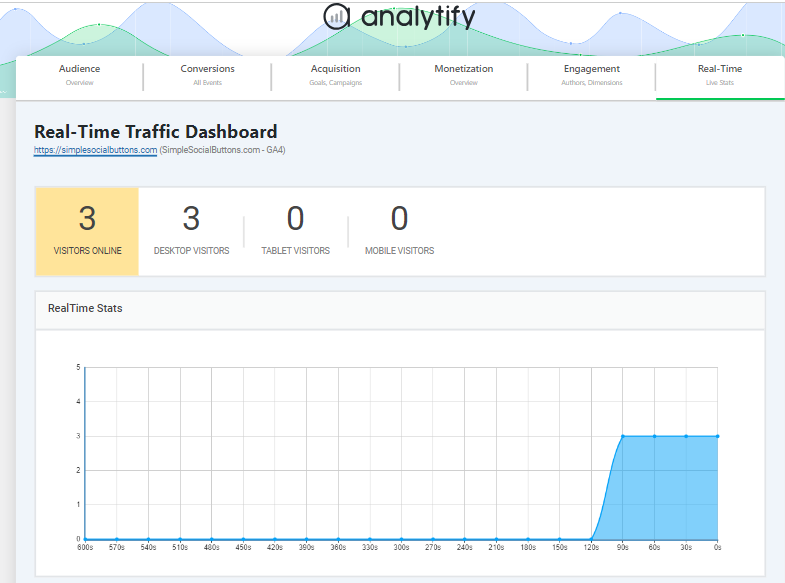
How to Use Real-Time Reports to Increase Traffic
- Monitor the Impact of New Content or Features: When you publish new content or launch a new feature, Real-Time Reports can show how users react instantly. This feedback can help you quickly identify what’s working well so you can make swift adjustments to underperforming content.
- Optimize Marketing Campaigns: If you’re running social media ads, email campaigns, or any other type of marketing campaign, Real-Time Reports can show you how these efforts drive traffic to your site. You can immediately adjust your campaigns to improve performance and ROI by monitoring this in real-time.
- Identify and Resolve Technical Issues: Real-time reports can also help you spot technical problems on your site as they occur. For example, a sudden drop in traffic to a specific page could indicate a loading issue or a broken link. Quick detection allows immediate action, minimizing any negative impact on user experience and overall traffic.
- Understand Peak Traffic Times: By observing when your site receives the most traffic, you can schedule content releases, social media posts, or marketing emails to coincide with these peak times, maximizing visibility and engagement.
- Engage Users in Real Time: For websites that host live events, webinars, or product launches, Real-Time Reports can offer insights into how users are engaging with the event. This information can be used to make live adjustments or engage with your audience through chat or social media to boost participation and interest.
10. Track Organic Keywords
Tracking organic keywords in Google Analytics 4 (GA4) is crucial for understanding how users find your website through search engines. This, in turn, can significantly help in strategizing to increase traffic. GA4 shows organic search queries only after you link Search Console to your property. Then open Reports >> Search Console >> Queries, and publish the Search Console collection from Library if it is missing.
By focusing on high-performing keywords and improving content around less effective ones, you can enhance your site’s search engine visibility and attract more visitors.
How to Track Organic Keywords Report in GA4
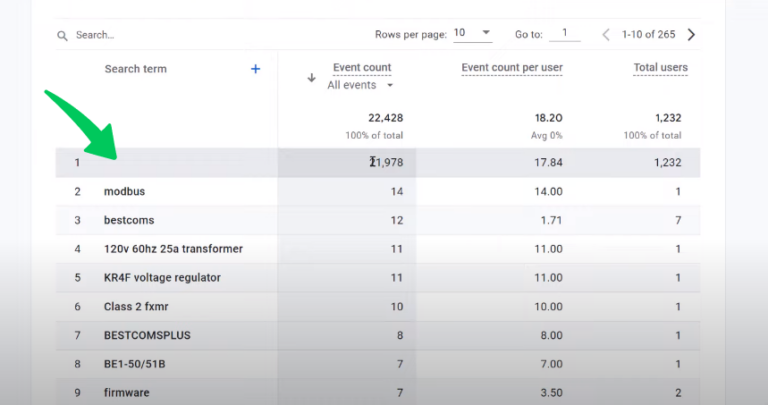
For a detailed guide on how to track organic keywords in Google Analytics and use this information to increase website traffic, check out this comprehensive article: How to Track Organic Keywords in Google Analytics.
If you are Analytify user, You can also check the keywords report right from your WordPress site by navigating to Analytify >> Dashboards.
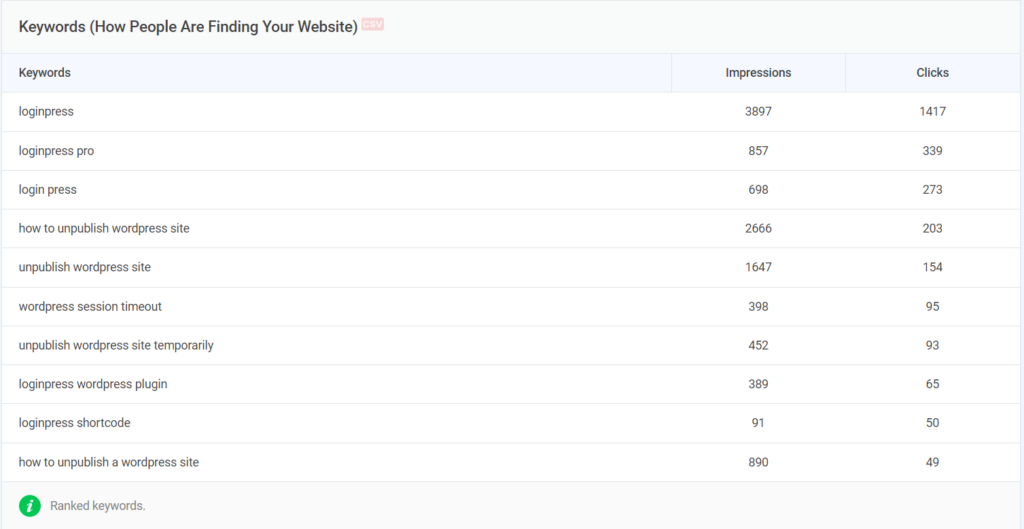
How Tracking Organic Keywords in GA4 Can Increase Traffic:
- SEO Optimization: Identifying which organic keywords drive the most traffic to your site allows you to refine your SEO strategies, focusing on optimizing content for those keywords to improve rankings and visibility.
- Content Creation: Understanding user search intent through organic keywords can guide your content creation process, enabling you to produce more relevant and valuable content that meets your audience’s needs.
- Identify Gaps and Opportunities: Tracking organic keywords helps you spot gaps in your content strategy or new keyword opportunities you haven’t yet capitalized on, offering new avenues to attract traffic.
- Monitor Trends: Keeping an eye on how your organic keyword performance changes over time can alert you to shifting trends in user search behavior, allowing you to adapt your content and SEO strategies accordingly.
FAQs
1. What is Google Analytics, and how can it help to increase website traffic?
Google Analytics is a web analytics service that provides detailed statistics and analytical tools for SEO and marketing purposes. It helps to increase website traffic by offering insights into user behavior, traffic sources, content performance, and much more, allowing website owners to make informed decisions to improve their site’s performance and attract more visitors.
2. How do I use Google Analytics to increase traffic to my site?
To increase traffic using Google Analytics, start by correctly setting up your property and tracking code. Then, utilize its various reports to understand your audience, identify your best-performing content, discover your top traffic sources, and analyze user behavior on your site. Implement the insights gained to optimize your website and marketing strategies.
3. Can Google Analytics help to increase organic search traffic?
Yes, Google Analytics can significantly help to increase organic search traffic. By analyzing the “Acquisition” reports, you can see which keywords are driving traffic to your site, understand how well your SEO efforts are performing, and identify areas for improvement to rank higher in search engine results pages (SERPs).
4. How do I identify and optimize my best content with Google Analytics?
To identify and optimize your best content, use the “Behavior” section in Google Analytics to analyze pageviews, average time on page, and bounce rates. Focus on content that performs well and use the insights to optimize other pages or create similar high-performing content.
5. What are some ways to use Google Analytics reports to increase traffic?
Some ways to use Google Analytics reports to increase traffic include analyzing traffic sources to focus on the most profitable channels, improving content based on performance metrics, optimizing for mobile users, understanding audience demographics for better targeting, and setting up goals to track and improve conversions.
6. Why is it important to track conversions in Google Analytics?
Tracking conversions in Google Analytics is crucial because it allows you to see how many visitors are completing desired actions on your site, such as making a purchase or signing up for a newsletter. This information is vital for understanding your marketing efforts’ ROI and making data-driven decisions to increase website traffic and conversions.
7. How can analyzing audience demographics and interests in Google Analytics improve traffic?
Analyzing audience demographics and interests helps you understand who your visitors are and what they’re interested in, allowing you to tailor your content and marketing strategies more effectively. This personalization can improve user engagement and loyalty, thereby helping to increase traffic.
8. Why isn’t Google Analytics showing my website traffic?
Google Analytics usually shows no traffic because the tracking code isn’t installed correctly, the property is set to the wrong data stream, or an ad blocker and cookie consent setting is preventing the tag from firing. Check the Realtime report first: if it shows zero active users while you’re browsing the site yourself, the tracking snippet likely isn’t loading. Verify the measurement ID in your GA4 property matches the one installed on your WordPress site, and confirm your consent banner isn’t blocking analytics cookies by default.
Conclusion
Google Analytics stands as a great tool for website owners and digital marketers aiming to increase traffic and enhance their online presence. Using Google Analytics, you can gain deep insights into your audience’s behavior, identify your most valuable content, understand how visitors are finding your site, and pinpoint opportunities for optimization.
Whether you aim to increase organic search traffic, enhance user engagement, or convert visitors into loyal customers, Google Analytics provides the data and analytics necessary to inform your strategies. From identifying your best traffic sources and referrers to optimizing for mobile performance and analyzing audience demographics, the capabilities of this tool are extensive.
With the ten easy ways discussed in this article, you can now optimize your site’s performance, increase traffic, and, ultimately, ensure` the success of your digital marketing efforts.
You may also like to read 21+ Ways To Increase Website Traffic on WordPress.