
Documentation
Print This page
— Print the full How to Track Elementor Pro Forms with Analytify documentation

Enable Elementor Forms Tracking option – Analytify 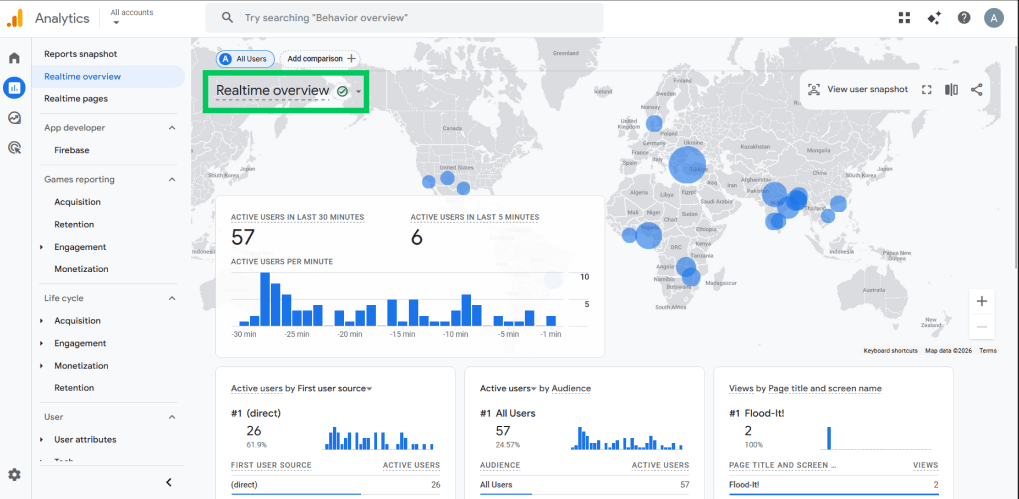
Check Real Time Reports- Google Analytics
How to Track Elementor Pro Forms with Analytify
With Analytify Pro, you can track Elementor Pro form submissions as GA4 events.
This feature lets you analyze Elementor Pro form submissions and leads for every Elementor form on your site, directly in your WordPress dashboard.
In this guide, we’ll walk you through the detailed steps to set up and track Elementor Pro Forms using Analytify forms tracking Add-on.
Elementor Forms Tracking (TOC):
Prerequisites
- Analytify Pro: Installed and activated.
- GA4 Connection: Authenticated and active under Analytify >> Settings.
- Active Forms: At least one Elementor Form widget published on your site.
Step 1: Enable Elementor Forms Tracking
- Go to Analytify >> Settings >> Tracking >> Forms.
- Locate Elementor Forms in the list.
- Toggle the switch to Enabled.
- Click Save Changes.
Step 2: Verify the Tracking
- Open a page with an Elementor form in an Incognito window.
- Fill out and submit the form.
- Confirm the success message appears and check Google Analytics >> Realtime for the submission event.
Step 3: View Your Reports
Navigate to Analytify >> Dashboard >> Conversions >> Forms Tracking to see:
- Impressions and Submissions: Total views vs. successful leads.
- Conversion Rate: Percentage of users who completed the form.
- Abandonment Rate: Data showing where users dropped off before submitting.
Tips and Best Practices for Elementor Pro Form Submissions
- Test Each Form: Submit a test for each unique Elementor form to ensure all IDs are registered.
- Update on Duplicate: If you duplicate a form, submit a fresh test to verify tracking on the new form ID.
- Filter Internal Traffic: Exclude admins in Analytify settings to prevent your testing from skewing conversion data.
How to Troubleshoot Elementor Forms Tracking?
If your Elementor form metrics aren’t appearing in your reports, follow these steps to verify your setup:
- Clear Cache: Purge your site, CDN, and browser cache before re-testing.
- Check Toggle: Ensure the Elementor Forms switch is Enabled in Analytify settings.
- Console Check: Inspect the browser console for JavaScript errors that might block tracking scripts.
- Sync Time: Wait 30–60 minutes for GA4 data to populate in the Analytify dashboard.
Explore more forms tracking documentation below:
- HubSpot Forms Tracking with Analytify
- WS Form Tracking with Analytify
- Multistep Forms Tracking with Analytify
- MailPoet Forms Tracking with Analytify
- JotForm Tracking with Analytify
For further assistance or inquiries, please contact our support team anytime.
Last updated on
May 9th, 2026
— This documentation page was last updated on May 9th, 2026