
How to Track HubSpot Forms with Analytify
With Analytify Pro, track HubSpot forms as GA4 events and display the data directly in your WordPress dashboard.
This allows you to measure lead generation performance for any embedded HubSpot forms without adding custom code.
In this guide, we’ll walk you through the simple steps to set up and track HubSpot forms using Analytify.
HubSpot Forms Tracking (TOC):
Prerequisites
- Analytify Pro: Installed and activated.
- GA4 Connection: Authenticated under Analytify >> Settings.
- Embedded Forms: HubSpot forms must be present on your site via embed code, plugin, or theme.
Step 1: Enable Tracking
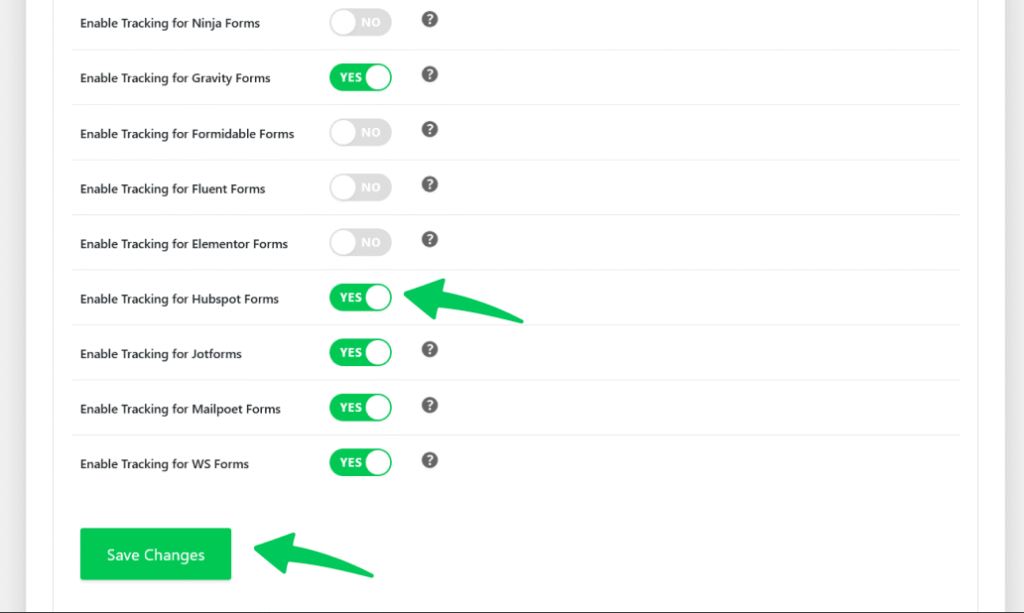
Make sure to enable HubSpot forms tracking by following the steps below:
- Go to Analytify >> Settings >> Tracking >> Forms.
- Toggle HubSpot Forms to Enabled.
- Click Save Changes.
Step 2: Verify the Connection
- Open your form page in an Incognito window.
- Submit a test entry.
- Check Google Analytics >> Realtime or Analytify >> Dashboard to confirm the event fired.

Step 3: View Reports
Navigate to Analytify >> Dashboard >> Conversions >> Forms Tracking to see:
- Impressions and Submissions: Total views vs. successful leads.
- Conversion Rate: The percentage of users completing the form.
- Abandonment Rate: Where users drop off before finishing.

Tips and Best Practices for HubSpot Form Tracking
To ensure your HubSpot data remains accurate and clean, keep these best practices in mind:
- Test on Staging: Always use a staging site or test submissions to verify your tracking before relying on live data for reporting.
- Avoid Admin Tracking: If you have enabled Exclude Admins from Tracking,” log out or use an incognito window for testing to prevent your actions from skewing the results.
- Update Tracking After Changes: If you change your HubSpot form’s embed method or Form ID, submit a fresh test so Analytify can recognize the updated information.
How to Troubleshoot HubSpot Form Tracking?
If your HubSpot form metrics aren’t appearing in your reports, follow these steps to verify your setup and troubleshoot the issue:
- Clear Cache: If data is missing, clear your site and browser cache.
- Admin Filter: Log out before testing if Exclude Admins is enabled.
- Latency: Full dashboard reports may take 24–48 hours to sync from GA4.
Explore more forms tracking documentation below:
- Multistep Forms Tracking with Analytify
- MailPoet Forms Tracking with Analytify
- WS Form Tracking with Analytify
- Elementor Pro Forms Tracking with Analytify
- JotForm Tracking with Analytify
For any questions or further assistance, please don’t hesitate to contact our support team.
 Halloween Sale: Know which campaigns drive sales this season.